0:50
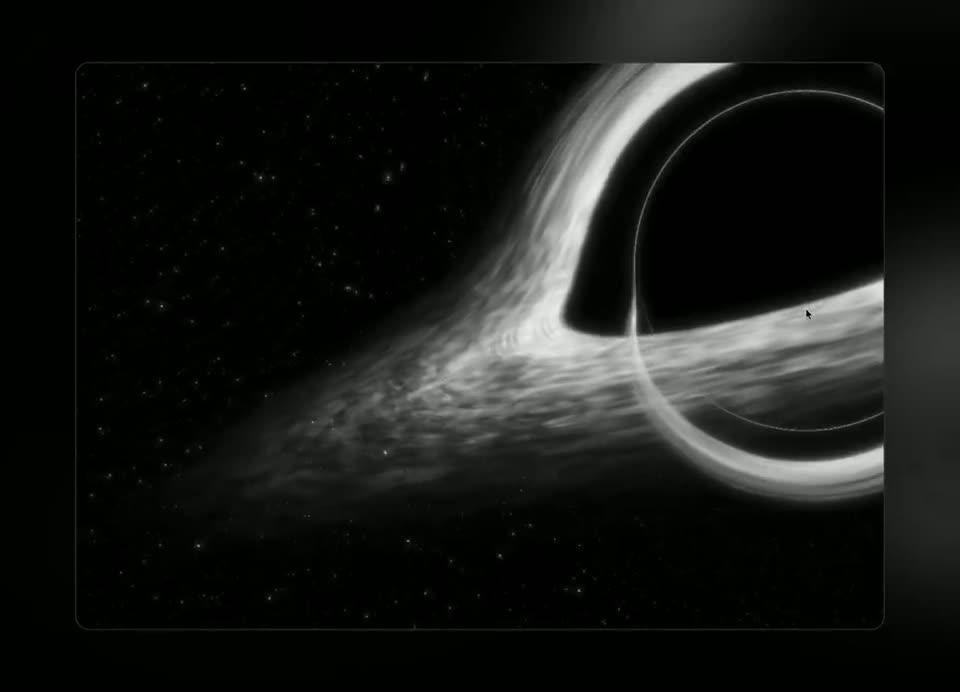

Vercel - We built to ship shaders on Now it's open source. ▪︎ Minimal agent-f
Vercel · Developer tools · Aug 2026
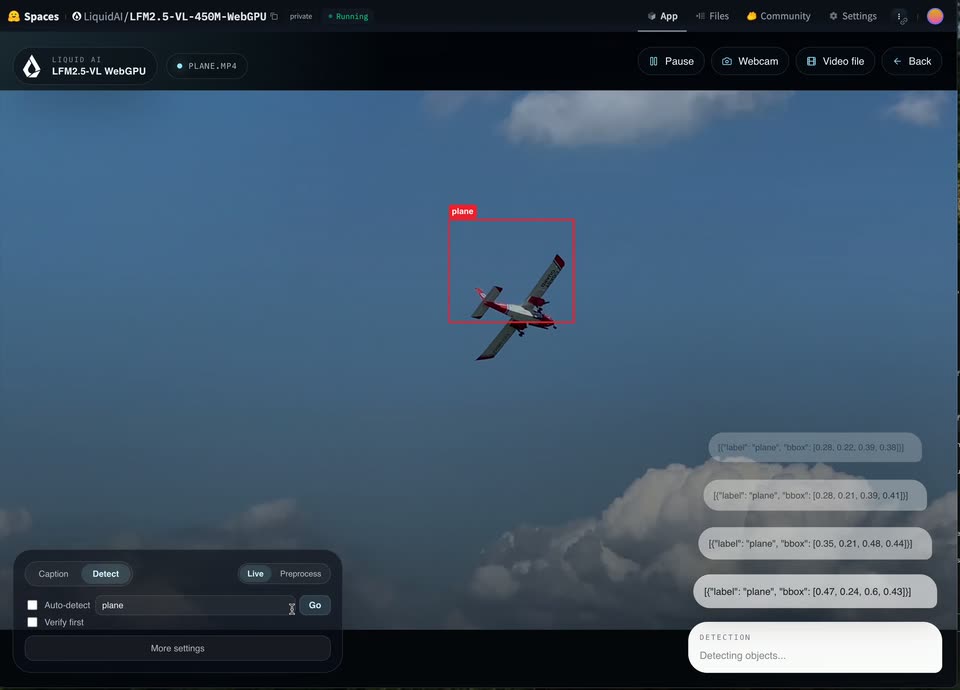
Liquid AI’s 1:14 launch film runs 12 scenes, about 6.2 s each. The product is on screen from the first frame and 3 features are revealed. There is no explicit call to action. The video opens on a dark 3D hero that names the product, then cuts into one continuous screen recording that loads a clip, tracks a moving subject with a red bounding box, and walks through the controls. Pacing is steady and screen-recording driven, with the signature move being the red box locking onto a subject while JSON chips stack in the corner.
Is this your launch? to your site or press kit.
Vercel · Developer tools · Aug 2026
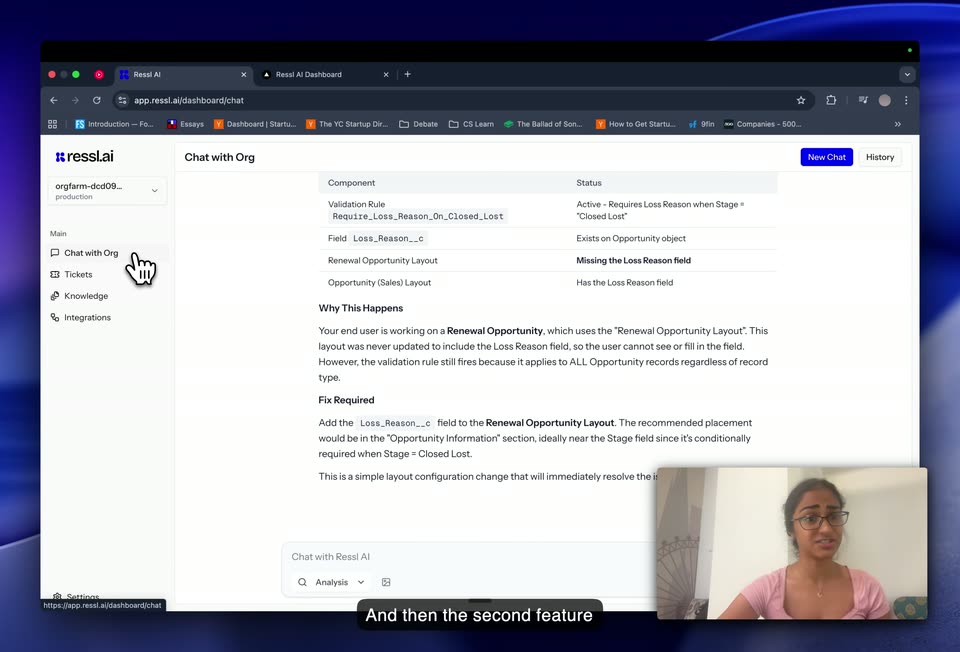
Ressl · B2B · Dec 2025
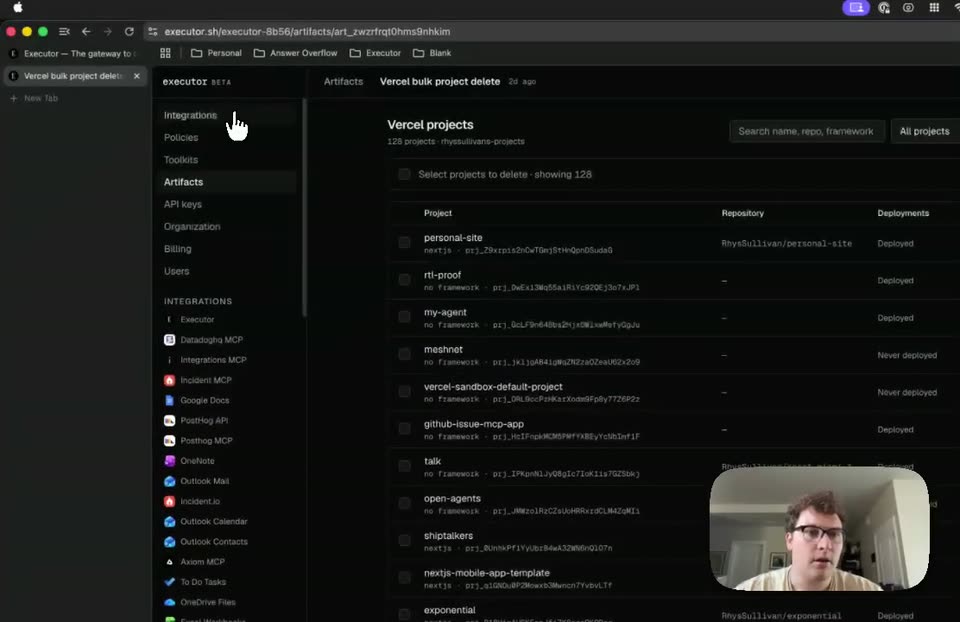
Executor · B2B · Aug 2026
A dark app hero screen shows a large white title above a token field, while chrome 3D shapes drift and rotate over flowing blue smoke. A cursor slides in and hovers over the Click to begin button.
Techniques: Particles, Cursor demo
Camera: Static
A dark app screen holds floating 3D shapes, a ring, a faceted sphere, a pyramid and a knot, around a central card. The card's progress bar fills from 23% to 98% beneath the heading Loading (q4)...
Camera: Static
A dark app screen with floating 3D shapes shows a card offering Webcam or File input. The cursor clicks File and a macOS file picker opens over it, listing clips in the Downloads folder.
Techniques: Cursor demo
Camera: Static
A dark app screen over a 3D glossy knot background. A file picker dialog for the Downloads folder fades in at center, a cursor glides down the file list to a video row, then the dialog fades out to reveal two feature cards.
Techniques: Cursor demo
Camera: Static
A screen recording of a web app shows a red and white plane crossing a cloudy blue sky, tracked by a red bounding box labeled plane. The cursor unchecks auto-detect, types a query, and presses Go, while detection chips stack in the corner.
Techniques: Cursor demo
Camera: Static
A web app plays a video of a red biplane in a blue sky; a red bounding box with a plane tag tracks it while JSON results stack on the right. The cursor edits the target field to clouds and clicks Go, so the boxes switch to the clouds.
Techniques: Cursor demo
Camera: Static
A web app screen shows a red-and-white plane in a cloudy sky. A file picker dialog opens over the video, the cursor hovers a file, then it fades out to reveal the full frame with red 'clouds' bounding boxes and JSON lines on the right.
Techniques: Cursor demo
Camera: Static
A web app screen plays a video of a muddy jeep circling a dirt track. A cursor types clouds in the detect field, a red line spans the sky, then types car and clicks Go, so a red box labeled car tracks the jeep as it drives.
Techniques: Cursor demo
Camera: Pull out
A dark app screen shows a muddy-field video with a red detection box around a jeep. A file picker dialog opens in the center, the cursor selects a clip, the dialog fades out, and a new red box labeled truck appears on the vehicle's front.
Techniques: Cursor demo
Camera: Static
A dark AI workspace displays a river video in the center; the cursor moves to the Preprocess control, and a red bounding box with a preprocessing bar appears over the boat.
Techniques: Cursor demo
Camera: Static
A dark web app screen shows a video of a boat on water with a red detection box around it. A centered PREPROCESSING card fills its progress bar from 0 to 46 percent while the frame count ticks up, and two JSON boat detections sit at the right.
Techniques: Cursor demo
Camera: Static
A dark web app shows a river video with a red box labeled boat tracking the vessel. A cursor clicks More settings at the bottom left, opening a panel with instruction text and checkboxes, while JSON lines sit at the right.
Techniques: Cursor demo
Camera: Static