0:28
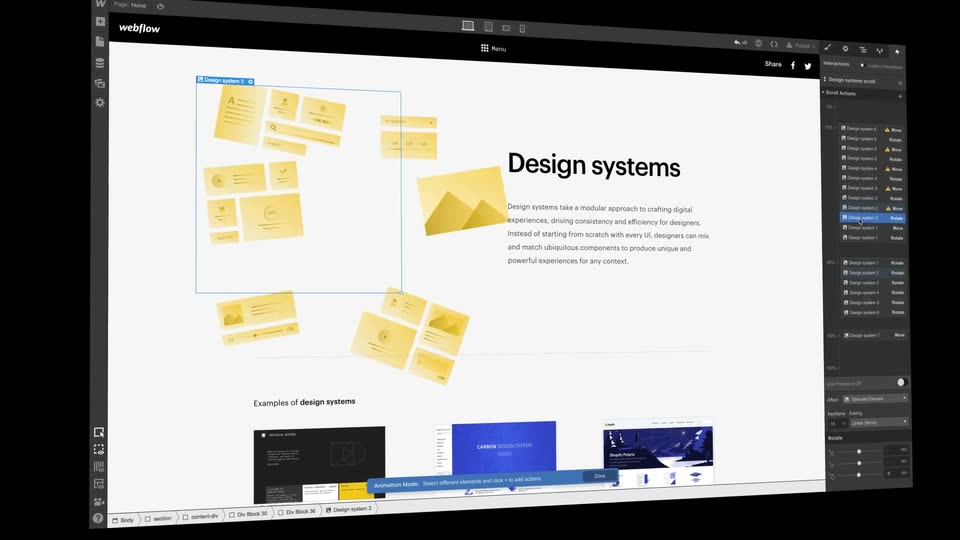

Meet the design tool from the future — Webflow
Webflow · Design · Oct 2018
LetzAI · Nov 2026 · 3:54 · Full motion · AI-annotated
LetzAI’s 3:54 launch film runs 47 scenes, about 5.0 s each. The product is on screen from the first frame and 12 features are revealed. There is no explicit call to action; a voiceover carries the film. The video is a dark UI walkthrough organized by lower-left section captions, with slow zooms and reframes that keep the active panel centered. Its signature moves are a white dot cursor, a recurring warm isometric studio render, and steady cuts that match a minimal electronic pulse.
Is this your launch? to your site or press kit.
Webflow · Design · Oct 2018
Tana · Productivity · Jun 2026
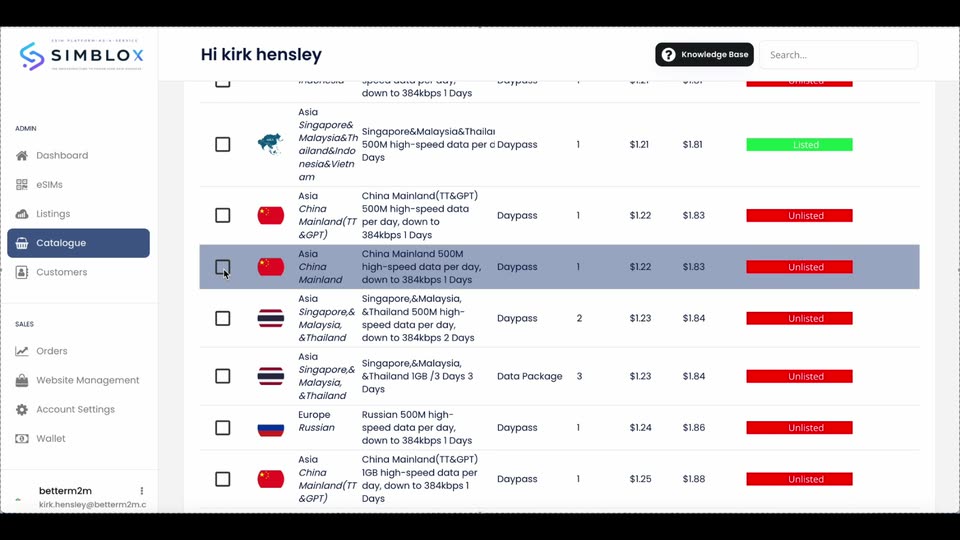
SimBlox · Business software
A dark AI app screen with sidebar and centered prompt bar. A white dot cursor slides the Ask/Generate toggle, swapping the placeholder and model, then types a studio prompt as the ratio chip flips to 16:9. The view zooms in and out on the input while lower-left captions swap.
On-screen text: “CREATE”, “One prompt for chat, images, video and sound.”, “PROMPT”, “Describe what you want in plain words.”, “MODEL”, “Every model has its own strengths and price.”
Techniques: UI zoom, Cursor demo
Camera: Push in
A dark prompt interface shows a typed image prompt, then a model list panel fades in beneath it. The view pulls back to reveal the app's left sidebar while the bottom caption switches from MODEL to GENERATE.
On-screen text: “MODEL”, “Every model has its own strengths and price.”, “GENERATE”, “Press Enter. Your image runs in the background.”
Techniques: UI zoom
Camera: Push in
A dark app screen shows the image-generation input with a typed prompt for an isometric studio illustration. The frame eases in, zooming slightly to center the input box, then a caret blinks at the end of the prompt. A caption holds in the lower left.
On-screen text: “GENERATE”, “Press Enter. Your image runs in the background.”
Techniques: UI zoom
Camera: Push in
A dark image-generation interface: a card reads 'Generating with GPT Image 2' beside a grid of warm isometric studio renders, its progress bar slowly filling. The view eases in closer on the card and sidebar while a white caption holds at the bottom left.
On-screen text: “GENERATE”, “Press Enter. Your image runs in the background.”
Techniques: UI zoom
Camera: Pan
Dark app UI with a left sidebar and a grid of isometric studio renders; a “Generating with GPT Image 2” card with a progress bar sits left of the grid. The view slowly zooms toward the card as a light glint sweeps across it, while a white spinner pulses above.
On-screen text: “VIEWER”, “Open a result to see every tool on the right.”
Techniques: UI zoom, Light sweep
Camera: Push in
A dark image-generation interface fades in from black, the view pushing in slightly. An isometric illustration of a warmly lit creative studio with two monitors and plants fills the left; a tools panel with prompt and settings fields sits on the right.
On-screen text: “VIEWER”, “Open a result to see every tool on the right.”
Techniques: UI zoom
Camera: Pull out
A product interface fills the frame: an isometric 3D home-office illustration with plants and dual monitors sits on the left, a tools panel with prompt and settings fields on the right. A caption anchors the bottom left. The view eases into the illustration.
On-screen text: “VIEWER”, “Open a result to see every tool on the right.”
Techniques: UI zoom
Camera: Push in
A dark product interface shows an isometric desk illustration on the left and a tools panel on the right. The view slowly zooms into the desk and monitors. A white caption at the bottom left lists the four tools.
On-screen text: “TOOLS”, “Edit · Animate · Upscale · Adjust”
Techniques: UI zoom
Camera: Push in
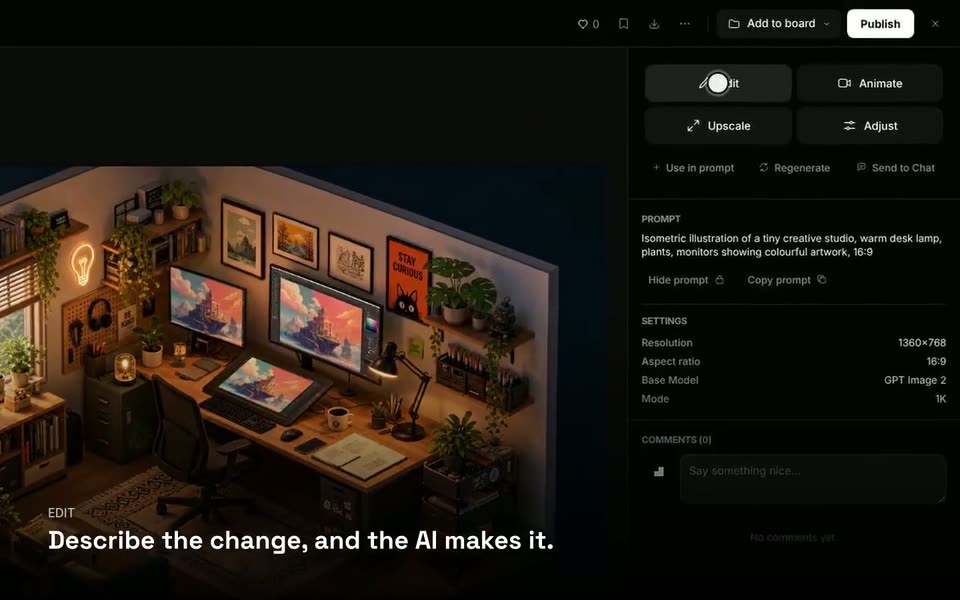
A dark web interface shows an isometric desk illustration on the left and a tool panel on the right. A white circular cursor glides across the Edit, Animate, Upscale and Adjust buttons while a caption lists the four tools at the bottom left.
On-screen text: “TOOLS”, “Edit • Animate • Upscale • Adjust”
Techniques: Cursor demo
Camera: Static
A dark image-detail view of the product interface. The isometric studio illustration on the left zooms in, reframing onto the desk and monitors, while the right sidebar slides out of frame. A white caption holds at the bottom left throughout.
On-screen text: “EDIT”, “Describe the change, and the AI makes it.”
Techniques: UI zoom
Camera: Push in
A dark interface fills the frame as extra isometric room thumbnails fade out, leaving one image in the prompt bar under the heading Create what you love. The camera slowly zooms in on the input field while a white caption sits at the lower left.
On-screen text: “EDIT”, “Describe the change, and the AI makes it.”
Techniques: UI zoom
Camera: Static
A dark interface displays an isometric illustration of a cozy, plant-filled studio with glowing monitors on the left, beside a right-hand panel of control buttons and settings. A white caption anchors the bottom-left corner.
On-screen text: “ANIMATE”, “Your picture becomes the first frame of a video.”
Camera: Push in
A dark interface shows a generated isometric studio illustration on the left and a prompt and settings panel on the right. The view zooms in on the illustration, pushing the panel to the edge, while a caption sits at the bottom left.
On-screen text: “ANIMATE”, “Your picture becomes the first frame of a video.”
Techniques: UI zoom
Camera: Push in
The dark interface zooms from a grid of isometric room renders into the Generate video panel, spotlighted as the rest dims. A cursor hovers over the panel, which holds a small isometric image, a motion prompt field and model, length, resolution settings. A white caption sits at the bottom.
On-screen text: “ANIMATE”, “Your picture becomes the first frame of a video.”
Techniques: UI zoom, Cursor demo
Camera: Static
The dark interface displays an isometric desk-room illustration beside a settings panel. The view zooms into the illustration while a cursor dot moves onto the Upscale button. A bottom-left caption reads UPSCALE with a line of instruction.
On-screen text: “UPSCALE”, “Choose an upscaling model and a size.”
Techniques: UI zoom, Cursor demo
Camera: Push in
A dark interface shows the 'Create what you love' prompt with a room thumbnail in the input box and a model row below. The frame zooms in, cropping the left sidebar out, while a caption sits in the lower left.
On-screen text: “UPSCALE”, “Choose an upscaling model and a size.”
Techniques: UI zoom
Camera: Static
A dark image editor displays an isometric illustration of a small creative room with a desk, chair and plants. The left tool rail slides out and the canvas zooms in on the room while a bottom caption lists the adjust tools.
On-screen text: “ADJUST”, “Crop, rotate, expand, draw, erase, colour, filters.”
Techniques: UI zoom
Camera: Push in
Dark interface close-up with a prompt bar and an open model menu listing Image, Video, Voice, Music and Sound effects. A round cursor clicks through the three audio rows while the model list on the right swaps to match. The shot opens with a slow zoom in.
On-screen text: “NEW IN V5 · SOUND”, “Voice, music and sound effects are in the same model menu.”
Techniques: UI zoom, Cursor demo
Camera: Push in
A dark app screen zooms into the prompt field while a welcome line types itself out letter by letter. Voice model, narrator and language dropdowns sit under the field, and the send button turns white as the text completes.
On-screen text: “NEW IN V5 · VOICE”, “Type the line, choose a voice, press Enter.”
Techniques: UI zoom
Camera: Push in
A dark app feed shows two audio cards with gray waveforms and captions. The view pushes in on the cards; a play button and pause icon appear on the first and its left bars light up. The frame pulls back to the full layout, then cuts to the create screen.
On-screen text: “NEW IN V5 · VOICE”, “Sounds appear in the feed with a player.”, “NEW IN V5 · BOARDS”, “Boards are a place for private projects.”
Techniques: UI zoom
Camera: Push in
A dark product interface with a left sidebar; the Boards item highlights and a grid of board thumbnails fades in on the left. The camera pans slowly across the screen, reframing from the prompt box to the boards grid, while a fixed caption sits at the bottom.
On-screen text: “BOARDS”, “Collections you can keep private or share.”
Camera: Push in
A dark app interface with a left sidebar; a white cursor dot moves to Boards, the boards panel opens showing a demo board card, the cursor hovers All boards, then the panel closes back to the home screen.
On-screen text: “BOARDS”, “Collections you can keep private or share.”
Techniques: Cursor demo
Camera: Push in
A dark boards screen with a left sidebar and a grid of empty board cards. A toggle at the top flips from off to on while a small label and caption sit at the bottom left.
On-screen text: “BOARDS”, “Collections you can keep private or share.”
Camera: Static
A dark product interface with a left sidebar and a Boards panel slowly zooms in, enlarging the board card that holds an isometric room thumbnail. A cursor appears over the card near the end, while a caption stays fixed at the bottom left.
On-screen text: “BOARDS”, “Collections you can keep private or share.”
Techniques: UI zoom, Cursor demo
Camera: Static
A dark app screen with a left sidebar. The camera pans right across the board page titled How-to demo board until the Manage and Invite buttons fill the frame, while a white dot cursor glides toward them. A bottom caption reads Collections you can keep private or share.
On-screen text: “BOARDS”, “Collections you can keep private or share.”
Techniques: UI zoom, Cursor demo
Camera: Pan
A dark image-generation interface shows an isometric studio illustration beside a settings panel. The view zooms in on the top bar as the Add to board dropdown opens, under a caption that reads Add to board files a result.
On-screen text: “BOARDS”, “Add to board files a result.”
Techniques: UI zoom
Camera: Push in
A dark interface shows an isometric illustration of a cozy desk studio beside a settings panel. The Add to board dropdown opens at the top, listing a demo board, then closes as the view slowly zooms in. A caption in the lower left reads BOARDS, Add to board files a result.
On-screen text: “BOARDS”, “Add to board files a result.”
Techniques: UI zoom
Camera: Static
A dark canvas interface with a left sidebar and a centered image-prompt bar; the frame slowly zooms in on the prompt box. A small CANVAS label and a bold white caption sit at the bottom left.
On-screen text: “CANVAS”, “An endless workspace for bigger projects.”
Techniques: UI zoom
Camera: Push in
A dark product UI shows a left sidebar and a grid of recent canvas cards. A white ring cursor hovers the Canvas menu item, then moves to the New canvas button and clicks it, opening a centered Create a canvas dialog with a name field.
On-screen text: “CANVAS”, “An endless workspace for bigger projects.”
Techniques: Cursor demo
Camera: Pull out
A dim app screen brightens and slowly zooms in on a Start this page dialog listing a blank page and four template cards, while a cursor glides to the Visual research card. A chat panel with prompt chips sits at the right edge.
On-screen text: “CANVAS”, “An endless workspace for bigger projects.”
Techniques: UI zoom, Cursor demo
Camera: Push in
A dark interface with a left sidebar and a centered prompt field. A small white dot drifts left beside the headline, while the caption sits at the bottom left over the static screen.
On-screen text: “Create what you love.”, “MODELS”, “The models you train yourself.”
Camera: Static
A dark app interface with a left sidebar of canvas options and a central image-prompt box. A slow push-in drifts across the screen as two small glowing dots float over the canvas. White captions read over the UI.
On-screen text: “Create what you love.”, “MODELS”, “The models you train yourself.”
Techniques: UI zoom
Camera: Push in
A dark app screen shows a left nav sidebar, a center models panel with empty slots, and a right prompt panel. The layout slides into place, then a white cursor dot moves to the All models button. A bottom-left caption reads MODELS, The models you train yourself.
On-screen text: “MODELS”, “The models you train yourself.”
Techniques: Cursor demo
Camera: Push in
A dark profile page for “claude” with follower stats and a tab bar reframes toward center as the left sidebar menu items scroll past. A white caption block sits at the lower left throughout.
On-screen text: “MODELS”, “The models you train yourself.”
Techniques: UI zoom
Camera: Static
A dark app screen with a left sidebar and a centered image prompt box pans slowly. A small white cursor dot glides across and settles on the Explore menu item, which gains a focus ring. A static caption sits at the lower left.
On-screen text: “EXPLORE”, “What the community is making.”
Techniques: Cursor demo
Camera: Push in
The dark LetzAI explore screen fades up from black, revealing a large community post with a campus photo and two logos, a right rail of news cards, and a row of sort tabs. A white caption sits in the bottom left corner.
On-screen text: “EXPLORE”, “What the community is making.”
Camera: Static
Dark Explore page of the LetzAI app fills the screen: a feed of community cards, a large featured tile with the LetzAI logo, and sort tabs. The frame eases out from a tight crop to the full window; a white caption sits bottom left.
On-screen text: “EXPLORE”, “What the community is making.”
Techniques: UI zoom
Camera: Pull out
A dark app screen with a left sidebar and a centered image prompt box. The view zooms in and pans down, reframing onto the prompt field while the sidebar slides out to the left. A white caption stays fixed at the bottom left.
On-screen text: “SEARCH”, “Find chats, canvases, creations and more.”
Techniques: UI zoom
Camera: Push in
A dark search panel opens over the app and brightens as the word studio is typed; a recents list gives way to a Go To row and six warm isometric room thumbnails. A small caption block sits in the lower left.
On-screen text: “SEARCH”, “Find chats, canvases, creations and more.”
Camera: Static
A dark product screen shows the full layout, then the frame zooms and reframes right onto the open account dropdown. The center prompt box and heading dim as the menu grows. A cursor moves in and hovers over the Settings row.
On-screen text: “NEW IN V5 · CONNECT”, “API keys for your code. Connected apps for your assistants.”
Techniques: UI zoom, Cursor demo
Camera: Push in
A dark settings interface drifts horizontally, the left menu with API Keys sliding in and out of frame as the view zooms slightly. The Profile panel with its username field stays centered. A caption holds in the bottom-left corner.
On-screen text: “NEW IN V5 · CONNECT”, “API keys for your code. Connected apps for your assistants.”
Techniques: UI zoom
Camera: Static
A dark settings panel shows the API Keys view, then reframes onto the Build with the LetzAI API section with checkmark bullets and a key input field. A white caption sits at the bottom left.
On-screen text: “NEW IN V5 · CONNECT”, “API keys for your code. Connected apps for your assistants.”
Techniques: UI zoom
Camera: Pan
A dark API-keys settings page fills the frame, with a left navigation column and a night street image at the right edge. The view drifts slowly left across the page, then cuts to the prompt composer titled Create what you love. A white caption line holds at the bottom.
On-screen text: “NEW IN V5 · CONNECT”, “API keys for your code. Connected apps for your assistants.”
Camera: Static
A dark product interface with a left sidebar and a centered image-prompt box. A small white avatar circle and a gray circle drift diagonally down-right across the top-right corner. A static caption sits at the bottom left.
On-screen text: “ACCOUNT”, “Your plan and credits.”
Camera: Static
A dark app screen with a centered prompt bar. A white cursor dot appears on the top-right avatar, opens the account dropdown, then glides down the menu items. A white caption sits in the lower left.
On-screen text: “ACCOUNT”, “Your plan and credits.”
Techniques: Cursor demo
Camera: Push in
A dark subscription page scrolls to bring a row of four pricing plans, Beginner, Fun, Pro and Ultra, into view beneath the active plan card, while a fixed caption stays at the lower left.
On-screen text: “ACCOUNT”, “Your plan and credits.”
Camera: Pull out
A black frame holds white text in the lower left: a large headline over a two-line caption. The composition stays locked off with no motion throughout the clip.
On-screen text: “Happy creating!”, “Next: train your own model, make a video and explore the community.”
Camera: Static