1:25

Meet Studio Chat 💬
Suno · AI · Sep 2026
Kimi · Sep 2026 · 0:38 · Full motion · AI-annotated
Kimi’s 0:38 launch film runs 18 scenes, about 2.1 s each. The product is on screen from the first frame and 5 features are revealed. There is no explicit call to action. The video is a single feature demo built around a fixed two-mockup composition: a flat phone on the left and a tilted 3D desktop window on the right, with white captions announcing each step as the AI works. Pacing is steady at about 95 bpm with short cuts, and the signature moves are word-by-word headline reveals, lavender highlight sweeps over the prompt, and the 3D tilt and push-in of the desktop mockup.
Is this your launch? to your site or press kit.
Suno · AI · Sep 2026
Google · AI · Feb 2010
Films whose music sounds like this one, voice left out
Anthropic · Lo-fi hip-hop, chillwave, vaporwave
ClickUp · Upbeat funk, rock, and electronic
AgentSky · Upbeat electronic, funk
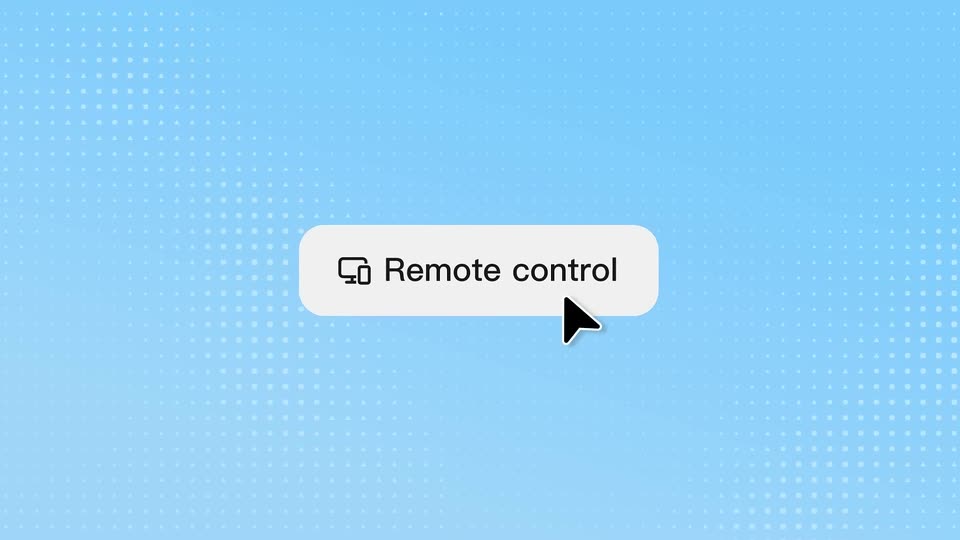
A white rounded tooltip with a monitor-and-phone icon and the label Remote control holds center on a light blue dotted background as a cursor slides in toward it. The tooltip fades out and the words Use your appear at the left.
On-screen text: “Remote control”, “Use your”
Camera: Static
A light blue background with a halftone dot field holds a centered dark navy headline that completes word by word. A white rounded panel with phone and laptop line icons then slides up from the bottom edge.
On-screen text: “Use your phone to control”, “Kimi Work”
Techniques: Kinetic type
Camera: Static
A flat phone mockup sits centered on a light blue halftone-dot background. The Remote control screen shows a phone-to-laptop icon and an Add Device button; a bottom sheet then slides up, dimming the screen, listing MacBook.local, MacMini.local and ThinkPad.local with Connect buttons.
Camera: Static
A mobile app interface shows a bottom sheet with a device list fading out, revealing the main screen with a remote control illustration.
Camera: Static
A tilted white phone mockup sits on a blue dotted background. A notification card from Tom with a message slides up to the top of the screen, settling above a list of gray placeholder bars.
Techniques: 3D mockup
Camera: Static
A white rounded card with a prompt sentence sits centered on a light blue dotted background. Lavender highlights sweep across key phrases in sequence: first “deck on my desktop”, then “the latest wearables market data”, then “then email it to Tom.” The frame stays locked.
On-screen text: “Update the “Investment Introduction” deck on my desktop with the latest wearables market data and competitive analysis, then email it to Tom.”
Camera: Static
A phone chat card and a browser news feed sit side by side on a light blue dotted background. The phone types out an AI step-by-step response while the white headline reveals at the top right.
On-screen text: “Extracts Key Insights”
Camera: Pull out
A white phone mockup on the left streams Kimi chat messages while a tilted 3D browser on the right highlights key figures in a smart glasses article; a curved line links the two. At the end the view zooms onto the phone, revealing a file-permission dialog.
On-screen text: “Extracts Key Insights”
Techniques: 3D mockup, Split screen, UI zoom
Camera: Pan
A white chat panel sits centered on a light blue dotted background. It shows a short message thread, a permission card asking to allow file access with three buttons, and an empty input bar with a blinking cursor at the bottom. The panel stays static.
Camera: Static
A phone mockup and a desktop file browser settle into place on a blue dotted background, the phone sliding left and shrinking while the window reveals its sidebar. The headline builds at top right from “Finds” to “Finds Your Local”.
On-screen text: “Finds Your Local”
Techniques: 3D mockup, Kinetic type
Camera: Pull out
A white headline sits top right. A phone chat panel on the left fades out as a curved arrow points to a desktop window that cross-fades from a Finder folder of project files into an opened PowerPoint slide, a blue cursor at the top.
On-screen text: “Finds Your Local Files”
Techniques: Cursor demo, Morph
Camera: Static
A phone chat panel and a desktop presentation editor sit side by side on a dotted blue background. The chat text streams in while the slide deck advances through numbered thumbnails, and a top headline swaps from one phrase to another.
On-screen text: “Analyzes Content & Layout”, “Writes in Original Style”
Techniques: Split screen
Camera: Pan
A phone and a browser window tilt in 3D perspective on a light blue dotted background. The phone screen switches from a chat to a permission prompt, the browser from an email list to a file folder, and a white arrow curves between them as the headline types in.
On-screen text: “Emails the File”
Techniques: Kinetic type, 3D mockup
Camera: Pan
A phone mockup streams chat text on the left while a 3D desktop mockup on the right moves from a file folder to an Outlook compose window with a cursor, under the headline Emails the File.
On-screen text: “Emails the File”
Techniques: 3D mockup, Cursor demo
Camera: Static
A phone chat mockup and a desktop Outlook compose window sit side by side on a dotted blue field. The email body types in as a cursor hovers the Send button, then the view pushes in on the compose pane.
On-screen text: “Sends the File”, “Sends it”
Techniques: Split screen, Kinetic type, Cursor demo, UI zoom
Camera: Push in
A white rounded button with a dark checkmark circle and the word Done holds center on a light blue dotted background. It is then replaced by two centered black lines that type in: Work Anywhere, then Anytime with Kimi Work.
On-screen text: “Work Anywhere”, “Anytime with Kimi Work”
Techniques: Kinetic type
Camera: Static
A light blue halftone gradient background holds the centered headline 'Work Anywhere / Anytime with Kimi Work' in dark navy, which then gives way to the black KIMI logo centered in the frame.
On-screen text: “Work Anywhere”, “Anytime with Kimi Work”
Camera: Static
A light blue gradient background with a faint dotted grid holds the KIMI lockup centered. The black logo mark morphs from a solid rounded shape into a black rounded square bearing a white K with a small blue dot, while the black KIMI wordmark stays fixed.
Techniques: Morph
Camera: Static