
0:45
Explore
Introducing: Projects
ElevenLabs · Sep 2023 · 1:29 · Full motion · AI-annotated
- Length
- 1:29
- Scenes
- 24 · 3.7 s avg
- Product on screen
- 0:00
- Features shown
- 7
- Call to action
- 1:23 · 94%
- Voiceover
- Yes
- Views
- 214K on YouTube
as of November 21, 2026
00:00:00 / 01:29:03
- Length
- 1:29
- Scenes
- 24 · 3.7 s avg
- Product on screen
- 0:00
- Features shown
- 7
- Call to action
- 1:23 · 94%
- Voiceover
- Yes
- Views
- 214K on YouTube
as of November 21, 2026
ElevenLabs’s 1:29 launch film runs 24 scenes, about 3.7 s each. The product is on screen from the first frame and 7 features are revealed. The call to action lands at 1:23 (94% in), over a voiceover. The video is a numbered walkthrough: each feature opens on a light gray title card where the bold headline scales from gray to black, then cuts to a cursor driven UI demo with zooms into modals, dropdowns and panels. Stepped yellow orange blocks wipe along the bottom edge of every card as the signature move, and the whole piece stays minimal, fast and demo first, closing on the wordmark and URL.
No filming indicatedEstimated needs: 7 capture groups — your screens or recordings · 1 official logo — reused across the film · 2 graphic passages — draw or supply
Is this your launch? to your site or press kit.
More like this

0:46
Origami - Introducing voice cloning to Origami. (🔊 Audio: ON to hear the AI-cl
Origami · B2B · Oct 2026
0:43
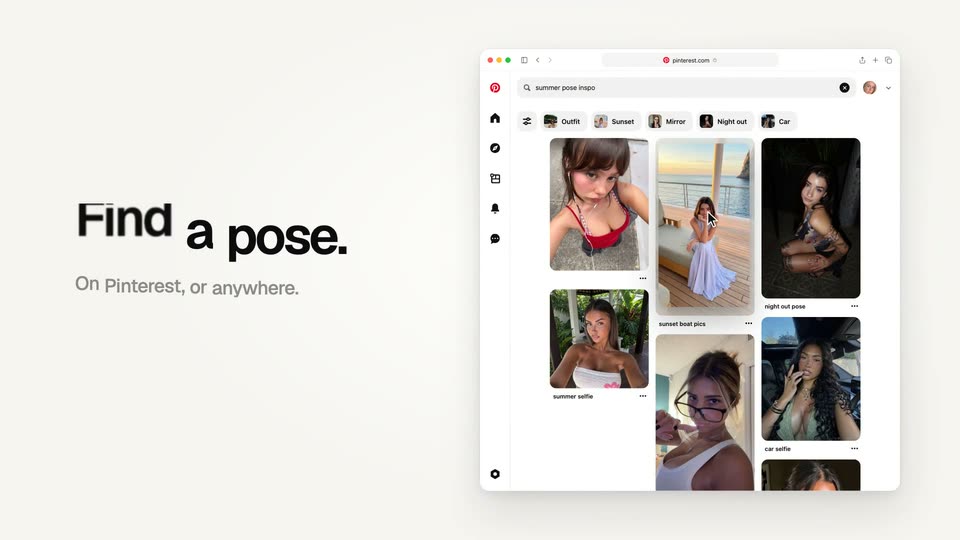

Orior - you don’t need a prompt anymore. find a pose. drag it in. one click.
Orior AI · AI · Oct 2026
Similar soundtrack
Films whose music sounds like this one, voice left out
1:22
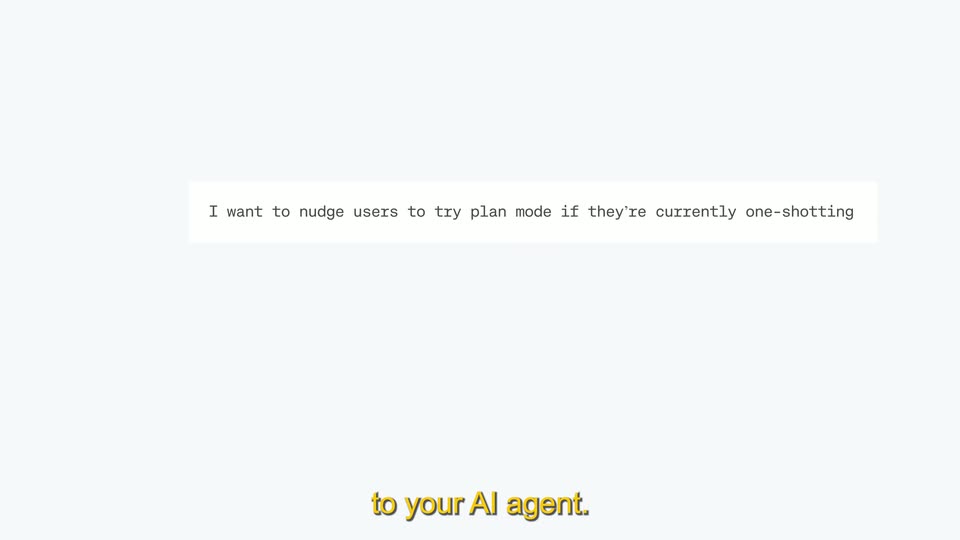

Hai Ta - We’re launching Lumi by @userlens_hq. Lumi is an adoption agent tha
Userlens · Modern electronic, upbeat corporate tech
1:44
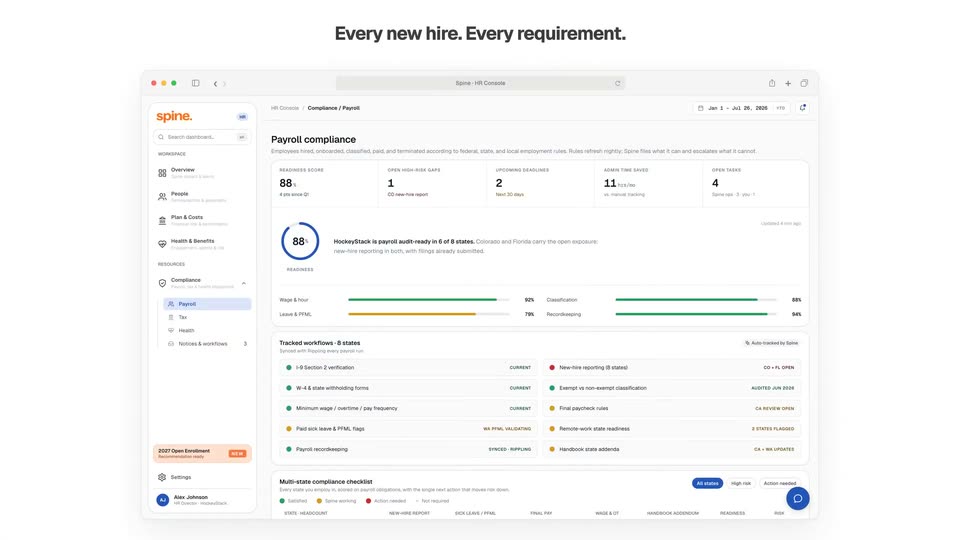

Spine Product Demo
Spine · Modern electronic
0:30
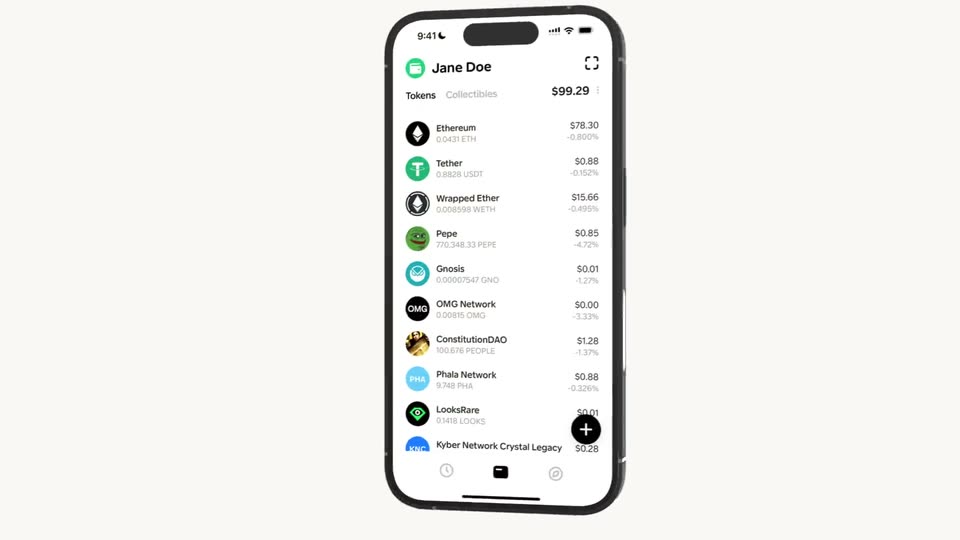

Family - We're excited to share a major feature addition to Family: Previews.
Family · Modern electronic
Introducing: Projects, scene by scene
· 24 scenes as text
01 · Product intro · 0:00–0:00
A soft yellow-orange gradient blob starts small in the top-left corner, swells to fill the left half of a light gray field, then settles into a vertical band as it drifts right.
Camera: Static
02 · Product intro · 0:00–0:01
Four vertical gradient bars in pink, orange and yellow drift horizontally across a pale field, the stripes sliding leftward in a smooth, continuous loop.
Camera: Pull out
03 · Product intro · 0:01–0:02
A warm orange and pink gradient panel slides off to the right, uncovering a white title card. 'Introducing Projects' sits centered in black with the ElevenLabs logo below, all locked off.
On-screen text: “Introducing”, “Projects”, “IIElevenLabs”
Techniques: Masking
Camera: Static
04 · Product intro · 0:02–0:07
A light gray title card holds a centered layout: a small gray “Introducing” above a large bold black “Projects”, with the ElevenLabs wordmark at the bottom. The frame stays locked off until a yellow block slides in from the bottom left and “Import files” fades in.
On-screen text: “Introducing”, “Projects”, “Import files”
Camera: Static
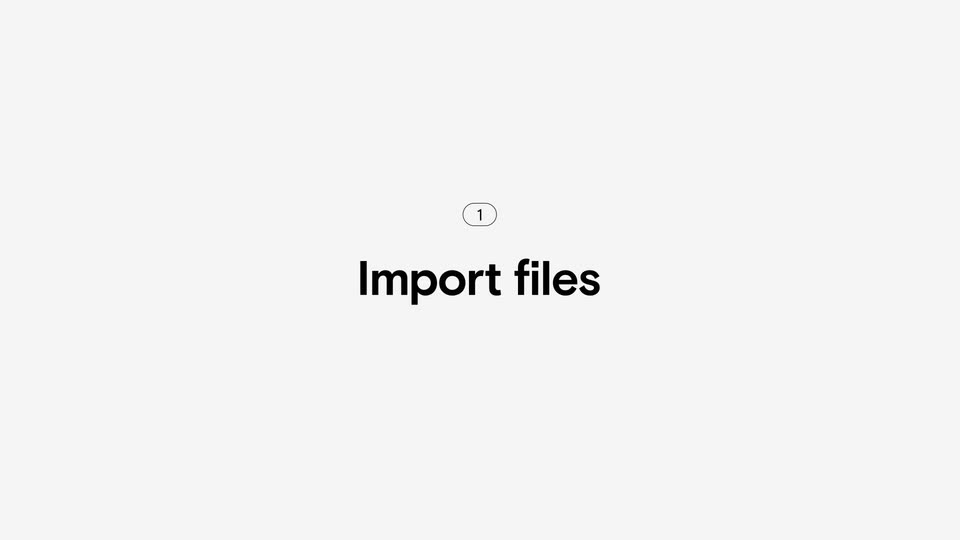
05 · Feature reveal · 0:07–0:08
A small pill badge with the number 1 sits above the bold black title Import files on a light gray background. Yellow and orange rectangular bars fill the bottom edge and slide downward out of frame.
On-screen text: “1”, “Import files”
Camera: Static
06 · Feature reveal · 0:08–0:15
A cursor clicks Create new project in the ElevenLabs Projects table; a modal opens with project-type options, then a form named By Chance with an attached PDF. Clicking Create closes the modal and adds a new row, raising the count to 3 of 5.
On-screen text: “Import files”
Techniques: Cursor demo
Camera: Static
07 · Feature reveal · 0:15–0:17
A light card holds a small circled step badge 2 above the bold title Full Conversion, which scales up from gray to black. Yellow gradient bars rise from the bottom right like a growing chart.
On-screen text: “2”, “Full Conversion”
Techniques: Kinetic type
Camera: Static
08 · Feature reveal · 0:17–0:17
A plain light gray field holds a small outlined pill with the number 2 above the headline Full Conversion in black bold sans, which scales up into place.
On-screen text: “2”, “Full Conversion”
Techniques: Kinetic type
Camera: Static
09 · Feature reveal · 0:17–0:18
A two-pane editor fills the frame: a chapter document on the left, a settings and chapter list on the right. The view zooms in toward the right pane while a cursor rests on the Convert button, and a large Full Conversion label scales in.
On-screen text: “Full Conversion”
Techniques: UI zoom, Kinetic type
Camera: Push in
10 · Feature reveal · 0:18–0:19
A hand cursor clicks the Convert button in the top toolbar, and a Convert project modal scales in over a blurred document page. The modal shows a By Chance field and a chapter list with Share, Versions and Convert buttons.
Techniques: Cursor demo
Camera: Pull out
11 · Feature reveal · 0:19–0:22
A white modal floats over a dimmed manuscript editor. A cursor taps the dark Convert button, the panel swaps to a confirmation view listing character counts, then the cursor presses Convert again.
Techniques: Cursor demo
Camera: Static
12 · Feature reveal · 0:22–0:24
A pale gray title “Speaker Assignment” with a small “3” badge sharpens from light gray to bold black on a plain background, while stepped pale yellow blocks at the bottom edge fade out.
On-screen text: “3”, “Speaker Assignment”
Techniques: Kinetic type
Camera: Static
13 · Feature reveal · 0:24–0:39
A writing app screen shows a chapter draft on the left and a Paragraph Settings panel on the right, under a scaling Speaker Assignment title. A cursor opens the voice dropdown, picks Antoni, then presses play; the quota counter ticks down as the chapter is read aloud.
On-screen text: “Speaker Assignment”
Techniques: Kinetic type, Cursor demo
Camera: Pull out
14 · Feature reveal · 0:39–0:41
A light gray frame holds a small outlined pill reading 4 above the headline Regenerate Audio Fragments, which scales and fades from gray to solid black. Yellow block shapes along the bottom edge exit the frame.
On-screen text: “4”, “Regenerate Audio Fragments”
Techniques: Kinetic type
Camera: Static
15 · Feature reveal · 0:41–0:50
The By Chance editor fills the frame, then the view zooms into Chapter 1 where the first line is highlighted yellow with a text caret. A hand cursor moves to the toolbar and clicks the regenerate button, which spins. The view zooms back out to the full interface.
Techniques: UI zoom, Cursor demo
Camera: Static
16 · Feature reveal · 0:50–0:52
A light gray card holds a small outlined 5 badge above the bold black heading Segment by Chapter, which scales in. Stepped yellow blocks slide across the bottom from left to right, ending with a soft pink tint at the right edge.
On-screen text: “5”, “Segment by Chapter”
Techniques: Kinetic type
Camera: Static
17 · Feature reveal · 0:52–0:57
A cursor clicks the plus icon beside the chapter list, opening an Add Chapter dialog over the dimmed editor. The name Chapter 4 is typed into the field, then the confirm button is clicked and the dialog closes. A headline Segment by Chapter scales in with a small numeral 5.
On-screen text: “Segment by Chapter”, “5”
Techniques: Kinetic type, Cursor demo
Camera: Pull out
18 · Feature reveal · 0:57–1:00
A light gray title card. The number 6 in a thin outlined pill scales in above the bold headline, which fades from gray to black. A yellow-to-orange gradient block slides across the bottom edge from left to right, then off screen.
On-screen text: “6”, “Save and Resume Progress”
Techniques: Kinetic type
Camera: Static
19 · Feature reveal · 1:00–1:01
The By Chance editor fills the frame with a chapter document on the left and a chapters list on the right. A cursor glides across the text, then the whole screen blurs as a large hand cursor moves to the back button, and the caption “Save and Resume Progress” with a small scaling number “6” appears.
On-screen text: “Save and Resume Progress”, “6”
Techniques: Cursor demo
Camera: Push in
20 · Feature reveal · 1:01–1:03
A hand cursor glides across the top of the ElevenLabs Projects page as the view pulls back from a blurred close-up to a full, in-focus screen showing the project list table.
Techniques: UI zoom, Cursor demo
Camera: Pull out
21 · Feature reveal · 1:03–1:05
A light gray title card shows the number 7 in a small outline pill above the word Compatibility in bold sans. The word fades from gray to black while a yellow stepped block wipes out of the bottom edge at the start.
On-screen text: “7”, “Compatibility”
Techniques: Kinetic type
Camera: Static
22 · Feature reveal · 1:05–1:07
A document editor with multilingual paragraphs fills the frame. A cursor hovers over the Italian block, which flashes a yellow highlight, while the font field in the right panel switches from Rachel to Matilda. The view blurs and shifts as the camera reframes.
On-screen text: “Compatibility”
Techniques: Cursor demo, UI zoom
Camera: Push in
23 · Feature reveal · 1:07–1:23
A close-up of a voice settings dropdown scrolls through a list of named voices until the cursor lands on Giovanni, then the view zooms out to the full editor, where the cursor hovers over a yellow-highlighted Italian paragraph in a multilingual document.
Techniques: Cursor demo, UI zoom
Camera: Pull out
24 · CTA · 1:23–1:29
On a flat light-gray field, the ElevenLabs wordmark reveals in the center: the mark resolves from a striped block into two solid bars while the letters fade in, then the URL fades in below and the frame holds still.
On-screen text: “elevenlabs.io”
Camera: Static