
1:53
Explore
00:00:00 / 03:52:14
- Length
- 3:52
- Scenes
- 12 · 19.4 s avg
- Product on screen
- 0:00
- Features shown
- 2
- Voiceover
- Yes
- Views
- 69 on YouTube
as of November 26, 2026
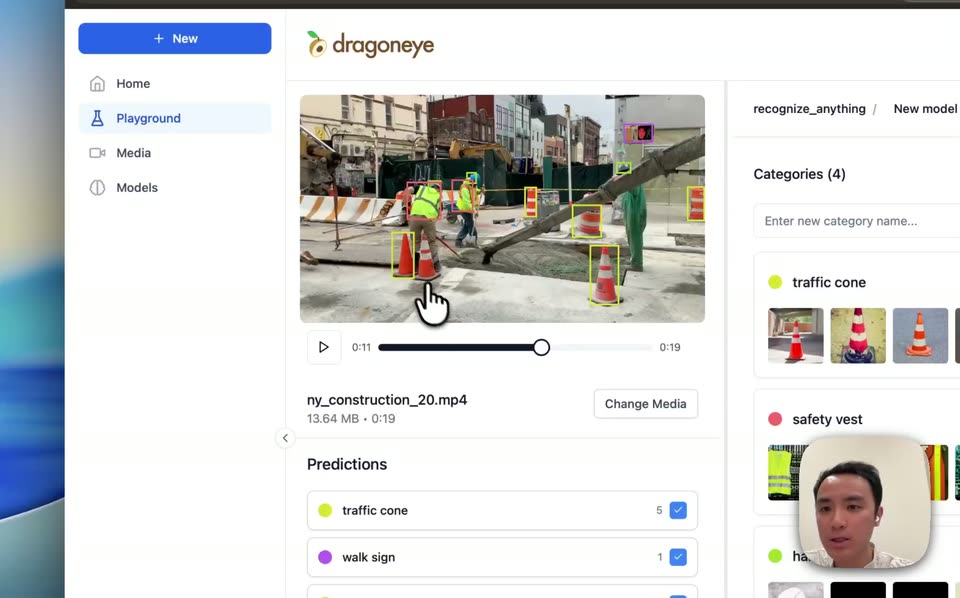
Dragoneye’s 3:52 clip runs 12 scenes, about 19 s each. The product is on screen from the first frame and 2 features are revealed. The video opens with a tilted 3D browser mockup floating over a soft blue gradient, then settles into flat, cursor-following screen recordings with a rounded presenter webcam pinned in the lower right corner. Pacing is slow and methodical, using zooms, pans, and blurred backdrops to spotlight each click as the model is built from a single video clip.
No filming indicatedEstimated needs: 6 capture groups — your screens or recordings · 1 official logo — reused across the film · 2 3D passages — build or supply
Is this your launch? to your site or press kit.
More like this
1:04

Pitch Agent: On-brand AI presentations, made for professionals
Pitch · Productivity · May 2026
0:41
[GUIDE] Build custom video detection models in under 5 minutes | Dragoneye, scene by scene
· 12 scenes as text
01 · Product intro · 0:00–0:22
A tilted browser window with the DragonEye playground UI floats over a soft blue gradient, a rounded webcam tile of a speaking man in the lower right. Inside, a construction video plays with colored bounding boxes beside a predictions list and category thumbnails; a cursor drifts across it.
Techniques: 3D mockup, Cursor demo
Camera: Static
02 · Product intro · 0:22–0:27
A tilted browser mockup of a live street feed with green detection boxes floats over a blue abstract background, with a white caption card and a presenter webcam inset. The view zooms to the top-right nav as a hand cursor clicks the Playground pill.
On-screen text: “Recognize Anything with our Vision AI”, “From Plain Text To Precise Detection”
Techniques: 3D mockup, UI zoom, Cursor demo
Camera: Push in
03 · Demo · 0:27–0:28
A browser window shows a dark address bar with the URL playground.dragoneye.ai typed in. A hand cursor hovers beneath it as the page body flashes from black to white while loading. A small webcam self-view of a man sits in the bottom right corner.
On-screen text: “playground.dragoneye.ai”
Techniques: Cursor demo
Camera: Static
04 · Demo · 0:28–0:28
A browser window on a blue desktop shows the Dragoneye Playground page. A large hand cursor points at the Playground tab. The page fades in with a Welcome heading and two empty cards. A small webcam of a man sits in the bottom right corner.
On-screen text: “playground.dragoneye.ai”
Techniques: Cursor demo
Camera: Static
05 · Demo · 0:28–0:48
A tilted 3D browser window shows the Dragoneye dashboard against a blue gradient, with a presenter's face cam in the corner. The view pulls back to the full window, the cursor hovers over the tutorial and template sections, then zooms in as it clicks New to open a dropdown.
On-screen text: “playground.dragoneye.ai”
Techniques: 3D mockup, Cursor demo, UI zoom
Camera: Pan
06 · Feature reveal · 0:48–2:53
A screen recording of the dragoneye Playground UI. A cursor selects a construction video, then the view reframes as the presenter types traffic cone into the category field and thumbnail rows appear. Bounding boxes label cones and vests in the video, while a presenter webcam sits in the corner.
Techniques: Cursor demo, UI zoom
Camera: Pull out
07 · Feature reveal · 2:53–3:06
A locked-off screen recording of the DragonEye Playground shows a construction video with detection boxes beside rows of labeled thumbnails. A hand cursor hovers the hardhat row, then opens a top-right menu. A small webcam of the speaker sits in the corner.
Techniques: Cursor demo, UI zoom
Camera: Push in
08 · Feature reveal · 3:06–3:15
A white code modal fades in over a blurred page, showing numbered Python lines with a language dropdown and copy button. A cursor hovers on line 11. A small rounded webcam tile of a talking man sits in the bottom right.
Techniques: Cursor demo
Camera: Static
09 · Demo · 3:15–3:16
The view opens zoomed on a code modal showing Python snippets, then pulls back to the full browser window over a blurred blue desktop. A small rounded webcam feed of a man talking sits in the bottom right corner.
Techniques: UI zoom
Camera: Pull out
10 · Demo · 3:16–3:18
A browser window on a blue gradient background shows a focused code dialog with Python snippets, the page behind it blurred. A small rounded webcam feed of a man in a light shirt sits in the lower right corner. A mouse cursor rests near the dialog's Close button.
Camera: Static
11 · Demo · 3:18–3:27
The dragoneye playground UI fills a browser window, showing a construction video and category thumbnails. The view zooms in on the Predictions list; the cursor moves to the API Docs item and highlights it, then pulls back. A small webcam tile of a man sits in the bottom right.
Techniques: UI zoom, Cursor demo
Camera: Static
12 · Outro · 3:27–3:52
A locked-off browser window shows the Dragoneye playground: a construction video, a predictions list, and rows of category thumbnails. A rounded webcam in the bottom right holds a man speaking to camera. The interface stays still while he talks, with no cursor movement or transitions.
Camera: Static