0:34

SchemeFlow Intro Video
SchemeFlow · Real Estate and Construction · Jun 2024
Attio · Apr 2025 · 4:15 · Full motion · AI-annotated
Attio’s 4:15 launch film runs 21 scenes, about 12 s each. The product is on screen from the first frame and 1 feature is revealed. There is no explicit call to action; a voiceover carries the film. The video is a single-feature tutorial built as a long, slow screen-recording walkthrough with a pinned presenter tile, opening on a static dark title card and closing on an animated logo lockup. Its style is defined by a clean white CRM interface, a restrained dark-and-blue palette, and minimal motion limited to cursor moves, panel swaps, and a wireframe-to-fill logo reveal.
Is this your launch? to your site or press kit.
SchemeFlow · Real Estate and Construction · Jun 2024
Agentic Fabriq · B2B · Mar 2026
A dark title card holds still: an italic 'Intros' kicker over the bold 'Call Intelligence' headline and attio logo on the left; a line diagram of a circle linked to four plus-marked capsules on a faint grid on the right. A band then slides up to reveal a white frame.
On-screen text: “Intros”, “Call Intelligence”, “attio”
Camera: Static
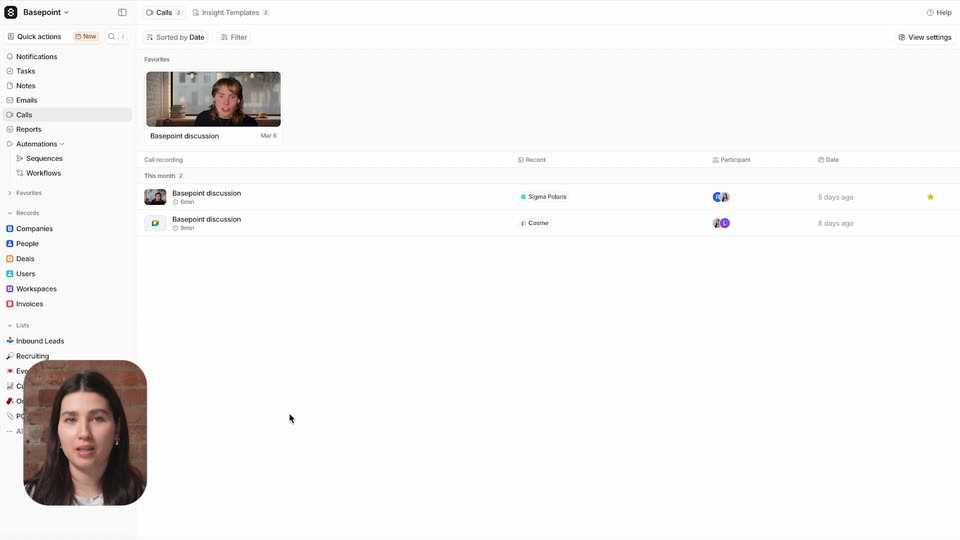
A white Atio calls screen lists two call recordings under This month while a woman speaks in a small video tile at bottom left. A cursor glides to the first row and clicks it, and a right pane shows Loading call.
Techniques: Cursor demo
Camera: Static
A static view of the Basepoint call page: a paused video of a man speaking sits center, a transcript list runs below, and a summary panel fills the right. A cursor drifts across the layout, then clicks the workspace name to open a settings dropdown.
Techniques: Cursor demo
Camera: Static
A settings screen recording opens on the General page, then switches to Call recording. A cursor clicks the External meetings radio, filling it blue while the None row deselects. A small webcam of a presenter sits in the lower-left corner.
Techniques: Cursor demo
Camera: Static
A person speaks in a small video inset at the lower left while the cursor opens a meeting panel in a CRM screen, hovers the Start recording button and opens its Recording settings menu, then the view switches to a list of recorded calls.
Techniques: Cursor demo
Camera: Static
A light CRM interface with a left sidebar and calls list fills the frame; a small rounded video of a woman speaking is pinned bottom-left. The cursor clicks the Insight Templates tab, and the panel switches to a two-row template list. Static frame.
Techniques: Cursor demo
Camera: Static
A Basepoint screen crossfades into a two-column view: a sales template with question blocks on the left, an insights panel on the right. A cursor drifts across the top; a small video-call tile of a woman speaking sits in the lower-left corner.
Techniques: Cursor demo
Camera: Static
A screen recording of a CRM template editor, with a small talking-head video pinned to the lower-left. A cursor clicks New template, fills in section titles and prompts, adds sections, renames the file Customer Success, then clicks Publish template.
Techniques: Cursor demo
Camera: Static
The Atio app shows the Insight Templates table with three rows and a left navigation sidebar. A small video feed of a woman speaking sits in the lower-left corner. The cursor moves from the top tabs down into the empty table area and stops.
Techniques: Cursor demo
Camera: Static
A Basepoint call screen holds a fixed frame as a woman's video feed plays bottom left and the transcript beside it scrolls and updates in real time. The summary and insight bullets on the right fill in, then the screen cuts to a person record.
Camera: Static
A Basepoint person record screen fills the frame, with a small rounded webcam feed of a presenter in the lower-left corner. A cursor clicks through the Activity, Emails and Calls tabs, then opens a meeting details panel.
Techniques: Cursor demo
Camera: Static
A CRM calls list fills the screen, a favorites card and two rows on the right. A cursor opens the sort and filter dropdowns, then stars a row, dropping a second card into favorites. A small video of a woman against a brick wall talks in the lower-left corner.
Techniques: Cursor demo
Camera: Static
The Basepoint Calls page fills the frame, listing call recordings under a Favorites row, with a small video inset of a woman speaking in the lower-left corner. A cursor clicks the first recording row, and a loading spinner appears in the list.
Techniques: Cursor demo
Camera: Static
Static full-screen view of the Basepoint call page: paused video of a woman, transcript below, summary panel on the right. The cursor opens the Insights template dropdown, selects Onboarding call, the panel text swaps, then it hovers the video timeline to reveal a chapter tooltip.
Techniques: Cursor demo
Camera: Static
A light interface fills the frame: a call video with a picture-in-picture inset in the center, a navigation sidebar left, a summary panel right. A cursor clicks the Speakers tab, and the bottom panel switches from transcript to two speaker rows with red dashed bars drawing in.
Techniques: Cursor demo
Camera: Static
A pinned video of a presenter plays in the bottom-left corner over a CRM screen showing a call recording panel on the right. A cursor glides to the sidebar, hovers over Companies to reveal a tooltip, then clicks it, opening the Companies tab.
Techniques: Cursor demo
Camera: Static
The CRM interface fills the frame, a company table in the center and a call-recording panel on the right showing a woman speaking. A small video of her floats in the corner, then detaches to a bottom-right window as the panel shows a placeholder.
Camera: Static
A browser screen shows the Attio homepage with two small talking-head video clips pinned in the bottom corners, then the view switches to the Attio Academy help page with a sidebar menu and a loop diagram.
Camera: Static
A white help-page layout stays static, with a left menu and two line-drawing cards labeled Introductions and Workflows. Two small video-call windows overlay the page: a dark-haired woman in the left sidebar speaks, while a woman with headphones sits still in the bottom right.
Camera: Static
A dark landing page scrolls down. The white top navigation bar carrying the attio logo and menu slides out of the top of the frame, while a faint grid of thin vertical and horizontal lines holds near the center of the dark field.
Techniques: Parallax
Camera: Static
On a near-black field, a faint wireframe grid assembles the Attio mark and wordmark, then a white fill wipes in from left to right. The lockup tilts into 3D perspective, settles flat, and a small URL fades in below.
On-screen text: “attio.com/help/academy”
Techniques: Masking
Camera: Static