0:30

Alex Danilowicz - Launching our new Chrome Extension: copy paste any website, edit and
Magic Patterns · Nov 2026
Vanta · Mar 2024 · 3:16 · Full motion · AI-annotated
Vanta’s 3:16 launch film runs 18 scenes, about 11 s each. The product is on screen from the first frame and 4 features are revealed. There is no explicit call to action; a voiceover carries the film. The video opens on a branded title card, then tours the Vanta Trust Center page by page (Overview, Settings, Activity, Access) before moving into the editor to show customization. Pacing is slow and steady, built from static screen captures with a single cursor guiding the eye and a continuous explanatory voiceover.
Is this your launch? to your site or press kit.
Magic Patterns · Nov 2026
Films whose music sounds like this one, voice left out
primitive · Technical demonstration / Tutorial
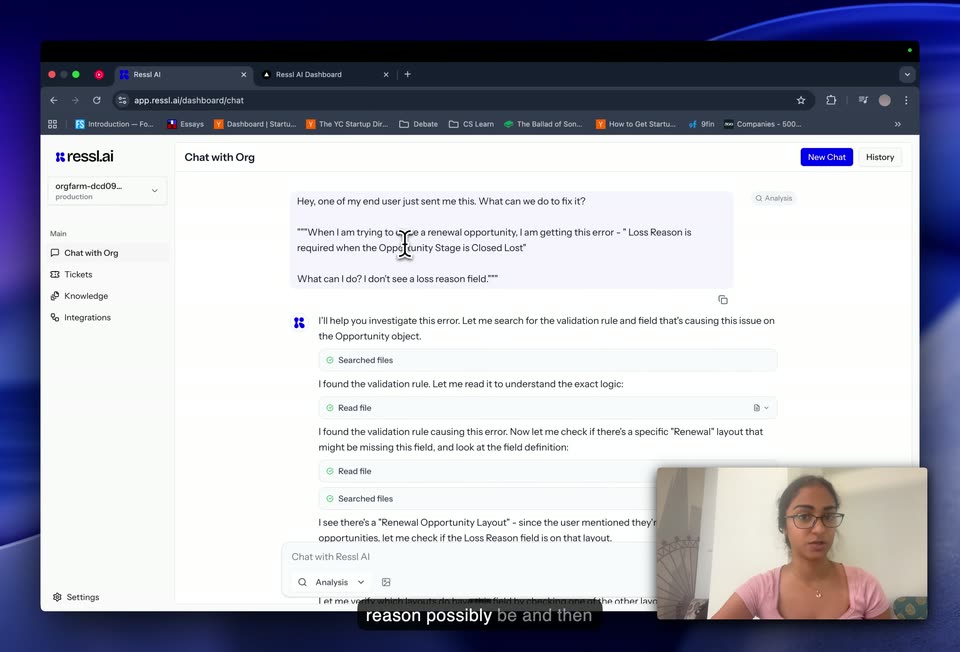
Ressl · Voiceover
A cream title card. A dark indigo serif title scales in at the top, and a sans line settles in the center. A navy alpaca illustration pops up from behind a coral wavy hill along the bottom edge.
On-screen text: “Vanta Help Center”, “Trust Center (Stand-alone)”
Techniques: Kinetic type
Camera: Static
A gray title card holds two lines of dark purple text, a serif headline above a sans-serif subtitle. A dark cartoon alpaca with a red collar sits at the bottom center in front of a red wavy hill shape. The frame is locked off and static.
On-screen text: “Vanta Help Center”, “Trust Center (Stand-alone)”
Camera: Static
A dim title card holds a serif heading Vanta Help Center above a purple line Trust Center (Stand-alone), with a dark cartoon llama on red hills at the bottom. The frame is locked off and then fades to black.
On-screen text: “Vanta Help Center”, “Trust Center (Stand-alone)”
Camera: Static
A static view of a dashboard interface displays a line graph and data cards. At the end, the cursor moves to the left sidebar and hovers over the Settings menu item.
Techniques: Cursor demo
Camera: Static
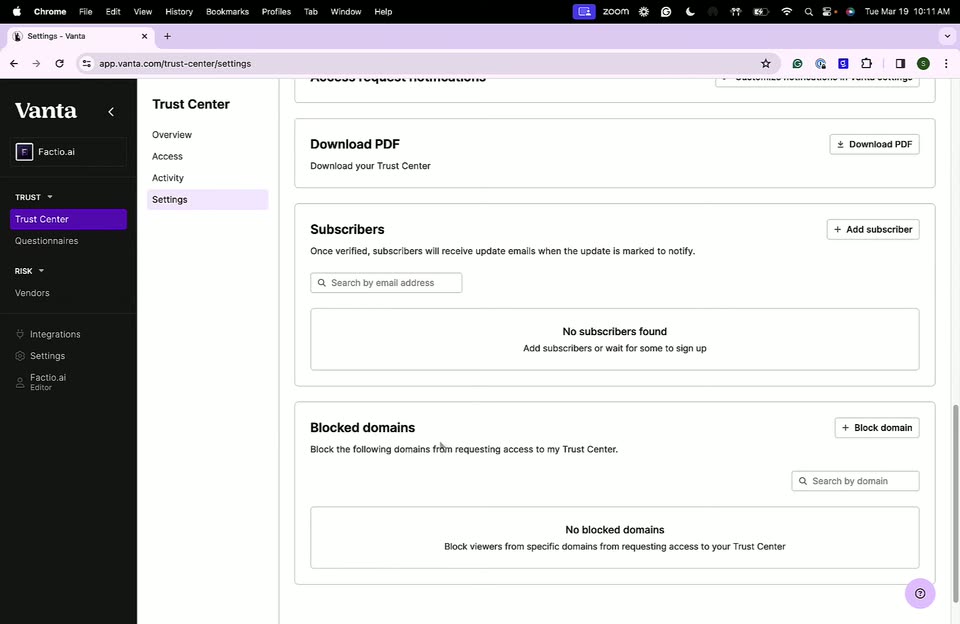
A flat screen capture of the Vanta Trust Center Settings page in a browser. The page scrolls down slowly, revealing stacked configuration cards for access, custom domain, auto-approval, NDA, watermark, notifications, subscribers and blocked domains, as a cursor hovers the side tabs.
Techniques: Cursor demo
Camera: Pull out
A browser window shows the Vanta Trust Center Activity page, a table of viewer logins with columns for viewer, action, details and date. A cursor rests on the Activity item in the left sidebar as the table cells fade in from gray placeholders.
Techniques: Cursor demo
Camera: Static
A cursor glides up the left sidebar of the Vanta Trust Center, leaving the highlighted Activity item and resting on Access. The main panel holds a static activity log table with viewer, action and date columns.
Techniques: Cursor demo
Camera: Static
A browser window shows the Vanta Trust Center Access page. The data table fills in from grey skeleton rows to a single entry, then the cursor hovers the Access menu item and moves up to Overview.
Techniques: Cursor demo
Camera: Static
A browser screen of the Vanta Trust Center Overview page. The cursor scrolls down to show the purple page-views donut and the empty downloads card, scrolls back up, then moves to the Edit button top right and hovers on it.
Techniques: Cursor demo
Camera: Static
A browser screen recording of a Trust Center edit page. A cursor clicks a pencil icon to open a customization modal, then a compliance frameworks modal, where a long dropdown list of security standards scrolls.
Techniques: Cursor demo
Camera: Pull out
A static view of the Vanta trust center editor shows the Factio.ai profile card, a compliance panel with a SOC 2 badge, and four controls cards. The cursor drifts slightly toward the pencil edit icon beside the Resources heading.
Techniques: Cursor demo
Camera: Static
A white 'Edit resources' modal sits centered over a dimmed dashboard, showing a resource list and a document form with a purple toggle switched on. A cursor drifts from the left, hovers over the toggle, then moves to the Cancel button at the bottom right.
Techniques: Cursor demo
Camera: Static
A browser window displays a Vanta trust center edit page with a company summary and security control cards. The cursor glides up to the pen icon beside the Controls heading and rests there, highlighting the edit function. The framing stays fixed and the pace is slow.
Techniques: Cursor demo
Camera: Static
A browser window shows a controls management page loading with gray skeleton bars, then the list fills with policy rows. The cursor drifts down the rows and stops on the Edit controls button as a pen icon appears beside the category title.
Techniques: Cursor demo
Camera: Static
A cursor clicks the purple Edit controls button on a security controls table, and the screen crossfades into the edit view where the named rows dissolve into gray skeleton bars. The cursor then rests on the Upload controls button.
Techniques: Cursor demo
Camera: Static
A static screen capture of a web app page titled “Edit controls in Infrastructure security,” showing a table of security controls with purple checkboxes and category pills. The mouse cursor hovers the purple “Upload controls” button, then moves to the white “Add a control” button and finally to the close icon at the top left.
Techniques: Cursor demo
Camera: Static
A browser window shows the Vanta Manage controls page. A list of infrastructure security controls loads in below the category heading, and the cursor moves to Data and privacy in the left sidebar, opening a detail panel with sub-controls and data sections.
Techniques: Cursor demo
Camera: Static
A browser shows the Vanta Trust Center editor. The page scrolls down through the Data collected, Subprocessors, FAQ and Updates sections, then back up to the purple header with the Factio.ai title and Controls cards. A cursor hovers over the tabs, revealing URL tooltips, before the frame fades to black.
Techniques: Cursor demo
Camera: Pan