1:58

Meet Craft Assistant: Your Thinking Partner in Craft
Craft · Productivity · Nov 2025
Userlens · Oct 2025 · 1:57 · Full motion · AI-annotated
Userlens’s 1:57 launch film runs 5 scenes, about 23 s each. The product is on screen from the first frame and 2 features are revealed. There is no explicit call to action; a voiceover carries the film. A single-feature launch tutorial built as a corner-anchored talking head over a full-screen product recording, so the interface is the stage and the presenter narrates each setup step. Motion carries the story through stacking Slack alert cards, an orange trigger banner that slides in, a zoom into the trigger row, and step badges that flip to orange checks, all under phrase-by-phrase bottom captions at a slow cut rate.
Is this your launch? to your site or press kit.
Craft · Productivity · Nov 2025
Magnitude · B2B · Sep 2026
Microsoft · AI · Nov 2025
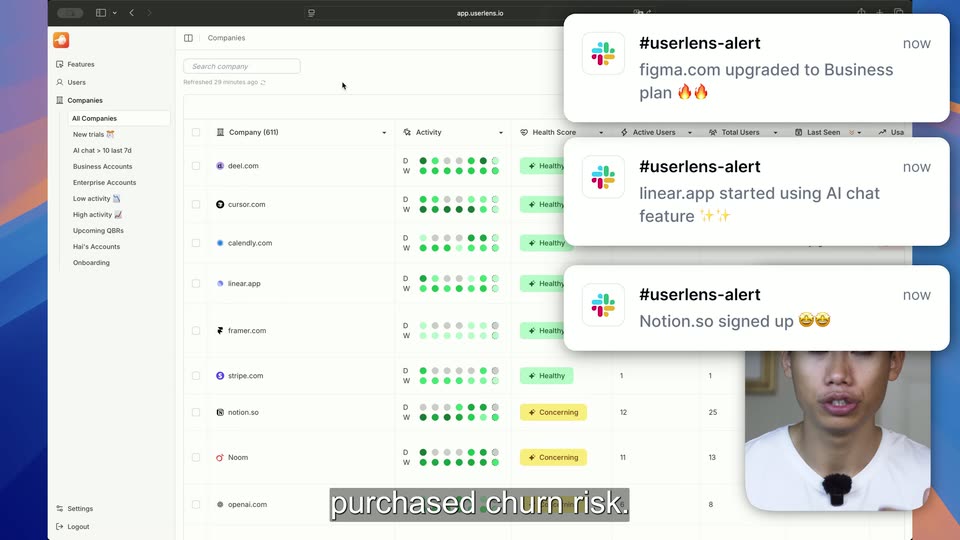
A screen recording of the UserLens Companies table with a webcam of a presenter in the bottom right. Slack alert cards slide in from the top right and stack up, then the view cuts to the Slack settings page; white captions run along the bottom.
On-screen text: “I'm very excited to”, “our slack integration”, “slack integration.”, “You can get notified”, “of critical changes”, “in your book of business.”, “for example, new”, “sign ups,”, “new feature used, plan”, “purchased churn risk. And here's how much more. you can create a Slack alert in the settings”
Techniques: Cursor demo
Camera: Static
A flat screen recording of the Slack integration page, left sidebar and two-row alerts table, with a small talking-head video pinned to the bottom right. Bottom-center captions swap phrase by phrase while the cursor glides across the UI and rests on the orange Create Alert button.
On-screen text: “in the settings”, “we have our slack”, “integration section”, “It lists”, “that you've set up.”, “Any time”, “a new slack alert,”, “click Create”
Techniques: Cursor demo
Camera: Static
A Slack alert dialog fills the screen beside a bottom-right presenter webcam. The cursor opens the channel dropdown, picks #userlens-alerts, and the step badge flips to an orange check. An orange trigger banner slides in top right, then the view zooms into the trigger section as the cohort dropdown updates.
On-screen text: “Alert step one,”, “you pick an”, “existing Slack channel”, “where you want”, “all these notifications”, “I have Userlens alerts”, “where I will be”, “pushing these alerts.”, “So step two,”, “you defined a trigger. Let's say I care about when a company starts using the AI chat feature more than 10 times a week. Now, I particularly care about this fea”
Techniques: Cursor demo, UI zoom
Camera: Push in
A Slack alert setup modal fills the frame, then the view pulls back to reveal the full app window with its left sidebar. A cursor hovers over the channel and message fields. A small webcam feed of a presenter sits bottom right, and white captions roll along the bottom.
On-screen text: “Then this slack alert”, “will get sent”, “into the channel.”, “You can customize”, “the notifications”, “content.”, “And you can see”, “here immediately”, “the preview of”, “that message. that's how you set up a slack alert in Userlens.”
Techniques: Cursor demo, UI zoom
Camera: Pull out
A screen recording of a companies dashboard fills the frame, with a small rounded video inset of a talking presenter in the lower right. A cursor drifts down the left sidebar, hovering and selecting cohort items, while the table re-zooms to a tighter crop around 14s. Burned-in captions roll across the bottom.
On-screen text: “Now you might be”, “wondering why”, “trigger on cohorts.”, “It's because when”, “you get an alert”, “of a company or”, “or user entering”, “a cohort,”, “then also view”, “the other companies or users that satisfy the same trigger conditions. will act as a list, of all the companies that have for example, a certain feature or a c”
Techniques: Cursor demo, UI zoom
Camera: Push in