1:37

mlop: intro
mlop · B2B · Apr 2025
Uptale · Nov 2026 · 3:15 · Full motion · AI-annotated
Uptale’s 3:15 launch film runs 20 scenes, about 9.8 s each. The product is on screen from the first frame and 1 feature is revealed. There is no explicit call to action. The video is one continuous screen-recording walkthrough that moves from the learner flow (email, dashboard, quiz, certificate) to the trainer dashboard, with dark gradient title cards marking the switch. Its signature moves are the orange outline and ring annotations that spotlight each click, and the confetti burst that marks completion.
Is this your launch? to your site or press kit.
mlop · B2B · Apr 2025
Glasskube · B2B · May 2025
Monarcha · B2B · Aug 2025
A static Outlook window displays an Uptale email. An orange outline flashes around the program card, then fades. The view scrolls down and a cursor hovers over the purple button and clicks it, triggering a ripple.
Techniques: Cursor demo
Camera: Static
A flat UI screen of the uptale learning dashboard fades in from a previous view, then an orange outline box highlights in turn the green access banner, the progress bar and the success certificate card while a cursor hovers nearby.
Techniques: Cursor demo
Camera: Static
A safety training dashboard with a grid of module cards scrolls down as a cursor hovers over them, then clicks Continue playing, opening a centered Final evaluation modal over a dimmed purple backdrop.
Techniques: Cursor demo
Camera: Static
A white evaluation card with a trophy banner sits on a blurred purple and orange gradient. A cursor slides from the left to the On the web button and clicks it, an orange ring pulses around the button and a URL appears at the bottom left.
On-screen text: “ttps://my.stg.uptale.io/experience/Launch?id=ynqdPSvLnEydnY7dilpWI.”
Techniques: Cursor demo
Camera: Static
A dark product screen shows the white uptale wordmark with a small planet dot, a 'Click when Ready!' caption and a hand icon. The mouse cursor glides up to the caption and clicks, and a soft circular glow blooms behind the logo.
On-screen text: “BRIEF”, “ttps://my.stg.uptale.io/experience/Launch?id=ynqdPSvLnEydnY7dilpWI.”
Techniques: Cursor demo
Camera: Static
A safety quiz card with a waving construction worker illustration. The cursor ticks the second checkbox, clicks Validate, the answer turns green with an incomplete-answer note, then Next scrolls the card to a second question.
Techniques: Cursor demo
Camera: Static
A white quiz card with a safety-gear banner. A cursor clicks a radio option, marked by an orange ring; it turns pink with an incorrect-answer banner. The cursor then clicks the first option of the second question, which turns green with a correct-answer banner, and moves to the Next button.
Techniques: Cursor demo
Camera: Static
A quiz card on a pale blue field shows a flat illustration of two workers at a desk. A cursor with an orange ring picks the first radio option, clicks Validate, the row turns green with a Correct answer banner, then the card flips to a packing list.
Techniques: Cursor demo
Camera: Static
A white onboarding card on a light gray background shows a heading, a bulleted list and a parking map. The page scrolls down to reveal the map with its green walking path, then the cursor glides to the purple Finish button at the bottom.
Techniques: Cursor demo
Camera: Static
A flat web dashboard shows a completed safety program with a green banner and a grid of module cards. Confetti falls and a large faint Uptale wordmark flashes at center, then the page scrolls down and back up as a cursor clicks the download-certificate button.
On-screen text: “uptale”
Techniques: Particles, Cursor demo
Camera: Static
A hand cursor taps the download button on the purple success certificate card. A certificate modal pops up over the dimmed program page, showing the recipient name and a module list, while confetti falls across the top.
Techniques: Cursor demo, Particles
Camera: Static
A dark document editor shows a certificate of completion; colorful confetti falls across the screen and fades. The page thumbnail fills in, then the document scrolls down to reveal the module list, contact details, and a QR code.
Techniques: Particles, Cursor demo
Camera: Pan
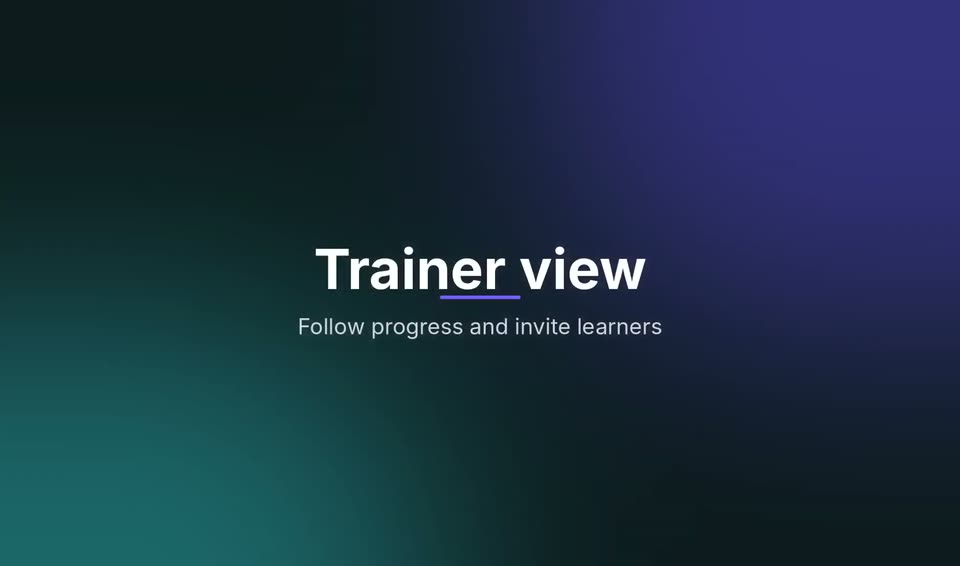
A faint document interface fades out over a dark teal-to-purple gradient, leaving centered white text. The headline 'Trainer view' carries a purple underline under 'Trainer', with the subtitle 'Follow progress and invite learners' beneath. The frame stays locked.
On-screen text: “Trainer view”, “Follow progress and invite learners”
Camera: Static
A near-black frame holds a centered title card. 'Trainer view' sits in dark gray bold sans with a thin indigo underline beneath it, and a smaller gray line reads below. The composition is locked off and stays static and dim for the whole clip.
On-screen text: “Trainer view”, “Follow progress and invite learners”
Camera: Static
A dimmed dashboard shows the white headline “Trainer view” with the line “Follow progress and invite learners”; the overlay fades to reveal the Programs page. A cursor drifts over the stat cards, then hovers a program row that highlights gray.
On-screen text: “Trainer view”, “Follow progress and invite learners”
Techniques: Cursor demo
Camera: Static
A flat screen recording of the Programs page. The view scrolls down past three stat cards and a module list to the Assigned users table, where the cursor hovers over rows and an orange ring marks a click on one row.
Techniques: UI zoom, Cursor demo
Camera: Pan
A dashboard screen loads from gray skeleton placeholders into a summary card and session table. The cursor scrolls the list, clicks a chevron to expand a row into two sub-items, then hovers over a link.
Techniques: Cursor demo
Camera: Static
A static uptale program page displays a learner stats card and a session table. A cursor drifts from a table row up to the header, then the screen transitions to an assigned users panel.
Techniques: Cursor demo
Camera: Static
A screen recording of a program dashboard. Orange boxes and French captions highlight the Invite users button and Registration links tab. A cursor opens a modal, types an email, picks a due date from a calendar, and clicks Assign, adding the user to the list.
On-screen text: “Invite users : ajouter des personnes”, “Invite par lien”, “Registration links : vos liens d'invitation”
Techniques: Cursor demo
Camera: Push in
The product UI dims and fades away under the headline, leaving a dark teal-to-blue gradient. Three rounded cards with orange dots fade in one by one, each holding a bold title and a lighter line of text.
On-screen text: “Un programme, trois bénéfices”, “Pour l'apprenant”, “un parcours clair, où il sait toujours où il en est”, “Pour l'équipe”, “des échéances suivies, plus de relances à la main”, “Pour l'entreprise”, “une preuve de compétence, certificat à l'appui”
Camera: Static