0:25

Black Forest Labs - We just shipped the Kontext Komposer + Kontext-powered Presets Tra
Black Forest Labs · Jul 2025
Superhuman · Sep 2025 · 1:28 · Full motion · AI-annotated
Superhuman’s 1:28 launch film runs 28 scenes, about 3.1 s each. The product is on screen from the first frame and 3 features are revealed. The call to action lands at 1:20 (92% in). The video alternates dark gradient title cards that name each feature with bright UI demos that play out a single action from cursor click to toast. Signature moves are the blur-to-focus reveals, the hand cursor driving every interaction, and the white toast that punctuates each finished task.
Is this your launch? to your site or press kit.
Black Forest Labs · Jul 2025
Alex · B2B · Nov 2024
Films whose music sounds like this one, voice left out
Snowfire · Modern funk, disco, and electronic dance music
Airtable · Funk, Disco, Nu-Disco
A white line logo of two overlapping diamond outlines sits centered on a dark gradient background fading from teal to amber. It starts out of focus and sharpens into a crisp mark by the end of the clip.
Camera: Static
A white line-drawn double-diamond logo sits on a dark teal-to-purple gradient, then fades as the headline “Spend less time managing your time” fades in line by line. The text dissolves and a white circle with a dark envelope icon scales in at center.
On-screen text: “Spend less time”, “managing your time”
Techniques: Kinetic type
Camera: Static
A white pill-shaped toggle floats on a dark teal-to-purple gradient. A circular knob slides down from the dark mail icon to the calendar icon, the icons swap active states, then the whole toggle blurs and fades out.
Camera: Static
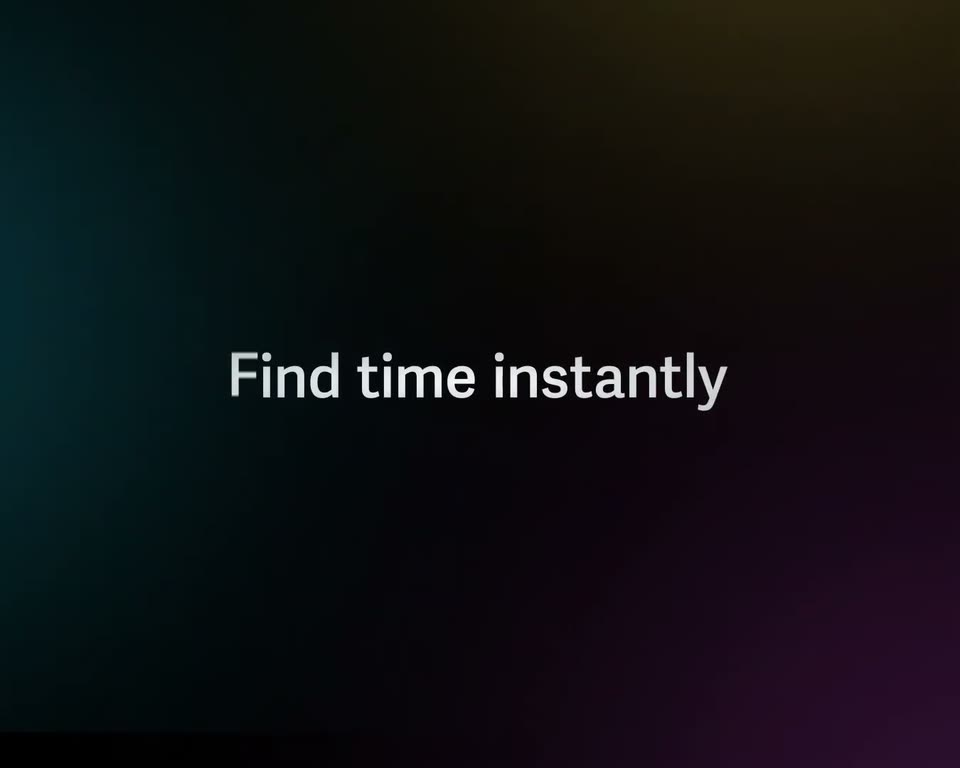
A dark background with soft teal and purple glows. The white headline 'Find time instantly' fades in at the center, holds briefly, then fades out, leaving the empty gradient.
On-screen text: “Find time instantly”
Camera: Static
A dark purple field brightens into a pink-to-purple gradient while a white sidebar wipes in from the left edge, its top showing a mail icon and a calendar icon reading 31.
Techniques: Masking
Camera: Static
A week calendar grid with blue event blocks sits on a white background. A purple color wash covers the frame and fades out as the right-hand columns slide in with motion blur, the grid settling into place.
Camera: Pan
A calendar app shows a split layout: a day view with blue event blocks on the left and a September 2025 month grid on the right, day 3 circled in purple. The panes slide apart and settle while a hand cursor rests at the lower right.
Techniques: Split screen
Camera: Pan
A cursor types ted into a Meet search field and picks the Ted Choi suggestion, turning it into a chip above a purple Find Time button. Meanwhile the day calendar on the left fills with peach event blocks, then the panel slides right.
Techniques: Cursor demo
Camera: Static
A week calendar view fades in from blur, a FIND TIME control flashes on the right, then the screen sharpens and solid blue time-slot pills pop in across the Wed and Thu columns to mark free openings, before the whole view blurs out.
Techniques: Cursor demo
Camera: Static
A week calendar view with blue and peach event blocks sits behind a white detail card that fades in on the right. A hand cursor rests on the blue 2 pm to 2:30 pm block. The card lists the title, a participant chip, time, video link and Save/Cancel buttons.
Techniques: Cursor demo
Camera: Static
A white meeting-detail modal sits over a calendar that blurs into a pink gradient. A cursor taps SAVE, then the modal collapses into a slim white notification bar with an X on the right.
Techniques: Cursor demo, Morph
Camera: Pan
A white toast notification with a blue left edge sits centered on a pink-to-purple gradient. The card sharpens from a blur while the message and an X close icon fade and scale into place.
Techniques: Kinetic type
Camera: Static
White two-line text fades in at the center of a dark teal-to-purple gradient, holds briefly, then fades out. The frame stays locked off while the words scale and brighten into place.
On-screen text: “Schedule”, “at the speed of thought”
Techniques: Kinetic type
Camera: Static
On a blue-to-purple gradient, a white email draft types itself out, a blinking caret trailing each line. The frame then zooms into the small gray upload icon at the bottom right corner.
Techniques: UI zoom
Camera: Push in
Two light gray line icons, a browser window and a square with an up arrow, overlap and merge into one window icon with an up arrow. The icon darkens as a white hand cursor with a black outline slides in from the lower right and rests at its corner.
Techniques: Morph
Camera: Static
After a large calendar icon fades, a week calendar grid fills the frame. A hand cursor taps three empty cells, spawning blue 30-minute slots, then clicks INSERT on the bottom bar as the view zooms in and a message panel with the proposed times appears.
Techniques: Cursor demo, UI zoom
Camera: Push in
A white message card framed by a blue-to-purple gradient border shows a scheduling request with a blue book here link. A hand cursor slides left to the Send button and clicks, emptying the card.
Techniques: Cursor demo
Camera: Static
A white toast notification with a blue left edge sits centered on a blue-to-purple gradient. The card pops in slightly oversized, then settles to its final size while the gray text and close icon hold position.
On-screen text: “Message sent.”
Camera: Static
A dark teal-to-purple gradient fills the frame while a single line of white text slides left across the center. The phrase enters showing only “Ask AI”, passes through fully readable, then exits with the first word off the left edge.
On-screen text: “Ask AI to do it for you”
Techniques: Kinetic type
Camera: Static
A white panel wipes in from the left over a dark teal-to-purple gradient, opening to reveal a list of teal and orange task cards. The headline slides in at the top left as the panel widens.
On-screen text: “Ask Al to do it for you”
Techniques: Masking, Kinetic type
Camera: Static
A weekly calendar view with orange and blue event blocks slides in from the left, clearing from a soft blur to sharp focus as a dark band recedes off the right edge.
Techniques: Masking
Camera: Pan
A calendar week view shrinks to the left as the September 2025 month grid slides in from the right, then fades to a bottom toolbar. The cursor clicks the info icon and an Ask AI dialog with a question field pops in over the blurred screen.
Techniques: Cursor demo
Camera: Static
A white Ask AI panel with a close icon sits centered on a pale background. In the input field, the placeholder Ask a question is replaced by a query typed out letter by letter, ending with a blinking caret.
Techniques: Kinetic type
Camera: Static
A white Ask AI chat card slides up over a peach-to-pink gradient. The user query holds in a top-right bubble, a Thinking pill appears at left, the AI answer fades into a gradient-bordered box, then the view scrolls to reveal a yes button.
Camera: Static
A white meeting card on an orange-to-pink gradient starts blurred with a pink 'Ask AI' label, then snaps into focus showing the title, time, two avatars, email, and note. A hand cursor moves to the SAVE button and clicks as the card dims.
On-screen text: “Ask AI”
Techniques: Cursor demo
Camera: Pan
A white toast bar with a blue left edge and a gray close icon sits on a warm orange-to-pink gradient. The bar settles into the center with a soft drop shadow while the message inside holds still.
Camera: Static
Centered white text on a dark teal-and-amber gradient. The phrase “Email & calendar” resolves from a soft blur, holds, then gives way to “Better together”, which enters the same way, followed by the URL “superhuman.com”.
On-screen text: “Email & calendar”, “Better together”, “superhuman.com”
Techniques: Kinetic type
Camera: Static
The URL sits centered on a dark field with soft teal and magenta gradients at the edges. The frame holds still, then the background and text fade down to black.
On-screen text: “superhuman.com”
Camera: Static