3:47
Steve (Builder.io) - Introducing /webmcp - make your agent workflows visual
Builder.io · Sep 2026
Alex · Nov 2024 · 1:10 · AI-annotated
Alex’s 1:10 launch film runs 25 scenes, about 2.8 s each. The product is on screen from the first frame and 7 features are revealed. The call to action lands at 1:00 (86% in). The video is a brisk feature montage: a black title card announces each shortcut or feature, then a locked-off Xcode screen capture demos it, cutting at roughly 16 cuts per minute. Signature moves are scale-in and fade text on a near-black field, with the sign-off landing on the logo and the alexcodes.app URL.
Is this your launch? to your site or press kit.
Builder.io · Sep 2026
Orchestrator.inc · Oct 2026
On a black field, “Introducing Alex” scales in beside a small rounded icon with colored code lines. The line gives way to “Your copilot for Xcode,” fading in word by word, then the blue Xcode app icon with a hammer fades in below the text.
On-screen text: “Introducing Alex”, “Your copilot for Xcode”
Techniques: Kinetic type
Camera: Static
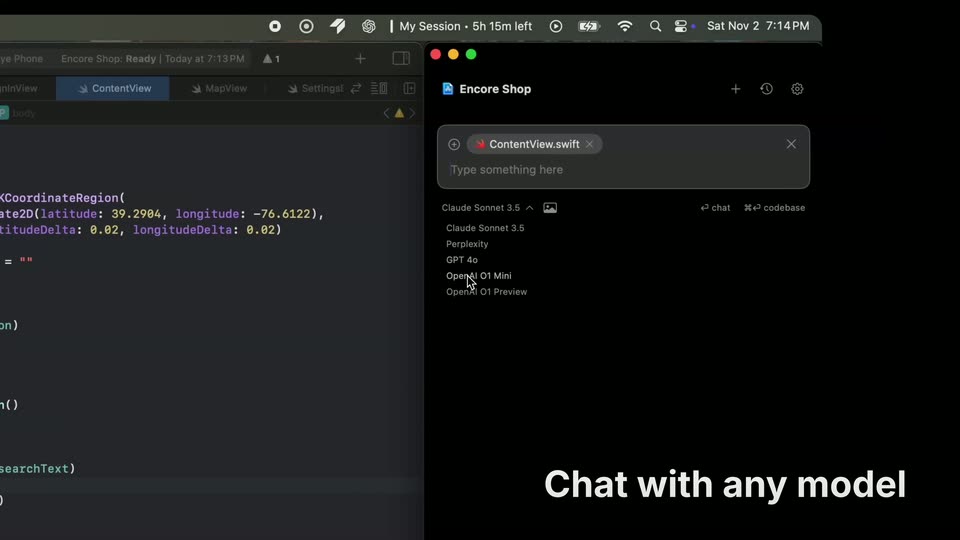
A locked-off screen capture splits the frame: Xcode with Swift code on the left, the Encore Shop AI panel on the right. A cursor opens the model dropdown and travels down the list of model names. A white caption holds at the bottom right.
On-screen text: “Chat with any model”
Techniques: Cursor demo
Camera: Push in
A black frame holds the line Cmd+L from Xcode. in white sans-serif, centered in the lower half. The text scales up from a small size to full size while the frame stays locked off.
On-screen text: “Cmd+L from Xcode.”
Techniques: Kinetic type
Camera: Static
A dark Xcode window displays Swift code on the left and an AI chat panel on the right. The frame zooms in as the chat input is filled with text, then shows a waiting state. A caption scales in over the screen.
On-screen text: “Cmd+L from Xcode.”
Techniques: UI zoom
Camera: Push in
A code editor fills the left half of a dark window, an AI chat panel the right. The assistant's reply text appears beneath the prompt, then a Swift code block types out line by line inside a new message card.
Camera: Static
The white headline “Fast Apply Code.” scales up and brightens to full opacity on a black background, centered on a locked-off frame.
On-screen text: “Fast Apply Code.”
Techniques: Kinetic type
Camera: Static
Swift login code rewrites itself in the left editor while the right chat panel streams the assistant's reply, side by side; a large caption scales in reading Fast Apply Code.
On-screen text: “Fast Apply Code.”
Camera: Push in
A desktop shows two windows side by side: a code editor with SwiftUI code on the left and an AI assistant chat on the right. The chat holds a user prompt and a generated code block. A cursor hovers over an apply button, revealing a Fast Apply (beta) tooltip.
Techniques: Split screen, Cursor demo
Camera: Static
A macOS desktop shows Xcode on the left and an AI chat panel on the right. A cursor moves to the diff overlay and clicks Accept, collapsing it; the Swift code then updates with green-highlighted lines adding a sign-up navigation button.
Techniques: Cursor demo, Split screen
Camera: Pull out
A macOS desktop shows Xcode on the left and a chat window on the right. A red-and-green code diff panel appears in the center and scrolls to reveal a new button action, while a chat bubble on the right explains the change.
Camera: Static
A dark IDE window fills the frame, Swift code in the central editor and an AI chat panel on the right. The mouse cursor drifts from the code area into the chat, where a reply and a code block are already rendered.
Techniques: Cursor demo
Camera: Static
The phrase “Tab - to - complete.” fades in from dark gray to full white, centered on a plain black background, then holds still for the rest of the clip.
On-screen text: “Tab - to - complete.”
Camera: Static
A dark code editor displays a Swift function with a blinking text caret. An autocomplete suggestion box appears over the caret, then the code line completes itself. The caption 'Tab - to - complete.' holds over the static frame.
On-screen text: “Tab - to - complete.”
Camera: Static
The phrase Codebase Chat. sits centered on a black background, fading from a dim gray to a bright white with a soft glow.
On-screen text: “Codebase Chat.”
Techniques: Kinetic type
Camera: Static
A dark code editor fills the frame, Swift code centered with a file tree on the left. On the right, an AI chat panel labeled Encode Shop shows a ContentView.swift chip and an input field where the word How is typed before a blinking caret. The frame stays locked off.
Camera: Push in
A split screen shows a Swift code editor on the left and a dark AI chat panel on the right. A prompt is typed into the chat, then a model response streams in below it with file references and a code block, while the editor stays still.
Techniques: Split screen
Camera: Push in
On a black background, the white heading Advanced File Search builds in from left to right, then the line (Cmd+P) fades in beneath it. The frame stays locked off once the text settles.
On-screen text: “Advanced File Search”, “(Cmd+P)”
Techniques: Kinetic type
Camera: Static
A dark code editor fills the frame behind a centered search palette. The query 'where is my fix issues button' types out, a list of Swift files pops in, and the cursor glides down the list as the Semantic toggle flips blue.
On-screen text: “Advanced File Search”, “(Cmd+P)”
Techniques: UI zoom, Cursor demo
Camera: Push in
A dark code editor fills the frame with a centered search panel. A query sits in the search bar above a list of Swift files. Selecting a file highlights it and reveals a code snippet with a short explanation on the right. The panel then closes to the editor.
Techniques: Cursor demo
Camera: Static
On a black field, the centered text 'Cmd+K' fades in from dim gray to full white and then holds static for the rest of the clip.
On-screen text: “Cmd+K”
Camera: Static
A close-up of a dark code editor. A floating Inline Completion panel opens as Write fibona is typed, then a spinner spins and the panel fades out, revealing the generated Fibonacci function and print loop in the editor.
On-screen text: “Cmd+K”
Techniques: Cursor demo
Camera: Static
A uniform black screen holds for the full duration, with no visible elements, text, or motion. It reads as a static transition frame, the field staying completely dark from start to finish.
Camera: Static
On a black background, the Alex app icon, a rounded square filled with short multicolored code lines, fades in at center beside the word Alex. After a brief hold, both fade out and a link icon with the URL alexcodes.app fades in as the sign-off.
On-screen text: “Alex”, “alexcodes.app”
Techniques: Kinetic type
Camera: Static
A black end card shows the URL alexcodes.app in white type, centered, with a small white chain-link icon to its left. The line fades in, holds, then fades out to black on a locked-off frame.
On-screen text: “alexcodes.app”
Camera: Static
A solid black screen holds for the entire duration with no visible elements, text or motion, reading as a transition or fade between scenes.
Camera: Static