0:31


Introducing Spline for ChatGPT 🚀
Spline · Design · Oct 2026
Orchestrator.inc · Oct 2026 · 1:53 · AI-annotated
Orchestrator.inc’s 1:53 launch film runs 27 scenes, about 4.2 s each. The product is on screen from the first frame and 4 features are revealed. The call to action lands at 1:41 (90% in). The video opens on the brand mark, then walks through four numbered feature sections (Artifacts, Chat, Agents, Speed), each introduced by a motion-blur title card and demonstrated through cursor-driven UI takes with smooth zooms and a persistent lower-left caption card. Cuts are slow and deliberate with long holds, and the piece closes on a download CTA, a brief mascot cameo, and a final tagline card with a blue-purple gradient accent.
Is this your launch? to your site or press kit.
Spline · Design · Oct 2026
Retool · Developer tools · May 2025
Shopify · Business software · Dec 2024
A near-black background holds a centered blue pixel elephant icon above the white wordmark Orchestrator.inc, with a small letter-spaced monospace line reading WHAT'S NEW · OCTOBER 18, 2026 beneath. The frame stays static and locked off throughout.
On-screen text: “WHAT'S NEW · OCTOBER 18, 2026”
Camera: Static
A dark Kanban board with four columns fills the frame. A cursor hovers over a file in the Ready column, opening a detail popover below it, then drifts to the left sidebar as the popover closes and the bottom-left caption fades.
On-screen text: “This week in Orchestrator.inc”, “Artifacts · Chat suggestions · Agent updates · Shortcuts”
Techniques: Cursor demo
Camera: Push in
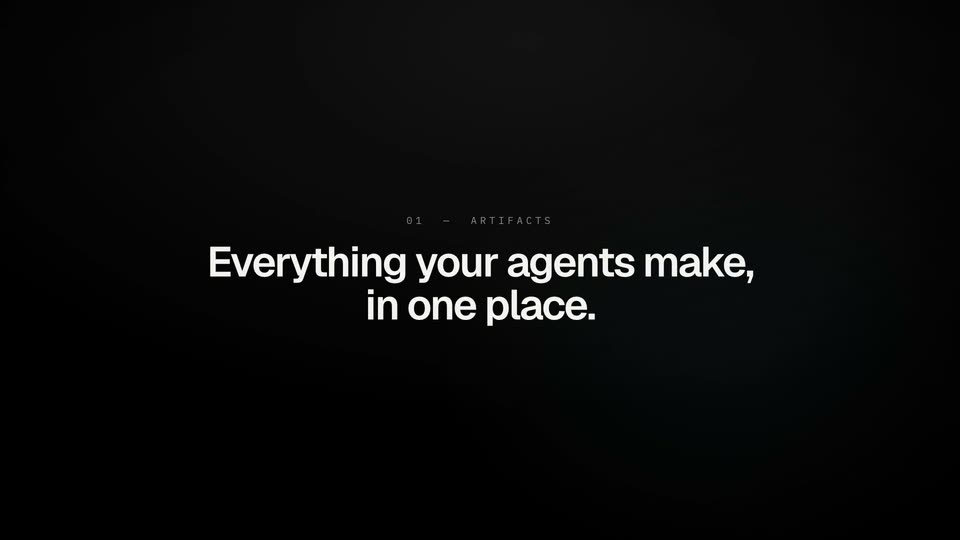
A small letter-spaced '01 - ARTIFACTS' label sits above a two-line white headline that fades in over black. The scene then fades to a dimmed Kanban board as a rounded caption card appears at the lower left.
On-screen text: “01 - ARTIFACTS”, “Everything your agents make,”, “in one place.”, “A new Artifacts page”, “Every file agents produce, grouped by project. Search or filter.”
Camera: Static
A dark app screen shows the Artifacts page: a cursor clicks the sidebar item, the list zooms in, then the cursor types pricing into the search field and the list filters down. A cut reveals a kanban board with artifact cards, and a caption box updates at the lower left.
On-screen text: “A new Artifacts page”, “Every file agents produce, grouped by project. Search or filter.”, “On every board card”, “Each session's newest artifacts, with a preview on hover.”
Techniques: UI zoom, Cursor demo
Camera: Push in
A dark kanban board is shown; a cursor hovers the launch-email.md file on a card, opening a tooltip preview of the email. The camera zooms in on the card, then the tooltip closes and the cursor drifts away.
On-screen text: “On every board card”, “Each session's newest artifacts, with a preview on hover.”
Techniques: Cursor demo, UI zoom
Camera: Push in
A dark Kanban board shows task cards under Validating and In review columns. A cursor moves up and clicks the Pricing FAQ card; a release notes detail panel opens on the right while the board shifts left, and the lower-left caption box swaps to a new headline.
On-screen text: “On every board card”, “Each session's newest artifacts, with a preview on hover.”, “A release notes draft history”, “All the notes an agent wrote, in the order it wrote them.”
Techniques: Cursor demo
Camera: Static
A dark markdown viewer shows release notes. A cursor clicks the history icon, a list of versions drops in, and the older version is previewed. The frame widens to the full app, then zooms in as the cursor selects a sentence and types feedback into a pop-up box.
On-screen text: “A full viewer, with history”, “Preview or restore earlier versions, including your own saves.”, “Point at a passage”, “Select rendered text to send the agent feedback on it.”
Techniques: Cursor demo, Split screen, UI zoom
Camera: Push in
The blurred session board darkens as the view zooms into a centered archive confirmation dialog. A cursor clicks the Delete 1 artifact checkbox, the check fills and the Confirm button turns red. A lower-left caption card stays until the screen fades to black.
On-screen text: “Tidy up on archive”, “Optionally delete the session's artifact files too.”
Techniques: UI zoom, Cursor demo
Camera: Push in
On a black background, a small gray label sits above a large white headline. The headline resolves from a horizontal motion blur into a sharp, locked-off frame and holds until the cut to black.
On-screen text: “02 - CHAT”, “Pick up where you left off.”
Techniques: Kinetic type
Camera: Static
A dark chat interface scrolls upward as a long message types itself into the bottom input field, finishing with a circular send button lighting up.
On-screen text: “Your next message, suggested”, “Press Tab to turn it into an editable draft. It never sends on its own.”
Camera: Push in
A dark interface shows a callout card top-left and a centered tab key badge. In the bottom input field, a monospace draft types 'Then open a PR.' after a static instruction, with a cursor arrow at right. The view crossfades to an empty prompt screen.
On-screen text: “Your next message, suggested”, “Press Tab to turn it into an editable draft. It never sends on its own.”
Techniques: Kinetic type
Camera: Static
A dark interface shows the heading “What do you want to work on?” over three suggestion rows. A cursor clicks the first row; its text fills the input and the list collapses. A “Starter requests” caption card sits lower left.
On-screen text: “Starter requests”, “Empty chats suggest a few ways to begin.”
Techniques: Cursor demo
Camera: Static
A dark interface shows a centered white prompt heading above a rounded input box, with a Starter requests tooltip pinned bottom-left. A cursor hovers near the heading, then the view shifts to a running state with a status line at top and a new prompt in the box.
Camera: Static
A dark agent chat UI dims as the frame zooms in on a 'Continue turn' callout in the upper left, a cursor resting on the send control. It fades to black, then a blurred white headline 'Keep every agent current.' resolves over a small '03 - AGENTS' label.
On-screen text: “Continue turn”, “Stopped a turn? One click picks the task back up.”, “03 - AGENTS”, “Keep every agent current.”
Techniques: UI zoom, Cursor demo
Camera: Push in
A black title card reading 'Keep every agent current.' with a small '03 - AGENTS' label fades into a dark settings screen. A left sidebar lists agents, Codex is highlighted, and a right panel shows its Account tab with an Update button. A bottom-left caption box explains the per-agent tabs.
On-screen text: “03 - AGENTS”, “Keep every agent current.”, “Settings > Harness”, “Each agent gets its own Account, Models and Health tabs.”
Camera: Static
A dark settings screen lists AI agents in a left sidebar; the frame zooms in as the cursor flips off a model toggle under the Models tab, then clicks the Health tab to reveal status rows. A caption card stays in the bottom-left corner.
On-screen text: “Settings › Harness”, “Each agent gets its own Account, Models and Health tabs.”
Techniques: UI zoom, Cursor demo
Camera: Push in
A dark dashboard with a caption card shows an update panel. The cursor clicks Update all, the buttons flip to Updating..., and the panel slides away. The screen fades to black as the heading Move faster. blurs in.
On-screen text: “Update one agent, or all of them”, “Never automatic, and never mid-session.”, “04 - SPEED”, “Move faster.”
Techniques: Cursor demo
Camera: Static
A black title card shows a small gray label above the bold white line “Move faster.” It fades into a dark Kanban board, and a caption card appears at the lower left next to two keycap icons.
On-screen text: “04 — SPEED”, “Move faster.”, “Redesigned shortcuts ⌘/ lists every one of them.”
Camera: Static
Two oversized keycaps, the command symbol and a slash, sit centered on a dimmed app. They fade out to reveal the full keyboard shortcuts list. A cursor glides down the rows, then the panel dissolves to expose the session list behind.
On-screen text: “Redesigned shortcuts”, “⌘/ lists every one of them.”
Techniques: Cursor demo
Camera: Push in
A dark app window cycles through sidebar sessions, highlighting a new item and swapping the main panel's summary with each switch. A caption card in the lower left reads 'Faster everywhere' while the view ends zooming into the open pricing document.
On-screen text: “Faster everywhere”, “The board loads sooner, and switching sessions is quicker.”
Techniques: UI zoom
Camera: Static
A dark assistant interface shows a reply with a blue Stripe link. A cursor hovers the link, popping a link-preview card with the Stripe Docs title. The cursor slides onto the title, then the card fades out to reveal the code block.
Techniques: Cursor demo
Camera: Static
A dark chat screen shows a faded code document behind a lighter input bar. A top-left callout reads 'recalls sent messages' as the input field types a prompt, clears it, then retypes it, with a cursor resting at the center.
On-screen text: “↑↓ recalls sent messages”, “Bring one back, edit it, send again.”
Camera: Static
A dark profile-settings screen shows three rows. A white cursor clicks the Personal row's menu, choosing 'Set Personal as default', so the row gains a (Default) tag. The frame then zooms out to reveal the whole browser window. A lower-left caption explains default profiles.
On-screen text: “Default browser profiles”, “Star a profile for sessions that haven't picked one.”
Techniques: Cursor demo, UI zoom
Camera: Static
A dark browser window on a black background loads the Orchestrator.inc landing page, its white headline and app screenshot filling the frame. A cursor clicks the Download button; a progress bar in the top-right corner fills to Done while the page scrolls down to reveal the kanban board.
Techniques: Cursor demo
Camera: Static
A small blue pixel robot holding a white pointer is centered on black, then grows into a rounded badge while a dark landing page fades in behind it, with a centered headline, a download button, and a table of agent tasks.
Camera: Static
A dark kanban board fills the frame, four columns of task cards under a left sidebar. A small blue robot mascot with an antenna pops into the empty center of the board, then disappears, leaving the static interface.
Camera: Static
A faint dark board UI fades to black while the white headline “Stop babysitting agents.” holds center. “Start orchestrating them.” fades in below, “orchestrating” in a blue-purple gradient, then the Orchestrator.inc wordmark and a small gray “AVAILABLE NOW · V0.14.3” line appear, and all elements fade out.
On-screen text: “Stop babysitting agents.”, “Start orchestrating them.”, “Orchestrator.inc”, “AVAILABLE NOW”, “V0.14.3”
Techniques: Kinetic type
Camera: Static