0:56
Anand Paj - We just solved attribution for AI Agents. Introducing Journeys. AI
Scope · B2B · Oct 2026
Stormy · Aug 2025 · 2:13 · Full motion · AI-annotated
Stormy’s 2:13 launch film runs 25 scenes, about 5.3 s each. The product is on screen from the first frame and 1 feature is revealed. The call to action lands at 2:06 (95% in), over a voiceover. A single continuous screen recording of the Stormy app, cut into short beats at about nine and a half per minute, with a fixed webcam bubble and a rolling dark caption pill. The walkthrough zooms into interface details such as green Why? tooltips and modals to show the AI's reasoning, then pulls back to the full window before the next step.
Is this your launch? to your site or press kit.
Scope · B2B · Oct 2026
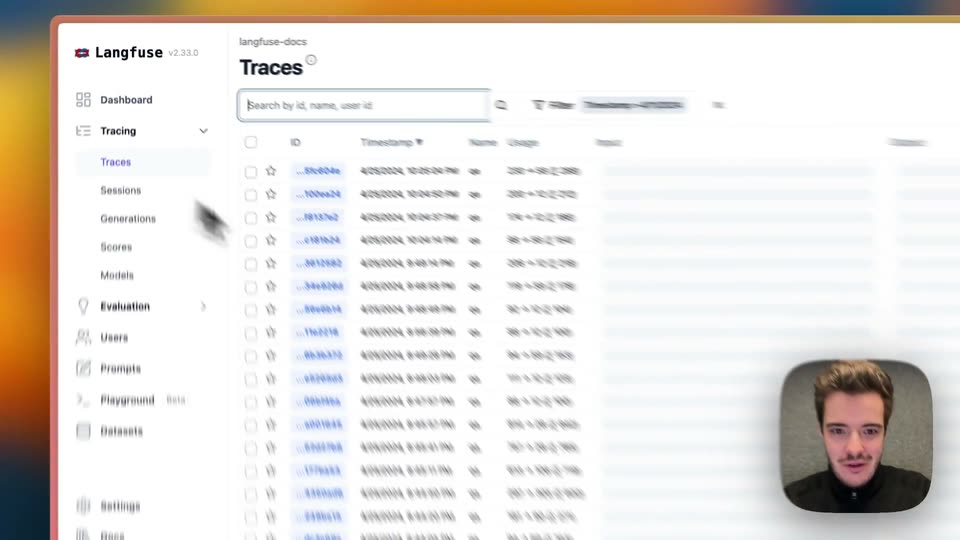
Langfuse · Sep 2025
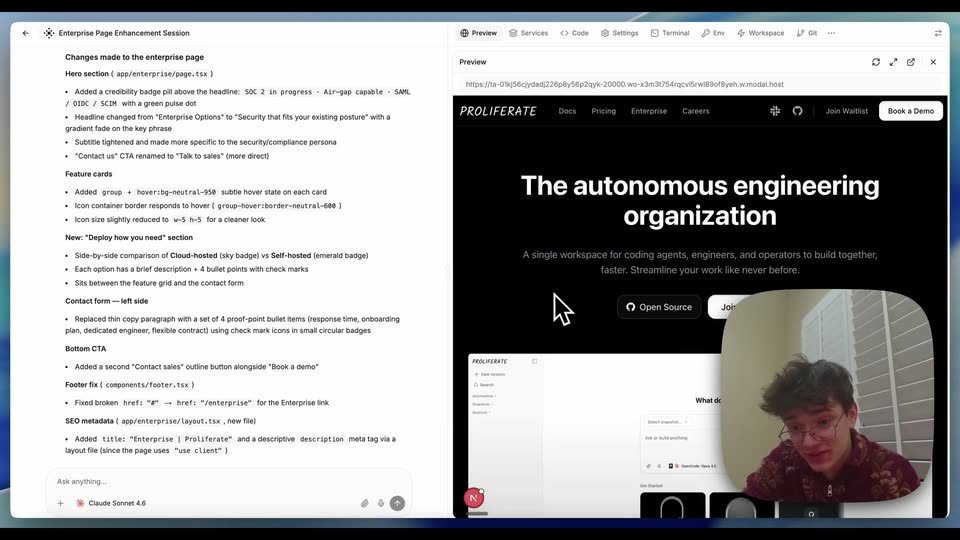
Proliferate · B2B · Feb 2026
Screen recording of the Stormy app home view, with the presenter's webcam in the bottom-right corner. White captions in a dark pill update at the bottom while the cursor zooms into the search form, types a query and clicks Continue.
On-screen text: “excited to introduce Stormy.”, “Stormy is a tool which can help”, “you find influencers on any social”, “media. YouTube, TikTok,”, “Newsletters, LinkedIn and soon”, “podcasts.”, “you need to find people who are”, “talking about MCPs and their”, “agents on YouTube.”
Techniques: UI zoom, Cursor demo
Camera: Push in
A screen recording of a creator outreach tool fades in: a YouTube search list of profile cards with video thumbnails left, an outreach queue right. A webcam video of a talking man overlays the bottom right while caption phrases swap in a dark pill at the bottom.
On-screen text: “Stormy is going to go through”, “thousands of profiles at the same”, “time. Analyzing whether they are”, “talking about the right topic,”, “whether they are a good match for”
Camera: Pull out
A product UI shows a creator outreach list; a presenter's webcam sits in the bottom-right corner. A cursor clicks the Why? tag, expanding a green checkmark explanation, then clicks Find Email, which spins into a loading state as the Select button turns blue.
On-screen text: “only the ones who are still alive”, “and at the most relevant. You can”, “click on the button 'Why' to see”, “how I decided this specific profile”, “is most relevant. And you can see”, “that this person literally makes”, “the influencer, you can quickly find”, “his email in the interface. And you”, “can also select him to make the”
Techniques: Cursor demo, UI zoom
Camera: Push in
A close-up of a creator-outreach UI shows two profile cards with thumbnails and stat rows. A cursor clicks Find Email, the bar turns into a blue Selected strip, then the frame zooms out to the full window with a right-side Outreach Queue panel and a webcam of a young man.
On-screen text: “can also select him to make the”, “bulk outreach later.”, “all emails are found, you can just”
Techniques: Cursor demo, UI zoom
Camera: Pull out
A product screen shows a Confirm Email Campaign modal listing two recipients over a dimmed dashboard, with a small face-cam of a speaker in the corner and a dark caption bar at the bottom. A cursor moves from the top-right menu down to the Configure row.
On-screen text: “all emails are found, you can just”, “click confirm email campaign, set”
Techniques: Cursor demo
Camera: Push in
A centered Confirm Email Campaign dialog scrolls over a dimmed app screen, listing two recipients and a blue Confirm and Send button, while a cursor moves through the fields. A small face-cam of a presenter sits in the corner and a caption bar rolls along the bottom.
On-screen text: “click confirm email campaign, set up your template. A.I. can help you with this one as well. And just click”
Techniques: Cursor demo
Camera: Pan
A centered white modal over a dimmed dashboard quickly swaps from a blue loading ring to a green checkmark in a pale disc, signaling completion. A small webcam inset in the corner shows a young man talking. A cursor hovers near the modal's bottom edge.
On-screen text: “with this one as well. And just click”, “confirm. The emails are going to”
Camera: Pull out
A dimmed outreach dashboard holds a white Campaign Sent! modal with a green check and a Close button, while a young man talks and gestures in a rounded webcam window at the bottom right. White caption lines roll across the bottom.
On-screen text: “be sent through your Gmail”, “account. A.I. is going to do the”, “follow up and even the first steps”, “on the negotiations.”
Camera: Pull out
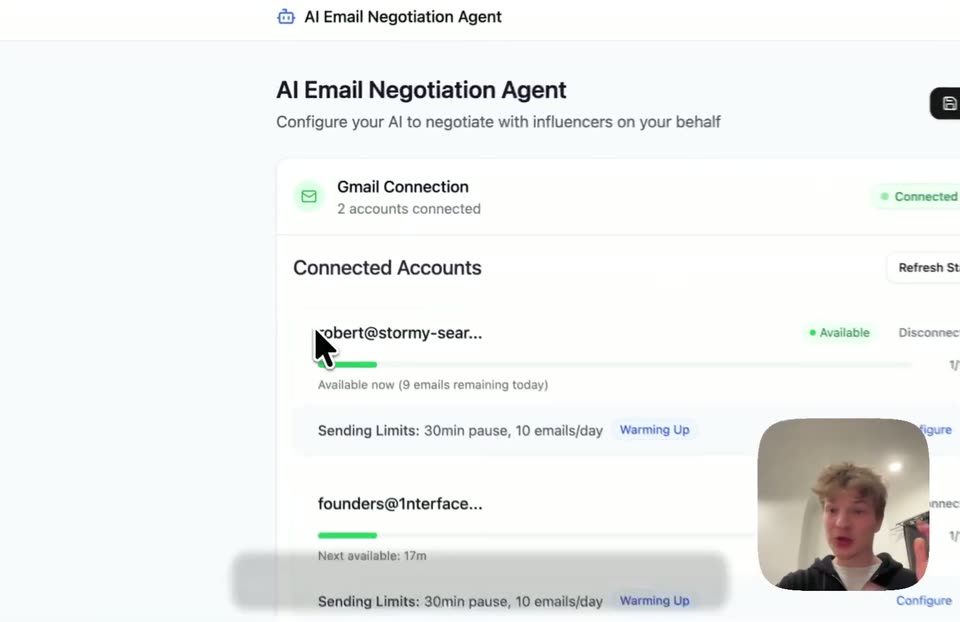
The AI Email Negotiation Agent settings page scrolls upward, passing the Gmail Connection card and account list, while a facecam inset in the corner shows a young man talking. A black caption bar slides in at the bottom.
On-screen text: “connect multiple inboxes and you”
Camera: Push in
A product settings page titled AI Email Negotiation Agent lists Gmail connections and per-account sending limits, with a black cursor at the left edge and a small rounded webcam clip of a presenter in the lower right. A dark caption bar runs across the bottom.
On-screen text: “connect multiple inboxes and you”
Techniques: Cursor demo
Camera: Static
A settings screen for an AI email agent scrolls down past connected Gmail accounts and a Google connect button. A small rounded webcam of a blond man in a black hoodie sits bottom right, with white captions on a dark bar below.
On-screen text: “connect multiple inboxes and you”, “can set the AI to reply in specific”
Camera: Pan
A product dashboard scrolls down past a TikTok connection panel to reveal a generated email body with subject line and AI content tags. A presenter talks in a small video window at the lower right, and a dark caption bar runs along the bottom.
On-screen text: “can set the A.I. to reply in specific”
Camera: Pan
A light-themed email template view fills the screen, showing a subject line and body copy with blue AI content tags, while a small rounded video of a young man sits at the right. A dark caption bar at the bottom updates as the screen scrolls slightly up.
On-screen text: “can set the A.I. to reply in specific”, “style. You can set up the template, the”
Camera: Pan
The email template page scrolls down past the initial and follow-up message fields to the AI Replies section, where a cursor hovers. A small rounded face-cam of the presenter sits bottom right, and a black caption bar carries the voiceover.
On-screen text: “style. You can set up the template,”, “the follow and give the information”
Techniques: Cursor demo
Camera: Pan
A close-up of a text editor interface shows a mouse cursor. A dark caption box at the bottom displays the text, then changes to a new phrase.
On-screen text: “the follow and give the information”, “to make sure you have”
Techniques: Cursor demo
Camera: Static
A settings panel shows a prompt editor where a line of text types out word by word. A small webcam bubble of the presenter sits in the lower right, and a dark caption pill reading 'for example that...' shows at the bottom, then disappears.
On-screen text: “for example that...”
Techniques: Cursor demo
Camera: Static
A light interface shows a prompt editor with a paragraph on influencer replies and a Save button. A mouse pointer hovers over the rejection line, and a dark caption pill reads when it needs to reject someone. A small webcam video of a presenter sits in the bottom-right corner.
On-screen text: “when it needs to reject someone.”
Techniques: Cursor demo
Camera: Static
A product settings panel with a text editor is framed center, the page scrolls up slightly to reveal radio options. A cursor hovers over the body text. A black caption box sits at the bottom and a small presenter video inset fills the lower right corner.
On-screen text: “when it needs to reject someone.”
Techniques: Cursor demo
Camera: Pull out
A product interface for finding influencers fills the screen, with a heading and a search form; a query types itself into the field while a video call window in the bottom right shows a young man gesturing. Subtitle captions appear in a dark bar at the bottom.
On-screen text: “to find influencers who are”, “studying in the university in New”, “York.”
Camera: Push in
A white interface shows a 'Finding accounts...' status with a countdown timer ticking from 8s to 1s and a search criteria line. A small webcam clip of a young man sits in the bottom right corner, and a cursor hovers in the center.
Techniques: Cursor demo
Camera: Push in
A screen recording of the TikTok Search interface lists influencer profiles with photo grids and stat rows. The frame starts zoomed into the cards, then pulls back to the full browser window. A face-cam of a young man gestures at lower right while white subtitles roll along the bottom.
On-screen text: “through thousands of profiles at”, “the same time looking at the”, “photos, descriptions, bios, trying”, “to understand what the person is”, “living in New York and whether he”, “is studying. And here you can see”
Techniques: UI zoom, Cursor demo
Camera: Pull out
The influencer search interface fills the screen; the cursor hovers over green tags, each opening a dark green tooltip with verification text. A presenter speaks in a rounded webcam inset at bottom right, white subtitles on a dark pill run along the bottom.
On-screen text: “is studying. And here you can see”, “that if you hover over...”, “description that this person is”, “mentioned in Los Angeles in New”, “York and she mentioned studying”, “in New York University. can see”
Techniques: Cursor demo
Camera: Static
A screen recording of an influencer outreach interface fills the frame, its list of profile cards scrolling down past highlighted entries. A small webcam video of a young man talking sits in the bottom right corner, and a dark caption bar at the bottom updates with the spoken words.
On-screen text: “New York University can like”, “New York City grad school. If like”, “the influencer, you can just quickly”
Techniques: Split screen, Cursor demo
Camera: Pan
A screen recording of a TikTok Search interface lists influencer profiles with stats and video thumbnails. A cursor glides over the Find Email, Draft AI Email and DM buttons. A small webcam of the presenter occupies the bottom-right corner, and white subtitles run along the bottom.
On-screen text: “the influencer, you can just quickly”, “draft them an email or you can”, “send them a T-Talk DM through”, “the connected account.”
Techniques: Cursor demo
Camera: Static
A screen recording of the Arc browser shows an influencer search form while a young man talks in a picture-in-picture box at bottom right. The view opens tilted in 3D and settles flat as the cursor types a query into the search field.
On-screen text: “is Stormy. Let me know what you”, “think. Leave a comment below if”, “you like this launch”
Techniques: 3D mockup, Cursor demo
Camera: Static