0:35
Explore
Software Mansion AI Labs - Introducing Reverb-TTS, a state-of-the-art voice-cloning text-to-spee
Software Mansion · Nov 2026 · 0:51 · Full motion · AI-annotated
- Length
- 0:51
- Scenes
- 21 · 2.4 s avg
- Product on screen
- 0:03
- Features shown
- 5
- Call to action
- 0:44 · 88%
- Voiceover
- Yes
- Views
- 57K on X
as of November 21, 2026
00:00:00 / 00:51:00
- Length
- 0:51
- Scenes
- 21 · 2.4 s avg
- Product on screen
- 0:03
- Features shown
- 5
- Call to action
- 0:44 · 88%
- Voiceover
- Yes
- Views
- 57K on X
as of November 21, 2026
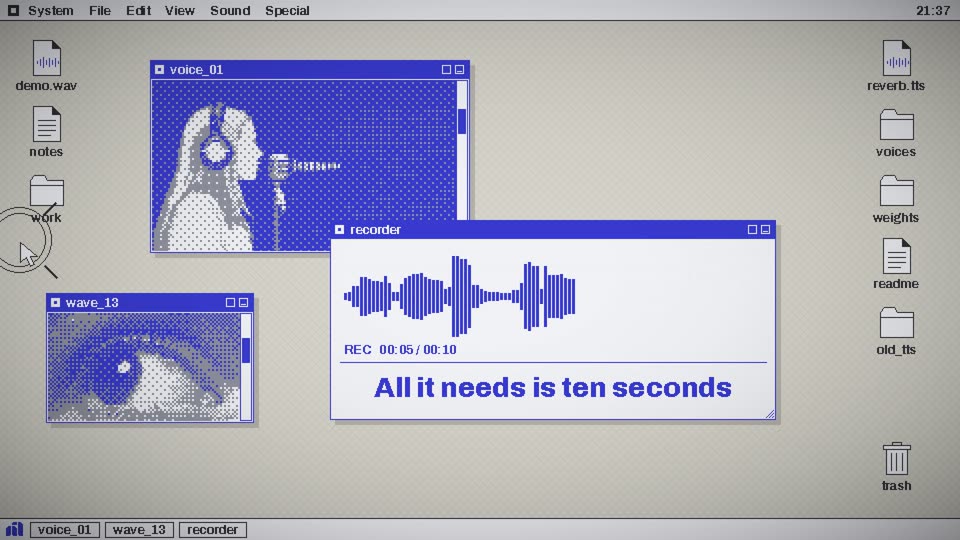
Software Mansion’s 0:51 launch film runs 21 scenes, about 2.4 s each. The product shows up at 0:03 and 5 features are revealed. The call to action lands at 0:44 (88% in), over a voiceover. A retro desktop OS simulation carries the whole pitch: a BIOS boot leads into a beige desktop where indigo windows spawn, stack and cascade to announce each spec, with dithered halftone images and word-by-word typed captions doing the narration. Pacing is fast and rhythmic (around 147 bpm, roughly 8 cuts a minute), built on a strict two-color palette of beige and indigo with monospace type, so the signature moves are the cascading window stacks, the halftone image fills and the cursor dragging a
No filming indicatedEstimated needs: 8 capture groups — your screens or recordings
Is this your launch? to your site or press kit.
More like this

Software Mansion AI Labs - Introducing Reverb-TTS, a state-of-the-art voice-cloning text-to-spee, scene by scene
· 21 scenes as text
01 · Hook · 0:00–0:03
On a black screen, white monospace BIOS lines type in on the left, ending with a segmented progress bar that fills, while the dotted three-bar logo on the right fills to solid white. The frame then cuts to black.
On-screen text: “SOFTWARE MANSION BIOS v1.0.0”, “(c) Software Mansion AI Labs”, “CPU ............ ok”, “Memory test ... 1,161,071K ok”, “Sound card .... detected”, “Voice ROM ..... reverb.tts”, “Booting Reverb OS ....”
Techniques: Kinetic type
Camera: Static
02 · Product intro · 0:03–0:05
A beige desktop interface shows file icons in two columns under a menu bar. The view zooms toward the right column, centering on reverb.tts as a cursor hovers beside it.
Techniques: UI zoom
Camera: Push in
03 · Product intro · 0:05–0:07
A retro beige desktop with a pixel menu bar shows a purple terminal window full of hex text that closes, revealing file and folder icons lined along the left and right edges. A white arrow cursor drifts down into the empty center.
Techniques: Cursor demo
Camera: Pull out
04 · Product intro · 0:07–0:09
A retro desktop with a centered blue window. Inside, large white bold words SOFTWARE MANSION fade in, then a thin rule and the word PRESENTS appear below. A mouse cursor rests at the window's lower corner.
On-screen text: “SOFTWARE”, “MANSION”, “PRESENTS”
Techniques: Kinetic type
Camera: Static
05 · Product intro · 0:09–0:12
A retro beige desktop with a menu bar and icon columns. A blue window loads a dithered image while the caption A zero-shot voice cloning model. appears word by word and the loading counter climbs to 99%. The window then flips to a white card showing the blue Reverb. logo.
On-screen text: “A zero-shot voice cloning model.”, “Reverb.”
Techniques: Kinetic type
Camera: Static
06 · Product intro · 0:12–0:14
A beige retro desktop fills the frame. Blue windows titled Reverb cascade open at center, the top one showing a large halftone Reverb wordmark. An Error dialog and a small arch.txt note pop in, the cursor drifting across the title bars.
On-screen text: “Reverb.”, “Who put reverb”
Techniques: Cursor demo
Camera: Static
07 · Product intro · 0:14–0:16
A retro beige desktop stacks blue windows titled Reverb and Error. The Error dialog reads Who put reverb on that? with a Turn it off button, then a large pixel TURN OFF! flashes and the dialog closes, leaving a window showing Reverb. and a speaker icon emitting sound waves.
On-screen text: “Who put reverb on that?”, “Reverb.”, “TURN OFF!”
Techniques: Kinetic type, Masking
Camera: Static
08 · Product intro · 0:16–0:20
A retro gray desktop with a menu bar. A Reverb window shows big blue 'Reverb.' text while a smaller window types 'That's just what the model is called.' Windows slide apart, a striped bar wipes the title, then the text becomes 'Reverb-TTS' and a pixelated waveform window opens.
On-screen text: “Reverb.”, “Relax.”, “That's just what the model is called.”, “Reverb-TTS”
Techniques: Kinetic type, Cursor demo, Morph
Camera: Static
09 · Feature reveal · 0:20–0:23
A retro beige desktop shows overlapping windows: a blue dithered mic photo, a tape-reel window that expands on the left, and a recorder window whose waveform grows as its caption fills word by word.
On-screen text: “All it needs is ten seconds”
Techniques: Kinetic type
Camera: Static
10 · Feature reveal · 0:23–0:23
A retro desktop interface with a top menu bar and side icons. A central recorder window holds a blue waveform and the line “of your voice,” fading in; a dithered portrait window opens on the right while the cursor pulls a window off the left.
On-screen text: “of your voice,”
Techniques: Cursor demo
Camera: Static
11 · Feature reveal · 0:23–0:24
A retro beige desktop OS with a top menu bar and side icons. Overlapping windows rearrange: a recorder window holds a blue waveform and the caption of your voice, a new window types out and after that it will word by word, and a window flashes a large white SOTA.
On-screen text: “of your voice,”, “and after that it will”, “SOTA”
Techniques: Kinetic type
Camera: Static
12 · Feature reveal · 0:24–0:27
A pixelated retro desktop with a top menu bar and side icons. A central window types a blue sentence word by word while a white arrow cursor drifts across it. Small windows holding waveforms and a dithered face slide in and out around the edges.
On-screen text: “and after that it will say anything you type.”
Techniques: Kinetic type, Cursor demo
Camera: Static
13 · Feature reveal · 0:27–0:29
A retro beige desktop fills the frame. The info window's caption swaps from 'It's really, really small' to 'too, it doesn't even have' as a SOTA window pops up, gets crossed out, and a size chart with thumbnail windows spreads across the screen.
On-screen text: “It's really, really small”, “too, it doesn't even have”
Techniques: Cursor demo
Camera: Static
14 · Feature reveal · 0:29–0:31
A retro desktop fills the frame with overlapping blue-titled windows. In the file-info window, large blue text types out a caption while a bar-chart window lists model parameter counts. Small dithered grayscale image windows drift into place around the edges.
On-screen text: “too, it doesn't even have parameters!”
Techniques: Kinetic type
Camera: Static
15 · Feature reveal · 0:31–0:35
A retro beige desktop fills with blue-titled windows that spawn and multiply around a drifting cursor. A center window reveals 'And it's so fast that I can't keep up with it.' word by word, then the scene cuts to a 'weights (open)' window reading 'The weights are open too,'.
On-screen text: “And it's so fast that I”, “can't keep up with it.”, “The weights are open too,”
Techniques: Kinetic type, Cursor demo
Camera: Static
16 · Feature reveal · 0:35–0:36
A retro beige desktop with a top menu bar and bottom dock fills the frame. Windows pop open across the screen, a file grid fills the central window, and a blue-and-gray headline reads in along its bottom edge.
On-screen text: “The weights are open too,”
Techniques: Kinetic type
Camera: Static
17 · Feature reveal · 0:36–0:38
A pixelated retro desktop shows a window listing eight file icons next to a padlock image. A blue caption appears word by word across the window, then a cursor drags it aside as a small window with large blue SOTA text pops up at the bottom right.
On-screen text: “The weights are open too, dear, so help yourself.”
Techniques: Kinetic type, Cursor demo
Camera: Static
18 · Demo · 0:38–0:39
A beige retro desktop shows several windows. The center file-list window swaps to a blue live-recording circle, while the lower windows change to an empty player and a pixelated figure. A cursor clicks the live control.
Techniques: Cursor demo
Camera: Static
19 · Demo · 0:39–0:44
A retro blue-and-white desktop fills the frame, tiled with a waveform player, a spectrogram and a word-error bar chart. A white cursor drags the big LIVE window, stacking numbered copies, while its headline cycles from ANY VOICE! to REVERB TTS!
On-screen text: “ANY VOICE!”, “ANY TEXT!”, “REVERB TTS!”
Techniques: Kinetic type, Cursor demo
Camera: Static
20 · CTA · 0:44–0:46
A retro desktop interface shows a window with 'REVERB TTS!' in large blue text. A cursor drags the window's top-right corner, shrinking the window to reveal the smaller text 'Reverb TTS.' in the center.
On-screen text: “REVERB TTS!”, “Reverb TTS.”
Techniques: Cursor demo, Kinetic type
Camera: Static
21 · CTA · 0:46–0:51
A retro desktop hosts a centered download window where a blue progress bar fills left to right. The caption shifts from Available to Available now, and a Hugging Face button fades in, filling solid blue as the cursor hovers over it.
On-screen text: “Reverb-TTS”, “Available now.”, “Hugging Face”, “Software Mansion AI Labs”
Techniques: Cursor demo
Camera: Static