1:19
Slack - Canvas
Salesforce
Salesforce · 1:26 · Full motion · AI-annotated
Salesforce’s 1:26 launch film runs 12 scenes, about 7.2 s each. The product is on screen from the first frame and 1 feature is revealed. There is no explicit call to action; a voiceover carries the film. The video opens on a flat-illustration title card, then follows a cursor from the dashboard into a four-step guided form, and closes on the auto-generated rule builder. Its style is defined by the recurring bear mascot, a fixed step tracker on the right, and calm cursor-driven transitions over a pale blue and white palette.
Is this your launch? to your site or press kit.
A flat illustration of a brown bear on a green hill, holding a hammer and a blue blueprint beside a birdhouse and a red bird. A pink tree and bushes sit on the right under a pale blue sky. The title block is on the left. The frame is static.
On-screen text: “Quick Promotion Setup”, “Loyalty Management”, “'23”
Camera: Static
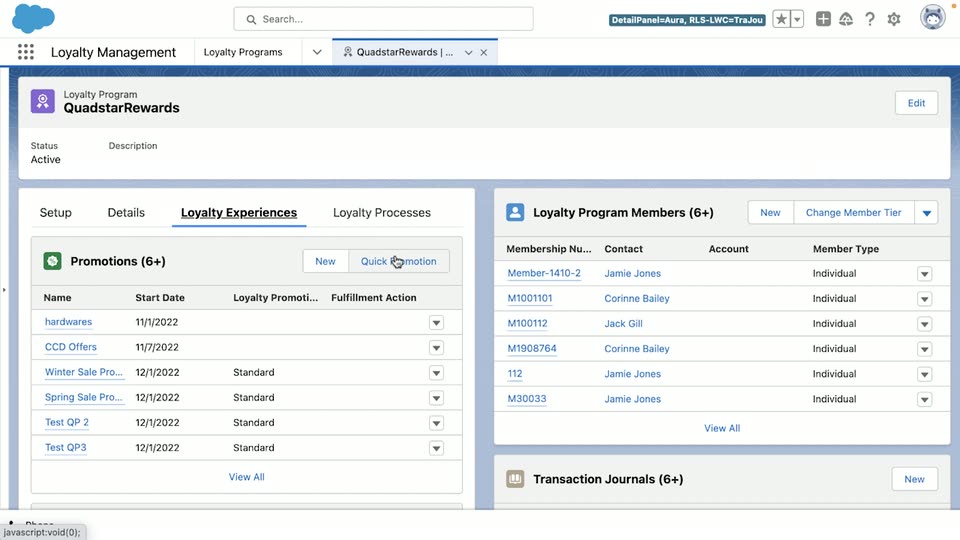
A locked-off screen of a loyalty management dashboard shows the QuadstarRewards program with tier groups and member tables. A cursor drifts in from the left and rests on the Loyalty Experiences tab near the end.
On-screen text: “Quick Promotion Setup”, “'23”
Techniques: Cursor demo
Camera: Static
A desktop loyalty-management interface fills the frame. The cursor clicks the Loyalty Experiences tab, the left panel swaps to a promotions list, then the cursor moves to and clicks the Quick Promotion button.
On-screen text: “Quick Promotion Setup”
Techniques: Cursor demo
Camera: Static
A locked-off screen of the Loyalty Management app: tabs and a search bar sit above a wide blue panel with a faint contour pattern. The heading Quick Promotion Setup holds still over the empty area while a cursor rests at center.
On-screen text: “Quick Promotion Setup”
Camera: Static
A loyalty promotion form is filled in with a visible cursor. The cursor types the name and objective, opens a date picker to select Dec 14, 2022, then clicks Save and Next, and a loading spinner appears.
Techniques: Cursor demo
Camera: Static
A mouse cursor works through a loyalty promotion form in a browser, flipping the member and event toggles on, then picking Advanced Tiers, Gold, Member's Birthday and Birthday Month from dropdowns. The page scrolls as a right-hand step tracker and summary stay fixed.
Techniques: Cursor demo
Camera: Static
A loyalty management form cross-fades from the eligibility step to the rewards step. Field labels and the right sidebar stepper update in place, while a cursor rests near the blue Next button.
Techniques: Morph
Camera: Static
A cursor works through the Configure Promotion Rewards form, opening the reward-type dropdown to pick Credit Fixed Number of Points, then choosing a currency, typing 500 points, and toggling on a limit field where it enters 1.
Techniques: Cursor demo
Camera: Static
A loyalty management screen shows a promotion review form that scrolls up and down. The cursor clicks the Activate button, a green confirmation banner slides in at the top, then the view cuts to a rule steps page with four colored step cards.
Techniques: Cursor demo
Camera: Pan
A static Salesforce loyalty management screen shows a Rule Steps panel with four numbered cards alternating pink and blue. A mouse cursor drifts up the left side and hovers near the first card's expand arrow.
Techniques: Cursor demo
Camera: Static
A Salesforce Loyalty Management rule builder scrolls down through numbered rule cards. A cursor expands step 2 and step 3, revealing condition and parameter fields.
Techniques: Cursor demo
Camera: Pan
A flow builder canvas shows a Credit Points node under a condition panel. The cursor hovers near the node as the view zooms in and the node expands into a detail panel with input parameters, Currency Name set to Fixed Date NQP and Points to Credit 500.0.
Techniques: Cursor demo, UI zoom
Camera: Pan