0:29
Explore
Financial Services Cloud - Service Process Automation
Salesforce · 1:41 · Full motion · AI-annotated
- Length
- 1:41
- Scenes
- 13 · 7.8 s avg
- Product on screen
- 0:00
- Voiceover
- Yes
00:00:00 / 01:41:13
- Length
- 1:41
- Scenes
- 13 · 7.8 s avg
- Product on screen
- 0:00
- Voiceover
- Yes
Salesforce’s 1:41 launch film runs 13 scenes, about 7.8 s each. The product is on screen from the first frame. There is no explicit call to action; a voiceover carries the film. The video bookends one continuous screen recording with an identical flat illustration title card, keeping every frame locked while a cursor performs each click and crossfade. Pacing is even at about six cuts per minute, and the signature move is the cursor hovering on a control just before the panel switches to the next step.
No filming indicatedEstimated needs: 1 capture group — your screens or recordings · 2 graphic passages — draw or supply
Is this your launch? to your site or press kit.
More like this


1:18
Service Cloud - Service Catalog
Salesforce
0:31

Introducing Voice Search for your computer
Google · AI · Jun 2011
Financial Services Cloud - Service Process Automation, scene by scene
· 13 scenes as text
01 · Product intro · 0:00–0:27
A flat vector illustration holds still: a brown bear sits on a green hill with a blue blueprint and hammer, a blue bird on its shoulder, a small birdhouse at its feet, and a pink tree to the right. The title block sits left on a pale blue sky.
On-screen text: “Service Process Automation”, “Financial Services Cloud”, “'23”
Camera: Static
02 · Demo · 0:27–0:32
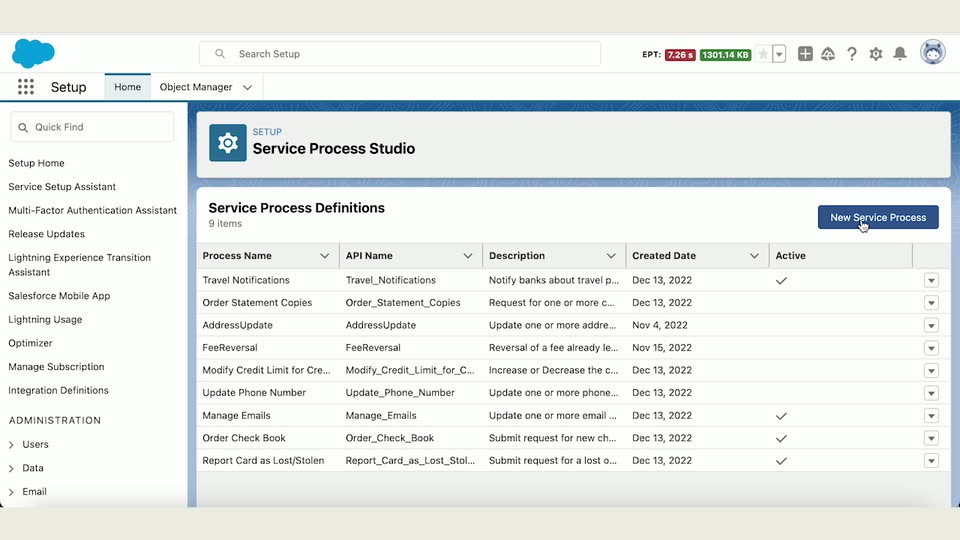
A flat Salesforce Setup screen shows the Service Process Studio page with a table of nine service process definitions. A white cursor drifts from the top of the panel down to the blue New Service Process button and rests on it. The frame stays locked off throughout.
On-screen text: “Service Process”, “Automation”, “Financial Services Cloud”, “'23”
Techniques: Cursor demo
Camera: Static
03 · Demo · 0:32–0:41
A Salesforce Setup screen with a New Service Process modal open. The cursor clicks the Create from Template tab, showing two template cards with blue icons, then returns to the Create New tab with empty name fields.
Techniques: Cursor demo
Camera: Static
04 · Demo · 0:41–0:47
A Salesforce Service Process Studio form fills out. A cursor clicks the Short Description field and types a sentence, then moves to the blue Next button in the lower right and hovers over it.
Techniques: Cursor demo
Camera: Static
05 · Demo · 0:47–0:58
A static view of the Data Attributes table in Service Process Studio, listing 25 fields with columns for name, API name and type. A cursor rests on the Next button, then the screen crossfades to the empty Request Form page.
Techniques: Cursor demo
Camera: Static
06 · Demo · 0:58–0:59
A Salesforce Service Process Studio screen shows the Request Form panel in an empty state, with the left navigation listing the process steps. A mouse cursor hovers over the Add Request Form button while the layout stays static.
Techniques: Cursor demo
Camera: Static
07 · Demo · 0:59–1:02
A Salesforce Add Request Form screen shows a table of four request forms. The cursor clicks the radio button beside Fee Reversal, filling it blue, then moves to the Save button at the bottom right, which turns from gray to blue.
Techniques: Cursor demo
Camera: Static
08 · Demo · 1:02–1:04
A full-screen Salesforce console shows the cursor moving from the Next button to the Fulfillment Flow menu item, while the main panel crossfades from a Fee Reversal card to an empty Add Fulfillment Flow state.
Techniques: Cursor demo
Camera: Static
09 · Demo · 1:04–1:06
A cursor moves down a list of flows and clicks the radio button beside Fee Reversal Flow Orchestrator, turning it blue and activating the Save button at the bottom right.
Techniques: Cursor demo
Camera: Static
10 · Demo · 1:06–1:12
Full-screen screen recording of the Service Process Studio interface on the Fulfillment Flow step, showing a card for the added flow orchestrator. The cursor clicks Integration Definition in the left sidebar, and the panel switches to an empty state with an Add Integration Definition button.
Techniques: Cursor demo
Camera: Static
11 · Demo · 1:12–1:20
A Salesforce Setup screen scrolls down a list of integration cards. The cursor moves to the FSC Core Banking Implementation row and clicks it, expanding the entry to reveal its version and an Overview section.
Techniques: Cursor demo
Camera: Static
12 · Demo · 1:20–1:36
A flat screen capture of a CRM account page for Ms. Julia Green holds still, then a cursor moves to the Action Launcher search box, clicks it, types fee and a dropdown lists Fee Reversal, which the cursor hovers over.
Techniques: Cursor demo
Camera: Static
13 · Outro · 1:36–1:41
A flat illustration holds still on a locked-off frame: a brown bear sits on a green hill holding a blue blueprint and a hammer, a small blue bird on its shoulder, a pink tree at right and a wooden birdhouse at its feet. Headlines sit at left.
On-screen text: “Service Process Automation”, “Financial Services Cloud”, “'23”
Camera: Static