0:42
Explore
Service Cloud - Salesforce Contact Center: Insights & Scheduling
Salesforce · 1:21 · Full motion · AI-annotated
- Length
- 1:21
- Scenes
- 12 · 6.8 s avg
- Product on screen
- 0:00
- Features shown
- 2
- Voiceover
- Yes
00:00:00 / 01:21:27
- Length
- 1:21
- Scenes
- 12 · 6.8 s avg
- Product on screen
- 0:00
- Features shown
- 2
- Voiceover
- Yes
Salesforce’s 1:21 launch film runs 12 scenes, about 6.8 s each. The product is on screen from the first frame and 2 features are revealed. There is no explicit call to action; a voiceover carries the film. The video opens on a flat-illustration title card, then runs two cursor-driven feature demos, the Conversation Insights dashboard and the Shift Scheduling grid, on locked-off product screens. Pacing is even and unhurried, built on slow cursor glides, hover tooltips, modal pop-ins, and green confirmation banners as its signature moves.
No filming indicatedEstimated needs: 2 capture groups — your screens or recordings · 1 graphic passage — draw or supply
Is this your launch? to your site or press kit.
More like this
3:58

Seungmin Hong - We're launching Greptile for firmware. AI code reviewers are great f
Simantic · B2B · Oct 2026
0:22

Mercury - Introducing: SAFEs by Mercury for C-Corps. You can now customize, si
Mercury · Finance · Aug 2023
Service Cloud - Salesforce Contact Center: Insights & Scheduling, scene by scene
· 12 scenes as text
01 · Product intro · 0:00–0:08
Flat illustration, locked-off frame: a brown bear sits on a green hill holding a blue blueprint and hammer, a blue bird on its shoulder, a wooden birdhouse at its feet. A pink tree and flowers fill the right under a pale blue sky; title text sits left.
On-screen text: “Salesforce Contact Center:”, “Insights & Scheduling”, “Service Cloud”, “'23”
Camera: Static
02 · Feature reveal · 0:08–0:25
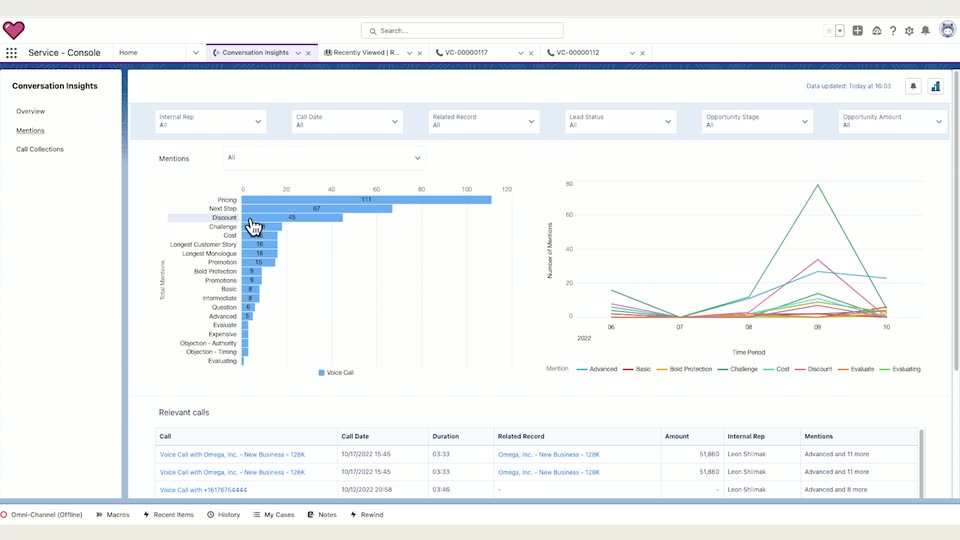
A locked-off Salesforce Service Console dashboard shows a horizontal bar chart of mention categories, a line chart over time, and a calls table. A cursor glides across the bar labels, then hovers the line chart, opening a dark tooltip that reads the Pricing count for September 2022.
On-screen text: “Salesforce Contact Center:”, “Insights & Scheduling”, “Service Cloud”, “'23”
Techniques: Cursor demo
Camera: Static
03 · Feature reveal · 0:25–0:41
A Salesforce service console fills the frame. A cursor clicks the audio timeline, then the Attrition Risk mention tag, which turns blue and scrolls the transcript to the matching message.
Techniques: Cursor demo
Camera: Static
04 · Feature reveal · 0:41–0:45
A static Salesforce Setup screen shows the Scheduling Rules page, a left navigation tree and a five-row rules table. A mouse cursor glides rightward across the table header and stops on the New button.
Techniques: Cursor demo
Camera: Static
05 · Feature reveal · 0:45–0:55
A New Scheduling Rule dialog opens over a dimmed rules list. A cursor types a name, picks Availability from the rule-type dropdown, and clicks Save.
Techniques: Cursor demo
Camera: Static
06 · Feature reveal · 0:55–0:56
A dimmed setup screen shows a New Scheduling Rule dialog with a centered loading spinner, which switches to a View Scheduling Rule panel as a green success banner appears at the top, the cursor sitting near the Save button.
Techniques: Cursor demo
Camera: Static
07 · Feature reveal · 0:56–1:02
A light shift-scheduling grid scrolls down through rows of staff names and green, orange, and yellow shift blocks across a week of dates. The cursor drifts to the top right and rests on the Mass Shift Update button.
Techniques: Cursor demo
Camera: Pan
08 · Feature reveal · 1:02–1:05
A shift-scheduling calendar fills the frame, employee rows on the left and colored shift blocks across the week. A white dialog titled Mass Shift Update fades in at the center, then a hand cursor glides from the top bar to its close button.
Techniques: Cursor demo
Camera: Static
09 · Feature reveal · 1:05–1:09
A shift-scheduling grid lists named resources against a week of dates, with green and peach blocks marking shifts. A cursor moves to a green block on Friday, clicks it, and a detail card pops up showing the shift's number, times and status, then expands with edit buttons.
Techniques: Cursor demo
Camera: Static
10 · Feature reveal · 1:09–1:11
A shift-scheduling calendar sits behind a centered 'Get Candidates' dialog listing two candidates with match percentages. The background dims as the dialog comes forward, and a cursor glides from the lower right to the blue Submit button and clicks it.
Techniques: Cursor demo
Camera: Static
11 · Feature reveal · 1:11–1:11
A shift-scheduling calendar sits darkened behind a centered Get Candidates dialog listing two candidates with match percentages. A spinner loads above the list while a cursor hovers over the blue Submit button. Locked-off frame, no motion.
Techniques: Cursor demo
Camera: Static
12 · Feature reveal · 1:11–1:21
A shift-scheduling grid loads behind a green confirmation banner. A blue spinner spins at center, then the weekly table fills with green and orange shift blocks. A hand cursor moves right and hovers over an orange block in the Friday column.
Techniques: Cursor demo
Camera: Static