1:06
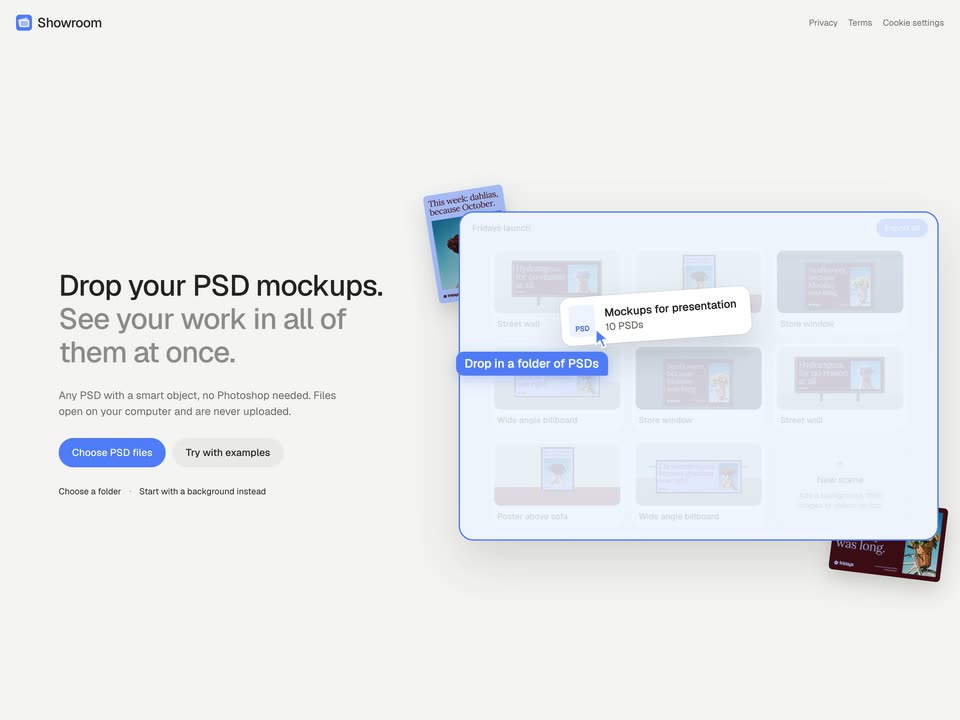

Seyi - Introducing Showroom, an app that lets you see your designs in every
Showroom · Oct 2026
Nothing · Oct 2025 · 2:22 · Full motion · AI-annotated
Nothing’s 2:22 launch film runs 49 scenes, about 2.9 s each. The product is on screen from the first frame and 3 features are revealed. The call to action lands at 2:19 (98% in), over a voiceover. The video alternates locked-off white title cards with slow push-ins into browser and phone mockups, opening each feature segment with a centered serif title and walking one device through the full create-and-share flow. Pacing is even and unhurried, with crossfades, zooms and a single yellow accent guiding the eye across otherwise monochrome screens.
Is this your launch? to your site or press kit.
Films whose music sounds like this one, voice left out
OpenAI · Lo-fi hip-hop
Mirakl · Electronic, lo-fi hip-hop, ambient, and house
Arbitrum · Modern electronic, synthwave/retrowave style
A black frame holds centered white serif text, 'Introducing', which gives way to 'playground' set in a pixel-dot lowercase face, followed by 'with Essential Apps' in the serif. All text is static on a locked-off frame.
On-screen text: “Introducing”, “playground”, “with Essential Apps”
Techniques: Kinetic type
Camera: Static
A single line of black serif text reading “with Essential Apps” holds centered on a plain white background. The frame is locked off and the text stays static for the full duration.
On-screen text: “with Essential Apps”
Camera: Static
Centered serif lines cycle on white: “with Essential Apps” crossfades to “Create a canvas for the life of your life”, then “Your digital canvas awaits.” slides in. A browser window with the playground canvas fades up, showing scattered avatars and the prompt “Come to play.”
On-screen text: “with Essential Apps”, “Create a canvas for the life of your life”, “Your digital canvas awaits.”
Techniques: Kinetic type
Camera: Static
A browser window opens on a light landing page. A centered serif headline sits among floating 3D cubes, avatar circles and a cat image that drift and rotate. The page scrolls down to reveal an Essential Apps grid of widget cards, then cuts to a builder view with a left toolbar, a 3x3 grid canvas and a prompt input.
Camera: Push in
The frame zooms from a full browser window to the prompt box, where a monospace request types itself out and the yellow Create button is pressed. A yellow Thinking bar expands with streaming text, and the chat scrolls as more lines appear.
Techniques: UI zoom, Kinetic type
Camera: Static
A close-up of an AI chat panel beside a generating code editor pulls back to reveal the full browser window, exposing a deployed app preview with a photo of a man in a dark interface.
Techniques: UI zoom
Camera: Pull out
A browser window of an AI app builder fills the frame, chat log left, live preview of a wardrobe app right. The view zooms in as the version switches to 2 and Publish turns Published, then pulls back out as a weather card fades into the preview.
Techniques: UI zoom
Camera: Static
A flat browser window on a light gray field shows the Community page: a serif title, an icon rail, and a grid of creator, widget, and app cards. The cards settle into their grid as the heading resolves, then the frame fades to white.
On-screen text: “playground.nothing.tech”
Camera: Static
A browser window for the Nothing playground site zooms out from a full-screen crop to a floating window on white, then a share sheet with a phone mockup and QR code pops up in the center, and the whole frame fades to white.
Techniques: UI zoom
Camera: Pull out
A plain white screen holds the centered black serif title “Glyph Toys”, then cuts to the smaller line “Create tools, features, games, and more”. The frame stays locked off and the text remains static throughout.
On-screen text: “Glyph Toys”, “Create tools, features, games, and more”
Camera: Static
Two short lines of small black monospace type sit centered on a plain white background. The first line holds, then crossfades into the second as the words overlap mid-transition. The frame stays locked off throughout the swap.
On-screen text: “Create tools, features, games, and more”, “then share for the community to play with”
Techniques: Kinetic type
Camera: Static
A white phone mockup, angled in 3D, shows a website whose elements, avatars and a portrait card, fade in around a serif headline. The camera then zooms into the page, reframing on the Glyph Toys section with its yellow upload pill.
Techniques: 3D mockup, UI zoom
Camera: Static
A flat phone mockup on a white field shows the Glyph Toys page; the device eases down in scale to settle into frame, framing the heading, a yellow upload bar, and a black circular pixel-matrix graphic.
On-screen text: “Paste the Play Store link to your Glyph Toys”
Camera: Static
A light gray upload modal sits centered on a white background, showing a grid icon, a serif title, and a prefilled Play Store link field. A yellow Continue button with a black arrow slides in at the bottom.
Camera: Static
A white upload modal titled 'Upload a Glyph Toys preview' fills the frame, its text scaling as it fades. The view then reframes to a phone showing the Glyph Toys web page with a photo picker sheet at the bottom.
Techniques: UI zoom
Camera: Static
A front-facing phone mockup on a white background shows a photo picker grid with a dark circular logo tile. It cross-fades into a light gray card holding a white circle, a small black dot orbiting its edge, and the word Preparing below.
On-screen text: “Upload a Glyph Toys preview”
Camera: Static
A light gray rounded panel on a pale background shows a white circle with a small dot orbiting it, the word Preparing below, and a close icon top right; the panel sits inside a phone browser view.
Camera: Static
A white phone mockup fades in on a plain background, showing the Glyph Toys page. The view zooms into the Review your creation form as Wave is typed, scrolls to the yellow Continue button, zooms out to the toy detail page with a share sheet, then fades out.
Techniques: UI zoom
Camera: Pan
A washed-out front-facing phone mockup with a note interface fades to white, leaving the title 'Camera Presets' centered on a plain background.
On-screen text: “Camera Presets”
Camera: Static
On a plain white background, the headline “Camera Presets” holds center, then is replaced by “Perfect your photography eye”. A 3D iPhone mockup then fades in, showing the app’s preset screen with a staircase photo and a row of color swatches.
On-screen text: “Camera Presets”, “Perfect your photography eye”
Techniques: 3D mockup
Camera: Static
A flat white phone mockup sits centered on a light gray field, its screen showing a photo editor with an architectural photo. A white share card on the photo expands downward, revealing a QR code beneath the title, while preset thumbnails and buttons slide in along the bottom.
Techniques: Kinetic type
Camera: Static
A phone mockup sits centered on a plain white background, its screen showing a preset card with a spiral staircase photo, the title Golden Depth, a QR code, and Share and Save to Gallery buttons. The frame is locked off and static.
Camera: Static
A faint front-facing phone mockup shows a preset card with a QR code, then dissolves into centered text on white. The line builds word by word with the word share in bold.
On-screen text: “and share presets with other creators”
Techniques: Kinetic type
Camera: Static
A thin serif line reads on a plain white field, then dissolves as a tilted smartphone mockup fades in, its screen showing a row of avatars, two tilted cards, and a Come to play headline.
On-screen text: “and share presets with other creators”
Techniques: 3D mockup
Camera: Static
A front-facing phone mockup on a white background shows a browser page with the headline “Come to play. Your digital canvas awaits.”, avatar circles and a yellow 3D object. Mid-clip the page crossfades into a Presets grid of cards.
Techniques: 3D mockup
Camera: Static
A front-facing phone mockup on a white field displays a Camera Presets page with a yellow upload button and fanned photo thumbnails. The frame zooms into the screen while the preset cards scroll upward.
Techniques: UI zoom
Camera: Static
A white phone mockup, front-facing, holds the Nothing camera presets page on a plain white field. The screen shows a serif heading, a yellow upload bar, and a card with three fanned interior photos. The frame stays static.
Camera: Static
A pale gray modal card fades in and drifts upward on a light background. It shows a pixel-grid poster, a serif headline and two option rows with small icons.
Camera: Static
A light gray modal card with a grid icon and a serif heading floats over a phone screen. The card fades out, revealing the underlying presets view: a yellow upload bar, a See all row, and a grid of preset thumbnails.
Camera: Static
A white phone mockup, slightly angled, shows a browser page titled Camera Presets. A photo picker sheet slides up over a grid of thumbnails, then a Preparing modal with a spinner fades in and out, revealing the first preset card.
Techniques: 3D mockup, UI zoom
Camera: Pull out
A phone mockup centered on white fades in, showing a browser view of a Camera Presets page. An Upload sample photos modal fills its rows with thumbnails, then swaps to a Review your creation form.
Camera: Static
A centered phone mockup on a white background fills a preset form, the description typing out, then scrolls to a preview image and yellow submit button. A confirmation modal pops, the page swaps to a presets list, and a share sheet with a QR card slides up.
Camera: Static
A barely visible phone outline lingers on a plain white field, then the centered title EQ Profiles holds static in black serif type.
On-screen text: “EQ Profiles”
Camera: Static
Black serif text reads “EQ Profiles” centered on a plain white field, then swaps to “Fine-tune your sounds” in the same position. Both cards hold still on a locked-off frame.
On-screen text: “EQ Profiles”, “Fine-tune your sounds”
Camera: Static
On a plain white background, the centered tagline crossfades in from an overlapping phrase. A pale gray interface panel with a header bar and a horizontal slider then fades in behind the text.
On-screen text: “Fine-tune your sounds”
Camera: Static
A white-framed smartphone mockup sits centered on a plain white background, its dark blue gradient screen showing circular and square widgets: a stylus, a pixel face, earbuds at 90% charge, and a bottom row of app icons. The frame stays locked and still.
Techniques: 3D mockup
Camera: Static
A flat phone mockup on a white background shows a device settings list that scrolls up, then cuts to an Equaliser screen where red slider handles glide along vertical faders. The phone then scales down and fades to white.
Camera: Static
A phone mockup of an equaliser app fades in on a white background, its New profile dialog open. The text ClearWave is typed character by character into the input field, a blinking cursor at the end.
Techniques: Cursor demo
Camera: Static
A white phone mockup fades in at center on a plain white background, its screen showing a Share profile view with a dark QR card reading ClearWave by Keith. A serif Equaliser title scales at the top as the caption ClearWave slides into a pill below the phone.
On-screen text: “Equaliser”, “ClearWave”, “None”, “New profile”
Techniques: Kinetic type
Camera: Static
On a plain white background, a centered monospace line reads “Upload to Playground,” then the remaining words slide in from the right to complete the sentence. The camera stays locked off while the text settles into a single static line.
On-screen text: “Upload to Playground so the community can try it or remix it”, “ClearWave”
Techniques: Kinetic type
Camera: Static
A gray monospace line of text sits centered on white, then a white smartphone mockup appears at center, its screen showing the app's empty state: scattered circular avatars, a yellow 3D object, a dark square, and serif copy.
On-screen text: “Upload to Playground so the community can try it or remix it”
Techniques: 3D mockup
Camera: Static
A white phone mockup tilts in 3D perspective on a plain background. The view zooms into the top of the screen, framing the EQ Profiles heading and a yellow upload bar, then pans down to an EQ profile card with a dotted curve and a small avatar.
Techniques: 3D mockup, UI zoom
Camera: Static
A front-facing phone mockup fades in on white, showing the EQ Profiles page. A photo picker sheet slides up, a QR image is selected, then an Analysing EQ Profile sheet with an orbiting dot appears before the upload row highlights.
Camera: Static
A tilted phone mockup in 3D shows an EQ profile loading modal, then scales down and fades to reveal a flat interface card behind it, displaying a dot graph and a user row with an avatar.
Techniques: 3D mockup
Camera: Static
A close-up of an EQ profile card with a dotted curve on a grid scales down to reveal a Review your creation form above it, showing name and description fields and a Preview label.
Techniques: UI zoom
Camera: Static
A white phone screen opens zoomed on the form header, then pulls back to the full device as the name and description fields fill in. The view scrolls down past a dotted EQ curve preview card to a yellow Submit button.
Techniques: UI zoom
Camera: Pan
A centered confirmation modal on white reads “Creation submitted!” with body copy and a small EQ profile chart card signed Keith. The modal holds still, then scales down at the end, revealing a faint app toolbar with time and icons behind it.
Camera: Static
A white phone mockup on a white background shows a “Creation submitted!” dialog over an EQ Profiles list. The dialog closes, the list scrolls to a ClearWave item with a yellow Download button, then a share sheet with a QR code card slides up. The phone fades to white.
Camera: Static
A plain black screen holds centered white serif text reading “Learn more at”, then cuts to the URL “playground.nothing.tech”, which holds before dimming out. The frame stays locked off throughout.
On-screen text: “Learn more at”, “playground.nothing.tech”
Camera: Static