
4:42
Explore
Introducing Marker Manager
Marker · Nov 2026 · 1:58 · Full motion · AI-annotated
- Length
- 1:58
- Scenes
- 28 · 4.2 s avg
- Product on screen
- 0:00
- Features shown
- 7
- Call to action
- 1:55 · 98%
- Voiceover
- Yes
- Views
- 1 on YouTube
as of November 20, 2026
00:00:00 / 01:58:08
- Length
- 1:58
- Scenes
- 28 · 4.2 s avg
- Product on screen
- 0:00
- Features shown
- 7
- Call to action
- 1:55 · 98%
- Voiceover
- Yes
- Views
- 1 on YouTube
as of November 20, 2026
Marker’s 1:58 launch film runs 28 scenes, about 4.2 s each. The product is on screen from the first frame and 7 features are revealed. The call to action lands at 1:55 (98% in), over a voiceover. The video follows one idea end to end through the pipeline, using locked-off UI shots, a persistent face-cam anchor, and a steady pace of about two cuts per minute. Its signature moves are the glowing yellow cursor, yellow highlight accents, and dark caption bars that punctuate each step.
No filming indicatedEstimated needs: 9 capture groups — your screens or recordings
Is this your launch? to your site or press kit.
More like this
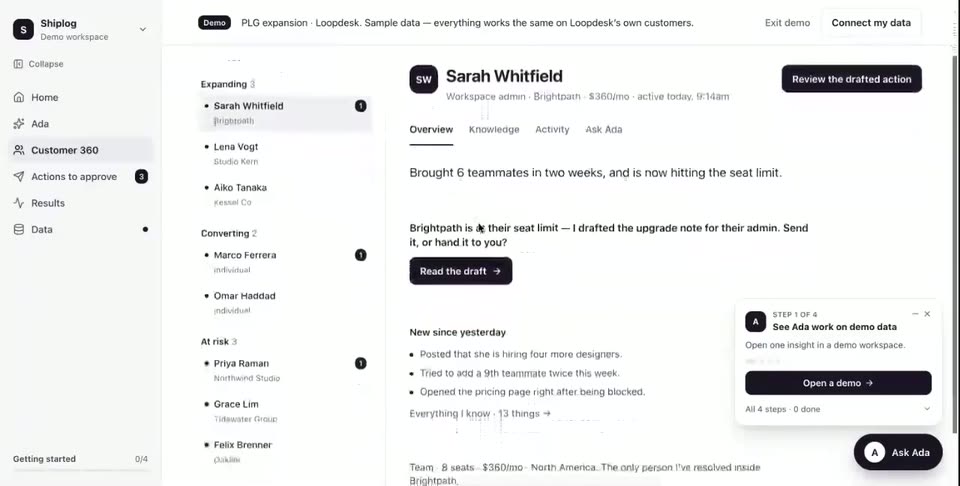

4:42
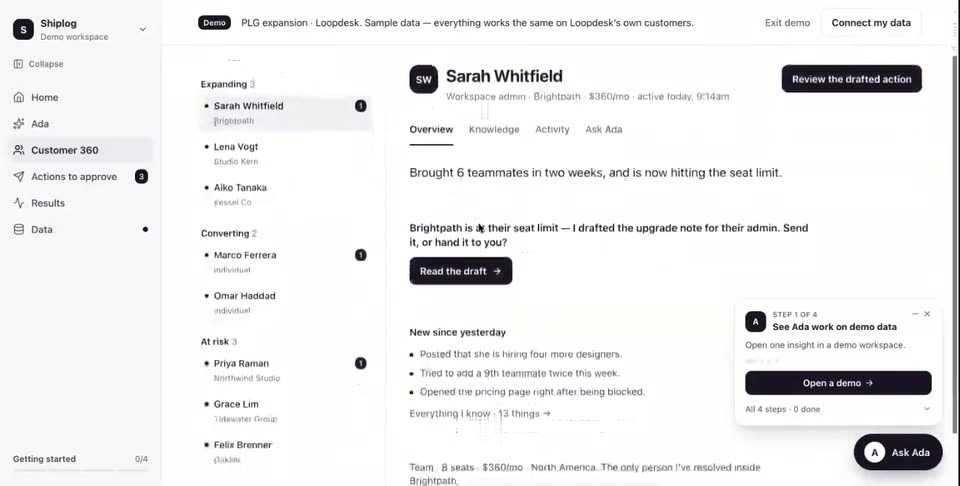
1:48

OpenAI Developers - Building apps with GPT-Live-1? Give them a voice that fits. Here’s h
OpenAI Developers · Oct 2026
Introducing Marker Manager, scene by scene
· 28 scenes as text
01 · Product intro · 0:00–0:03
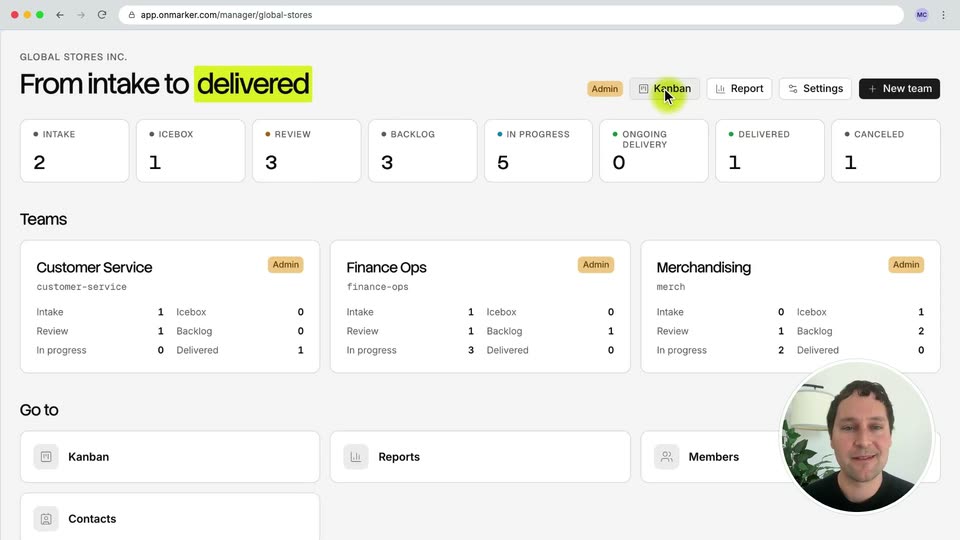
A light gray card shows the Marker Manager logo above the headline “From intake to delivered”, the last word on a yellow highlight, with a circular presenter video bottom right. A dark caption bar fades in below, then the background cuts to the app’s dashboard behind the same headline.
On-screen text: “From intake to delivered”, “Your team already knows where AI could save them hours.”
Camera: Static
02 · Product intro · 0:03–0:12
A locked-off Marker Manager dashboard shows the heading 'From intake to delivered' over status counts and team cards. A glowing cursor hovers the INTAKE, REVIEW, BACKLOG, IN PROGRESS, and DELIVERED cards, then the Kanban tab. A circular presenter video sits bottom right; dark caption bars swap lines below.
On-screen text: “Your team already knows where Al could save them hours.”, “Marker Manager is how those ideas reach you, how you decide what we build,”, “and how you track each one to delivery.”
Techniques: Cursor demo
Camera: Static
03 · Feature reveal · 0:12–0:13
A cursor taps the Kanban button on a dashboard, and the view switches to a board with task columns under an All teams dropdown. A circular webcam inset of a man stays in the lower right corner.
Techniques: Cursor demo
Camera: Static
04 · Feature reveal · 0:13–0:18
A kanban board fills the screen beside a circular presenter inset. A highlighted cursor clicks Intake links, sliding a panel in from the right, then clicks Copy link, which reads Copied. The view crossfades to a form while black caption boxes cycle below.
On-screen text: “It starts with one link.”, “Send it to your team,”, “and anyone with a slow, repetitive”, “task can describe it in a few minutes.”
Techniques: Cursor demo
Camera: Pull out
05 · Feature reveal · 0:18–0:20
A browser window shows a form with name and email fields filled, beside a numbered step list. A yellow cursor clicks the Email me a code button, then the screen crossfades to a two-card choice. A circular presenter video and a caption bar sit at the bottom.
On-screen text: “and anyone with a slow, repetitive task can describe it in a few minutes.”, “What your team sees”
Techniques: Cursor demo
Camera: Static
06 · Feature reveal · 0:20–0:27
A product screen shows a 'How would you like to tell us?' prompt with two option cards. A glowing cursor hovers over each card while a talking head in a circle speaks at the corner and captions appear below. The view crossfades to a review screen.
On-screen text: “What your team sees”, “and anyone with a slow, repetitive task can describe it in a few minutes.”, “They can talk it through with an AI interviewer, or just type.”
Techniques: Cursor demo
Camera: Push in
07 · Feature reveal · 0:27–0:30
A browser window shows the 'Review and send' screen. A glowing cursor hovers the form as the FROM and TO fields flash yellow, then the page scrolls past the canvas cards to a 'Send to the team' button. A circular presenter video sits lower right, with a bottom caption.
On-screen text: “What your team sees”, “They can talk it through with an AI interviewer, or just type.”, “Here's Sofia in customer service sending hers.”
Techniques: Cursor demo
Camera: Pan
08 · Feature reveal · 0:30–0:34
A glowing cursor clicks the black Send to the team button; the screen switches to a Request sent confirmation card, then zooms out to a Kanban board with columns of task cards. A circular webcam of a man and a dark caption pill sit at the bottom.
On-screen text: “What your team sees”, “Here's how it comes over to the other side.”, “No workshops, nobody to chase.”
Techniques: Cursor demo, UI zoom
Camera: Static
09 · Feature reveal · 0:34–0:35
A kanban board of task cards fills the screen; a yellow outline highlights a card in the Intake column and a glowing cursor hovers in the Review column. A circular webcam of a man sits bottom right, and a dark caption bar appears below.
On-screen text: “Her idea just shows up on your board, already written up:”
Techniques: Cursor demo
Camera: Static
10 · Feature reveal · 0:35–0:36
A kanban board fills the frame with columns of task cards. The card 'Order status replies' is ringed in yellow with a cursor dot, then a LEAD CANVAS detail panel expands over the right showing a text table. A circular face-cam sits bottom right; a caption reads at the bottom.
On-screen text: “Her idea just shows up on your board, already written up:”
Techniques: Cursor demo, UI zoom
Camera: Static
11 · Feature reveal · 0:36–0:44
A web app shows a filled Lean Canvas board; a glowing cursor glides across cells, each lighting up with a yellow outline on hover. The view scrolls to the lower rows while a circular webcam of a presenter sits in the corner and a caption bar runs at the bottom.
On-screen text: “Her idea just shows up on your board, already written up:”, “the problem, who has it, how the work gets done today,”, “and what fixing it would be worth.”
Techniques: Cursor demo
Camera: Pan
12 · Feature reveal · 0:44–0:47
A kanban board of task cards is shown with a magnified revenue-streams callout, then the callout clears and a glowing cursor hovers and clicks the Order status replies card, opening its detail page. A circular webcam of the presenter sits in the corner.
On-screen text: “and what fixing it would be worth.”, “Then it's your call.”, “Every idea gets sized.”
Techniques: UI zoom, Cursor demo
Camera: Static
13 · Feature reveal · 0:47–1:02
The cursor types 2250 into the Hours saved field, and the benefit and expected value recalculate to $76,500 and ×17. The view zooms in; the expected value card gets a yellow outline, and the cursor clicks Save estimate. A face-cam sits bottom-right, black captions along the bottom.
On-screen text: “Every idea gets sized: what it takes to build, and what it gives back, in hours saved or dollars earned.”, “Manager turns that into one number, expected value.”, “This one pays back seventeen times its cost.”
Techniques: Cursor demo, UI zoom
Camera: Pan
14 · Feature reveal · 1:02–1:02
A project page titled Order status replies fills the frame, its tabs and summary cards static. The cursor glides from the solution sketch card to the Back button. A white caption on a dark bar sits at the bottom, a small face cam anchors the corner.
On-screen text: “Approve it, and it drops into the backlog, ranked against everything else.”
Techniques: Cursor demo
Camera: Static
15 · Feature reveal · 1:02–1:04
A cursor moves to the three-dot menu on a card in the highlighted Review column and clicks it, opening a dropdown with approval options. A dark caption bar sits at the bottom; a circular webcam feed of a man occupies the lower right corner.
On-screen text: “Approve it, and it drops into the backlog, ranked against everything else.”
Techniques: Cursor demo
Camera: Static
16 · Feature reveal · 1:04–1:05
A dimmed kanban board frames a white approval modal. A cursor glides down to the black Approve for backlog button and clicks it. A black caption bar holds the line at the bottom, while a circular webcam of a presenter sits in the lower right corner.
On-screen text: “Approve it, and it drops into the backlog, ranked against everything else.”
Techniques: Cursor demo
Camera: Static
17 · Feature reveal · 1:05–1:09
A cursor clicks the three-dot menu on a kanban card, opening a dropdown list of actions. The cursor then moves to hover over the 'Deprioritize to Icebox' option.
On-screen text: “Approve it, and it drops into the backlog, ranked against everything else.”, “Not convinced by one? Park it.”
Techniques: Cursor demo
Camera: Static
18 · Feature reveal · 1:09–1:10
A dimmed kanban board frames a centered modal titled Deprioritize GSI-0011? with a reason field and two buttons. A cursor rests at the modal's lower edge. A black caption at the bottom reads, then swaps, and a circular talking-head video sits in the corner.
On-screen text: “Not convinced by one? Park it.”, “Nothing gets built unless you say so.”
Techniques: Cursor demo
Camera: Static
19 · Demo · 1:10–1:25
A Kanban board fills the screen; a glowing cursor hovers over cards and their value-multiplier badges, then the board pans right to reveal later columns. A circular webcam of a presenter sits in the corner, and dark caption bars swap lines at the bottom.
On-screen text: “Nothing gets built unless you say so.”, “And when someone asks why this and not that,”, “the answer is the expected value multiplier.”, “3 Track”, “From there, our team builds, and you never have to ask for a status.”
Techniques: Cursor demo
Camera: Pan
20 · Feature reveal · 1:25–1:26
A browser Kanban board reflows cards across its columns while a black 'A week later' badge holds at the top and a caption states the same at the bottom. A circular talking-head video sits in the lower right corner.
On-screen text: “A week later”, “A week later, here's your board.”
Camera: Static
21 · Feature reveal · 1:26–1:34
A kanban board in a browser fills the frame as a circular webcam feed of a presenter sits in the corner. Cards settle into aligned columns, then a cursor hovers over them, drawing a yellow ring around each while status dots flip to red, yellow and green.
On-screen text: “A week later”, “A week later, here's your board.”, “Every project carries a stoplight:”, “green is on track, yellow is at risk, red is blocked, and it tells you why.”
Techniques: Cursor demo
Camera: Push in
22 · Feature reveal · 1:34–1:36
A cursor hovers over a yellow status note on a task detail page in a project app, then the view cuts to a kanban board with delivered cards. A circular webcam of a presenter sits in the corner as a dark caption box explains the color coding.
On-screen text: “green is on track, yellow is at risk, red is blocked, and it tells you why.”, “And that idea from Sofia? Delivered.”
Techniques: Cursor demo
Camera: Static
23 · Feature reveal · 1:36–1:38
A browser window shows a kanban board with columns for ongoing, delivered and canceled work. A cursor moves onto a highlighted card, and a circular video of a man speaks in the lower right. A dark caption bar appears at the bottom.
On-screen text: “And that idea from Sofia? Delivered.”
Techniques: Cursor demo
Camera: Static
24 · Feature reveal · 1:38–1:39
A cursor hovers a highlighted 'Order status replies' card on a kanban board, then the view reframes into that card's detail page showing its summary. A small circular video of a presenter sits in the corner while a caption reads 'And that idea from Sofia? Delivered.'
On-screen text: “And that idea from Sofia? Delivered.”
Techniques: Cursor demo, UI zoom
Camera: Static
25 · Feature reveal · 1:39–1:44
A browser window shows a project page; the cursor clicks the Updates tab and the view reframes onto a scrolling list of update cards. Two card titles flash a yellow highlight while a circular webcam feed of a man sits in the corner and a caption holds at the bottom.
On-screen text: “You can read every update from first draft to live for her whole team.”
Techniques: Cursor demo, UI zoom
Camera: Pull out
26 · Feature reveal · 1:44–1:45
A browser window displays a status report dashboard. The view scrolls down past the title and metric cards to a donut chart and a yearly value table. A glowing cursor hovers over the page and a circular webcam feed of a man sits in the bottom right corner.
On-screen text: “The report adds up what's delivered so far:”
Techniques: Cursor demo
Camera: Pan
27 · Feature reveal · 1:45–1:55
A browser window shows a report dashboard with a donut chart and value cards. A yellow outline highlights the period stats, then the view reframes onto the created-value card as a glowing cursor hovers over it. A circular presenter video sits in the corner while captions run along the bottom.
On-screen text: “The report adds up what's delivered so far:”, “almost three hundred thousand dollars a year, most of it this week.”, “Your team brings the problems. You pick what matters. We deliver.”
Techniques: UI zoom, Cursor demo
Camera: Push in
28 · CTA · 1:55–1:58
A faint product dashboard and the subtitle “That's Marker Manager.” fade out behind a centered end card: the Marker Manager logo, the headline “Interested in learning more?” and the yellow-highlighted URL onmarker.com. A circular live feed of the presenter stays in the bottom right corner.
On-screen text: “Marker Manager”, “Interested in learning more?”, “onmarker.com”, “That's Marker Manager.”
Camera: Static