
4:42
Explore
#customersuccess #ai #saas #productledgrowth #revenuegrowth | Shiplog (F/AI F26)
Shiplog · 4:42 · Full motion · AI-annotated
- Length
- 4:42
- Scenes
- 30 · 9.4 s avg
- Product on screen
- 0:00
- Features shown
- 4
- Call to action
- 4:33 · 97%
- Voiceover
- Yes
00:00:00 / 04:42:20
- Length
- 4:42
- Scenes
- 30 · 9.4 s avg
- Product on screen
- 0:00
- Features shown
- 4
- Call to action
- 4:33 · 97%
- Voiceover
- Yes
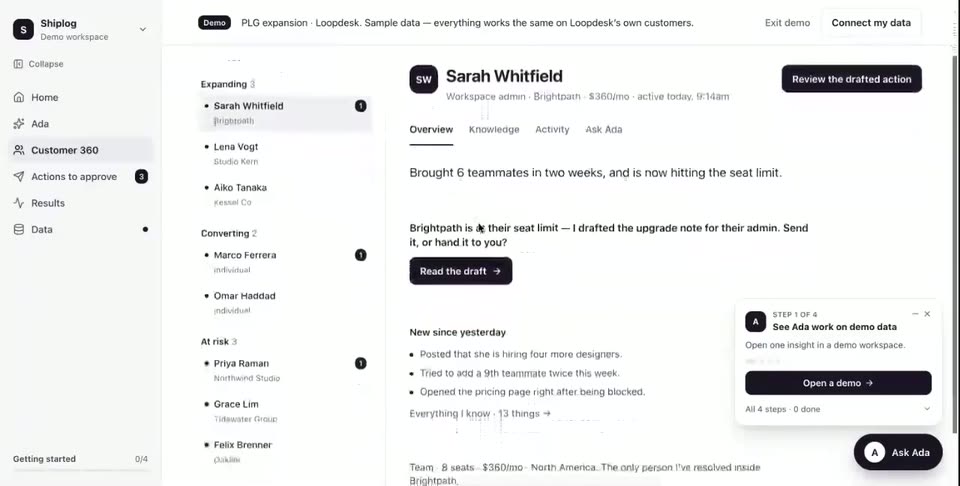
Shiplog’s 4:42 launch film runs 30 scenes, about 9.4 s each. The product is on screen from the first frame and 4 features are revealed. The call to action lands at 4:33 (97% in), over a voiceover. A single continuous screen-capture tour of a SaaS dashboard, narrated end to end by a voiceover that introduces the product, frames the problem, then walks three customer use cases (expansion, paywall, churn) before a short overview and a closing pitch. The visual style is flat and monochromatic: a near-white canvas, hairline gray borders, one black accent for cursors, buttons and graph nodes, with a clean sans-serif typeface and a small line-art device illustration as the only decorative touch.
No filming indicatedEstimated needs: 8 capture groups — your screens or recordings
Is this your launch? to your site or press kit.
More like this
1:58
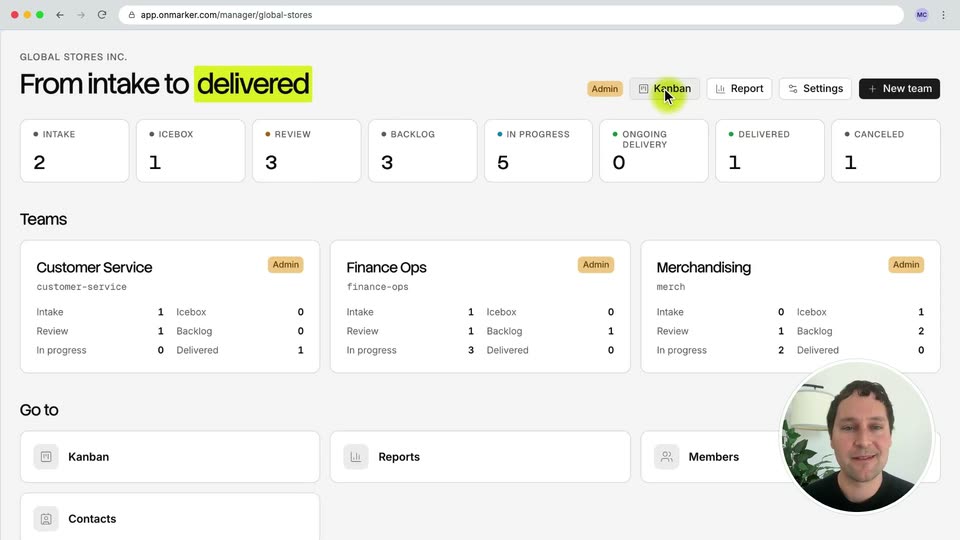

Introducing Marker Manager
Marker · B2B · Nov 2026
1:48

OpenAI Developers - Building apps with GPT-Live-1? Give them a voice that fits. Here’s h
OpenAI Developers · Oct 2026
#customersuccess #ai #saas #productledgrowth #revenuegrowth | Shiplog (F/AI F26), scene by scene
· 30 scenes as text
01 · Product intro · 0:00–0:27
A static screen capture of the Shiplog home dashboard: a left navigation rail, a 'Loopdesk is live' card with a line-art device illustration, and two action cards below. A black cursor drifts from the center card to the sidebar. A demo onboarding popup rests in the lower-right corner.
Camera: Static
02 · Problem · 0:27–0:45
A flat dashboard screen of the Shiplog app shows the Ada page with a list of customer insights and a small demo card bottom right. A mouse cursor drifts from the content area into the left sidebar and rests on the Customer 360 menu item.
Techniques: Cursor demo
Camera: Static
03 · Feature reveal · 0:45–1:10
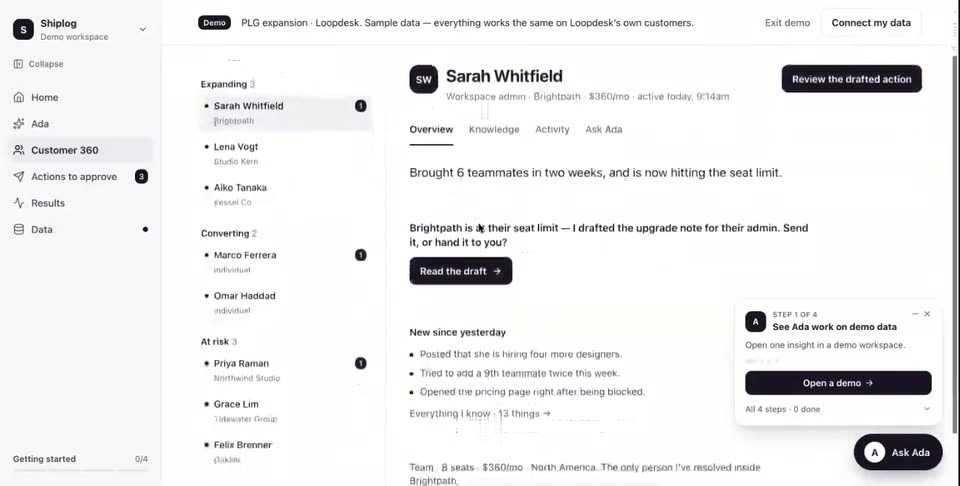
Flat capture of the Shiplog Customer 360 view, held static: a left list of names beside a right profile panel for Sarah Whitfield. A cursor then scrolls both columns upward to reveal more entries and clicks the close icon on the floating demo card.
Techniques: Cursor demo
Camera: Pan
04 · Feature reveal · 1:10–2:28
A cursor clicks nodes on a radial customer graph, each click highlighting a branch and refreshing the fact list below. The view then zooms in on the graph as the demo continues.
Techniques: Cursor demo, UI zoom
Camera: Static
05 · Feature reveal · 2:28–2:32
The product interface opens on a node graph linking customer facts under the Knowledge tab. The graph fades out as a long list of dated activity entries fades in and scrolls down through the bullets, while a cursor hovers near the tab bar.
Techniques: Cursor demo
Camera: Static
06 · Feature reveal · 2:32–2:40
A Customer 360 screen shows a sidebar, a grouped list of customer names, and a right detail panel. A cursor clicks the Outreach and In product filter pills, then the Ask Ada tab, and the activity feed and summary update. The clip opens on a blurred transition.
Techniques: Cursor demo
Camera: Static
07 · Feature reveal · 2:40–2:44
A light SaaS dashboard shows a customer list and a profile panel for Sarah Whitfield. A cursor moves from the Ask Ada tab to the What should I do next? button, then the view scrolls down to reveal a two-step work summary with a Review the draft button.
Techniques: Cursor demo
Camera: Static
08 · Feature reveal · 2:44–2:46
A product dashboard fills the frame. A cursor glides from the chat prompt down to the Review the draft button, then the right panel switches to a Sarah Whitfield profile card with a Review the drafted action pill.
Techniques: Cursor demo
Camera: Static
09 · Feature reveal · 2:46–2:49
The Ask Ada chat shows Ada's reply with a draft card; the cursor moves down and clicks Review the draft. The main panel then crossfades to the Actions to approve view, where the Northstar Health expansion card and the draft email with a Verify and send button appear.
Techniques: Cursor demo
Camera: Static
10 · Feature reveal · 2:49–2:57
A flat product screen shows an 'Actions to approve' card with a drafted expansion email. The view scrolls up, a cursor moves to the Edit button and clicks it, the email body turns into a bordered editable field, and a text caret appears after the greeting.
Techniques: Cursor demo
Camera: Static
11 · Feature reveal · 2:57–2:59
A Shiplog workspace screen shows an expansion playbook email draft for Northstar Health, with a sidebar and a top demo banner. A cursor glides from the email body down to the black Verify and send button and hovers it.
Techniques: Cursor demo
Camera: Static
12 · Feature reveal · 2:59–3:03
A light-themed Shiplog interface scrolls down a feed of playbook cards, settling on a 20% off for three months offer card. A cursor hovers to reveal a Why this tooltip and supporting data lines, while a black First action out the door. pill stays pinned at the bottom.
On-screen text: “First action out the door.”
Techniques: Cursor demo
Camera: Pan
13 · Feature reveal · 3:03–3:10
A paywall-offer explanation card sits over the Sarah Whitfield profile, then dismisses. The Customer 360 list scrolls down as the cursor clicks Marco Ferrara, and the right panel swaps to his profile, showing a Review the drafted action button.
Techniques: Cursor demo
Camera: Static
14 · Feature reveal · 3:10–3:17
A SaaS dashboard shows a customer list on the left and a profile panel for Marco Ferrera on the right. The profile tabs cycle from Ask Ada to a Knowledge graph to an Overview summary, then the frame zooms in on the right panel.
Techniques: UI zoom
Camera: Static
15 · Feature reveal · 3:17–3:20
A SaaS screen shows a customer list and an overview panel with a 'Read the draft' button, then the panel switches to a playbook card for 'Harbor Analytics has gone quiet' with an in-app offer block and a 'Verify and arm offer' button while a cursor hovers over the text.
Techniques: Cursor demo
Camera: Pan
16 · Feature reveal · 3:20–3:22
A light-themed dashboard shows an adoption playbook card with a drafted paywall offer and a row of action buttons. A cursor drifts into frame and hovers over the offer details. The view stays static.
Techniques: Cursor demo
Camera: Static
17 · Feature reveal · 3:22–3:24
A mouse cursor scrolls down a two-column customer list and clicks a highlighted row, swapping the right-hand profile panel from Marco Ferrera to Priya Raman.
Techniques: Cursor demo
Camera: Static
18 · Feature reveal · 3:24–3:30
A light-themed SaaS dashboard fills the frame, showing a left navigation rail, a middle customer list grouped by status, and a right profile panel for a customer named Priya Raman. A mouse cursor hovers over the Read the draft button while the layout stays still.
Techniques: Cursor demo
Camera: Static
19 · Feature reveal · 3:30–3:50
A flat Customer 360 dashboard fills the frame, with a grouped contact list on the left and a Priya Raman profile on the right. The view scrolls down a few lines over the first three seconds, revealing the list's last entry and a team summary line, then holds still.
Camera: Static
20 · Feature reveal · 3:50–3:56
A light CRM interface fills the frame: left nav, a customer list, and a Priya Raman profile panel with summary text and a Read the draft button. The camera zooms in, dropping the sidebar and enlarging the list and profile. A text cursor blinks in the panel.
Techniques: UI zoom
Camera: Static
21 · Feature reveal · 3:56–3:58
A light product list scrolls down as a dark centered toast with a Read the draft button fades out, revealing a new card at the bottom. A cursor hovers over the list.
Techniques: Cursor demo
Camera: Pan
22 · Feature reveal · 3:58–4:00
A light product dashboard shows a left nav and two stacked action cards. The view zooms in on the top card, which expands to fill the frame with its draft email and action buttons.
Techniques: UI zoom
Camera: Static
23 · Feature reveal · 4:00–4:12
A static screen of the Shiplog dashboard shows an expanded action card with a drafted email and buttons. At 9.5s a cursor appears, clicks the Verify and send button, then glides to the Customer 360 entry in the left sidebar.
Techniques: Cursor demo
Camera: Static
24 · Demo · 4:12–4:13
A light dashboard screen shows a left sidebar and a main panel. The cursor taps the Ada item, and the panel cross-fades from a Customer 360 user card to an Ada daily summary list with three status rows.
Techniques: Cursor demo
Camera: Static
25 · Demo · 4:13–4:19
A light-themed SaaS dashboard fills the frame, with a left navigation rail and a central Ada panel listing three customer insights as rows. A mouse cursor drifts across the rows and into the sidebar, hovering over each element. The layout stays static.
Techniques: Cursor demo
Camera: Static
26 · Demo · 4:19–4:26
A light product dashboard opens on a Results list. A cursor clicks each row to expand it, revealing detail lines, and the list scrolls to follow. The cursor then selects Data in the left sidebar, swapping the panel for a source-status view.
Techniques: Cursor demo
Camera: Static
27 · Demo · 4:26–4:29
A Shiplog dashboard shows the Data view, with a Stripe has gone quiet alert card above a list of sources. A cursor moves up the sidebar menu as a small popover over the card closes.
Techniques: Cursor demo
Camera: Static
28 · Demo · 4:29–4:33
A light product dashboard fills the frame with a left nav rail and three content cards. The page scrolls up a notch, then a cursor glides from the sidebar down to the Invite a teammate button and rests on it.
Techniques: Cursor demo
Camera: Static
29 · CTA · 4:33–4:37
A white modal titled “Ask an engineer to connect it” sits centered over a dimmed Shiplog dashboard. A cursor hovers the email field, scrolls the message box, then moves to the close icon.
Techniques: Cursor demo
Camera: Static
30 · CTA · 4:37–4:42
A light web dashboard with a left sidebar and three white cards fills the frame. A mouse cursor hovers over the top card, then the view scrolls up a few pixels as the top banner slides out of frame.
Techniques: Cursor demo
Camera: Static