0:55
Y Combinator - OpenClaw is a new viral and scarily effective virtual assistant. But
usebits_inc · Feb 2026
Klaus AI · Feb 2026 · 1:10 · Full motion · AI-annotated
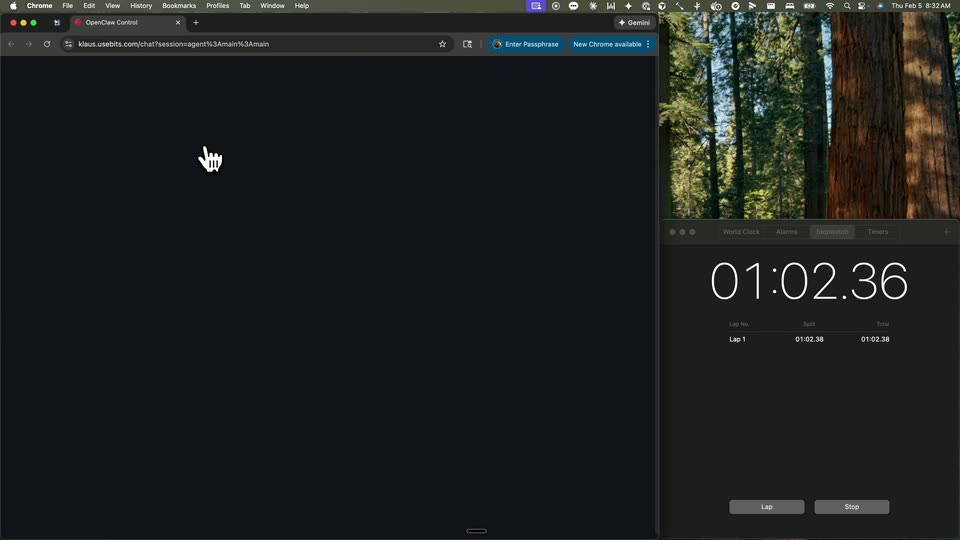
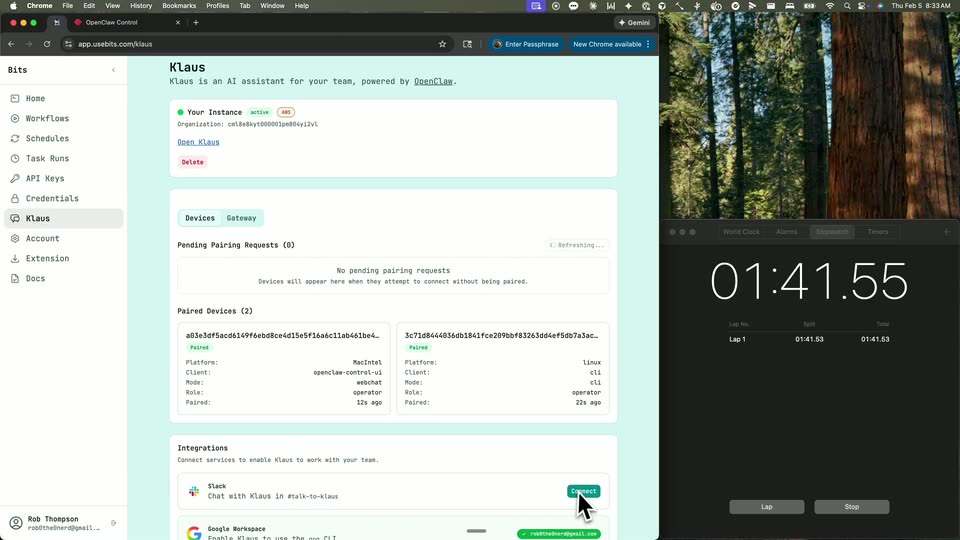
Klaus AI’s 1:10 launch film runs 17 scenes, about 4.1 s each. The product is on screen from the first frame and 2 features are revealed. There is no explicit call to action. A single continuous screen-capture demo split down the middle, with the app action on the left and a persistent ticking stopwatch on the right over a forest wallpaper. The story advances only through UI state changes (provisioning spinner, pending pairing, Slack consent, connected badge) while the timer provides the pacing and the only narrative tension.
Is this your launch? to your site or press kit.
usebits_inc · Feb 2026
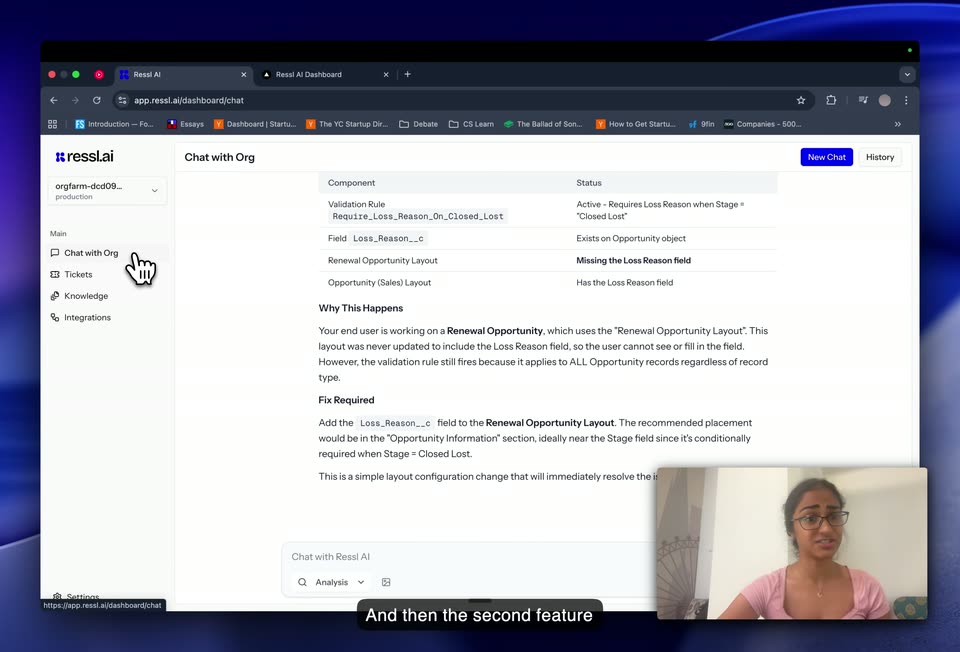
Ressl · B2B · Dec 2025
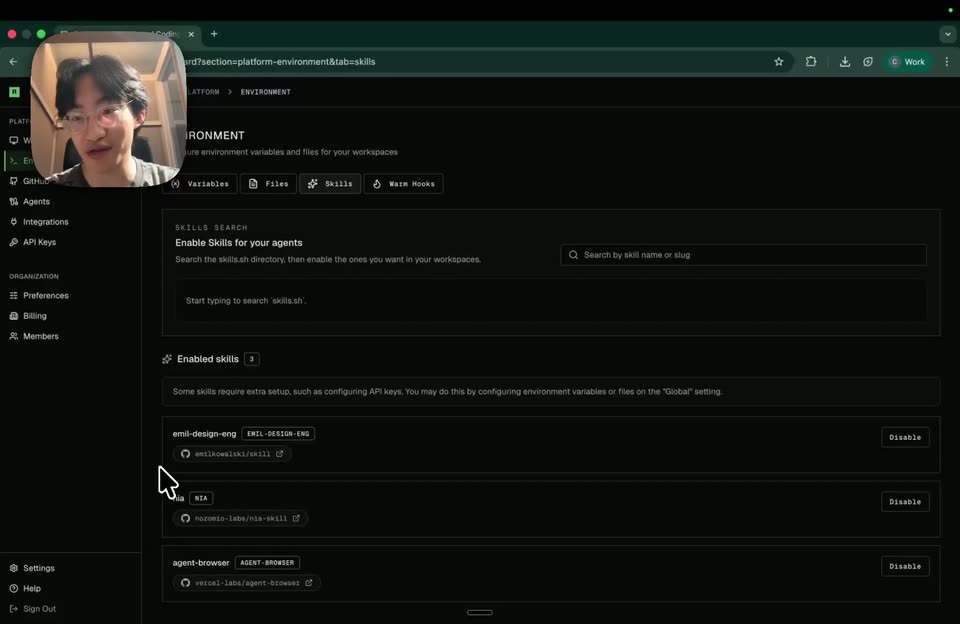
Replicas · B2B · Mar 2026
Two windows sit side by side: the Bits app's Klaus page, where a cursor clicks Create Klaus and the card switches to a spinner-labeled provisioning state, and a macOS stopwatch counting from zero past one minute, ending as the badge turns Active.
Techniques: Split screen, Cursor demo
Camera: Static
A screen capture of a macOS desktop: a dark Chrome window on the left loads a page, its tab title and address bar changing, while a stopwatch app on the right counts up over a forest wallpaper.
Camera: Static
A dark OpenClaw chat page with a red disconnected notice sits left of a running stopwatch. A cursor clicks the browser tab and address bar as the timer ticks past one minute.
Techniques: Split screen, Cursor demo
Camera: Static
A locked-off screen capture shows the Klaus web dashboard on the left and a running stopwatch on the right. The cursor glides over the page as the Devices Gateway panel fills with a pending pairing request and an Approve button, then the cursor clicks Refresh.
Techniques: Cursor demo
Camera: Static
Split screen: the OpenClaw chat window on the left, a stopwatch over a forest on the right. A text caret types a greeting into the input field, then the message pops up as a bubble while the stopwatch counts up.
Techniques: Split screen, Cursor demo
Camera: Static
A split-screen view shows the OpenClaw chat interface in a Chrome window on the left and a lap timer over a forest photo on the right. A cursor moves near the top of the browser while the timer counts up and the message input stays outlined in red.
Techniques: Cursor demo, Split screen
Camera: Static
A browser window shows the Klaus dashboard with sidebar, instance card, paired device cards and an integrations list, beside a dark stopwatch counting up on the right. The cursor travels down the page and hovers the Slack Connect button as the view scrolls.
Techniques: Cursor demo
Camera: Static
A split screen pairs a Chrome window on the left, showing a Slack App Installation page, with a running stopwatch on the right. A hand cursor glides from the bottom edge up to hover over the Add to Slack button while the timer counts up.
Techniques: Split screen, Cursor demo
Camera: Static
Locked-off screen capture of a Mac desktop. A Chrome window loads the Slack consent page for the Klaus app, the form fading in as a cursor hovers over the permission list, while a dark stopwatch window at right ticks from 01:44 to 01:46.
On-screen text: “Slack App Installation”
Techniques: Cursor demo
Camera: Static
A screen recording shows a Slack permission page in a browser on the left and a stopwatches app counting up on the right. A hand cursor clicks the green Allow button, then the page switches to a success message confirming the Klaus app is installed.
Techniques: Cursor demo, Split screen
Camera: Static
Side-by-side screen capture: a web dashboard on the left, a dark stopwatch ticking up on the right. A hand cursor hovers a device card, scrolls down, and clicks a button that flips the Slack row to Connected, then to a green success note.
Techniques: Cursor demo
Camera: Static
A static desktop view stacks a dark chat app, a code terminal, and a stopwatch ticking up over a forest photo. A cursor clicks the input box, types a greeting, then highlights a bot's reply as it appears.
Techniques: Cursor demo
Camera: Static
A locked-off screen capture of a browser showing the Klaus web dashboard, with a left sidebar, an instance card, a red error log, and an integrations list. A dark stopwatch window on the right ticks from 02:27 to 02:28.
Camera: Static
A locked-off screen recording shows two windows side by side. On the left, the OpenClaw Control chat view displays a conversation while a command is typed into the highlighted input box. On the right, a macOS stopwatch counts up over a forest wallpaper.
Techniques: Split screen
Camera: Static
A split screen shows the OpenClaw chat on the left and a stopwatch over a forest photo on the right. The user sends a pairing-code message, the assistant replies, and the timer counts up from 02:34 to 02:42.
Techniques: Split screen
Camera: Static
A dark chat interface fills the left half while a stopwatch app counts up on the right over a forest wallpaper. The timer runs from 02:46 to 02:54 as the chat scrolls down to show a Slack approval and a new assistant reply.
Techniques: Split screen
Camera: Static
A locked-off screen recording shows a dark messaging app on the left and a stopwatch on the right. The cursor types a question into the chat, and the bot replies with a Hacker News story while the timer counts up.
Techniques: Split screen, Cursor demo
Camera: Static