3:11

A computer for every agent
Cursor · Developer tools · Feb 2026
usebits_inc · Feb 2026 · 0:55 · AI-annotated
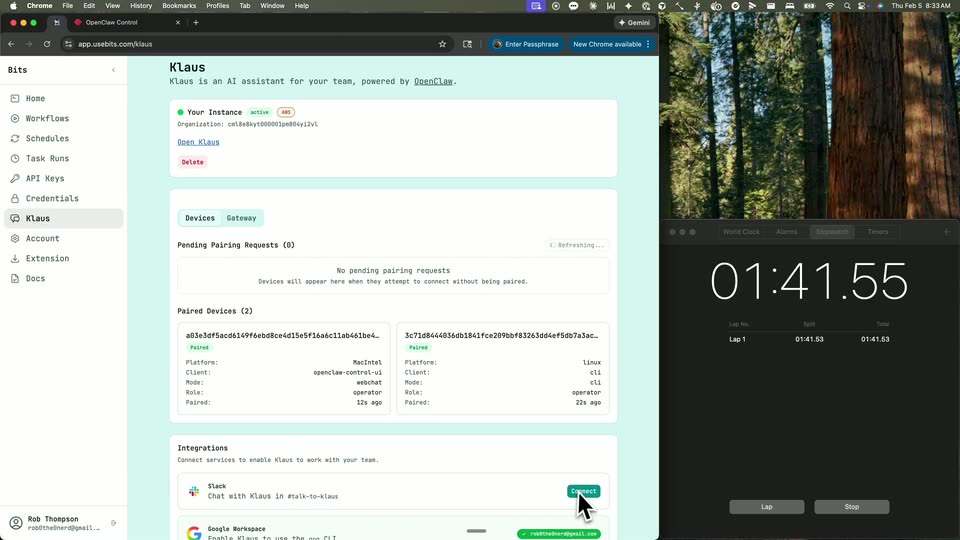
usebits_inc’s 0:55 launch film runs 16 scenes, about 3.5 s each. The product is on screen from the first frame and 2 features are revealed. There is no explicit call to action. The video is a single continuous screen recording cut into short beats: the Klaus dashboard on the left and a running stopwatch on the right, time-lapsing the full setup from instance launch to a working chat. Pacing is driven by the stopwatch and the cursor, with hard cuts between app windows and no added graphics or motion design.
Is this your launch? to your site or press kit.
Cursor · Developer tools · Feb 2026
Raycast · Productivity · Jan 2023
Executor · B2B · Aug 2026
A split screen pairs the Klaus setup page in a Chrome window on the left with a running stopwatch on the right. The instance badge flips from Creating EC2 to Running, the page scrolls up, and a cursor moves to the Delete button as the timer climbs past one minute.
Techniques: Split screen, Cursor demo
Camera: Static
A dark browser window showing the OpenClaw Control chat occupies the left, beside a stopwatch app over a sunlit forest on the right. A white hand cursor hovers over a red disconnected banner, then moves to the back button as the timer counts up.
Techniques: Split screen, Cursor demo
Camera: Static
A screen recording shows the Klaus dashboard in a browser window next to a running stopwatch. The Devices tab finishes loading and lists a pending pairing request, while the cursor moves to hover the Approve button.
Techniques: Cursor demo
Camera: Static
A browser window shows the Klaus dashboard with a left sidebar and two device pairing cards. A hand cursor moves to the Refresh button and clicks it, the label swaps to a spinning Refreshing state. A stopwatch app runs on the right edge of the desktop.
Techniques: Cursor demo
Camera: Static
A dark admin dashboard sits in a Chrome window beside a stopwatch app. The cursor jumps to the sidebar, opens the Chat view, types a greeting into the input and sends it, triggering a typing indicator.
Techniques: Cursor demo
Camera: Static
A browser window shows a dashboard with a stopwatch counting up on the right. A mouse cursor moves from a red delete button to a green connect button in the center panel.
Techniques: Cursor demo
Camera: Static
A locked-off two-pane view shows a Chrome window on the left with a Slack install page and an Add to Slack button, while a hand cursor glides up to rest on it. On the right, a dark stopwatch panel over a forest photo ticks upward from 01:42 to 01:43.
Techniques: Split screen, Cursor demo
Camera: Static
A split screen shows a Chrome window on the left and a stopwatch on the right. The Slack permission page for the Klaus app fills the left, a hand cursor moves across it and rests on the Allow button while the stopwatch counts up.
On-screen text: “Slack App Installation”
Techniques: Split screen, Cursor demo
Camera: Static
A split screen pairs a browser window of the Klaus dashboard on the left with a dark stopwatch app on the right. A cursor hovers over a paired device card while the stopwatch digits tick upward against a forest backdrop.
Techniques: Split screen, Cursor demo
Camera: Static
A screen capture shows the Klaus app in a browser on the left, with a stopwatch counting up on the right. A cursor hovers over a paired device card, then moves to the Push Slack Config button as the Slack row switches to Connected.
Techniques: Cursor demo
Camera: Static
A browser window shows the Klaus dashboard. A white hand cursor rests on the left sidebar, then the panel switches to a chat view with a red error line and a Google Workspace card. On the right, a stopwatch over a forest photo counts up.
Techniques: Cursor demo
Camera: Static
A screen capture shows a Slack chat where the cursor types Hello Klaus and sends it; a bot reply with a pairing code appears and is highlighted, while a stopwatch on the right counts up from 02:13.
Techniques: Cursor demo
Camera: Static
A locked-off split screen shows a dark chat interface on the left and a stopwatch over a forest photo on the right. In the chat, a red-outlined input box fills line by line with a pairing code while a cursor sits inside it, and the stopwatch counts up.
Techniques: Split screen, Cursor demo
Camera: Static
A locked-off screen recording shows a dark chat interface on the left and a stopwatch on the right. Chat messages appear one after another in the thread, ending with a user bubble, while the stopwatch counts up.
Camera: Static
A locked-off split screen shows a dark chat interface on the left and a stopwatch on the right. The chat list scrolls up as new messages appear, while the stopwatch time ticks forward.
Techniques: Split screen
Camera: Static
A Slack-style DM with the Klaus bot fills the center of a locked-off macOS screen. The cursor types a question into the message box and sends it; Klaus replies with a link-rich answer while a stopwatch app on the right runs and is stopped.
Techniques: Cursor demo
Camera: Static