0:31

Introducing Spline for ChatGPT 🚀
Spline · Design · Oct 2026
Kilvin · Dec 2025 · 4:25 · Full motion · AI-annotated
Kilvin’s 4:25 launch film runs 34 scenes, about 7.8 s each. The product is on screen from the first frame and 5 features are revealed. The call to action lands at 4:12 (95% in), over a voiceover. Opens with a locked logo sting and a short overview, then runs five feature chapters each opened by a flat purple title card and demonstrated through slow zoom-ins on the live interface, closing on a download card and a black end card. Its signature is the constant lavender book-cover gradient, crossfade transitions between cards and UI, and smooth camera pushes into input fields and buttons at a relaxed, steady pace.
Is this your launch? to your site or press kit.
Spline · Design · Oct 2026
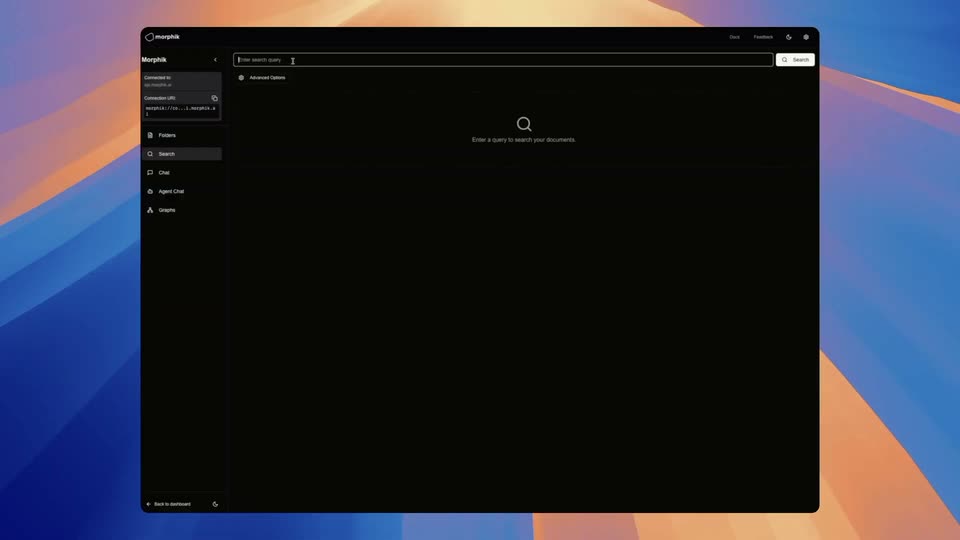
Morphik · B2B · May 2025
Films whose music sounds like this one, voice left out
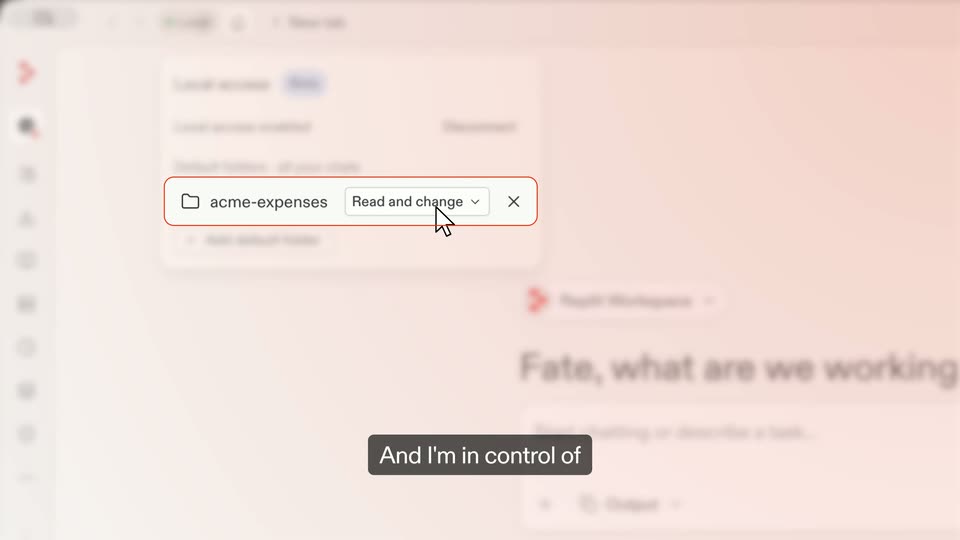
Replit · Upbeat corporate tech
Orgo · Upbeat electronic
Krea · Lo-fi hip-hop, chillhop
A purple book cover with a dark spine on the left holds the white BrowserBook icon and wordmark, which fade in from dim to full. A smaller tagline then fades in beneath the title. The frame stays locked off.
On-screen text: “BrowserBook”, “The Browser Automation IDE”
Camera: Static
A static, locked-off view of the BrowserBook interface: a Google browser pane on the left, an empty notebook on the right, and a code panel below. A large white 'BrowserBook' title with a layered logo and a lighter subtitle sit centered over the screen, with no motion.
On-screen text: “BrowserBook”, “The Browser Automation IDE”
Camera: Static
The app window dissolves in, then the camera zooms into the notebook input as a cursor types “Navigate to product hunt” and clicks send. The view pulls back to show the browser load Product Hunt while code blocks and screenshot thumbnails fill the side panels.
Techniques: UI zoom, Cursor demo
Camera: Pull out
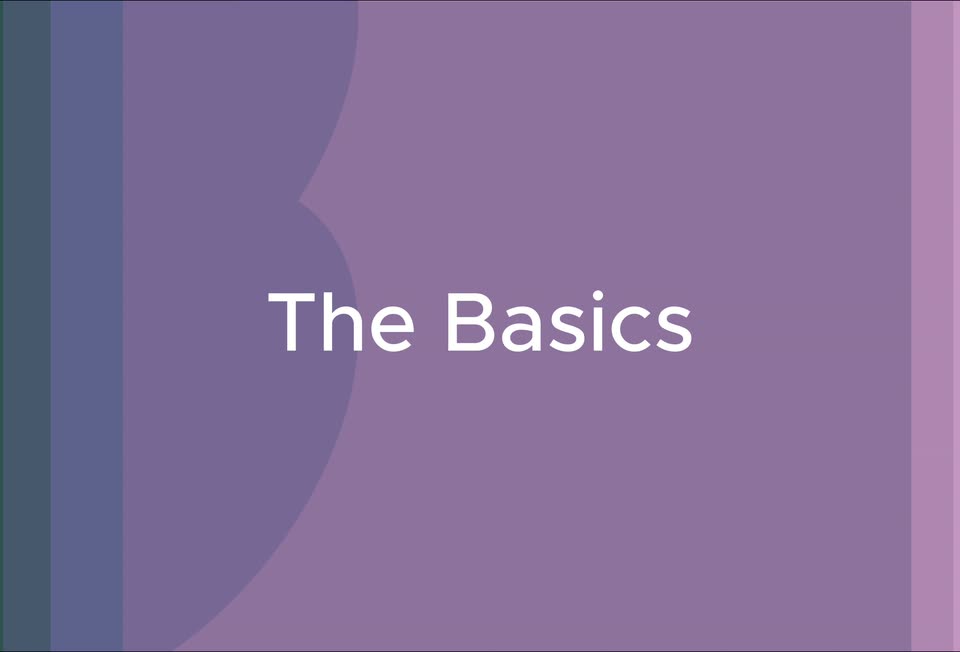
A white title 'The Basics' holds centered on a muted purple field with curved shapes along the left edge. Near the end the card cross-dissolves to reveal a product UI screen with a code editor.
On-screen text: “The Basics”
Camera: Static
A split view of the Browserbook app shows a Product Hunt page on the left and a code panel on the right. The frame zooms in on the right-hand input box, where a cursor clicks and the command types out letter by letter.
On-screen text: “The Basics”
Techniques: UI zoom, Cursor demo
Camera: Push in
The window sharpens from a blurred close-up. A cursor clicks play on a new code cell, the browser pane navigates to a product page, then back home, and the cursor clicks Accept Run.
On-screen text: “Click the first link in the list”
Techniques: UI zoom, Cursor demo
Camera: Pull out
A muted purple title card holds the white word Screenshots centered and locked, then a product coding interface with a browser pane and a code panel fades in behind the title as a backdrop.
On-screen text: “Screenshots”
Camera: Static
A flat interface window on a purple background shows a browser pane and a code panel. The view zooms to the bottom of the code panel, where a hand cursor taps the Built-ins button, expanding a row of action buttons, then an arrow cursor slides across them.
Techniques: UI zoom, Cursor demo
Camera: Push in
A close-up of a button bar zooms out to a full browser-automation IDE, then in on a code cell. A cursor clicks the run icon, the cell flips to success, then clicks the Screenshots tab where a page thumbnail appears.
Techniques: UI zoom, Cursor demo
Camera: Pull out
A dark app window floats over an aerial city photo on a purple gradient. Inside, a tall white list of items scrolls as a hand cursor moves up to the toolbar and clicks a zoom icon, widening the column.
Techniques: Cursor demo, UI zoom
Camera: Static
A purple title card reading Data Extraction holds, then the purple overlay fades to reveal the browser automation interface, a Product Hunt page with its HTML on the left and a code panel of extraction steps on the right.
On-screen text: “Data Extraction”
Camera: Static
A browser-automation app floats in 3D perspective over a purple gradient. The camera zooms into the prompt box as a cursor types an extraction request, then pulls back. Code blocks appear and scroll in the right panel; the cursor clicks play and the step turns Success.
Techniques: 3D mockup, UI zoom, Cursor demo
Camera: Push in
Screen capture of a dev tool interface. The cursor clicks the Outputs tab, and the panel switches from an HTML tree to a JSON list that scrolls down through product entries. A top card reads Vision Agents by Stream with a blue Explore the (code) button.
Techniques: Cursor demo
Camera: Push in
A purple background displays the text 'API Execution', then a UI window appears showing a browser interface with a webpage and a code editor side by side.
On-screen text: “API Execution”
Camera: Static
A flat notebook interface splits the screen between a Product Hunt browser view and code blocks. The frame zooms to the top-right corner as a hand cursor clicks the Snapshot button, which flashes Snapshotting, then moves to the API button.
Techniques: UI zoom, Cursor demo
Camera: Push in
A centered 'Run Notebook via API' dialog sits over a dimmed browser window. A cursor fills the API key field, the curl command below refreshes with the new token, then the cursor clicks Copy and 'Copied!' appears beside it.
Techniques: Cursor demo
Camera: Pull out
A dark terminal window sits on a soft purple background. A cursor drifts over the empty prompt, white glitch bars flash across the text, then a curl command types out line by line.
Techniques: Cursor demo
Camera: Pan
A dark macOS terminal window sits on a soft lavender gradient. A curl command and its JSON response print line by line at the top, while a white mouse pointer drifts from the center to the lower-left prompt.
Techniques: Cursor demo
Camera: Static
A dark terminal window sits centered on a soft purple gradient. It displays a curl command and a JSON response, with a small white mouse cursor resting near the prompt line.
Camera: Static
A dark terminal window rests on a soft purple gradient. It displays a curl POST request and a JSON response reading status queued. A white mouse cursor hovers at the prompt line. The frame holds still.
Camera: Static
A dark terminal window with a curl command and JSON output sits left of a browser tab; the view reframes outward to reveal a second browser window where a Run Notebook via API dialog opens over the page, with a devtools panel below.
Techniques: UI zoom
Camera: Pan
After a brief crossfade, a locked-off browser automation interface on a purple gradient shows a centered 'Run Notebook via API' modal with an API key field and a curl code block. A cursor glides to the Close button at the modal's lower right.
Techniques: Cursor demo
Camera: Static
A pale green app window on a purple gradient shows a live browser page and code steps side by side. A cursor clicks a sidebar icon, and the panel switches to an Execution History table listing notebook runs.
Techniques: Cursor demo
Camera: Static
A light Execution History table fills a UI panel over a purple gradient. A cursor hovers the first row, clicks it, and the panel clears to a blank state with a centered spinner reading Loading execution details.
Techniques: Cursor demo
Camera: Static
An automation dashboard window sits on a purple gradient, with a Google page in a video player and a code panel on the right. A cursor glides over the video, then clicks the Logs, Outputs and Screenshots tabs in turn, each swapping in a panel of log lines, JSON data or a screenshot thumbnail.
Techniques: Cursor demo
Camera: Static
A dark automation interface sits in 3D perspective on a purple gradient, a tall white list window floating in the center. A white cursor glides from the lower left up to the top right and presses the close button on the window.
Techniques: 3D mockup, Cursor demo
Camera: Static
A flat dashboard mockup on a purple gradient shows an automation run. A cursor clicks play on the embedded video player, whose timeline advances, while the browser pane above switches from the Google homepage to a Product Hunt list. A read-only code panel stays fixed on the right.
Techniques: Cursor demo
Camera: Static
A purple title card with abstract curved color fields and thin vertical bands at the edges. The white headline 'Managed Authentication' sits centered and still, then fades to nothing over the final second.
On-screen text: “Managed Authentication”
Camera: Static
The BrowserBook app window on a purple gradient shows a Gmail login script next to a live browser preview. The camera zooms into the code panel, the cursor clicks the run button, then zooms into the preview as the Google password field fills with dots.
Techniques: UI zoom, Cursor demo
Camera: Push in
A split screen pairs a Gmail browser window on the left, where a cursor hovers over a loading page, with a code panel on the right showing JavaScript under a Log in to Gmail heading and a Running badge. The code lines animate into place.
Techniques: Split screen, Cursor demo
Camera: Push in
A split view shows a Gmail inbox on the left with a cursor hovering over the message list, and a code panel on the right whose status badge toggles between Running and a green Success (8.0s).
Techniques: Split screen, Cursor demo
Camera: Static
A flat purple book-cover background holds the white BrowserBook wordmark and stacked-layers mark, locked off. The tagline fades in beneath the wordmark, then holds for the rest of the shot.
On-screen text: “Download now at browserbook.com”
Camera: Static
A black frame holds the small word “BrowserBook” in place, locked off and motionless for the full shot.
On-screen text: “BrowserBook”
Camera: Static
A solid black frame holds for the full duration, with no visible elements, text, or motion.
Camera: Static