
0:13
Explore
00:00:00 / 01:04:15
- Length
- 1:04
- Scenes
- 29 · 2.2 s avg
- Product on screen
- 0:00
- Call to action
- 0:51 · 80%
- Voiceover
- Yes
- Views
- 500K on YouTube
as of November 20, 2026
Google’s 1:04 launch film runs 29 scenes, about 2.2 s each. The product is on screen from the first frame, with social proof. The call to action lands at 0:51 (80% in), over a voiceover. The video alternates locked-off white title cards with short live-action vignettes, each punctuated by rounded command chips that resize to fit the text and white reply bubbles that slide over the footage. Pacing is steady at about 93 bpm with sparse cuts, and the signature moves are the chip resize animation, the four-dot mark popping in beside each reply, and the closing zoom into the Hey Google wordmark.
Footage neededEstimated needs: 2 capture groups — your screens or recordings · 1 official logo — reused across the film · 6 filmed passages — shoot, supply or replace · 1 graphic passage — draw or supply
Is this your launch? to your site or press kit.
More like this

0:39

Introducing Mintlify Index
Mintlify · Nov 2026
1:17

Seijin Jung - introducing Helena, the world's first self-improving AI marketer. $1
Enrich Labs · Aug 2026
Similar soundtrack
Films whose music sounds like this one, voice left out
1:12
raghu velagala - today we’re launching eyecandy robotics! we’re bringing animated cha
Eye Candy Robotics · Promotional, Cinematic
0:47

Last Meadow Online | Official Announcement Trailer | Discord
Discord · Japanese rock
0:50
Superapp AI - Introducing Selfdrive. The AI growth team for your iOS app that gets
Superapp · Modern rock with hip-hop and pop-punk influences
Introducing Actions for your Google Assistant, scene by scene
· 29 scenes as text
01 · Product intro · 0:00–0:02
On a plain white background, the headline “Meet your Google Assistant” scales up in place, with “Google Assistant” in blue. It then gives way to two centered gray lines reading “It’s the simplest way to get things.”
On-screen text: “Meet your Google Assistant”, “It’s the simplest way”, “to get things”
Techniques: Kinetic type
Camera: Static
02 · Product intro · 0:02–0:04
Two lines of gray text read on a plain white background, then fade out as the words Just say fade in at the center. The frame stays locked off throughout.
On-screen text: “It's the simplest way”, “to get things done”, “Just say”
Camera: Static
03 · Demo · 0:04–0:05
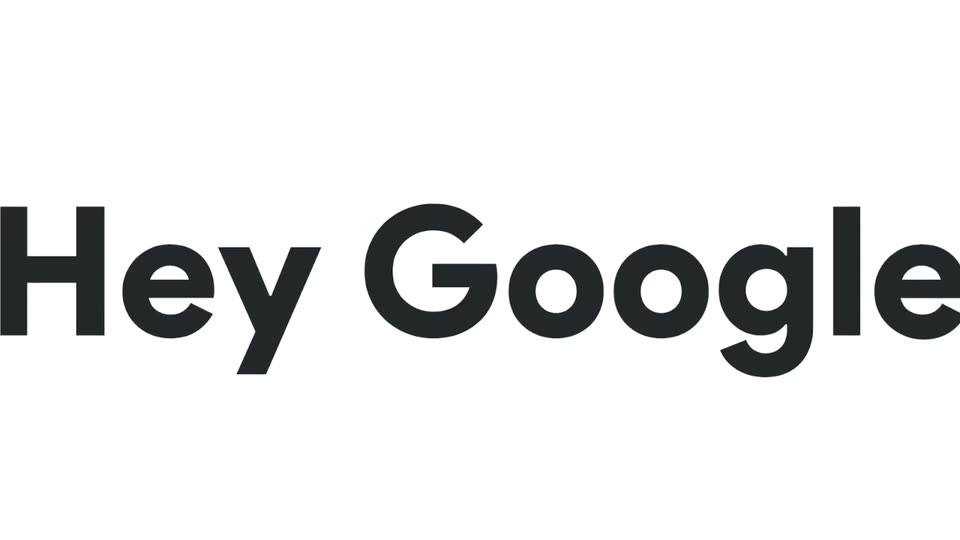
The words “Hey Google” in bold charcoal sans sit centered on a white field. The phrase scales up and shifts left, so the H is cropped at the left frame edge by the end.
On-screen text: “Hey Google”
Techniques: Kinetic type
Camera: Push in
04 · Demo · 0:05–0:08
On a white field, a light gray rounded chip holds “Snooze my alarm”. The chip widens as the phrase slides into “What’s on my agenda today?”, then shrinks to a small square while the text fades. A small caption sits at the bottom.
On-screen text: “Snooze my alarm”, “What's on my agenda today?”, “Sequences shortened and simulated”
Techniques: Kinetic type
Camera: Static
05 · Demo · 0:08–0:10
A light gray rounded bubble sits centered on white. It first reads Play the news, then shrinks and the text swaps to Do I need an umbrella?, scaling in word by word as the bubble widens. A small gray disclaimer sits at the bottom.
On-screen text: “Sequences shortened and simulated”
Techniques: Kinetic type
Camera: Static
06 · Demo · 0:10–0:11
A light gray chat bubble holding the black question sits centered on a plain white background. The bubble scales gently in place on a locked-off frame, holding still for the beat.
On-screen text: “Do I need an umbrella?”
Camera: Static
07 · Demo · 0:11–0:14
A toddler jumps in the rain on a wet driveway. A Google Assistant logo sits left as a faint query line scales in and fades, then a white reply bubble slides in, followed by a second weather card dropping below.
Camera: Static
08 · Demo · 0:14–0:16
On a white background, the gray caption “Now buckle up” holds center, then a pale rounded chat bubble fades in with the query “How's my commute to work?” and fades out again.
On-screen text: “Now buckle up”, “How's my commute to work?”
Camera: Static
09 · Demo · 0:16–0:18
A light gray rounded command bar floats centered on a white background. Example voice commands slide into it one after another, the bar resizing to fit each line, and it holds on the final command.
On-screen text: “How's my commute to work?”, “Show me a gas station on the way”, “Connect my bluetooth”
Techniques: Kinetic type
Camera: Static
10 · Demo · 0:18–0:19
Light gray rounded pills sit centered on a plain white background, each holding a voice command phrase. Phrases change in sequence, scaling in while the previous one fades out.
On-screen text: “Connect my bluetooth”, “Add pita to my shopping list”, “Call Tim's cell”, “Play my morning jams playlist”
Techniques: Kinetic type
Camera: Static
11 · Demo · 0:19–0:20
A gray chat bubble with a voice command scales in on white, then the background crossfades to two men in a car as a white reply bubble slides in below and a circular icon with colored dots appears at left.
On-screen text: “Play my morning jams playlist”, “Ok, playing music”
Techniques: Kinetic type
Camera: Static
12 · Demo · 0:20–0:23
Inside a car, the driver and passengers sway to the beat while white Assistant chat bubbles animate over the center: a ghosted 'Play my morning jams playlist' line fades, 'Ok, playing music' settles beside the Assistant logo, and a 'Morning Jams' bubble with an orange play icon slides in.
On-screen text: “Play my morning jams playlist”, “Ok, playing music”, “Morning Jams”
Techniques: Kinetic type
Camera: Static
13 · Demo · 0:23–0:24
On a plain white background, the gray sans-serif phrase “You look” sits centered, then the word “hungry” fades in beside it to complete “You look hungry.” The type shifts through gray tones as it settles, with a locked-off frame.
On-screen text: “Ok, playing music”, “Morning Jams”, “You look hungry”
Techniques: Kinetic type
Camera: Static
14 · Demo · 0:24–0:27
On a plain white field, the gray line “You look hungry” holds center as “hungry” flickers in with a glitch. A light gray chat bubble then types out “Text Jim want to grab lunch?”, and a second bubble scales in carrying “Show me a nearby Japanese restaurant”.
On-screen text: “You look hungry”, “Text Jim want to grab lunch?”, “Show me a nearby Japanese restaurant”
Techniques: Kinetic type
Camera: Static
15 · Demo · 0:27–0:31
Example voice prompts cycle in a light gray rounded pill on white, each scaling or sliding in as the previous fades, then the background cuts to a chef at a kappo counter with the last prompt overlaid and a small multicolored logo in the lower left.
On-screen text: “Show me a nearby Japanese restaurant”, “How are the reviews?”, “How do you say it is delicious in Japanese?”
Techniques: Kinetic type
Camera: Static
16 · Demo · 0:31–0:34
A teppanyaki chef in a red hat tosses ingredients on a grill in a lantern-lit restaurant. White chat bubbles overlay the footage: an assistant icon with “Let’s see”, then a wider bubble slides in reading “Oishīdesu / Japanese” with a speaker icon as a question bubble fades.
On-screen text: “How do you say it is delicious in Japanese?”, “Let’s see”, “Oishīdesu”, “Japanese”
Techniques: Kinetic type
Camera: Static
17 · Demo · 0:34–0:35
A teppanyaki chef in a tall red hat tosses ingredients on a flat grill in a dim restaurant, while a Google Translate overlay with a chat bubble and a translation panel sits over the left of the frame.
On-screen text: “Let's see”, “Oishīdesu”, “Japanese”
Techniques: Kinetic type
Camera: Static
18 · Demo · 0:35–0:36
On a black background, the line Welcome back home fades in centered, then slides up as a rounded button reading Turn on appears. The button box drops away and the text settles into the line Turn on the lights.
On-screen text: “Welcome back home”, “Turn on the lights”
Techniques: Kinetic type
Camera: Static
19 · Demo · 0:36–0:37
A white rounded chip holding the black text “Turn on the lights” sits centered on a black frame. The text slides in while the background fades from black to dark gray, as if the lights come on.
On-screen text: “Turn on the lights”
Techniques: Kinetic type
Camera: Static
20 · Demo · 0:37–0:42
Voice commands appear as gray chat bubbles on white, each new line typing in as the previous one fades and slides up. A white reply bubble with the Google Assistant mark drops in below the final command.
On-screen text: “Turn on the lights”, “What's the temperature?”, “Set my thermostat to 72 degrees”, “Play Stranger Things from Netflix on my TV”, “Okay, playing Stranger Things”
Techniques: Kinetic type
Camera: Static
21 · Demo · 0:42–0:45
A live-action school hallway shot with two costumed boys and a girl plays under a white Google Assistant icon and a speech bubble reading “Okay, playing Stranger Things” that fades in from transparent. A faint command bar at the top fades out as the bubble resolves, while a small call-to-action and disclaimer sit in the lower corners.
On-screen text: “WATCH STRANGER THINGS ON NETFLIX”, “Netflix streaming membership required”
Camera: Static
22 · Demo · 0:45–0:46
A filmed Stranger Things hallway scene with a red-haired girl framed between two blurred foreground figures. A white Google Assistant bubble reading the voice response sits center, with a red-barred caption and a Netflix wordmark in the lower corners.
On-screen text: “WATCH STRANGER THINGS ON NETFLIX”, “Netflix streaming membership required”, “NETFLIX”
Camera: Static
23 · Social proof · 0:46–0:49
On a plain white background, a gray line builds word by word into 'And in case you need anything else', then gives way to 'The Google Assistant is ready to help', with 'Google Assistant' set in blue. The frame stays locked off throughout.
On-screen text: “And in case you need anything else”, “The Google Assistant is ready to help”
Techniques: Kinetic type
Camera: Static
24 · Social proof · 0:49–0:51
A centered sentence fades in word by word on a plain white background, with Google Assistant and 1 million Actions highlighted in blue. A second line then completes the statement beneath the first.
On-screen text: “The Google Assistant is ready to help”, “with over 1 million Actions”
Techniques: Kinetic type
Camera: Static
25 · CTA · 0:51–0:52
A plain near-white card centers the phrase “Just say,” with “Just” in dark gray and “say” in light gray. The frame is locked off, and “Just” fades out to leave “say” centered.
On-screen text: “Just say”
Techniques: Kinetic type
Camera: Static
26 · CTA · 0:52–0:55
Bold black “Hey Google” sits centered on a white field. Small rounded chips with example voice commands scale in around it, then the camera pushes in on the word Google as the chips blur and drift out of frame.
On-screen text: “Hey Google”, “Politics news”, “Find popular TV shows”, “Any sushi places nearby?”, “I like this song”, “Play my favorite songs”
Techniques: Kinetic type
Camera: Push in
27 · CTA · 0:55–0:56
On a plain white background, several rounded label chips with light gray text drift downward and exit the frame, trailing motion blur, while a faint image slides along the bottom edge.
Camera: Static
28 · CTA · 0:56–0:57
Blurry text labels on a white background move rapidly, blurring out of focus. Two small dots, one green and one orange, appear in the center as the text fades.
On-screen text: “Find popular TV shows”, “Art and lifestyle news”, “turn captions on”
Techniques: Kinetic type, Speed ramp
Camera: Static
29 · CTA · 0:57–1:04
The four-dot Google Assistant mark sits centered on a white background. A speech bubble reading “Hi, how can I help?” pops in below the dots, then disappears as the “Google Assistant” wordmark and the URL fade in beneath the mark.
On-screen text: “Hi, how can I help?”, “Google Assistant”, “assistant.google.com”
Camera: Static