1:30

Introducing Webflow Campaigns – Launch While It Still Matters
Webflow · Design · Oct 2026
GhostEye’s 1:39 launch film runs 40 scenes, about 2.5 s each. The product shows up at 0:09 and 3 features are revealed. The call to action lands at 1:20 (80% in), over a voiceover. The video is built as a hard-cut news montage that establishes the AI impersonation threat, then a centered logo and tagline reveal, then three flat white UI cards each demoing one menu feature (Add Target, Create Scenarios, Create Voice Clone) with a cursor-driven click and type, and finally a black typographic closing that ends on a logo and contact URL. Its style is defined by a strict black-and-white palette, a neutral sans-serif, and a signature move of text typing in word by word over thin
Is this your launch? to your site or press kit.
Webflow · Design · Oct 2026
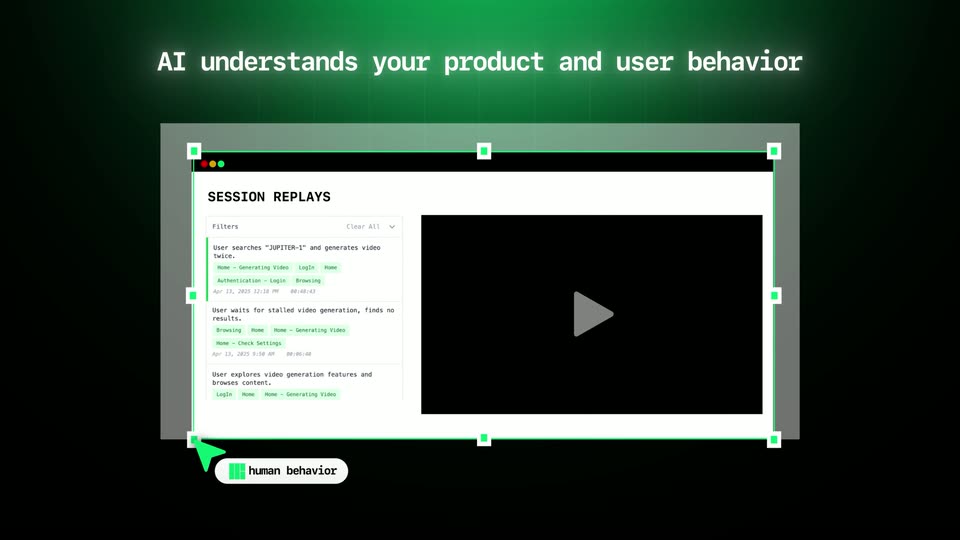
Human Behavior · B2B · May 2025
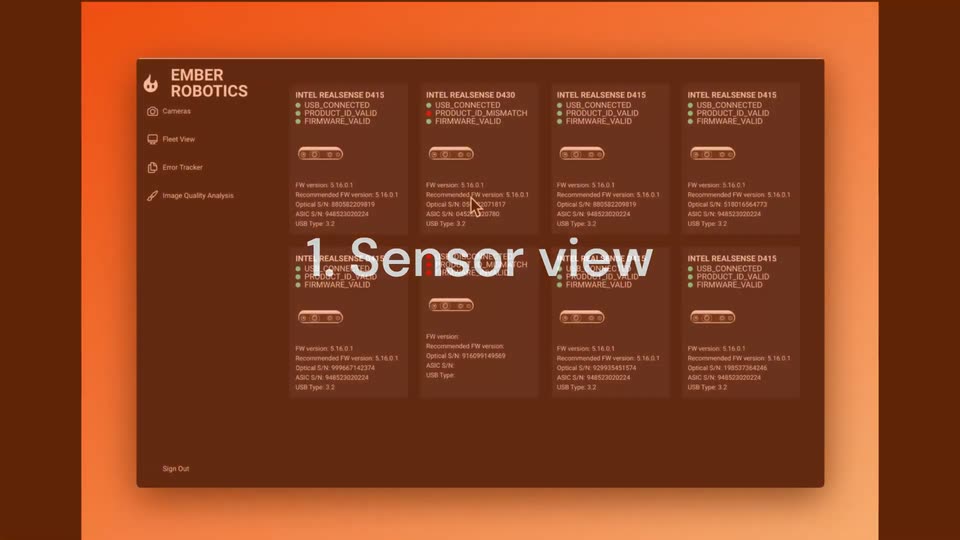
Ember Robotics · Industrials · Aug 2024
Films whose music sounds like this one, voice left out
Arbitrum · Electronic dance music (EDM)
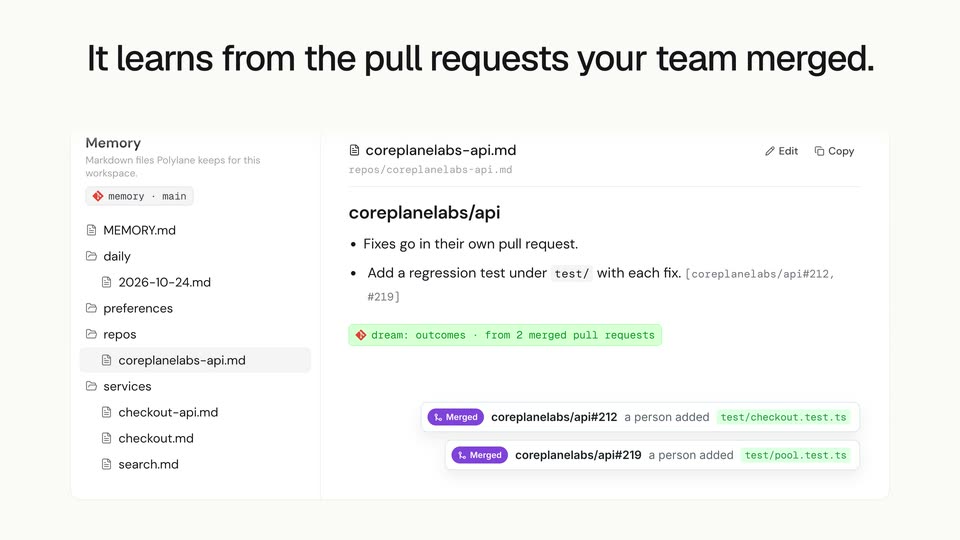
Polylane · Modern electronic
Edgerun · Synthwave, future bass, and cinematic electronic
The frame stays black for the full clip, a plain dark field with no visible text or graphics, while the voiceover discusses artificial intelligence and impersonation scams.
Camera: Static
On a black background, a news article fades in: a bold white headline over gray body text and a byline. A second article column with its own headline and paragraph fades in to the right.
On-screen text: “Scammers are using AI to impersonate senior officials, warns FBI”, “Scammers are using artificial intelligence to impersonate senior U.S. officials, the FBI warned Thursday.”
Camera: Static
A dim news article fades in from black: a gray headline about malicious actors using AI, a byline, a timestamp, and three square buttons at the bottom.
Camera: Static
A dimmed news article page on a near-black background shows a headline about AI impersonation threats, then hard cuts to a second article warning about FBI voice scams. The text sits low-contrast and static.
Camera: Static
A dark title card fades up from black. A date and a bold headline sit over a dimmed photo of a desk and a profile, with faint binary digits drifting across the right side. The body paragraph below stays static as the whole frame brightens.
On-screen text: “June 11, 2025”, “How to identify and avoid the latest”, “powered impersonation attacks: S”, “vishing & deepfakes”
Camera: Static
A dark overlay holds a static article headline over a dimmed phone chat screen. The background brightens slightly, revealing green message bubbles and a call icon behind the text. The pace is slow and still, with no text animation.
On-screen text: “Scammers said they kidnapped my husband — and faked his voice with AI. Here's how to avoid getting fooled”, “Features”, “By Amanda Caswell published July 17, 2025”, “Criminals are impersonating loved ones to steal money or data”
Camera: Static
A news article layout with a headline about AI phishing attacks overlays a dark background with large scrolling text. The background then transitions to a newsroom scene with people at desks.
On-screen text: “with the times, but AI voice”, “w, and seriously unsettling”, “audio, criminals can now”, “neone's voice, then use it to”, “Jul 17, 2025 - Business”, “PR pros face new wave of phishing attacks from fake journalists”, “Eleanor Hawkins”
Techniques: Kinetic type, Masking
Camera: Static
A dark radar grid with concentric circles sits at center, a green blip at its core. A dotted green line extends outward toward the upper right while small white airplane icons drift around the rings, and green pixel blocks flicker into the corners.
Camera: Static
A man with short hair looks upward and raises an open hand, flags visible behind him on the left. The clip fades in from black. A white news headline sits at the top left.
On-screen text: “OpenAI's Sam Altman warns of AI voice fraud crisis in banking”
Camera: Static
A dark blog page shows the ChooseFive logo as a large centered watermark under the header Security Awareness Training Blog. The view zooms into article headlines about AI impersonation and the FBI, then settles back on the logo.
On-screen text: “Security Awareness Training Blog”, “ChooseFive”, “FBI Warns of Increasing Threat of Cyber Criminals Utilizing Artificial Intelligence”
Techniques: UI zoom
Camera: Static
A dark news article with a photo and body copy cuts to a purple article page. The headline slides in line by line over the SecureWorld header, with a small caption and a timestamp in the bottom player bar.
Techniques: Kinetic type
Camera: Static
A dark article page with a gray headline and body copy slides out, revealing a new page where a white headline slides in above a video player bar. A man's face begins to fade in at the bottom edge.
On-screen text: “FBI Warning: AI-Driven Impersonation Attacks Target U.S. Officials”
Techniques: Kinetic type
Camera: Static
A dark video player poster shows diagonal green pixel text and a tilted chip card, then cuts to a gray news card with a bold black headline over a faint white wordmark. The player bar at the bottom holds a title and a running timestamp.
On-screen text: “CYBER FRAUD”, “FRAUD DETECTED”, “AI-Driven Fraud and Impersonation: The New Face of Fi...”, “23:17”, “EMERGING TECHNOLOGIES”, “'This happens more frequently than people realize': Arup chief on the lessons learned from a $25m deepfake crime”, “GhostEye”
Camera: Static
On a black background, the white GhostEye wordmark sits centered and static as a sign-off; the letter o is drawn as a stylized eye with two dots. The frame stays locked with no motion once the logo is in place.
On-screen text: “GhostEye”
Camera: Static
A dark stone wall carries an embossed circular Department of Justice seal, with out-of-focus orange flowers in the lower foreground. The GhostEye watermark is centered over the seal. The frame is locked off and static.
On-screen text: “GhostEye”
Camera: Static
On a black background, the white GhostEye wordmark with a ghost icon for the 'o' shrinks from center to a small mark at top. Below it, the tagline 'AI that breaks the human layer' fades in word by word.
On-screen text: “AI that breaks the human layer”
Techniques: Kinetic type
Camera: Static
A small gray dot on black grows into a full-frame circular reveal, exposing a white screen with a centered menu: Add Target, Create Scenarios, Create Voice Clone. The GhostEye title and tagline stay locked in place.
On-screen text: “GhostEye”, “AI that breaks the human layer”
Techniques: Masking
Camera: Static
A centered three-item menu on a white background. A cursor slides in from the right and rests on the middle Add Target option, which highlights into a solid gray pill with white text while the other two fade. The menu then fades out, leaving the cursor.
Techniques: Cursor demo
Camera: Static
Centered on white, a pill of five app icons sits under a small Integrate in Minutes tag, with a matching caption at the bottom. A cursor moves in, hovers the M icon, then the P icon, each scaling and brightening while the rest dim.
On-screen text: “Integrate in Minutes”
Techniques: Cursor demo
Camera: Static
A white screen holds a centered search field. A cursor types a query into the bar, then moves to the chevron. The field expands into a detail card listing the target's object ID, member count, type and date, plus an Add Target button. A static caption sits at the bottom.
On-screen text: “Integrate In Minutes”
Techniques: Cursor demo
Camera: Static
A flat product card sits centered on a white field, listing a marketing group's details. A cursor clicks the toggle to turn it blue, then moves to the Add Target button. The caption holds at the bottom.
On-screen text: “Integrate In Minutes”
Techniques: Cursor demo
Camera: Static
A product interface shows a target detail card for Marketing_NYC_SF, then the card gives way to a full intelligence table listing four targets with risk levels and status. A cursor hovers at the right edge. The caption Integrate In Minutes sits centered below.
On-screen text: “Integrate In Minutes”
Techniques: Cursor demo
Camera: Static
A white-background table of target profiles with risk badges and a cursor sits centered. The table dims and fades as a bullet-point executive summary fades in at the lower left. The caption Integrate in Minutes remains fixed at the bottom.
On-screen text: “Integrate in Minutes”
Camera: Static
A flat white UI card titled Open-Source Intelligence Report sits centered, holding a two-row risk table above a profile summary panel with a download button. A black caption Integrate In Minutes anchors the bottom edge as the card drifts gently downward.
On-screen text: “Integrate In Minutes”
Camera: Static
A three-item menu on a white background scrolls upward, the highlighted center row changes from Add Target to Create Scenarios with a gray pill, while a cursor fades in at the right edge.
Techniques: Cursor demo
Camera: Static
A dark rounded button with a dashed-square icon and the label Create Scenarios sits centered on a white background. A cursor hovers at its lower corner, the button darkens, and a small dot pops in above. The caption Social Engineering, Made Easy. fades in at the bottom.
On-screen text: “Social Engineering, Made Easy.”
Techniques: Cursor demo
Camera: Static
A white card lists five phishing vector options with checkboxes and a Generate with AI button. A cursor checks Spearphishing, clicks the button, and the list collapses into a single Describe Your Scenario input. A tagline sits below the card.
On-screen text: “Social Engineering, Made Easy.”, “Create Scenarios”
Techniques: Cursor demo
Camera: Static
A centered prompt box on a white screen types out a campaign request word by word. The cursor moves to the arrow and clicks; the box drops away, a phrase highlights, then the text is replaced by a spinner and a gray loading block.
On-screen text: “Social Engineering, Made Easy.”
Techniques: Kinetic type, Cursor demo
Camera: Static
A centered card on a white screen shows a spinner beside the header Generating your scenario as a checklist fills line by line with green checkmarks, then cuts to an empty email compose window. A static tagline sits at the bottom.
On-screen text: “Social Engineering, Made Easy.”
Camera: Static
A centered email compose window on a white background types out its content line by line, subject first then body, ending with a signature block and a black Save Scenario button. A static caption sits below the window.
On-screen text: “Social Engineering, Made Easy.”
Techniques: Kinetic type
Camera: Static
A faint phishing email template fades out on a white screen as three pill buttons, Create Scenarios, Create Voice Clone and Add Target, scale up and settle into a vertical stack. The tagline Social Engineering, Made Easy. stays fixed at the bottom.
On-screen text: “Social Engineering, Made Easy.”
Camera: Static
On an off-white background, a gray sentence types itself in black, then 'Introducing' scales up above a bold 'Ghosts', and a rounded '+ Create Voice Clone' button pops in.
On-screen text: “You answered the call... but who, or what was calling?”, “Introducing”, “Ghosts”
Techniques: Kinetic type
Camera: Static
A light gray pill button with a plus icon and the words Create Voice Clone sits centered on a plain white background. A gray cursor arrow slides in from the lower right and pauses near the button's corner.
Techniques: Cursor demo
Camera: Static
On a white screen, a cursor hovers a black Create Voice Clone button, which gives way to a two-option panel. The cursor moves to Voice Record and selects it, turning the row black. A small Voice Clone label sits at the bottom.
On-screen text: “Voice Clone”
Techniques: Cursor demo
Camera: Static
A white page centers a gray voice clone card. A cursor types a name into the field, clicks Start Recording, and the mic icon turns red with pulsing rings while the timer counts up. The card then fades into a Recording Complete state with accent, language and character fields.
Techniques: Cursor demo
Camera: Static
A grid of voice profile cards sits behind a focused card titled Create your Voice Clone, with a cursor on its Save Changes button. The card clears, the grid scrolls to reveal the full list above a scaling Voice Clone label, then a white corner mask wipes to white.
On-screen text: “Voice Clone”
Techniques: Cursor demo, Masking
Camera: Pull out
On a black background, a white circle with a small center dot gives way to a row of thin vertical lines of varying height forming a symmetric wave, with a small white letter S at the left.
On-screen text: “S”
Camera: Static
On a black field crossed by thin vertical lines, five gray chips with small icons label phishing vectors and fade in at staggered positions, while a white headline types out in the center.
On-screen text: “Seamlessly chain multiple attack vectors”
Techniques: Kinetic type
Camera: Static
Black field of thin vertical lines; dashed squares with white line-art mask icons drift downward. Center text types “Attackers are evolving”, then “so should your organization.” as slashes cross out the icons. On black, “Join the movement today.” fades in and out.
On-screen text: “Seamlessly chain multiple attack vectors”, “Attackers are evolving”, “so should your organization.”, “Join the movement today.”
Techniques: Kinetic type
Camera: Static
Black screen. The white GhostEye wordmark fades in at center, its o drawn as a ghost shape with two dot eyes, and a small gray URL appears beneath it. The lockup holds static to the end.
On-screen text: “ghosteye.ai/contact”
Camera: Static