0:26
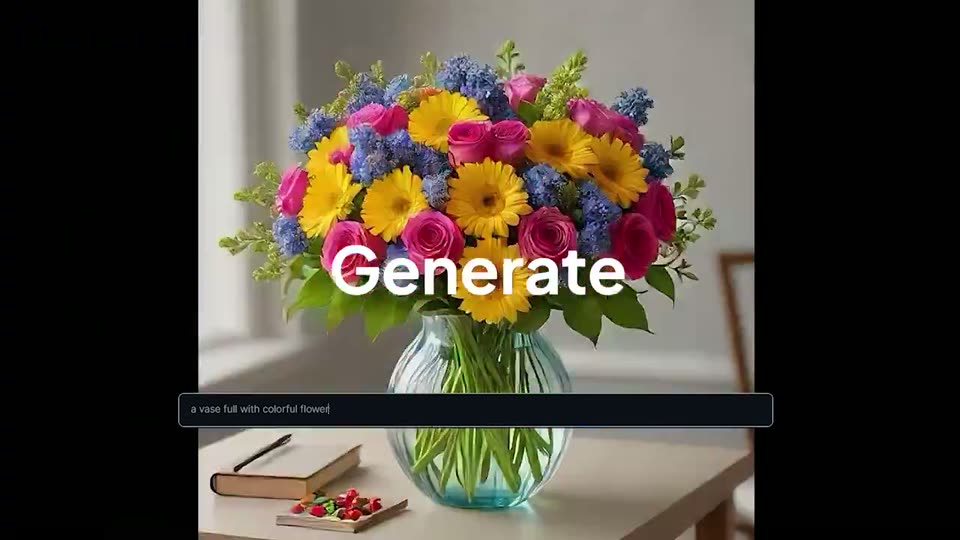

Leonardo.Ai - Realtime Gen is now LIVE for all users ⏱️ Type and watch your prompt
Leonardo AI · Dec 2023
Ember Robotics · Aug 2024 · 1:05 · Full motion · AI-annotated
Ember Robotics’s 1:05 launch film runs 23 scenes, about 2.8 s each. The product is on screen from the first frame and 3 features are revealed. There is no explicit call to action; a voiceover carries the film. The video is a numbered walkthrough of three dashboard views (sensor, robot, error), each opened by a centered title card and then shown with a cursor driving the UI while typewriter captions name the capability. Its signature moves are the circle-mask logo reveal, fast blurred pans and zooms between UI states, and the bottom-left orange caption bar set against a flat orange backdrop.
Is this your launch? to your site or press kit.
Leonardo AI · Dec 2023
Deepeye Medical · Jan 2025
Films whose music sounds like this one, voice left out
Google · Funk, Disco, Eurodance, Italo House
OpenDesign · Funk, disco, modern electronic dance music
Snowfire · Modern funk, disco, and electronic dance music
A white Ember Robotics logo on a flat orange field contracts into a circle, masking open to reveal a dark dashboard with camera status cards behind it.
On-screen text: “EMBER ROBOTICS”
Techniques: Masking
Camera: Static
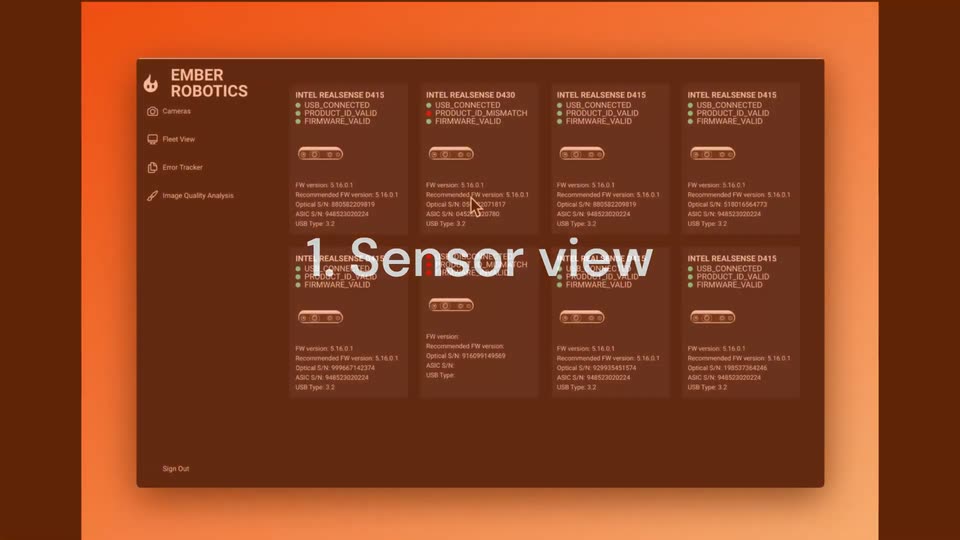
A dark brown Ember Robotics dashboard shows a left sidebar and a grid of eight sensor status cards. A large white title, 1. Sensor view, sits centered over the grid. The frame is static with no motion.
On-screen text: “1. Sensor view”
Camera: Static
A dark dashboard grid of Intel Realsense sensor cards with status dots zooms in toward the cards. A cursor hovers over one card while the caption 'track multiple sensors' types in word by word on an orange band at the bottom.
On-screen text: “track multiple sensors”
Techniques: Kinetic type, UI zoom, Cursor demo
Camera: Push in
A dark Ember Robotics dashboard floats on an orange gradient, its charts and device info scrolling down as a hand cursor hovers the panels. The view zooms onto the RGB/Depth toggle while a caption types in along the bottom edge.
On-screen text: “analyze real-time metrics”
Techniques: Kinetic type, UI zoom, Cursor demo
Camera: Push in
A dark dashboard with a left sidebar and line charts fills the frame. A fast blurred pan sweeps right across the metric graphs, then a white hand cursor moves to a small arrow and clicks it. A caption bar sits along the bottom edge.
On-screen text: “analyze real-time metrics”
Techniques: Cursor demo
Camera: Pan
A dark software panel scrolls upward as a hand cursor moves to the orange warning banner and clicks the Resolve button. Device details and a green uptime bar fill the frame, while a small orange caption box types words at the lower left.
Techniques: Cursor demo, UI zoom
Camera: Static
A dark robotics dashboard shows a debug panel; a hand cursor clicks the Product ID tab and expands two checklist rows, then the view zooms onto the upload-logs area. An orange caption types out 'resolve errors' in the lower left.
On-screen text: “resolve errors”
Techniques: Kinetic type, Cursor demo, UI zoom
Camera: Pan
A dark macOS Finder window fills the frame; the search field types “librealsense” letter by letter under a large I-beam caret, its Name/Content suggestion dropdown updating below. A white caption “parse logs” types in at the bottom left on an orange block.
On-screen text: “parse logs”
Techniques: Cursor demo, Kinetic type
Camera: Static
A dark interface blurs and slides upward in a fast vertical move. An orange tag at the bottom left holds the white text parse logs with a blinking cursor, while a peach gradient strip runs down the right edge.
On-screen text: “parse logs”
Camera: Static
A macOS Finder window shows a file list with a log file highlighted beside a terminal full of error lines. An orange caption box reads parse logs at the lower left, then the whole view blurs into a fast pan.
On-screen text: “parse logs”
Camera: Pan
A dark log viewer with a left file tree and a log panel; a file dialog for Breadcrumbs.log overlays it as the cursor moves to the Open button. The frame reframes from a tight blurred crop to the full window. An orange 'parse logs' caption sits bottom left.
On-screen text: “parse logs”
Techniques: UI zoom, Cursor demo
Camera: Pull out
A dark Ember Robotics dashboard on an orange gradient shows a cursor uploading a log, scrolling the error list and typing a note, with a caption reading parse logs then create incident reports. The view zooms into the notes box before the cursor clicks Update.
On-screen text: “parse logs”, “create incident reports”, “d”
Techniques: Cursor demo, UI zoom
Camera: Push in
A dark debugging dashboard fills the frame in close-up as a cursor types PASS into the firmware notes field, then the view zooms out to reveal the full Ember Robotics app with its sidebar. An orange caption types out at the bottom.
On-screen text: “debugging recommendations”
Techniques: Cursor demo, Kinetic type, UI zoom
Camera: Pull out
A dark robotics dashboard zooms from the full error tracker view into the USB connectivity check panel. A cursor hovers a checklist row, then the notes field gains focus with a blinking caret, while a solid orange bar at the bottom holds the caption.
On-screen text: “debugging recommendations”
Techniques: UI zoom, Cursor demo
Camera: Push in
A flat Ember Robotics dashboard on an orange background shows a debug progress bar, a USB check form and a common-errors table. A cursor types PASS into the input and hovers the Upload button, while a white bottom-left caption shifts from debugging rec to debug.
On-screen text: “debugging rec”, “debug”
Techniques: Cursor demo
Camera: Static
A flat Ember Robotics dashboard sits on an orange gradient behind a locked white caption. A hand cursor clicks the file button, the warning banner flips to success, then the cursor taps Fleet View, swapping the panel to a robot status grid with a small robot icon.
On-screen text: “2. Robot view”
Techniques: Cursor demo
Camera: Static
A dark robotics dashboard on a tablet mockup floats over an orange gradient; a cursor clicks the sidebar and wanders the status grid while a typewriter caption types 'track deployment readiness', then the view zooms into the recommendation row and the caption resets to 'connect to tickets'.
On-screen text: “track deployment readiness”, “connect to tickets”
Techniques: Cursor demo, Kinetic type, UI zoom
Camera: Pull out
A dark Ember Robotics dashboard fills an orange-tinted frame, a hand cursor hovers over the Error Tracker menu item, and a white caption reads 3. Error view at center.
On-screen text: “3. Error view”
Techniques: Cursor demo
Camera: Push in
A dark red UI screen shows a fleet error table with Intel RealSense rows and recommendation cards fading into view behind a centered white title and a hand cursor icon. The left sidebar lists the Ember Robotics menu.
On-screen text: “3. Error view”
Camera: Static
A dark list of Intel RealSense camera rows scrolls as a hand cursor hovers, while an orange caption types 'historical failure tracking' in the lower left. The view then pulls back to reveal the full Ember Robotics dashboard with a sidebar and camera status cards.
On-screen text: “historical failure tracking”
Techniques: Cursor demo, Kinetic type, UI zoom
Camera: Pan
The clip opens zoomed into the top-left of a dark Ember Robotics dashboard, then pulls back to reveal a four-by-two grid of Intel RealSense camera cards with green and red status dots, framed by an orange gradient. A mouse cursor drifts across the lower area.
Techniques: UI zoom
Camera: Pull out
A white flame mark and EMBER ROBOTICS wordmark sit centered on orange. A dark circle of scrolling device telemetry and a cursor overlays the center, partly covering the logo, while the orange is masked to a rounded shape. The circle and corner mask retract to leave the clean logo.
On-screen text: “EMBER”, “ROBOTICS”
Techniques: Masking
Camera: Static
A white flame-shaped mark with two orange oval eyes sits left of the wordmark EMBER ROBOTICS, centered on a solid orange field. The lockup holds completely still on a locked-off frame for the full duration.
On-screen text: “EMBER”, “ROBOTICS”
Camera: Static