0:59

Rippling: BankingSizzle FullLength
Rippling · Jun 2026
Emdash’s 1:28 launch film runs 55 scenes, about 1.6 s each. The product is on screen from the first frame and 10 features are revealed. The call to action lands at 1:16 (86% in), over a voiceover. The video is built as a host-led intro, a long screen-capture walkthrough of one real workflow, a rapid feature montage, and a host-led call to action, bookended by a logo card. Its style is defined by a dark three-panel interface over soft blurred nature wallpapers, a persistent corner webcam, white pill captions, and quick push-in and pull-back camera moves that follow the cursor.
Is this your launch? to your site or press kit.
Films whose music sounds like this one, voice left out
ORO AI · Electronic Dance Music (EDM)
General Context Labs · Electronic
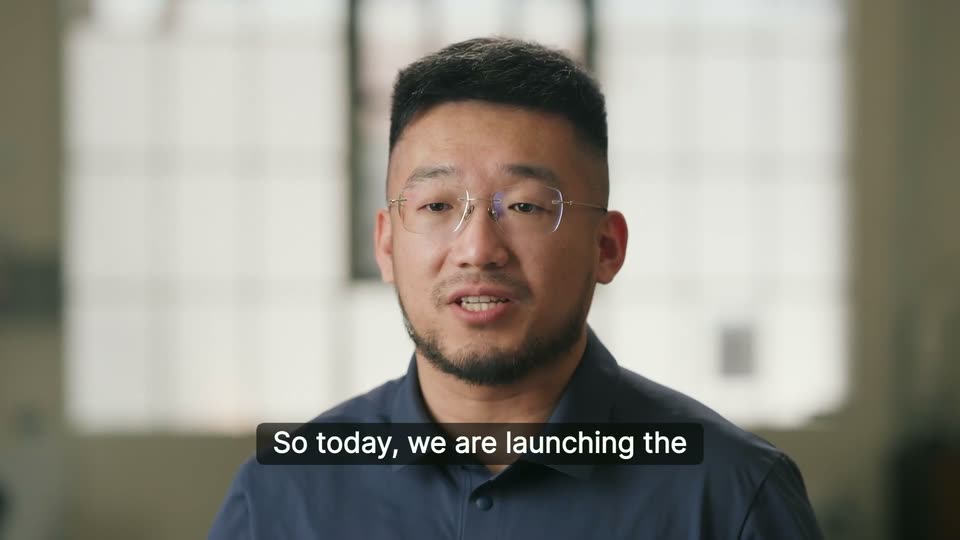
Two men in dark sweaters sit side by side on a cream sofa in a bright living room, facing the camera. The man on the right speaks and gestures with his hands while white subtitle captions in a dark pill appear at the bottom. Locked-off medium shot.
On-screen text: “Hi, we're Raban and Arne”, “and today”, “we're really excited to introduce you to Emdash.”, “an open-source Agentic Development Environment.”
Camera: Static
A dark task-management interface fills the screen over a blurred ocean wallpaper, with a small webcam feed of a man in the bottom right corner and a cursor resting over the task list. The view stays static.
Techniques: Cursor demo
Camera: Static
A dark Emdash app window fills the screen over a beach desktop, showing a task list and a terminal panel. A white caption sits at the bottom while a small webcam of the presenter sits in the lower right corner.
On-screen text: “Let me show you how we use Emdash to build Emdash.”
Camera: Static
A dark task-list interface sits in a rounded window over a beach wallpaper, with a left sidebar and a right changes panel. A white caption reads at the bottom and a small webcam of a man is pinned to the lower right. The screen holds still.
On-screen text: “Let me show you how we use Emdash to build Emdash.”
Camera: Static
A dark task dashboard fills the screen with a list of merged PRs. A mouse cursor hovers over the setup-script row while a Changes panel and terminal sit to the right and a small webcam feed of the presenter sits in the corner. A white caption reads across the bottom.
On-screen text: “Let me show you how we use Emdash to build Emdash.”
Techniques: Cursor demo
Camera: Static
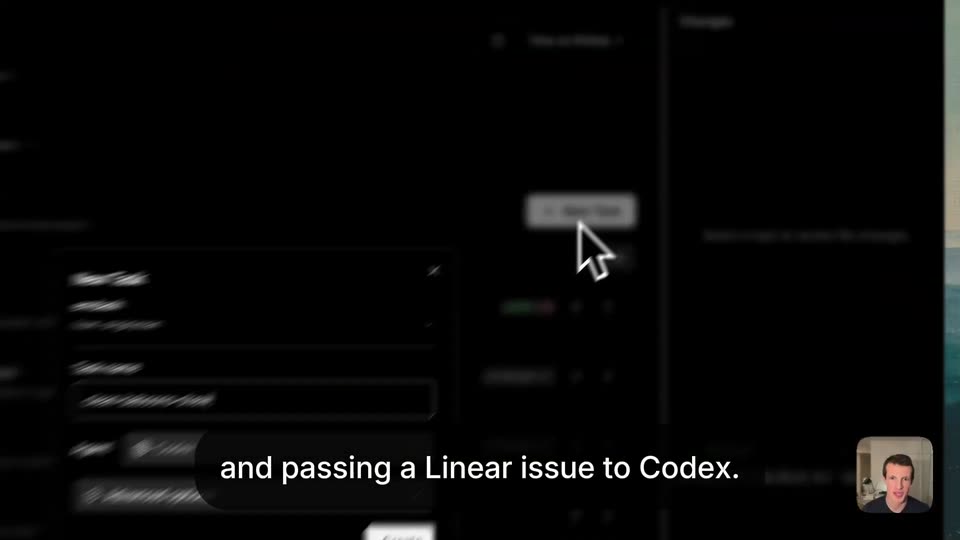
A dark task list fills the frame; a cursor clicks the New Task button, the background blurs, and a centered modal pops in with a typed task name and the agent set to Codex. The cursor drifts to the Create button while white subtitles caption the action.
On-screen text: “I'm creating a new task”, “and passing a Linear issue to Codex.”
Techniques: Cursor demo
Camera: Pull out
A dark app window shows a New Task dialog. The cursor clicks Advanced options, expanding the panel to reveal Linear, GitHub and Jira issue rows, then hovers the Linear issue dropdown. The background interface is blurred. A small webcam feed of the presenter sits in the lower right corner.
On-screen text: “and passing a Linear issue to Codex.”
Techniques: Cursor demo
Camera: Static
A dark New Task dialog sits over a blurred app window; a cursor picks an issue ID from a search dropdown, expanding Advanced options with two checkboxes. The view reframes closer, then the dialog closes to reveal a tasks list.
On-screen text: “and passing a Linear issue to Codex.”, “Codex immediately starts working on it.”
Techniques: Cursor demo, UI zoom
Camera: Pull out
A dark emdash interface with a task list and a terminal panel fills a desktop window over a blurred landscape, a small webcam feed of a man sits in the lower right corner, and a white caption reads across the bottom. The screen stays static.
On-screen text: “Codex immediately starts working on it.”
Camera: Static
A dark task app window fills the frame over a blurred landscape, with a task sidebar and a right panel for Changes and Terminal. A small webcam feed of a man sits bottom right, and a white caption sits at the bottom as a hand cursor hovers the list.
On-screen text: “Codex immediately starts working on it.”
Techniques: Cursor demo
Camera: Static
A dark emdash window fills the frame: a left sidebar lists branches, the central Codex panel scrolls its markdown plan upward, and a right panel shows a terminal. A webcam feed of the presenter sits bottom-right. A white caption, While the agent is running, appears at the bottom.
On-screen text: “While the agent is running,”
Techniques: Cursor demo
Camera: Static
A dark IDE window fills the frame: a left sidebar lists merged PRs, the center pane shows a markdown document that scrolls up slightly, and a terminal sits right. White subtitles at the bottom follow the narration; a small webcam of a man sits in the corner.
On-screen text: “While the agent is running,”, “I can check in on other tasks”, “that other agents are working on in isolation”
Camera: Static
A dark IDE window fills the locked-off frame: a task list on the left, a code panel in the center, a terminal panel on the right. A small webcam feed of a man sits in the bottom right corner, and a white hand cursor hovers over the center panel.
Techniques: Cursor demo
Camera: Static
A dark app screen shows a left sidebar of task names beside a right panel of notes. A white hand cursor glides up the list, hovering over rows, while a caption fades in at the bottom and a small face cam sits in the corner.
On-screen text: “Here you can see all the tasks”
Techniques: Cursor demo
Camera: Push in
A dark task-manager screen shows a left sidebar of task rows and a right panel of code notes. A white hand cursor glides down the list, pausing on rows. A caption sits at the bottom and a small circular webcam feed of a man appears in the lower right corner.
On-screen text: “Here you can see all the tasks”
Techniques: Cursor demo
Camera: Static
A dark two-panel interface shows a task list on the left and a code document on the right. The list scrolls up as a hand cursor hovers over items, while a white caption sits at the bottom.
On-screen text: “that i'm currently working on.”
Techniques: Cursor demo
Camera: Pan
A dark interface shows a left sidebar of task entries beside a right panel of numbered notes. A white hand cursor rests over one entry, and a small webcam feed of a man sits in the bottom right corner.
Techniques: Cursor demo
Camera: Static
A dark IDE interface zooms out from a close-up of the agent chat to reveal the full window, with a left task list and right diff panel. A hand cursor hovers over the text, and a small webcam video sits bottom right as a white caption appears below.
On-screen text: “In this task the agent has completed running.”
Techniques: UI zoom
Camera: Pull out
A dark code editor fills the frame, split into a left task list, a center agent-output panel, and a right file-changes panel. A white hand cursor hovers over the center text. A small webcam feed of a man sits bottom right. A white caption is locked along the bottom.
On-screen text: “in this task the agent has completed running.”
Camera: Static
A dark agent workspace fills the frame, showing a task list, a chat log and a file-diff panel. A white hand cursor rests in the center and a small webcam of a man sits bottom right. A white caption reads at the bottom. The shot is locked off.
On-screen text: “in this task the agent has completed running.”
Camera: Static
A dark code editor fills the frame: a file sidebar, a code panel, and a changes list with green and red diff counts. A hand cursor points at the list, then the view zooms toward the top-right corner. A small webcam window of the speaker sits bottom-right.
On-screen text: “I can see all the changes,”
Techniques: Cursor demo, UI zoom
Camera: Push in
A tilted code editor window over a blurred mountain backdrop shows a diff loading, then zooms into a file with green and red highlighted lines as a cursor moves. A small webcam inset of a man stays in the bottom corner.
On-screen text: “I can see all the changes,”
Techniques: Cursor demo, UI zoom
Camera: Pull out
A dark code diff view fills the screen with green and red highlighted lines. A white cursor rests in the center. A caption reads edit them, revert them at the bottom, and a small webcam feed of a man sits in the bottom right corner.
On-screen text: “edit them, revert them”
Camera: Static
A dark code diff view fills the frame with green and red highlighted lines. A white cursor glides from the center to the top right corner as white captions swap at the bottom. A small webcam feed of a man sits in the lower right corner.
On-screen text: “edit them, revert them”, “or comment on them.”
Techniques: Cursor demo
Camera: Static
A dark code editor window fills the frame, showing a task list on the left, a chat thread in the center, and a file changes panel on the right. A cursor hovers over the Create PR button at the top right, and a small webcam of a man sits in the corner. A white caption rests at the bottom.
On-screen text: “or comment on them.”
Techniques: Cursor demo
Camera: Static
A dark IDE window fills the frame with a task list, a central chat panel, and a file-changes list plus terminal on the right. A white caption at the bottom mirrors the narration; a small webcam feed of a man sits in the lower-right corner. The frame stays locked off.
On-screen text: “Once I'm happy, I can create a PR,”, “a draft PR, or merge it directly.”
Camera: Static
A dark editor window shows a task list, a chat log and a file-changes panel. A white cursor hovers by the Create PR button while a small webcam feed sits bottom right. The frame pushes in on the right panel.
On-screen text: “a draft PR or merge it directly.”
Techniques: Cursor demo, UI zoom
Camera: Push in
A cursor clicks the Create PR button on the right panel, a dropdown with Draft PR and Merge Main opens, and the cursor picks Draft PR. The view then pulls back to reveal the full app window with its sidebar and chat panel.
On-screen text: “a draft PR or merge it directly.”
Techniques: Cursor demo, UI zoom
Camera: Pull out
A screen capture of a dark IDE zooms into the terminal panel as a cursor hovers over a run button, surfacing a Start run script tooltip, then pulls back to the full window. A small facecam sits in the lower corner.
On-screen text: “I can also test the changes”, “by running a lifecycle script.”
Techniques: UI zoom, Cursor demo
Camera: Static
A dark code editor window sits over a blurred outdoor backdrop. The left sidebar lists tasks, the center shows a chat thread on a schema migration, the right lists changed files and a terminal, and a small webcam feed of a man sits bottom right. The frame is locked off.
Camera: Static
A dark three-column development tool screen stays locked off, with a task list left, a document center, and a file-changes list plus terminal right. A white hand cursor moves along the left list while a small webcam feed of a man sits bottom right.
Techniques: Cursor demo
Camera: Static
A dark agent interface shows a chat log, a left task list and a right changes panel. A cursor drifts across the log, then the frame zooms into the right sidebar listing passed CI checks. A small webcam video sits in the corner while captions run along the bottom.
On-screen text: “Here in another task”, “that we directly integrate the CI checks into our UI.”
Techniques: Cursor demo, UI zoom
Camera: Push in
A dark code editor fills the screen, a chat panel on the left and a Checks list on the right showing four passed checks. A white hand pointer hovers over the list, then the camera pulls back to reveal the window on a teal desktop as a caption changes.
On-screen text: “that we directly integrate the CI checks into our UI.”, “Emdash comes with a file editor,”
Techniques: Cursor demo
Camera: Static
A dark code editor fills the frame, a hand cursor hovering over a code icon in the top toolbar. A right panel lists checks and comments. A white caption sits at the bottom. The view holds steady.
On-screen text: “Emdash comes with a file editor,”
Techniques: Cursor demo
Camera: Static
A dark IDE screen with a file tree on the left, an empty black editor in the center and a checks and comments panel on the right. The view settles from a horizontal motion blur into a sharp frame while a hand cursor hovers at the top. A small presenter webcam sits in the lower right corner.
On-screen text: “Emdash comes with a file editor,”
Techniques: Cursor demo
Camera: Pull out
A dark app window fills the frame with a file tree, a chat panel of code-review text, and a right sidebar of checks and terminal. A small webcam feed of a man sits bottom right over a blurred ocean wallpaper. The frame is locked-off.
Camera: Static
A dark three-panel app window fills the frame over a teal desktop wallpaper. A mouse cursor glides from the left task list up to the Skills menu item, while a small webcam feed of a presenter sits in the bottom right corner.
Techniques: Cursor demo
Camera: Static
A dark app window with a left task list and right changes panel. The center panel cuts from a chat transcript to a grid of skill cards. A white cursor hovers over the Skills item. A small webcam feed sits bottom right. White caption reads a skills integration
On-screen text: “a skills integration,”
Techniques: Cursor demo
Camera: Static
A dark app window with a sidebar and a grid of skill cards sits on a blurred nature background. A white cursor hovers over list items and cards, a small webcam feed of a man stays in the corner, and bottom-center captions read “a skills integration,” then “MCP support”.
On-screen text: “a skills integration,”, “MCP support”
Techniques: Kinetic type, Cursor demo
Camera: Static
A dark Emdash dashboard floats over a blurred water backdrop, with a small presenter webcam in the corner. The Skills view dims as an Add Remote Project modal opens at center; the cursor hovers the Port field, then the modal closes. A white caption appears at the bottom.
On-screen text: “we allow access to remote code bases via SSH.”
Techniques: Cursor demo
Camera: Pull out
A dark IDE window shows an Add Remote Project modal with a Connection form, a white hand cursor hovering by the Port field. A blurred ocean backdrop sits behind the window, a presenter webcam occupies the corner, and a bottom caption reads the SSH line.
On-screen text: “we allow access to remote code bases via SSH.”
Techniques: Cursor demo
Camera: Static
A dark product window fills the frame, its centered Add Remote Project form showing a hand cursor hovering by the Port field. A blurred landscape sits behind the window and a presenter webcam inset occupies the bottom right corner, while a white caption runs along the bottom.
On-screen text: “we allow access to remote code bases via SSH.”
Techniques: Cursor demo
Camera: Static
A dark IDE window holds a centered Add Remote Project dialog with connection fields, while a white hand cursor hovers beside the Port field. A small webcam inset of the presenter sits in the bottom-right corner, and the frame stays locked off.
On-screen text: “we allow access to remote code bases via SSH.”
Techniques: Cursor demo
Camera: Static
A dark app window with an Add Remote Project form modal sits over a blurred ocean background, a white hand cursor hovers near the Port field, and a small presenter webcam sits bottom right. A white caption fades in along the bottom.
On-screen text: “This is how you can ship software with Emdash.”
Camera: Static
A dark app window fills the frame with a centered Add Remote Project dialog listing connection fields. A white hand cursor hovers beside the Port field, and a small webcam feed of a man sits in the lower right corner. The shot is locked-off and still.
On-screen text: “This is how you can ship software with Emdash.”
Camera: Static
A dark code editor shows a centered Add Remote Project dialog over a blurred workspace, with a white hand cursor hovering by the Port field and drifting down. A small webcam feed of a man occupies the bottom-right corner. A white caption sits along the bottom edge.
On-screen text: “This is how you can ship software with Emdash.”
Techniques: Cursor demo
Camera: Static
Two men sit on a white sofa with red and gray cushions; the man on the left holds a closed black laptop while both face the camera and talk. A small caption overlays the locked-off medium shot.
On-screen text: “Connect to a remote server via SSH to work on your project.”
Camera: Push in
Two men sit on a cream sofa with red cushions. The man in the gray sweater lifts an open laptop showing a dark blue Emdash screen, points at it, then gestures to camera. White captions appear at the bottom, the second on a black rounded bar.
On-screen text: “Try it out today”, “and start shipping with Emdash.”
Camera: Static
A light gray panel wipes in from the right over a dark teal field, then a small dark parallelogram and a square scale up in the center of the now white frame.
Techniques: Masking
Camera: Static
The Emdash wordmark and a slanted dash mark fade in on a plain off-white background. The right letters solidify from light gray to dark navy, then the full logo holds still.
On-screen text: “Emdash”
Camera: Static
The Emdash wordmark and dash sit centered on a pale background. A dark panel slides in from the left, masking the frame and cutting the logo out of the dark field.
Techniques: Masking
Camera: Static
A small dark teal parallelogram sits centered on a plain light gray background. The flat shape holds still in the middle of the frame, occupying a small area with empty space around it.
Camera: Static
A small dark gray parallelogram rests at the center of a flat light gray field. The shape holds perfectly still, a single geometric mark isolated in empty space.
Camera: Static
A small white parallelogram sits centered on a flat dark slate background, holding still with no motion.
Camera: Static
A small white parallelogram sits centered on a flat dark teal background, holding still with no motion across the shot.
Camera: Static