1:06
Introducing Studio 3.0 — The Best AI Audio Models in One Editor
ElevenLabs · AI · Sep 2025
Emdash · Feb 2026 · 1:28 · AI-annotated
Emdash’s 1:28 launch film runs 54 scenes, about 1.6 s each. The product is on screen from the first frame and 9 features are revealed. The call to action lands at 1:16 (86% in), over a voiceover. The video opens with the two founders on a couch, then cuts to a fast screen-recording walkthrough of the dark Emdash interface, punctuated by zooms into controls, 3D window tilts and a small facecam inset, and closes with a couch call to action and an animated logo. Pacing is quick at about 44 cuts per minute, with white caption pills carrying the narration over a blurred nature wallpaper.
Is this your launch? to your site or press kit.
ElevenLabs · AI · Sep 2025
Rive · Design · Jan 2026
MusicArena · B2B · Sep 2026
Two men in dark sweaters sit side by side on a white couch in a bright room, facing the camera. The man on the right speaks and gestures with his hands while the left stays still. White captions on a dark rounded banner appear at the bottom.
On-screen text: “Hi, we're Raban and Arne”, “and today”, “we're really excited to introduce you to Emdash.”, “an open-source Agentic Development Environment.”
Camera: Static
A dark emdash interface fills the frame, a project list on the left, a task list in the center, a terminal on the right, over an ocean desktop. A small webcam self-view sits bottom right. A white cursor hovers a task row as a caption fades in at the bottom.
On-screen text: “Let me show you how we use Emdash to build Emdash.”
Techniques: Cursor demo
Camera: Static
A dark emdash app window fills the frame over a blurred ocean backdrop, its tasks list and right-hand changes panel static. A cursor rests on the setup-script row, a small facecam inset shows the speaker bottom right, and a white caption sits along the bottom.
On-screen text: “Let me show you how we use Emdash to build Emdash.”
Camera: Static
The Emdash interface is shown in a dark theme, featuring a task list and a sidebar. A cursor hovers over a status label in the list. A caption is displayed at the bottom, and a small video of a presenter is in the bottom right corner.
On-screen text: “Let me show you how we use Emdash to build Emdash.”
Techniques: Cursor demo
Camera: Static
A dark emdash window with a task list sits on a desktop over a nature wallpaper; a cursor hovers on the setup-script row and a small video-call frame of a man sits in the lower right. A white caption spans the bottom.
On-screen text: “Let me show you how we use Emdash to build Emdash.”
Techniques: Cursor demo
Camera: Static
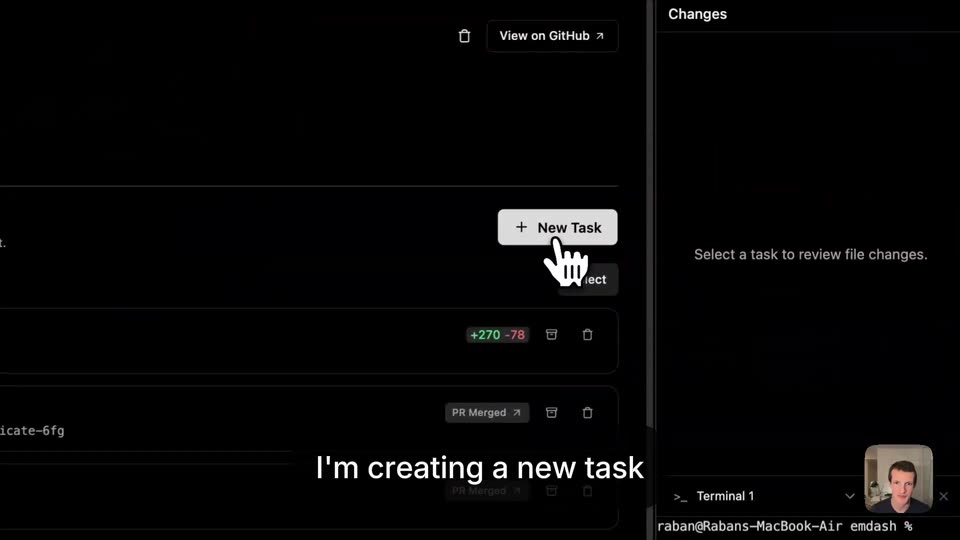
A dark task-list interface fills the frame. The view zooms toward the top-right as a white cursor moves to hover the '+ New Task' button. A small webcam feed of a man sits in the bottom-right corner.
On-screen text: “I'm creating a new task”
Techniques: UI zoom, Cursor demo
Camera: Push in
A hand cursor hovers over a New Task dialog in a dark Linear interface, the task name field filled and the agent set to Codex. The view then pulls back to reveal the whole window tilted in 3D perspective against a painted water backdrop.
On-screen text: “I'm creating a new task”, “and passing a Linear issue to Codex.”
Techniques: Cursor demo, 3D mockup
Camera: Pull out
A dark app screen with a blurred background; a New Task dialog in the center expands to reveal Advanced options, and a cursor moves down to the Linear issue dropdown. A small webcam inset of the presenter sits in the bottom right corner.
On-screen text: “and passing a Linear issue to Codex.”
Techniques: Cursor demo
Camera: Static
A dark New Task dialog floats over a blurred project board. A hand cursor picks a Linear issue from the dropdown while the frame zooms in on the form, and a white caption describes the action.
On-screen text: “and passing a Linear issue to Codex.”, “Codex immediately starts working on it.”
Techniques: Cursor demo, UI zoom
Camera: Static
A dark task app fills the locked-off frame as a New Task dialog closes, revealing a populated task list and a changes panel. A small webcam feed sits bottom right beneath a static white caption.
On-screen text: “Codex immediately starts working on it.”
Camera: Pull out
A dark task app fills the screen, showing a left sidebar, a central list of tasks with PR status badges, and a right Changes and Terminal panel. A hand cursor hovers over the task list, and a small webcam clip of a man sits in the lower right corner.
On-screen text: “Codex immediately starts working on it.”
Camera: Static
A dark task-list interface fills the frame, locked-off, with a left sidebar, a central task list, and a right changes panel. A small webcam feed of a man sits in the lower right corner. A white caption reads at the bottom.
On-screen text: “Codex immediately starts working on it.”
Camera: Static
A dark task-manager UI shows a Codex agent working on a task, then switches to the task's markdown plan as a terminal opens in the right panel. A small webcam of the presenter sits in the corner, and white captions appear at the bottom.
On-screen text: “Codex immediately starts working on it.”, “While the agent is running,”
Camera: Static
A screen capture of a dark code editor: a left project list, a central markdown task list that scrolls up, and a right changes and terminal panel, over a blurred landscape wallpaper. A small webcam feed of a man sits bottom right while white subtitle captions cycle across the bottom.
On-screen text: “While the agent is running,”, “I can check in on other tasks”, “that other agents are working on in isolation”
Camera: Static
A dark app screen shows a left sidebar of task branches beside a code panel and a Changes column. The frame zooms into the sidebar as a hand cursor moves down the rows, and a white caption appears along the bottom.
On-screen text: “Here you can see all the tasks”
Techniques: UI zoom, Cursor demo
Camera: Push in
A dark task-management interface fills the screen: a left sidebar lists tasks with merge badges while a code panel occupies the right. A white hand cursor glides down the list, and a small webcam self-view sits bottom right. A white caption reads at the bottom.
On-screen text: “Here you can see all the tasks”
Techniques: Cursor demo
Camera: Static
A dark app window shows a task list on the left and a code panel on the right. A white hand cursor glides down the list, pausing on items, while a small webcam feed sits in the bottom corner and a caption runs along the bottom edge.
On-screen text: “that I'm currently working on.”
Techniques: Cursor demo
Camera: Pan
A hand cursor hovers over a task in a dark sidebar, then the frame zooms out to reveal the full app window: task list, code panel, file diffs, terminal, and a small webcam feed. A caption appears at the bottom.
On-screen text: “For example,”, “in this task the agent has completed running.”
Techniques: UI zoom
Camera: Pull out
A dark code editor window fills the frame over a blurred lake backdrop. The center shows a chat log and markdown summary, the left sidebar lists merged pull requests, the right lists file changes, a webcam feed sits bottom right. A white caption sits at the bottom.
On-screen text: “in this task the agent has completed running.”
Camera: Static
A dark IDE shows a task list left, a markdown summary center, and a file changes panel right. A cursor moves to the top right over the Changes and Create PR controls, with a small webcam feed of a man in the corner.
Techniques: Cursor demo
Camera: Push in
A dark code editor loads a diff view. A loading spinner spins at left while a white cursor hovers the right panel, then the screen cuts to a full list of changed files with green and red highlighted lines. A small webcam self-view sits in the bottom-right corner.
On-screen text: “I can see all the changes,”
Techniques: Cursor demo
Camera: Pull out
A dark code diff view fills the screen, green and red lines marking additions and removals, with a white cursor resting at the center. A small webcam of a man occupies the lower right corner over a blurred beach backdrop. A white caption reads edit them, revert them along the bottom.
On-screen text: “edit them, revert them”
Camera: Static
A dark editor window shows a diff view with green and red highlighted code lines. A white cursor glides over the code while a small webcam feed of a man sits in the corner. White captions at the bottom change from edit them, revert them to comment on them.
On-screen text: “edit them, revert them”, “comment on them”
Techniques: Cursor demo
Camera: Static
A dark code diff window titled All Changes fills the frame over a blurred landscape, with green and red lines and a small presenter webcam in the corner. A white hand cursor hovers at the top right as a white subtitle reads or comment on them. at the bottom.
On-screen text: “or comment on them.”
Techniques: Cursor demo
Camera: Static
A dark code editor fills the frame, showing a left task list, a central markdown panel and a right changes panel. A hand cursor hovers the Create PR button at top right, and a small webcam feed sits in the corner. White captions swap at the bottom.
On-screen text: “or comment on them.”, “Once I'm done, I'll create a PR,”
Techniques: Cursor demo
Camera: Static
A dark code editor window fills the locked-off frame, showing a task sidebar, a main text panel, and a changes panel with file diffs on the right. A small webcam of a man sits in the bottom right corner. A white caption reads at the bottom.
On-screen text: “Once I'm happy, I can create a PR,”
Camera: Static
A dark IDE fills the frame, a chat panel with review notes on the left and a file-diff list on the right. A hand cursor hovers near the Create PR button as the view zooms in, and a small webcam feed sits in the lower right.
On-screen text: “a draft PR or merge it directly.”
Techniques: Cursor demo, UI zoom
Camera: Push in
A dark pull-request view: code diff left, file list with change counts right. A hand cursor hovers the Create PR button, opening a Draft PR / Merge Main menu, then the frame pulls back to show the full app window with sidebar and terminal.
On-screen text: “a draft PR or merge it directly.”
Techniques: Cursor demo, UI zoom
Camera: Pull out
A zoomed-in view of a dark code editor's terminal panel, where a white cursor hovers over a play button. The caption reads I can also test the changes, then the view pulls back through a blur to reveal the full window with its task list and diff panel.
On-screen text: “I can also test the changes”, “by running a lifecycle script.”
Techniques: Cursor demo, UI zoom
Camera: Pull out
White captions appear at the bottom as a hand cursor glides across a dark task interface. The frame zooms into the right-hand Checks panel, listing passed CI checks, while a small webcam feed of a presenter stays pinned in the bottom-right corner.
On-screen text: “Here in another task”, “that we directly integrate the CI checks into our UI.”
Techniques: Cursor demo, UI zoom
Camera: Push in
A dark code-review interface fills the frame, a white hand cursor pointing at the Vercel check in the right panel. The view pulls out to reveal the full app window with a file tree, the cursor then moves to the Changes tab as the bottom caption swaps.
On-screen text: “that we directly integrate the CI checks into our UI.”, “Emdash comes with a file editor,”
Techniques: Cursor demo, UI zoom
Camera: Pull out
A dark code editor fills the frame, code on the left and a checks-and-comments sidebar on the right. A white hand cursor hovers over a top-right icon, and a small presenter video sits in the corner. A white caption sits at the bottom.
On-screen text: “Emdash comes with a file editor,”
Camera: Static
A dark code editor and a right-hand panel of checks and comments sit in a tilted 3D frame, with a hand cursor at top and a small webcam of a man in the corner. The screen rotates toward the camera as a white caption reads at the bottom.
On-screen text: “Emdash comes with a file editor,”
Techniques: 3D mockup
Camera: Pull out
A dark code editor window fills the frame over a blurred dusk ocean backdrop, a file tree on the left and a pull-request checks panel on the right. A white cursor hovers over the Home button at the top right, and a small webcam feed of a man sits in the bottom corner.
Techniques: Cursor demo
Camera: Static
A dark application window floats over a teal abstract backdrop, showing a file tree, a chat panel and a Changes column. A white cursor hovers at the top-right toolbar while a small webcam of the presenter sits in the lower-right corner.
Techniques: Cursor demo
Camera: Static
A dark app window fills the frame over a blurred mountain wallpaper, split into a left task list, a center agent chat log, and a right changes panel. A small face-cam sits in the corner while a hand cursor drifts across the sidebar.
Techniques: Cursor demo
Camera: Static
A dark product interface fills the frame. A white hand cursor clicks the Skills item in the left sidebar, and the center panel switches from a chat log to a grid of skill cards. A white caption fades in at the bottom. A small face-cam video sits in the lower right corner.
On-screen text: “a skills integration,”
Techniques: Cursor demo
Camera: Static
A dark dashboard UI fills the frame over a blurred sea background. A cursor moves across the Skills list, then clicks Home, switching the center panel to an Emdash project screen. White captions read a skills integration and MCP support, while a small webcam of a man sits bottom right.
On-screen text: “a skills integration,”, “MCP support”
Techniques: Cursor demo
Camera: Static
A dark Emdash dashboard sits over a blurred aerial backdrop, with a task list on the left and four action cards under the logo. A cursor glides from the sidebar to the center, a webcam inset of the presenter holds the bottom-right, and the caption 'and further,' rests at the bottom.
On-screen text: “and further,”
Techniques: Cursor demo
Camera: Static
A dark dashboard screen shows the Emdash logo and three project buttons. A white hand cursor clicks Add Remote Project, opening a connection dialog with host and port fields, then clicks Next. A small facecam sits bottom right as subtitles roll along the bottom.
On-screen text: “and further,”, “we allow access to remote code bases via SSH.”
Techniques: Cursor demo
Camera: Pull out
A dark application window shows a centered Add Remote Project dialog with form fields and Cancel/Next buttons; a white hand cursor points at the Port field. A small rounded webcam of a man sits in the lower right over a blurred landscape, and a white caption runs along the bottom.
On-screen text: “we allow access to remote code bases via SSH.”
Techniques: Cursor demo
Camera: Static
A dark IDE window over a blurred sky shows a centered Add Remote Project dialog with connection fields. A white hand cursor hovers by the Port field, a white caption runs along the bottom, and a small webcam feed of a man sits in the lower right corner.
On-screen text: “we allow access to remote code bases via SSH.”
Camera: Static
A dark product window shows an Add Remote Project dialog with a connection form. A white hand cursor hovers beside the Port field while a small webcam feed of the presenter sits in the lower-right corner, all on a locked-off frame.
On-screen text: “we allow access to remote code bases via SSH.”
Techniques: Cursor demo
Camera: Static
A dark app window centers an “Add Remote Project” modal with form fields, a white hand cursor hovering by the Port box. The window floats over a blurred list and a teal textured backdrop. A small webcam feed of a man sits bottom right, a white caption along the bottom.
On-screen text: “This is how you can ship software with Emdash.”
Camera: Static
A dark app window with a centered Add Remote Project modal sits over a blurred cloud wallpaper; the side panes are dimmed, a white hand cursor points at the Port field, and a small webcam feed of a man fills the bottom right corner.
On-screen text: “This is how you can ship software with Emdash.”
Camera: Static
A dark Add Remote Project dialog sits centered over a blurred desktop, a hand cursor hovering by the Port field. A small webcam feed of a presenter anchors the bottom right corner, and a white caption runs along the bottom. The frame stays locked and still.
On-screen text: “This is how you can ship software with Emdash.”
Techniques: Cursor demo
Camera: Static
Two men sit on a white sofa with red cushions. The man on the left lifts and opens a laptop on his lap, revealing the Emdash interface on its screen, and gestures toward it while the man in a cap smiles. White caption lines appear at the bottom of the frame.
On-screen text: “Try it out today”, “and start shipping with Emdash.”
Camera: Push in
A dark teal panel wipes away from the right edge to reveal a light gray field, while a small dark parallelogram scales up at the center of the frame.
Techniques: Masking
Camera: Static
On a pale gray background, the centered Emdash logo resolves. A black dash precedes the bold sans wordmark, and the letters fill from faint to solid black before the frame holds still.
On-screen text: “Emdash”
Camera: Static
A light gray frame holds the dark green Emdash wordmark with a small parallelogram dash. A dark panel wipes in from the left, and the letters invert to white where the panel overlaps, masking the sign-off.
Techniques: Masking
Camera: Static
A small dark parallelogram sits centered on a plain light background, holding still as the opening mark of the sequence.
Camera: Static
A small dark parallelogram sits centered on a flat light blue-gray background. The shape holds still for the brief clip, with no other elements or movement.
Camera: Static
A small white parallelogram sits centered on a flat dark slate field, holding still across the short clip.
Camera: Static
A small white parallelogram sits centered on a dark charcoal field. It blinks once, vanishing and returning, while the frame stays static and the shape keeps its flat, slanted form.
Camera: Static