0:31

Document Tagging on Parsewise
Parsewise · B2B · Nov 2026
Ed.ai · May 2026 · 1:22 · Full motion · AI-annotated
Ed.ai’s 1:22 launch film runs 23 scenes, about 3.6 s each. The product is on screen from the first frame and 4 features are revealed. There is no explicit call to action. The video is a four-block feature tour: each block opens with a centered two-line headline on a pale lavender field while the product UI crossfades in behind it, then hands off to a cursor-driven demo built from smooth scrolls, sliding side panels and modal forms. The signature moves are the gradient second line of every headline, the lavender-to-purple palette, and a calm, even pace that lets the interface carry the message.
Is this your launch? to your site or press kit.
Parsewise · B2B · Nov 2026
Sona8 · B2B · Nov 2026
Biolevate · Dec 2025
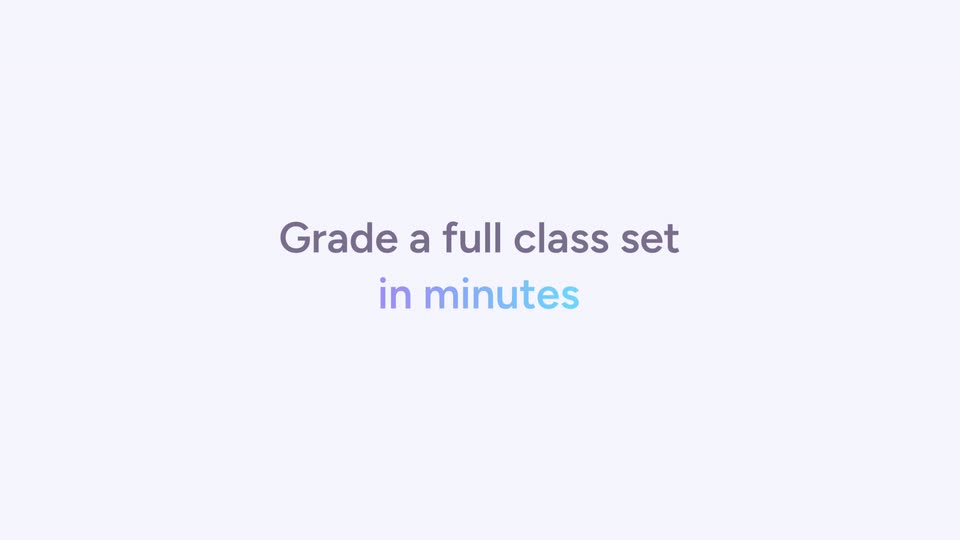
A centered two-line headline holds on a pale lavender field, then the Ed.ai dashboard with quiz document cards fades in behind it. The text stays locked off and centered throughout.
On-screen text: “Grade a full class set”, “in minutes”
Camera: Push in
The dashboard crossfades to the Student papers tab of an algebra quiz, listing graded student scores. A cursor glides to the Release graded papers button and clicks it, spawning a loading spinner.
Techniques: Cursor demo
Camera: Push in
A static dashboard view of the Ed.ai assessment screen shows a student papers table on the left and a grading panel for one student on the right. A cursor glides to the purple View the graded paper button and clicks it.
Techniques: Cursor demo
Camera: Static
A grading page opens on a student's score and comment, then scrolls to a split view: the scanned quiz with red handwriting on the left, feedback cards with scores on the right. The cursor clicks an observations dropdown, and the view zooms in as it scrolls through tagged error cards.
Techniques: Cursor demo, UI zoom
Camera: Push in
A static split product view: the left holds a graded math worksheet with red handwritten solutions, the right lists correction notes under small red error tags. A text caret rests in the feedback panel.
Camera: Static
A split grading screen shows a worksheet with red and purple handwritten equations on the left and a numbered feedback panel with point scores on the right. A cursor hovers over the second item. The top bar carries the BARON Clio title and a Graded badge.
Techniques: Cursor demo
Camera: Pull out
A two-line headline, dark gray over a purple-to-blue gradient, holds centered on a plain lavender field. The Ed.ai dashboard, showing a student papers list and a comment panel, fades in behind it while the text stays locked.
On-screen text: “Standards-aligned”, “learning analytics”
Camera: Push in
A flat Ed.ai dashboard shows a Student papers table beside a student score panel. The cursor clicks Insights; the view scrolls to a grade chart and skills table, and a side panel slides in listing students by performance. The interface then pulls back to fit the frame.
Techniques: Cursor demo, UI zoom
Camera: Pull out
A centered two-line headline, dark gray over a blue-to-purple gradient, holds still on a pale field. The Ed.ai dashboard, with sidebar, grade chart and student list, fades in behind the text at low opacity.
On-screen text: “Remediation activities”, “in minutes, not hours”
Camera: Push in
A static view of the Ed.ai teacher dashboard shows a class average card, a purple grade distribution bar chart, and a student papers list on the right. A cursor glides down from the filter pills to the Generate a reteaching activity button.
Techniques: Cursor demo
Camera: Push in
A modal titled Generate a Reteaching Activity sits over a dimmed dashboard. The cursor selects Error-based learning from a list, the preview panel fills with its description, then the left panel swaps to a configuration form as the cursor rests on the purple Generate Activity button.
Techniques: Cursor demo
Camera: Static
A full-screen dashboard of an education platform holds steady, showing class analytics and a grade chart. A cursor drifts down the skills list while a small spinner turns in the right panel header.
Techniques: Cursor demo
Camera: Static
A light-themed Ed.ai assessment page shows an activities table. A cursor clicks the Reteaching Activities tab, which gains a purple underline, and the top row holds a Creating status with a spinning loader.
Techniques: Cursor demo
Camera: Static
A static screen of an Ed.ai assessment page shows the Reteaching Activities tab with a six-row table and a right panel titled Group reflection exercise. A cursor hovers over the View remediation button.
Techniques: Cursor demo
Camera: Static
A document editor displays a math worksheet. The save badge flips from Saved to Unsaved as the page scrolls up, then a cursor opens the Download menu, revealing PDF, DOCX and ODT options, before the top bar switches to an Open to students button.
Techniques: Cursor demo
Camera: Pull out
A document editor with a math worksheet and a cursor cuts to a pale lavender field. A centered two-line headline sits still and locked off, the second line in a blue-to-cyan gradient.
On-screen text: “A teaching assistant”, “that knows everything”
Camera: Pull out
Two centered lines of text sit on a pale lavender background, fully static for the whole clip. The top line reads in dark purple, the bottom line in a purple to blue gradient, with no motion or other elements.
On-screen text: “A teaching assistant”, “that knows everything”
Camera: Static
A centered two-line headline on a pale lavender background fades out as a tilted 3D dashboard mockup fades in, showing a left sidebar, two stat cards and a purple grade-distribution bar chart.
On-screen text: “A teaching assistant”, “that knows everything”
Techniques: 3D mockup
Camera: Push in
A light dashboard shows a Results section with a purple bar chart and an average card. A cursor clicks the Explore with Ed link, and a side panel slides in from the right with a bulleted list and message field, shifting the content left.
Techniques: Cursor demo, Masking
Camera: Push in
A dimmed app shell frames a white chat panel. A cursor types a question into the input bar and sends it; the assistant replies with streamed text and a three-column data table, then the panel scrolls up to reveal the full table.
Techniques: Cursor demo
Camera: Static
A light analytics dashboard holds still: a left menu, a results panel with a 38.15 class average and a purple grade distribution chart, and a right chat panel where an AI assistant explains evaluation errors. A cursor rests at the chat panel's edge.
Camera: Pull out
A pale lavender background holds the centered Ed.ai logo with a penguin mark. The logo and two tagline lines fade in as the second line scales down to its final size, the lower line in a purple-to-cyan gradient.
On-screen text: “Ed.ai”, “Human teaching.”, “Superhuman scale.”
Techniques: Kinetic type
Camera: Static
A plain pale lavender background holds nothing for the first beat, then a short gray horizontal line fades into the exact center of the frame and holds.
Camera: Static