
1:39
Explore
#fintech #qa #ai #e2etest #yc #automation | Docket (YC P25)
Docket · 1:39 · Full motion · AI-annotated
- Length
- 1:39
- Scenes
- 18 · 5.5 s avg
- Product on screen
- 0:00
- Voiceover
- Yes
00:00:00 / 01:39:24
- Length
- 1:39
- Scenes
- 18 · 5.5 s avg
- Product on screen
- 0:00
- Voiceover
- Yes
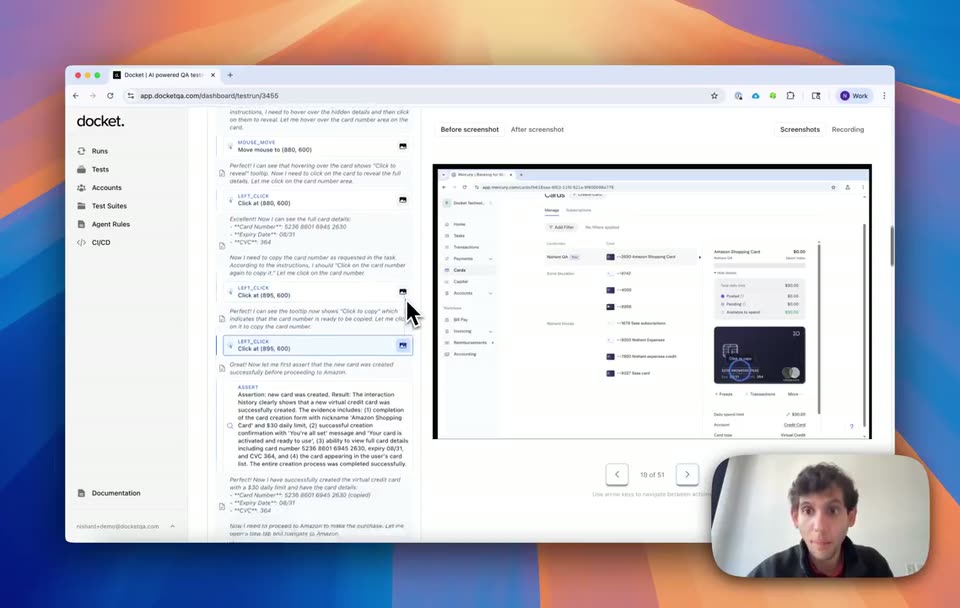
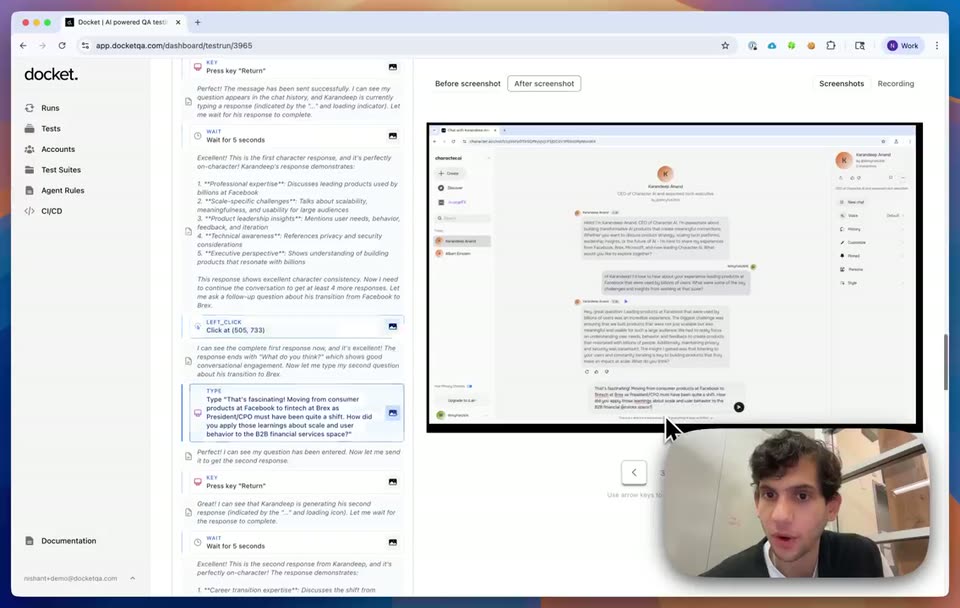
Docket’s 1:39 launch film runs 18 scenes, about 5.5 s each. The product is on screen from the first frame. There is no explicit call to action; a voiceover carries the film. The video is one continuous screen capture of the Docket dashboard, narrated as two back-to-back test runs: a Mercury card checkout and a Mercury login with 2FA. Its signature moves are fast zoom punches between the full browser window and the step log or screenshot panels, anchored by a fixed corner webcam bubble.
No filming indicatedEstimated needs: 3 capture groups — your screens or recordings · 1 official logo — reused across the film
Is this your launch? to your site or press kit.
More like this

#fintech #qa #ai #e2etest #yc #automation | Docket (YC P25), scene by scene
· 18 scenes as text
01 · Product intro · 0:00–0:17
A browser window over a colorful gradient desktop shows the Docket QA dashboard, with a presenter's face-cam in the corner. The view zooms into the test page, the cursor highlights the instruction text and clicks the Actions tab to reveal the step list, then zooms back out.
Techniques: UI zoom, Cursor demo
Camera: Push in
02 · Demo · 0:17–0:29
A browser window shows the docket QA interface: a scrolling step log left, a before/after screenshot viewer right, and a small webcam feed of a presenter bottom right. The log scrolls through click and type steps as the right panel flips through card-creation screens, then the view zooms in.
Techniques: UI zoom, Cursor demo
Camera: Push in
03 · Demo · 0:29–0:32
A side-by-side view of the Docket app: the left panel scrolls a test-step log while the right browser moves from an Amazon URL dropdown to the sign-in page and homepage. A cursor hovers over the steps, and a presenter appears in a small video bubble at the bottom right.
Techniques: Split screen, Cursor demo
Camera: Pull out
04 · Demo · 0:32–0:37
A browser window of the Docket test dashboard sits on a blue and orange gradient. The middle column of test steps scrolls upward while the right panel switches from an Amazon sign-in page to the Amazon homepage. A presenter appears in a small rounded video at the bottom right.
Camera: Static
05 · Demo · 0:37–0:53
A Docket test dashboard fills the screen: a step log scrolls up on the left as the right pane cycles through Amazon checkout screenshots, ending on the order confirmation. A webcam of the presenter sits in the corner, then the view zooms into the confirmation page.
Techniques: UI zoom
Camera: Push in
06 · Demo · 0:53–0:55
A browser window shows an Amazon order-confirmation page with a green checkmark, beside a left panel of step-by-step click instructions. A hand cursor hovers over the After screenshot button. A small webcam feed of the presenter sits in the bottom-right corner.
Techniques: Cursor demo
Camera: Static
07 · Demo · 0:55–0:56
A close-up of a Docket browser window zooms out to reveal the full interface, with a code editor on the left and a screenshot comparison on the right. A hand cursor hovers over the After screenshot tab while a presenter appears in a small webcam window at the bottom right.
Techniques: UI zoom
Camera: Pull out
08 · Demo · 0:56–0:57
A browser window of the Docket QA app rests on a diagonal orange-to-blue gradient, its three columns showing a test log, an agent run, and an Amazon order screenshot. A small webcam bubble in the corner shows the presenter talking, while a hand cursor drifts down the log.
Techniques: Cursor demo
Camera: Static
09 · Demo · 0:57–0:59
A screen capture of the Docket dashboard opens on a test log beside an Amazon checkout screenshot. The view zooms into the test header, enlarging the page detail, while a small webcam of the presenter stays in the bottom right corner.
Techniques: UI zoom
Camera: Push in
10 · Demo · 0:59–1:00
A browser window displays the Docket test-run page with a Success badge and two passing test rows. A hand cursor glides down to hover the first row, while a small webcam bubble of the presenter plays in the bottom-right corner.
Techniques: Cursor demo
Camera: Static
11 · Demo · 1:00–1:11
The Docket test-run interface fills the screen, its action log scrolling past a login sequence while a presenter's webcam sits in the corner. The view pulls back to the desktop, then pushes in on the 2FA code step before returning to the full window.
Techniques: Cursor demo, UI zoom
Camera: Pull out
12 · Demo · 1:11–1:14
A Docket app browser window sits on a colorful desktop. The view zooms into the right panel as a hand cursor clicks the After screenshot tab, and the screenshot changes from a 2FA code entry to a Verify your device card. A webcam video stays in the corner.
Techniques: UI zoom, Cursor demo
Camera: Push in
13 · Demo · 1:14–1:18
A close-up of a task-automation interface shows a step list left and a captured browser screenshot right, with a hand cursor over a Verify your device dialog. A webcam feed of a man sits in the corner as the view pulls back to the full window on a gradient.
Techniques: UI zoom
Camera: Pull out
14 · Demo · 1:18–1:22
A browser window showing the Docket dashboard sits on a striped gradient background, with a small webcam feed of a presenter in the corner. The view then zooms into the action log on the left, where a cursor rests over an email step.
Techniques: UI zoom
Camera: Push in
15 · Demo · 1:22–1:30
A split view shows an agent action log scrolling up on the left while a browser on the right moves from a login page to a new incognito tab with a typed URL. A small webcam feed of a presenter sits in the corner.
Techniques: Split screen, Cursor demo
Camera: Pan
16 · Demo · 1:30–1:33
A split-screen view shows a scrolling agent log on the left and a browser preview with a webcam feed on the right. The log scrolls up past action steps as a blue circle highlights a tab in the browser.
Techniques: Split screen
Camera: Pan
17 · Demo · 1:33–1:34
A split screen pairs an AI agent's action log on the left with a controlled browser on the right, a small presenter webcam in the corner. A cursor circles a tab, then the panels slide to a screenshot-comparison view.
Techniques: Split screen, Cursor demo
Camera: Pan
18 · Demo · 1:34–1:39
A tight view of a QA tool's instruction panel and a banking dashboard screenshot pulls back to show the whole browser window on a colorful gradient desktop. A small rounded webcam feed of a presenter sits in the bottom right corner.
Techniques: UI zoom
Camera: Pull out