
1:44

Replit Missions | Pursuing outcome-based results
Replit · Developer tools · Nov 2026
Comena · Jul 2025 · 1:26 · Full motion · AI-annotated
Comena’s 1:26 launch film runs 19 scenes, about 4.6 s each. The product shows up at 0:12. The call to action lands at 1:18 (90% in), over a voiceover. The video alternates locked-off centered type cards that scale in with a brief motion blur against slow push-in camera moves over clean white product UI, built as a problem statement, a product name card, one continuous end-to-end demo, and a logo end card with a button. Its signature moves are phrase-by-phrase text assembly, zooms into table rows and form fields, and thin blue connector lines drawn from PDF rows to their matched line items.
Is this your launch? to your site or press kit.
Replit · Developer tools · Nov 2026
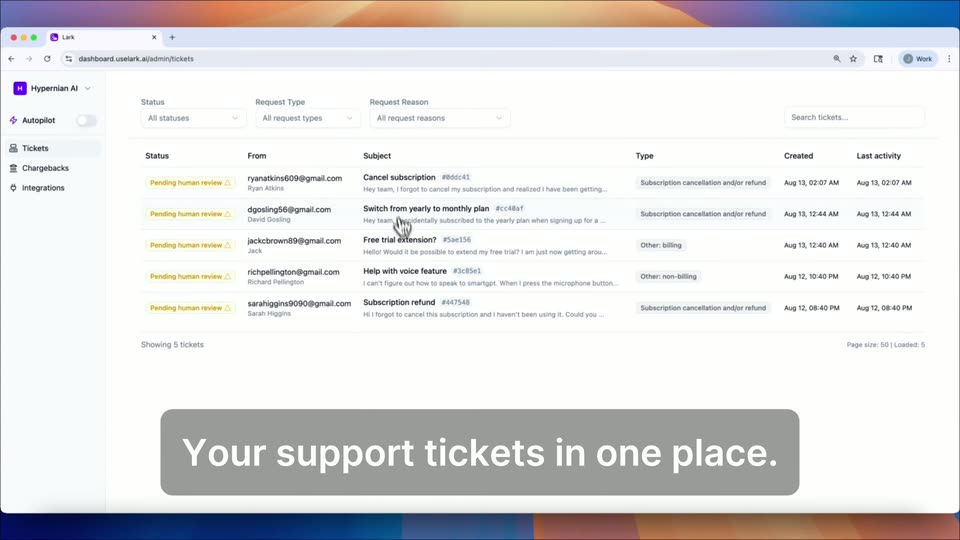
Lark · B2B · Aug 2025
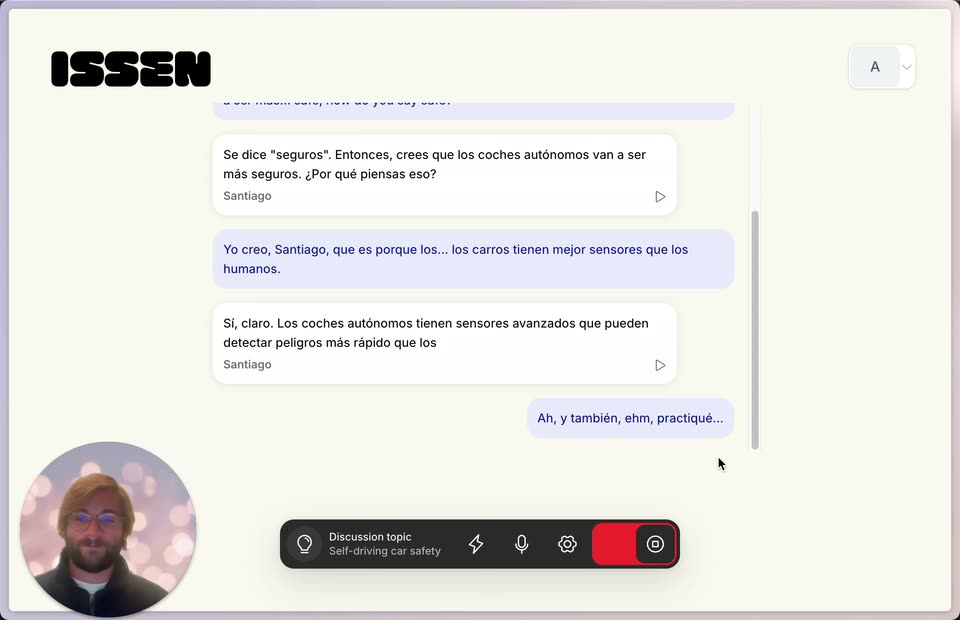
ISSEN · Consumer · Nov 2024
Films whose music sounds like this one, voice left out
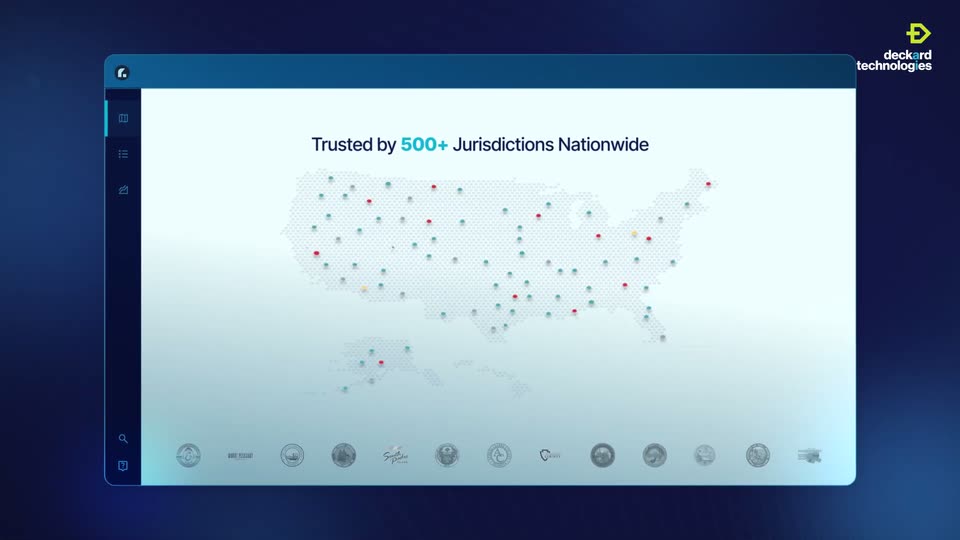
Deckard · Upbeat electronic
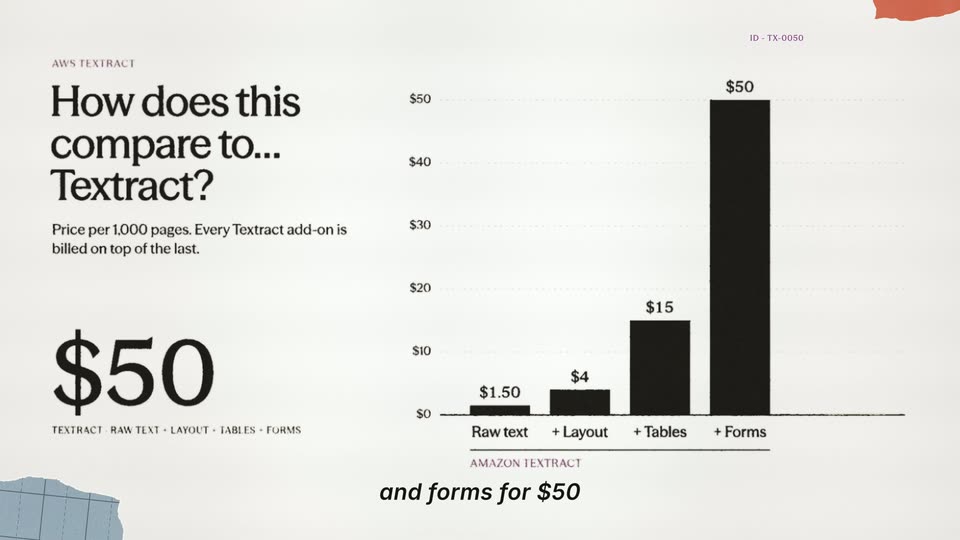
Reducto · Electronic
Superhuman · Modern electronic
A pale white-and-blue gradient holds the frame while a centered sentence assembles phrase by phrase. Each line scales in with a brief motion blur, spelling out the time-cost claim word by word.
On-screen text: “Sales reps”, “lose”, “20+ hours a week”, “manually entering”, “purchase orders and RFQs”
Techniques: Kinetic type
Camera: Static
A dark gray sans-serif phrase scales in at center on a white background with pale blue gradient corners. It is then replaced by a second phrase that holds still. The frame stays locked off throughout.
On-screen text: “purchase orders and RFQs”, “into ERP systems”
Techniques: Kinetic type
Camera: Static
On a blue gradient field with a soft corner glow, white centered text builds a sentence phrase by phrase. Each line fades or scales in at the center, replacing the previous, from 'The result?' to 'But that changes today'.
On-screen text: “The result?”, “Your best sales talent”, “stuck in”, “data entry”, “instead of real selling”, “But that changes today”
Techniques: Kinetic type
Camera: Static
On a soft white-blue gradient, the Comena wordmark and blue triple-C mark assemble in the center, then gray tagline lines fade in below: your AI agent for processing, then purchase orders.
On-screen text: “But that changes today”, “your AI agent for processing”, “purchase orders”
Techniques: Kinetic type
Camera: Static
A centered line of black sans-serif text on a soft white-blue gradient reads 'purchase orders', then widens as 'and RFQs' fades in in lighter gray, the whole phrase scaling slightly on a locked-off frame.
On-screen text: “purchase orders”, “and RFQs”
Techniques: Kinetic type
Camera: Static
A blue gradient field holds the centered white line 'Let's see it in action', which scales in place. The gradient highlight drifts from the top-left corner toward the top-right as the line gives way to 'purchase orders'.
On-screen text: “Let's see it in action”, “purchase orders”
Techniques: Kinetic type
Camera: Static
A white email card with a purchase order PDF attachment fades in on a light background. The view zooms into the card as a black cursor glides to the Forward button.
On-screen text: “Let's see it in action”
Techniques: UI zoom, Cursor demo
Camera: Push in
A white email compose card holds a forwarded purchase order. The view zooms into the To field as [email protected] is typed and a suggestion dropdown opens, then a cursor appears and the frame reframes onto the PDF attachment and Send button.
Techniques: UI zoom, Cursor demo
Camera: Push in
A white Orders table fades in with one row: order 23005345, customer, sender, date, and a yellow Processing badge. The camera zooms into the row, and the badge switches to a green Completed.
Techniques: UI zoom
Camera: Static
A light dashboard of rounded cards populates in place. The top row fills with order number, customer and email fields, the left card types out an email with a PDF attachment, and the right table loads two line-item rows.
Camera: Static
A product order screen fills the frame. The view zooms into the top fields, then reframes to the email and PDF panel beside the matched line items table. Blue lines draw from each PDF row to its matching item, ending on a cursor.
Techniques: UI zoom
Camera: Push in
A white table of line items fills the frame as a black cursor travels down the rows, stopping on each entry. Columns list article names, quantities, prices and dates.
Techniques: Cursor demo
Camera: Static
A white modal listing alternative part codes and descriptions floats over a dimmed line-item table while the view slowly pushes in. The modal closes and a cursor slides in to rest on a table row.
Techniques: UI zoom, Cursor demo
Camera: Static
A close-up of a line-item table shows a cursor hovering over a row. An inline edit box opens on a quantity cell with a number field and Save button. The view then zooms out to reveal the full purchase-order page with shipping details on the left.
Techniques: Cursor demo, UI zoom
Camera: Pull out
A purchase order screen fills the frame: header fields, an email pane with an attached PDF, and a matched line items table. The view scrolls up a few pixels, revealing the CDTM logo at the top left, while a total price tooltip hovers above the Submit order button.
Camera: Push in
Close-up of an order form listing line items, a total price and a black Submit order button. The view reframes onto the button as a cursor arrow glides in and rests at its right edge.
Techniques: UI zoom, Cursor demo
Camera: Push in
A close-up of a black Submit order button and a total price zooms out to reveal a full ERP order-overview window with a line-item table and form fields.
Techniques: UI zoom
Camera: Push in
A flat window of an order-management screen, titled Create Standard order, sits centered on a white background and slowly zooms in until the form fields and the All Items table fill the frame.
Techniques: UI zoom
Camera: Push in
A blue triple-stroke C mark sits on a soft white-to-blue gradient as the black Comena wordmark slides in beside it and the tagline types out below. A blue CTA button fades in, and a cursor glides in toward it, then exits.
On-screen text: “Comena”, “From inbox to ERP”, “Try it on your own data”
Techniques: Kinetic type, Cursor demo
Camera: Static