0:55
Introducing GPT-5.5
OpenAI · AI · Apr 2026
Claude · Apr 2026 · 1:14 · Full motion · AI-annotated
Claude’s 1:14 launch film runs 20 scenes, about 3.7 s each. The product shows up at 0:02 and 3 features are revealed. There is no explicit call to action. The video is built as a chain of flat color title cards, each naming one feature, followed by split-screen demos where a typed chat prompt streams an AI response beside a live Fusion viewport. Its signature moves are letter-by-letter typing, slow push-ins on the chat panel, and slow orbits on the finished 3D model, all held to a restrained cream and terracotta palette.
Is this your launch? to your site or press kit.
A cream rounded card centered on a terracotta background fades from translucent to solid, then its toggle flips from gray to blue as the white knob slides right. The orange Fusion app icon and dark label sit at left, locked off.
Camera: Static
A flat terracotta background holds a centered serif headline. “Claude now connects with” fades in above “Autodesk Fusion”, then fades back out, leaving the second line standing alone.
On-screen text: “Claude now connects with”, “Autodesk Fusion”
Techniques: Kinetic type
Camera: Static
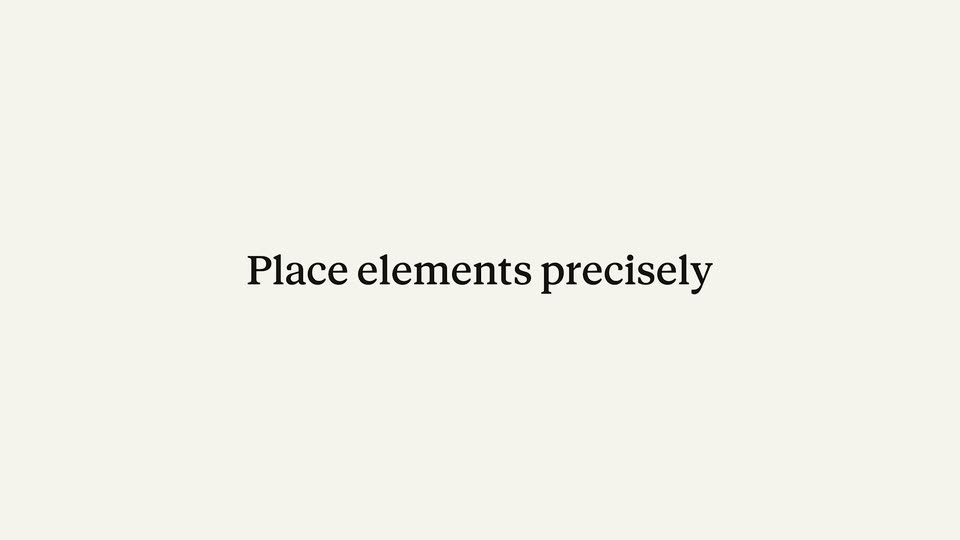
A centered serif headline, “Place elements precisely,” fades in on a plain cream background and holds still. The frame is locked off with no other motion.
On-screen text: “Autodesk Fusion”, “Place elements precisely”
Camera: Static
A gray serif headline reads on a cream background, then gives way to a white chat card that scales into the center. Above it, a greeting appears beside a red starburst, and a caret types a short prompt inside the card next to a red send button.
On-screen text: “Place elements precisely”, “Hey there,Samuel”
Camera: Static
A red starburst mark and the serif greeting “Hey there, Samuel” sit above a white rounded chat field on a cream background. The user’s prompt types out letter by letter, then a cursor moves to the red send button, hovers, and the whole card fades out.
Techniques: Cursor demo
Camera: Static
Two app windows sit side by side on a white background: a chat panel on the left and an Autodesk Fusion viewport on the right showing a 3D keyboard with green circuit boards. The camera pushes in and pans left, enlarging the chat panel until the Fusion window is cropped at the right edge.
Techniques: UI zoom
Camera: Push in
A white chat interface window floats in a slight 3D perspective against a light gray background. A user prompt appears at the top, followed by a stream of assistant text that types out line by line, accompanied by a small pulsing red starburst icon.
On-screen text: “Can you look at my design in Fusion? I need you to arrange the keys properly on the keyboard.”, “I'll start by reading the relevant skills and then look at your Fusion design. Let me first check the best practices and then explore your current model.”, “Good, I've read the core skills. Now let me detect the WCS orientation and then examine your current design.”, “Now let me detect the WCS orientation first, then take a look at the current design:”, “This is a large keyboard assembly with 1235 components. Let me take a screenshot to see the current state:”
Techniques: 3D mockup, Kinetic type
Camera: Pull out
Two app windows sit side by side. The left chat streams the AI's analysis line by line while the right Fusion window turns from a top-down PCB view into a 3D keyboard, keycaps and orange switches appearing. A zoom pushes into the Fusion window at the end.
Techniques: Split screen, 3D mockup, UI zoom
Camera: Push in
A silver mechanical keyboard with white, gray, and orange keycaps sits on a plain white background in 3D perspective. The camera slowly orbits around the device, shifting the viewing angle from a high left side to a lower right side.
Techniques: 3D mockup
Camera: Push in
A black serif headline reads “See inside your designs,” centered on a cream background. It is then replaced by a rounded beige chat bubble that scales in, carrying a sans-serif question about moving components vertically.
On-screen text: “See inside your designs”, “Can you move the main components vertically to create an exploded view?”
Techniques: Kinetic type
Camera: Static
A beige chat bubble pulls back into a white AI chat window, then a second window appears at right with a 3D keyboard that separates vertically into an exploded view. The camera pushes in on the chat text as new paragraphs stream in.
Techniques: Split screen, 3D mockup, UI zoom
Camera: Pan
A light chat interface fills the frame, dark sans paragraphs stacked above gray tool labels; a small red asterisk spinner rotates at the bottom edge. The panel stays nearly still, with only a faint upward drift of the text.
Camera: Static
An exploded 3D model of a mechanical keyboard floats on a white background, its layers of white keycaps, silver plate, green PCB and black case separated vertically as the camera slowly orbits around it.
Techniques: 3D mockup
Camera: Static
A 3D mechanical keyboard floats in exploded view, its keycap deck, aluminum frame, green PCB, white plate and black case stacked as separate layers on white. The assembly shifts right as a two-line caption fades in on the left.
On-screen text: “Now that's a clean”, “exploded view.”
Techniques: 3D mockup
Camera: Pan
A serif headline sits on a cream card, then a rounded chat bubble scales in with a prompt. The view pulls back to show a chat window beside a 3D CAD view of a keyboard casing, then zooms into the chat as a new prompt types itself.
On-screen text: “Now that's a clean exploded view.”, “Explore material options”, “Let's focus on the bottom casing.”, “Can you hide other components?”
Techniques: Kinetic type, 3D mockup, UI zoom
Camera: Pull out
Split screen: a chat panel on the left streams design notes while a CAD viewport on the right renders a keyboard case in 3D. The model evolves from a dark tray to an exploded stack with a green PCB, then to a close-up of a gray tray with standoffs.
Techniques: Split screen, 3D mockup, UI zoom
Camera: Pull out
A white chat panel sits on a pale background, its transcript of API calls and replies held still while a red dotted loading spinner turns above the Reply input bar. The frame stays fixed on the panel.
Camera: Static
Two panels side by side: a chat window on the left scrolls up through agent messages while Autodesk Fusion 360 on the right orbits a dark grey keyboard case, turning it from top view to its underside and edge.
Techniques: Split screen, 3D mockup
Camera: Pull out
A split view pairs a left panel of design notes with a right Autodesk Fusion window. The 3D keyboard shell in the viewport rotates through angled, underside and top views, switching between transparent and solid grey shading.
Techniques: Split screen, 3D mockup
Camera: Static
A two-line serif headline fades in and out on a cream background, then the Claude wordmark with a coral spark icon fades in and holds while the icon slowly rotates.
On-screen text: “Available now in the Connectors Directory”, “Claude”
Techniques: Kinetic type
Camera: Static