0:40
Explore
00:00:00 / 01:04:06
- Length
- 1:04
- Scenes
- 30 · 2.1 s avg
- Product on screen
- 0:00
- Call to action
- 0:59 · 92%
- Voiceover
- No
- Views
- 2.8M on X
as of November 15, 2026
Chrome’s 1:04 launch film runs 30 scenes, about 2.1 s each. The product is on screen from the first frame. The call to action lands at 0:59 (92% in). Built as a feature launch that opens with a 3D logo handshake between Chrome and Gemini, then repeats a pattern of oversized scenario title cards cut to simulated UI demos of the agent browsing, and closes on an availability card plus a chrome.com CTA. Signature moves are display type that scales and pans across the frame, rounded chat cards with a soft blue glow, letter-by-letter typed prompts, and the Chrome-on-a-coaster-car 3D transition reused between acts.
No filming indicatedEstimated needs: 4 capture groups — your screens or recordings · 7 3D passages — build or supply
Is this your launch? to your site or press kit.
More like this

Chrome - Auto browse in Gemini in Chrome (now available for Google AI Pro and, scene by scene
· 30 scenes as text
01 · Product intro · 0:00–0:02
On a white field with a soft blue glow at the lower right, the headline “Shift into” starts oversized and pulls back to the top as a white disc with a blue magnifier icon pops into the center. Below it, “auto browse” slides up and darkens to black.
On-screen text: “Shift into”, “auto browse”
Techniques: Kinetic type
Camera: Pull out
02 · Product intro · 0:02–0:03
A 3D render of the Chrome logo on a small white cart climbs a curved track in a sunlit room. The headline “Shift into auto browse” stacks above it, then swaps to “with Gemini” and “in Chrome” at the corners.
On-screen text: “Shift into”, “auto browse”, “with Gemini”, “in Chrome”
Techniques: Kinetic type, 3D mockup
Camera: Push in
03 · Product intro · 0:03–0:04
A white coaster car carrying the round Chrome logo climbs a curved 3D track with a glowing blue strip, set against a blurred sunlit room. White text holds still at the top and bottom of the frame.
On-screen text: “with Gemini”, “in Chrome”
Camera: Static
04 · Product intro · 0:04–0:05
The Chrome sphere and a four-pointed star logo float in a blurred, sunlit room with wooden floor. A blue ribbon sweeps a looping arc between the two 3D marks while the frame stays locked-off.
On-screen text: “with Gemini”, “in Chrome”
Techniques: 3D mockup
Camera: Pull out
05 · Product intro · 0:05–0:06
Two 3D logos, the Chrome orb and a multicolor four-point star, hover over a blurred windowed room, each circled by a rotating blue ring. The pair then settles inside a light rounded-rectangle card.
Techniques: Masking
Camera: Pull out
06 · Product intro · 0:06–0:07
A browser window defocuses from a blurred page with a colorful round logo and a four-pointed star, then snaps into a clean white interface. The top bar, toolbar and a row of links settle into place, and a cursor arrow glides in to hover over a small flask icon.
Techniques: Cursor demo
Camera: Pan
07 · Product intro · 0:07–0:08
A browser new-tab page shows the cursor sliding up from the search bar to the four-point sparkle button in the top bar, which fills blue as it is clicked. The Gmail and Images links and a profile avatar sit below a divider.
On-screen text: “Results for illustrative purposes, sequences shortened and screen image simulated. Check responses for accuracy. Compatibility and availability varies. 18+.”
Techniques: Cursor demo
Camera: Static
08 · Demo · 0:08–0:10
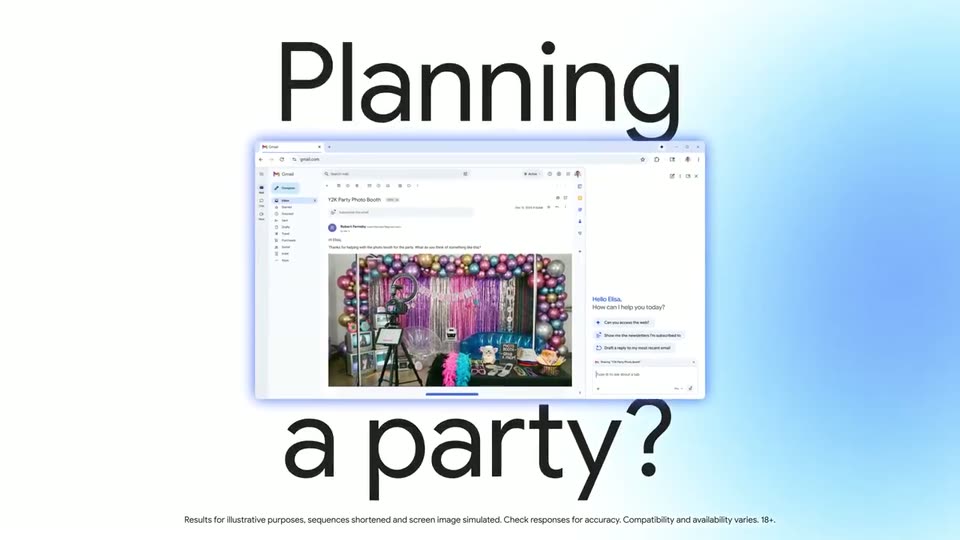
A Gmail browser mockup with an AI chat sidebar starts blurred, sharpens, tilts into 3D perspective and zooms to fill the frame. Large black words “Planning” and “a party?” fade in at top and bottom over a light blue gradient.
On-screen text: “Planning”, “a party?”, “Results for illustrative purposes, sequences shortened and screen image simulated. Check responses for accuracy. Compatibility and availability varies. 18+”
Techniques: 3D mockup, UI zoom
Camera: Push in
09 · Demo · 0:10–0:12
A Gmail thread about a Y2K party photo booth opens beside a Gemini panel. The view zooms in on the interface while a reply field types out the words Send a reply that includes a photo booth.
On-screen text: “Results for illustrative purposes, sequences shortened and screen image simulated. Check responses for accuracy. Compatibility and availability varies. 18+”
Techniques: UI zoom
Camera: Push in
10 · Demo · 0:12–0:14
A soft blue-white gradient fills the frame as a large dark gray headline, Get help finding the right supplies, fades from faint to solid in the center. A small disclaimer line stays locked at the bottom. The camera holds still.
On-screen text: “Get help finding the right supplies”, “Results for illustrative purposes, sequences shortened and screen image simulated. Check responses for accuracy. Compatibility and availability varies. 18+.”
Camera: Static
11 · Demo · 0:14–0:15
Split layout: a party photo booth photo on the left, the Gemini interface on the right with a prompt being typed. The left photo fades out as a large white headline stacks in over the dimmed frame.
On-screen text: “Get help”, “finding”, “the right supplies”
Techniques: Split screen, Masking
Camera: Push in
12 · Demo · 0:15–0:19
A close-up of a rounded chat card with a soft blue glow on a pale background. Suggestion pills and a Gmail sharing panel sit above an input field where a prompt types out letter by letter, ending with a cursor hovering the send button.
On-screen text: “Results for illustrative purposes, sequences shortened and screen image simulated. Check responses for accuracy. Compatibility and availability varies. 18+”
Techniques: Cursor demo
Camera: Push in
13 · Demo · 0:19–0:20
A large dark headline reads “Stay on task” and slides up into place above a light blue notification pill labeled “Task started” with a play icon. Two outlined mouse cursors sit at the top right and bottom right, then fade out as the headline lands.
On-screen text: “Stay on task”
Techniques: Kinetic type
Camera: Static
14 · Demo · 0:20–0:21
A white card with the headline and a blue notification pill slides up, exposing a flat browser window of an Etsy product page. A side task panel and a centered control button sit on the revealed interface.
On-screen text: “Stay on task”, “Task started”
Techniques: Kinetic type, Masking
Camera: Pan
15 · Demo · 0:21–0:23
A Chrome window shows an Etsy product page beside a Gemini task panel. The frame zooms into the panel as checkmarks fill the step list and a cursor with a spinner marks a clicking action.
On-screen text: “Results for illustrative purposes, sequences shortened and screen image simulated. Check responses for accuracy. Compatibility and availability varies. 18+”
Techniques: UI zoom, Cursor demo
Camera: Push in
16 · Demo · 0:23–0:24
A simulated browser panel on the left updates from a task list to a cart summary, while large black text reading and on budget materializes on the right with a horizontal glitch and a soft reflection.
On-screen text: “and on budget”, “Results for illustrative purposes, sequences shortened and screen image simulated. Check responses for accuracy. Compatibility and availability varies. 18+”
Techniques: Kinetic type, Split screen
Camera: Static
17 · Demo · 0:24–0:27
A white chat card listing an Etsy cart summary sits left of a large black “and on budget” headline. The card re-centers as the headline slides off, then the card morphs into a Google search page with the query “etsy y2k party decorations”.
On-screen text: “and on budget”, “Results for illustrative purposes, sequences shortened and screen image simulated. Check responses for accuracy. Compatibility and availability varies. 18+.”
Techniques: Morph
Camera: Push in
18 · Demo · 0:27–0:29
A white roller coaster car carrying the Chrome logo climbs a curved metal track, moving left to right. The camera tracks it upward past a blurred room with tall windows and a leafy plant. A small disclaimer line sits at the bottom.
On-screen text: “Results for illustrative purposes, sequences shortened and screen image simulated. Check responses for accuracy. Compatibility and availability varies. 18+.”
Camera: Pull out
19 · Demo · 0:29–0:30
A rounded live-action card of white toy cars on a track slides up out of frame over a pale blue gradient. The dark gray headline “Organizing a trip?” fades in, and a white circular badge with a blue calendar icon pops in below it.
On-screen text: “Organizing”, “a trip?”, “Results for illustrative purposes, sequences shortened and screen image simulated. Check responses for accuracy. Compatibility and availability varies. 18+.”
Camera: Static
20 · Demo · 0:30–0:32
A light blue gradient card holds the headline “Organizing a trip?” around a white circle with a blue calendar icon, a cursor at its edge. “a trip?” slides as the next headline scales up, cropping the frame to “Get h”.
On-screen text: “Organizing”, “a trip?”, “Get h”
Techniques: Kinetic type
Camera: Pan
21 · Demo · 0:32–0:33
Oversized black sans-serif type reading “Get help comparing” fills a white field with a soft blue glow at the right edge. A slow horizontal pan trucks across the letters, sliding the view from “Get h” to “Get help” while a small disclaimer line stays fixed at the bottom.
On-screen text: “Results for illustrative purposes, sequences shortened and screen image simulated. Check responses for accuracy. Compatibilit and availability varies. 18+.”, “Get help comparing”
Camera: Pull out
22 · Demo · 0:33–0:34
A light panel with a soft blue glow sits between two lines of large black headline text. The panel, showing a share-tab input, scales up from a small centered state to fill the middle of the frame while the headline settles into place.
On-screen text: “Get help comparing”, “the best travel options”
Camera: Static
23 · Demo · 0:34–0:44
A floating chat composer with a blue glow sits over a large two-line headline. The headline fades as the box scales up and centers, while a long hotel-and-flight query types out in its field. A cursor then clicks the send arrow.
On-screen text: “Get help comparing”, “the best travel options”
Techniques: UI zoom, Cursor demo
Camera: Push in
24 · Demo · 0:44–0:47
A split view shows a web browser and a chat panel. The browser displays an Expedia hotel page scrolling down to reveal room options and prices. A cursor hovers over a blue Reserve button. The chat panel on the right shows a task list with a Scrolling status.
On-screen text: “Results for illustrative purposes, sequences shortened and screen image simulated. Check resources for accuracy. Compatibility and availability varies. 18+”
Techniques: Split screen, Cursor demo
Camera: Pan
25 · Demo · 0:47–0:48
A browser window shows Expedia's search form beside a Gemini task panel. The destination field types from Chic to Chicago, opening an airport dropdown, while the right panel lists completed steps and a typing indicator.
On-screen text: “Results for illustrative purposes, sequences shortened and screen image simulated. Check responses for accuracy. Compatibility and availability varies. 18+”
Techniques: Cursor demo
Camera: Static
26 · Demo · 0:48–0:52
A split view shows a travel booking screen on the left and an AI assistant panel on the right, the latter finishing a cost comparison with a green Task done badge. The shot opens defocused and tight, sharpens, then tilts down to reveal the gray caption while keeping you.
On-screen text: “while keeping you”
Techniques: Split screen
Camera: Pull out
27 · Demo · 0:52–0:53
A white card with soft blue corner gradients holds the centered line “while keeping you” while “in the loop” slides up and fades in beneath it; a small disclaimer caption sits along the bottom edge.
On-screen text: “while keeping you”, “in the loop”, “Results are for illustrative purposes, sequences shortened and screen image simulated. Check responses for accuracy. Compatibility and availability varies. 18+”
Techniques: Kinetic type
Camera: Static
28 · Demo · 0:53–0:56
Large black text while keeping you and in the loop slide in above and below a pale gray dialog card that fades in. A cursor glides to the blue Take over task button, hovers, then exits. Soft blue gradient at the edges.
On-screen text: “while keeping you”, “in the loop”, “Results for illustrative purposes, sequences shortened and screen image simulated. Check responses for accuracy. Compatibility and availability varies. 18+.”
Techniques: Kinetic type, Cursor demo
Camera: Static
29 · Other · 0:56–0:59
On a soft blue-white gradient, the caption “while keeping you in the loop” slides in, then the large headline “Now available for Google AI Pro and Ultra subscribers in the US.” fades in line by line, with a fine-print disclaimer fixed at the bottom edge.
On-screen text: “while keeping you”, “in the loop”, “Now available for”, “Google AI Pro and”, “Ultra subscribers”, “in the US.”, “Results for illustrative purposes, sequences shortened and screen image simulated. Check responses for accuracy. Compatibility and availability varies. 18+”
Techniques: Kinetic type
Camera: Static
30 · CTA · 0:59–1:04
A 3D toy train carrying the Chrome logo glides along a curved metal track on a wooden table, moving left to right. White text stays locked on screen over the soft blurred background.
On-screen text: “Stay on top of new updates”, “from Chrome”, “Learn more at chrome.com”
Camera: Static