0:28
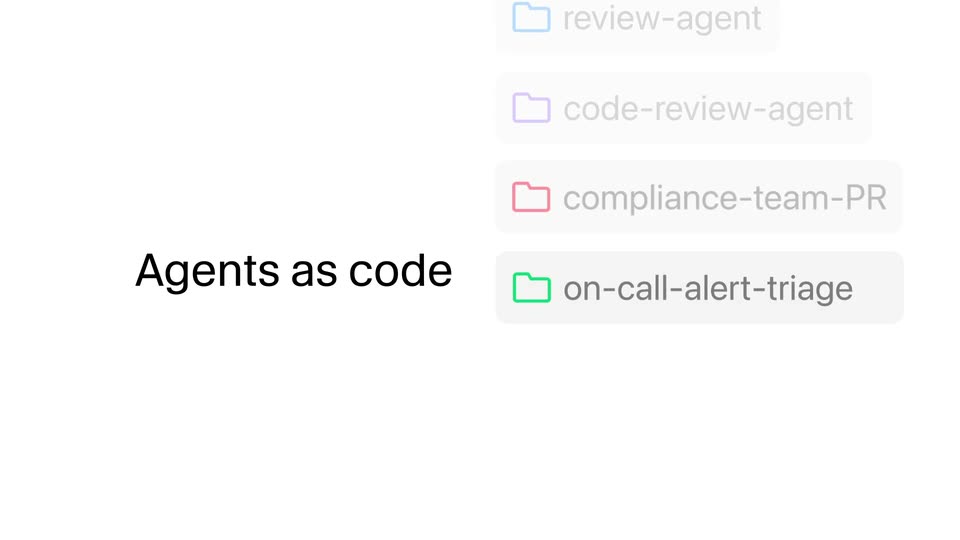

Cursor - The Agent SDK is now available. Define agents as code, with prompts
Cursor · Developer tools · Oct 2026
Adobe’s 1:57 launch film runs 20 scenes, about 5.9 s each. The product is on screen from the first frame and 4 features are revealed. There is no explicit call to action; a voiceover carries the film. A single continuous screen-capture tour of the Premiere Pro interface, bookended by the same Stock Audio title card, with blue Pr-labeled pills sliding in to name each feature while the cursor demos it. Pacing is steady at about three cuts per minute, built on slow pans across panels and cursor-driven interactions over a dark near-black UI.
Is this your launch? to your site or press kit.
Cursor · Developer tools · Oct 2026
Uniswap · Feb 2023
Films whose music sounds like this one, voice left out
Baseten · Upbeat electronic
DJI · Corporate electronic
Arden · Modern corporate electronic
The blue Pr logo and white title text hold centered over a blurred dark audio list with waveforms, then fade out at the end.
On-screen text: “Stock Audio”, “Available Now in Premiere Pro”
Camera: Static
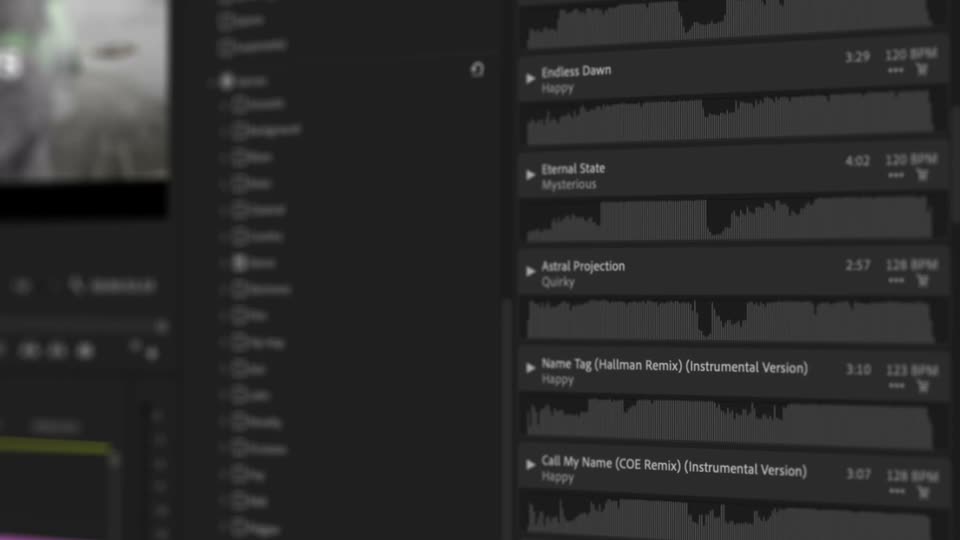
A close-up of a dark editing interface. The right panel is in focus, listing music tracks with waveforms, durations and BPM values, while the left timeline with clips and tracks stays blurred.
Camera: Static
The Premiere Pro workspace fills the frame, two monitors showing a rock climber above a multi-track timeline. A cursor moves along the top menu bar. A blue banner with the Pr logo and white text slides up from the bottom, holds, then slides out.
On-screen text: “Available in the Essential Sound Panel”
Techniques: Cursor demo
Camera: Push in
The Premiere Pro interface pans right, then reframes on the Essential Sound Browse panel. A cursor expands the Moods and Genres filter lists, then hovers the tempo slider while a climbing clip plays in the monitor.
Techniques: UI zoom, Cursor demo
Camera: Push in
In a dark Premiere Pro window, a cursor drags the tempo and duration sliders, sets vocals, types 'Happy', then plays a track and clicks its waveform. A purple 'Pr' pill with the caption 'Preview with your Current Edit' slides in as the view pulls back to the timeline.
On-screen text: “Preview with your Current Edit”
Techniques: Cursor demo, UI zoom
Camera: Pull out
A Premiere Pro workspace fills the screen: a climbing clip previews top left, the timeline below, a music list on the right. The view pans down to the timeline as the cursor rests on a track row, then a blue 'Try Before You Buy' badge slides in at bottom left.
On-screen text: “Try Before You Buy”
Techniques: Cursor demo
Camera: Pull out
Premiere Pro timeline with pink color clips and green audio waveforms, next to an audio library list. A blue “Try Before You Buy” button with the Pr badge sits lower left, then vanishes. The cursor drags a green clip to a lower track.
On-screen text: “Try Before You Buy”
Techniques: Cursor demo
Camera: Static
A dark editing interface shows a timeline on the left and an audio asset list on the right. A cursor clicks the three-dot menu on the highlighted Gregorian Chant row, opening a dropdown of save options, then hovers over Add to project.
Techniques: Cursor demo
Camera: Static
A dark non-linear editor fills the frame. The view pans left across a timeline of magenta, blue and green clips to reveal a media browser list and a preview monitor playing a rock-climbing shot.
Techniques: UI zoom
Camera: Push in
A dark video-editing interface fills the frame. The camera pans slowly across the layout, passing a project bin, two preview monitors showing a macaw and a man holding a drone, and a multi-track timeline along the bottom.
Techniques: UI zoom
Camera: Push in
A dark Premiere Pro workspace with a folder list, a source monitor showing a hand gripping a climbing hold, and a program monitor of a climbing gym. The cursor moves to the cart icon beside an audio file as a blue Pr Easy Licensing pill slides in from the left.
On-screen text: “Easy Licensing”
Techniques: Cursor demo
Camera: Static
A dark Premiere Pro workspace shows the project panel and timeline on the left while an Adobe Stock window on the right displays a spinning loader over a climbing-gym preview. A blue Pr Easy Licensing badge sits in the lower left.
On-screen text: “Easy Licensing”
Camera: Pan
Premiere Pro screen capture: an Adobe Stock dialog loads, then asks to license a music track; the cursor clicks Confirm, a spinner runs, then a ready panel shows a license code. The cursor clicks OK and the dialog closes to the timeline. A blue 'Easy Licensing' pill sits bottom left.
On-screen text: “Easy Licensing”
Techniques: Cursor demo
Camera: Static
A dark video-editor interface fills the frame, with a project panel on the left, a preview window of a rock climber at top right, a timeline below, and a mood checklist on the right; the view pans slowly left across the panels.
Camera: Pan
A video editing interface stays static: a project folder list on the left, a source monitor showing a climber's hand on a hold in the center, and a program monitor on the right with a man in a climbing gym holding a phone.
Camera: Static
A browser window on the Adobe Stock homepage zooms in and reframes onto the hero section, where a white headline and search bar overlay a stock photo of a rolled yoga mat, water bottle and dumbbells on a mauve backdrop.
Techniques: UI zoom
Camera: Push in
A full screen view of the Adobe Stock homepage. A 3D rendered hero scene shows a rolled green yoga mat and a peach water bottle on a teal table against a pink wall. A white search bar sits below a centered white headline, with a blue promo banner and a footer section beneath. The view slowly zooms in.
Techniques: UI zoom
Camera: Static
A blurred Premiere Pro audio browser fills the frame as a backdrop. The blue Pr logo sits top center above a large white headline and a smaller subline. All elements hold static for the full duration.
On-screen text: “Stock Audio”, “Available Now in Premiere Pro”
Camera: Static
A dimmed, blurred Premiere Pro interface fills the frame as a backdrop. Centered, the blue Pr logo sits above the white headline “Stock Audio” and the smaller line “Available Now in Premiere Pro”; all three fade out over the clip.
On-screen text: “Stock Audio”, “Available Now in Premiere Pro”
Camera: Static
A solid black frame holds for the full duration. The opening moment is a near-black charcoal that eases to pure black, then remains static with no text, logo, or motion.
Camera: Static