
2:21
Explore
00:00:00 / 03:56:04
- Length
- 3:56
- Scenes
- 47 · 5.0 s avg
- Product on screen
- 0:00
- Features shown
- 7
- Call to action
- 3:41 · 94%
- Voiceover
- Yes
- Views
- 148 on YouTube
as of November 28, 2026
Teamble’s 3:56 launch film runs 47 scenes, about 5.0 s each. The product is on screen from the first frame and 7 features are revealed, with social proof. The call to action lands at 3:41 (94% in), over a voiceover. The video opens with the brand and a three-word value proposition, then alternates short B-roll and a logo montage with a long run of UI demos, each introduced by a gradient title card. Its signature moves are slow push-ins on static slides, soft blur-to-focus transitions, and cursor-driven interface walkthroughs laid over vivid blue and pink gradients.
Footage neededEstimated needs: 10 capture groups — your screens or recordings · 10 filmed passages — shoot, supply or replace · 5 graphic passages — draw or supply
Is this your launch? to your site or press kit.
More like this

1:30

Replit Enterprise: Turn Any Idea Into Software | No-code Needed
Replit · Developer tools · Oct 2025
3:16
Trajectory - Yesterday we launched the Trajectory platform to the world, the easie
Trajectory · Nov 2026
Welcome to teamble, scene by scene
· 47 scenes as text
01 · Product intro · 0:00–0:05
Two overlapping app windows, a Slack view behind a Teams view, fade in on the right of a blue gradient and settle with a slow scale-up. On the left, the teamble logo, Slack and Teams icons, and white headline text fade in above a smaller subline.
On-screen text: “Your new home in Slack and Teams”, “One place to manage all your feedback”
Camera: Push in
02 · Product intro · 0:05–0:09
On a blue gradient, the words Simple, Continous, Actionable fade in one after another on the left. On the right, a green chat bubble with a yellow star inside a purple circular arrow loop pops in, the star then disappears, and the scene fades out.
On-screen text: “Simple”, “Continous”, “Actionable”
Techniques: Kinetic type
Camera: Static
03 · Problem · 0:09–0:10
A blue gradient background holds two rectangular video panels side by side. On the left, a man with glasses works at a desk with a monitor showing a dashboard; on the right, a woman sits at a laptop in a dim room. The panels fade in one after the other.
On-screen text: “Continous”, “Actionable”
Camera: Static
04 · Problem · 0:10–0:16
A blue grid splits the frame into four live-action panels: a man at a desk monitor, a woman sketching beside a laptop, a laptop showing a four-person video call, and a woman on a headset. The lower two panels fade up from the blue field.
Techniques: Split screen
Camera: Static
05 · Problem · 0:16–0:17
A four-panel grid of people on video calls and working at desks holds, then a blue gradient wipes in from the left, covering three panels and shrinking the bottom-right panel, a woman in headphones, into the corner.
Techniques: Split screen, Masking
Camera: Static
06 · Social proof · 0:17–0:26
Two rows of rounded logo chips glide horizontally in opposite directions over a purple-to-pink gradient. The top row drifts right and the bottom row drifts left, so brand marks like Baselane, BCG, SIEMENS and octave slide into view.
Camera: Static
07 · Problem · 0:26–0:28
A purple-to-pink gradient panel on the left holds the stacked white words What, Who, When, while a live-action clip on the right shows a woman holding yellow and green sticky notes against a wall. The text stays fixed as the clip plays.
On-screen text: “What”, “Who”, “When”
Techniques: Split screen
Camera: Push in
08 · Problem · 0:28–0:29
A split screen holds a purple-to-pink gradient panel on the left with the words What, Who, When stacked in white, while the right shows a soft-focus, tinted video of a woman in a yellow top. The text stays still throughout.
On-screen text: “What”, “Who”, “When”
Techniques: Split screen
Camera: Static
09 · Problem · 0:29–0:30
A vertical purple-to-pink gradient panel on the left holds the stacked words What, Who, When, while the right two-thirds shows a blurred, pink-washed shot of a woman in a yellow top speaking.
On-screen text: “What”, “Who”, “When”
Techniques: Split screen
Camera: Static
10 · Problem · 0:30–0:31
A purple-to-pink gradient panel on the left stacks the words What, Who, When in white, while the right side shows a blurred woman talking into a yellow microphone.
On-screen text: “What”, “Who”, “When”
Techniques: Split screen
Camera: Static
11 · Problem · 0:31–0:33
A purple-to-pink gradient panel on the left displays the stacked words What, Who, When in white. To the right, soft-focus live footage cuts between close-ups of different people talking. The text panel stays fixed while the footage changes.
On-screen text: “What”, “Who”, “When”
Techniques: Split screen
Camera: Static
12 · Problem · 0:33–0:38
A purple-to-pink gradient panel on the left holds the stacked words What, Who, When in white, while a woman on the right holds yellow sticky notes up to the camera, the live footage tinted pink and blurred in motion.
On-screen text: “What”, “Who”, “When”
Techniques: Split screen
Camera: Static
13 · Problem · 0:38–0:39
A purple-to-pink gradient fills the frame with three white words stacked on the left while a blurred, tinted shot of two people on the right dissolves into the gradient; the words fade out from top to bottom.
On-screen text: “What”, “Who”, “When”
Techniques: Kinetic type, Masking
Camera: Static
14 · Feature reveal · 0:39–0:40
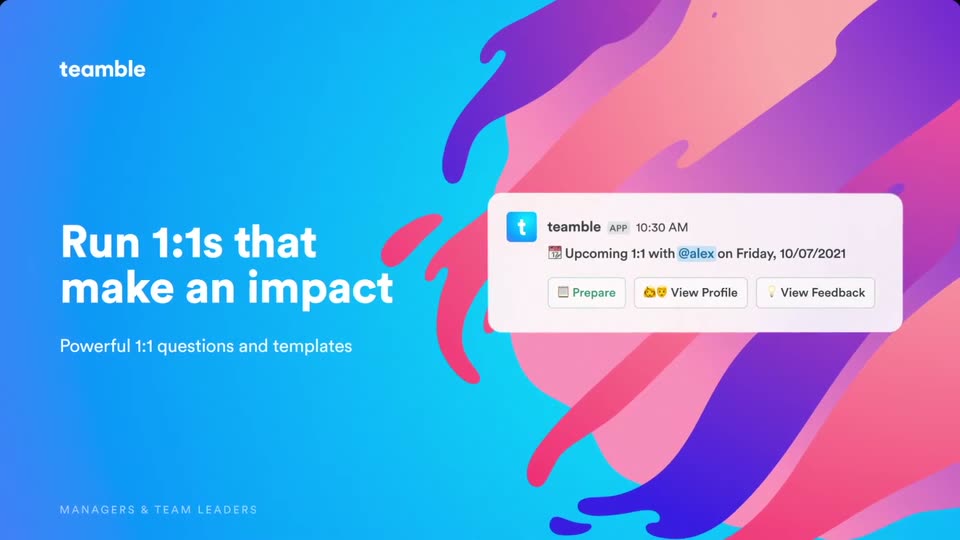
A blue graphic fades in from black, with pink and purple abstract shapes on the right. A white bold headline and a lighter subhead sit on the left, and a white notification card floats on the right. Small caps text anchors the bottom left.
On-screen text: “Run 1:1s that make an impact”, “Powerful 1:1 questions and templates”, “MANAGERS & TEAM LEADERS”
Camera: Static
15 · Feature reveal · 0:40–0:42
A flat blue layout with pink and purple abstract shapes on the right and a white notification card at center right. A bold white headline and subhead read on the left; the composition holds static.
On-screen text: “Run 1:1s that make an impact”, “Powerful 1:1 questions and templates”, “MANAGERS & TEAM LEADERS”
Camera: Static
16 · Feature reveal · 0:42–0:49
A blue teamble slide fills the frame as the camera slowly pushes in. A white headline sits left of flowing pink and purple paint strokes that hold a static white notification card. The whole slide dims toward the end.
On-screen text: “teamble”, “Run 1:1s that make an impact”, “Powerful 1:1 questions and templates”, “MANAGERS & TEAM LEADERS”
Camera: Static
17 · Feature reveal · 0:49–0:50
A solid black frame fills the screen for the entire clip. No text, logo, interface, or graphic element is visible; the screen stays uniformly dark while the voiceover plays.
Camera: Static
18 · Feature reveal · 0:50–0:51
A Slack-style Teamble home screen fills the frame, showing a blue welcome banner and two purple gradient cards labeled 1:1 Feedback and Team Feedback with rows of buttons. A hand cursor hovers over the Send Survey button while a small spinner fades out at the right edge.
Techniques: Cursor demo
Camera: Static
19 · Feature reveal · 0:51–0:53
A Survey Manager modal sits centered over a dimmed team chat window. A cursor glides in and hovers over the first Action dropdown, then the entire frame fades to white.
Techniques: Cursor demo
Camera: Static
20 · Feature reveal · 0:53–0:57
A semi-transparent teamble dashboard panel, showing an Engagement Insights heatmap table, fades in over a close-up of hands typing on a laptop keyboard with a wristwatch at right. The panel sharpens to full opacity mid-scene then softens again.
Camera: Static
21 · Feature reveal · 0:57–0:58
A blurred Teamble dashboard pulls into focus, revealing a welcome page with gradient feedback cards and rows of action buttons; a cursor rests on the Send Surveys button.
Camera: Static
22 · Feature reveal · 0:58–1:01
A dimmed chat interface frames a centered Survey Manager modal listing surveys. A cursor glides from the left edge to the Add New button, where a black plus-sign tooltip pops up above it.
Techniques: Cursor demo
Camera: Static
23 · Feature reveal · 1:01–1:18
A centered modal dialog floats over a dimmed app screen. The cursor clicks a template, the panel switches to a settings form, then scrolls down through audience, anonymity and launch rows before hovering the close icon.
Techniques: Cursor demo
Camera: Static
24 · Feature reveal · 1:18–1:31
A static screen capture of the Teamble dashboard. The mouse cursor glides across the page, hovering the blue banner and the 1:1 Feedback card where small icon buttons appear, then rests over the feedback buttons.
Techniques: Cursor demo
Camera: Static
25 · Feature reveal · 1:31–1:41
A purple gradient background with pink waves holds a static layout. Left: the white headline “Simplify performance reviews” under the teamble logo. Right: the Teamble review interface in a browser window, showing a feedback form with radio options plus a goals and feedback sidebar.
On-screen text: “Simplify performance reviews”, “HR & PEOPLE OPS”
Camera: Static
26 · Feature reveal · 1:41–1:46
A Slack channel shows a message with a McKinsey link while a shortcuts panel opens over the composer. The cursor types 'feed' in the search field, the list filters to matching shortcuts, and the pointer hovers to highlight the 'Give Feedback with teamble' row.
Techniques: Cursor demo
Camera: Static
27 · Feature reveal · 1:46–1:49
A purple-to-pink gradient fills the frame with the teamble wordmark top left and a white headline plus a four-item feature list on the left, while a flat Slack-style window mockup of the Teamble app sits on the right. The shot holds still.
On-screen text: “teamble”, “Your new home in Slack”, “One place to manage all your feedback”, “1:1 Feedback”, “Team Feedback”, “Company Feedback”, “Performance Reviews”
Camera: Static
28 · Feature reveal · 1:49–1:52
The teamble Slack app home screen holds still, showing a welcome line and two gradient feature cards with rows of buttons. A mouse cursor rests on the Give Feedback button, then a small loading spinner fades in at the right margin.
Techniques: Cursor demo
Camera: Static
29 · Feature reveal · 1:52–2:06
A white Give Feedback dialog sits centered over a dimmed app screen. A cursor clicks the topic field, a list of behaviors drops down, then the template menu opens and switches the form to a Traffic Light layout.
Techniques: Cursor demo
Camera: Static
30 · Feature reveal · 2:06–2:15
A static layout on a violet gradient: the white headline and subline sit on the left, while three white Slack-style notification cards from the TeamBLE app stack on the right over soft pink organic shapes. The frame holds without motion.
On-screen text: “Make feedback continuous”, “Smart nudges that build continuous feedback loops”, “TEAM MEMBERS”
Camera: Static
31 · Feature reveal · 2:15–2:16
A static view of the Teamble home dashboard fills the frame, showing a welcome message and two purple feedback panels with action buttons. A mouse cursor rests over the More Features button.
Techniques: Cursor demo
Camera: Static
32 · Feature reveal · 2:16–2:17
A white 'More Features' modal floats over a dimmed app screen. A cursor glides to the Goals row and clicks View, swapping the panel to a Goals form with two text fields and a teammate dropdown.
Techniques: Cursor demo
Camera: Static
33 · Feature reveal · 2:17–2:27
A white Goals dialog floats over a dimmed app screen. The cursor clicks the Select teammates field, a contact list drops down, the cursor picks two people, chips appear in the field, and the cursor clicks the green Submit button.
Techniques: Cursor demo
Camera: Static
34 · Demo · 2:27–2:35
Two lavender Slack message cards from the teamble app sit diagonally on a white background. The top card slides in from the upper left during the first second, then both hold still, each showing a greeting and a Give Feedback button, before the frame ends on white.
Camera: Static
35 · Demo · 2:35–2:39
The Teamble Slack home page sits static on screen, showing a welcome banner, a To Do's card with a Feedback Request line, and 1:1 and Team Feedback sections with action buttons. A mouse cursor hovers at the View All To Do's button before vanishing.
Techniques: Cursor demo
Camera: Static
36 · Demo · 2:39–2:47
A cursor drags a red selection box around a 1:1 Feedback message in a Slack-style list, the box fades out, then the cursor moves down and hovers the Give Feedback button.
Techniques: Cursor demo
Camera: Static
37 · Demo · 2:47–2:49
A dimmed team chat sits behind a white Give Feedback modal holding a form of dropdowns and a notes field. A cursor glides from the notes box to the close icon, then the entire frame blurs out.
Techniques: Cursor demo
Camera: Static
38 · Other · 2:49–3:01
A man in a pink sweater leans over a desk beside a woman typing on a laptop in a bright home office, pointing at the screen as she smiles. The frame opens soft, sharpens, and the camera drifts right to reveal a window and bicycle, ending in a blur.
Camera: Pan
39 · Feature reveal · 3:01–3:04
The teamble dashboard, with purple gradient section banners and rows of action buttons, opens out of focus and snaps sharp. A cursor then glides down to hover the Survey Results button.
Techniques: Cursor demo
Camera: Static
40 · Feature reveal · 3:04–3:08
A white Survey Results modal sits over a dimmed dashboard. A cursor moves to an Open button and clicks it, and the modal content switches to a survey detail view with questions, bulleted answers, and pink horizontal bar charts.
Techniques: Cursor demo
Camera: Static
41 · Feature reveal · 3:08–3:08
A gray product screen with a white modal card and a left sidebar of purple icons sits out of focus. The blur deepens across the shot until the interface dissolves into soft shapes, no text legible.
Camera: Static
42 · Feature reveal · 3:08–3:25
A browser window shows an HR dashboard with a survey heatmap, retention table and live surveys. The frame sharpens from a soft blur, then a cursor draws an orange rectangle around the Team Trust and Psychological Safety row to highlight it.
Techniques: UI zoom, Cursor demo
Camera: Static
43 · Feature reveal · 3:25–3:28
A flat teamble web page shows stacked feature sections, each topped by a purple-pink gradient banner. A mouse cursor travels down the list and rests on the Public Praise button under the 1:1 Feedback row.
Techniques: Cursor demo
Camera: Static
44 · Feature reveal · 3:28–3:30
A white “Give Public Praise” modal form sits centered over a dimmed team dashboard. A cursor drifts from the lower fields up to the top user input field, where a text caret blinks. The screen stays static with no camera move.
Techniques: Cursor demo
Camera: Static
45 · Feature reveal · 3:30–3:32
A chat app channel shows a bot's Public Praise post: a purple-to-pink gradient banner, a list of tagged names, and a GOOD JOB! meme of a man in a suit. A cursor clicks the reaction button, a thumbs-up count appears, then the screen blurs out.
Techniques: Cursor demo
Camera: Static
46 · Feature reveal · 3:32–3:41
The Sentiment Themes Summary panel lists green pros and red cons quote pills under the NGWOW heading. A cursor clicks the Sentiment tab, then highlights phrases inside the red pills while the page scrolls down slightly.
Techniques: Cursor demo
Camera: Static
47 · CTA · 3:41–3:56
A purple-pink gradient holds a white headline and subline on the left, while two overlapping app windows on the right show the Teamble interface in Slack and Teams. The mockups open from a soft blur and float gently up and down.
On-screen text: “Your new home in Slack and Teams”, “One place to manage all your feedback”
Camera: Static