2:13

Aman - We’ve raised a $7.5M seed round led by Felicis so AI can read documen
Unsiloed · B2B · Nov 2026
Ryvn’s 1:39 launch film runs 44 scenes, about 2.3 s each. The product shows up at 0:14 and 2 features are revealed. There is no explicit call to action; a voiceover carries the film. Tone: comedic, deadpan, fast-cut. Background: near-black (#131415) with white text and teal accents. Fonts: a bold condensed sans for the title cards and a clean neutral sans for UI and captions. Music mood: none detected, driven by 120 BPM pacing and quick cuts. Structure: a cold-open skit (cluttered desk, reckless merge) hands off to a screen-recorded product demo intercut with a webcam presenter, then a 'meanwhile' card flips to the customer's onboarding flow, ending on a one-line gag. Pacing
Is this your launch? to your site or press kit.
Unsiloed · B2B · Nov 2026
Lovable · Developer tools · Oct 2026
Films whose music sounds like this one, voice left out
Helios Intelligence · Cinematic electronic
RouterPlus · Corporate tech advertisement
Anthropic · Electronic, upbeat
A sage green paneled wall with white molding fills the frame. The camera pans left, revealing a potted plant with tall stems and a stack of books resting on a shelf.
Camera: Pull out
A man sits at a desk cluttered with red soda cans and markers, working on a keyboard and mouse before a large monitor showing a code review diff. The shot is locked off after a brief blur, and white captions in black boxes appear at the bottom.
On-screen text: “hmm yeah”, “this PR looks good enough”, “we can always just roll back”
Camera: Pull out
A man in a dark hoodie sits at a cluttered desk of soda cans and sticky notes, working a mouse as a monitor shows a pull request page. The camera pushes in toward the screen until his head leaves the frame. White subtitles in black boxes appear at the bottom.
On-screen text: “we can always just roll back”, “I'm just gonna go ahead and merge it”, “alright let me see how this release is doing on Ryvn”
Camera: Push in
A dark code-review dashboard fills a monitor on a desk, its dotted canvas and a table of merged pull requests static. A small version tag slides in the list as the camera holds a locked-off, angled view of the screen.
Camera: Push in
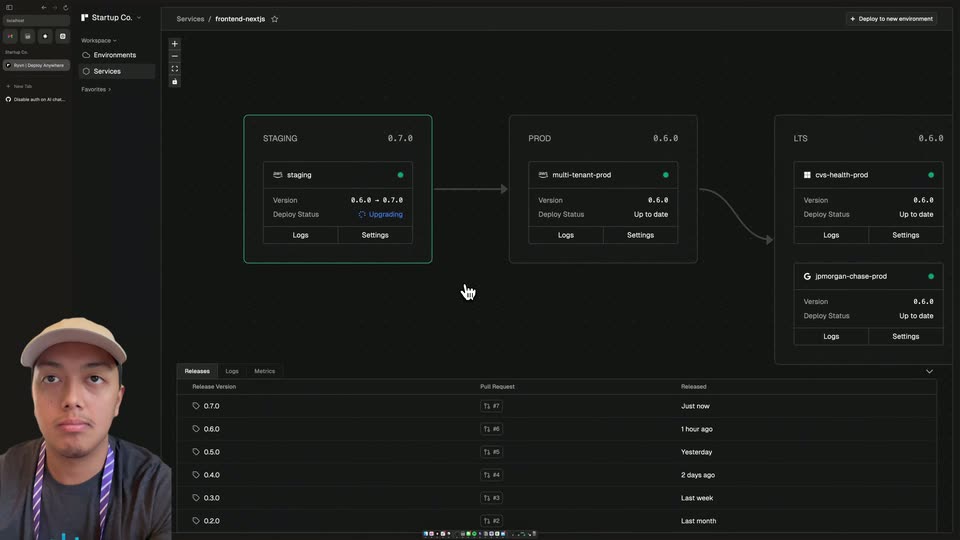
A dark deployment dashboard with three environment cards and a releases table brightens into view. A hand cursor appears, then a presenter in a cap slides in from the bottom left, overlapping the interface.
Camera: Static
A dark dashboard shows three environment cards connected by arrows, with the staging card outlined in teal and its deploy status reading Upgrading. A hand cursor moves across the canvas above a release list, while a small webcam presenter sits in the bottom left corner.
Techniques: Cursor demo
Camera: Static
A dark deployment dashboard fills the frame, showing three environment cards linked by arrows above a releases table. A hand cursor taps the arrow between staging and prod. A presenter's webcam sits in the lower-left corner, and a toast notification slides in at the bottom right.
Techniques: Cursor demo
Camera: Static
A dark deployment dashboard shows three stage cards, STAGING, PROD and LTS, with a release list below. A cursor moves to a Fast Forward Release dialog and clicks the Fast Forward button. A small webcam feed of a man in a cap sits in the lower left.
Techniques: UI zoom, Cursor demo
Camera: Push in
A dark deployment dashboard shows a Fast Forward Release dialog. A cursor clicks Fast Forward, the dialog closes, and the PROD card updates to 0.7.0 Up to date. The view zooms out to reveal the full workspace with a left sidebar and a webcam inset of a man.
Techniques: Cursor demo, UI zoom
Camera: Pull out
A dark screen shows a notification card in the top right corner as a hand cursor points at it; a man in a cap and lanyard watches with wide eyes in the bottom left.
Techniques: Cursor demo
Camera: Static
A dark dashboard shows a node graph of environment cards; the view zooms out from a close-up of the top-right button as a cursor clicks it, then a toast slides in at the bottom right. A surprised presenter reacts in a face-cam inset at the bottom left.
Techniques: UI zoom, Cursor demo
Camera: Pull out
A dark deployment dashboard shows environment cards labeled PROD and LTS with version numbers, above a releases table. A presenter's webcam sits in the lower left corner and a toast confirms an upgrade. The interface blurs and shifts as the scene transitions out.
Camera: Push in
Gmail interface fills the screen with a man in a corner webcam. The cursor opens a chat dropdown, then the view switches to an open email showing three reply suggestion chips. The cursor hovers over the chips and body text, then the screen fades to white.
Techniques: Cursor demo
Camera: Pull out
A dark deployment dashboard shows three environment cards linked by arrows above a releases table. A cursor taps Services in the left sidebar, then moves to the Deploy to new environment button top right, beside a man in a cap in a corner face-cam.
Techniques: Cursor demo
Camera: Pull out
A dark deployment dashboard fills the frame, with a small webcam self-view of a man in a cap at the lower left. A cursor clicks the top-right button, and a centered modal fades in over the dimmed environment cards and release table.
Techniques: Cursor demo
Camera: Static
A dark deployment dashboard displays an open modal dialog. A hand cursor hovers over the environment dropdown as the search field filters the list. A man in a cap watches from a small facecam in the bottom left corner.
Techniques: Cursor demo
Camera: Static
A dimmed deployment dashboard shows a 'Deploy to new environment' modal. A hand cursor hovers an environment option, then the screen scales out to reveal the full window as the cursor moves to the Stage deployment button. A webcam of a man in a cap sits in the corner.
Techniques: Cursor demo
Camera: Static
A dark deployment board shows PROD and LTS environment cards with service tiles. A cursor hovers the Stage environment button inside a deploy dialog, then the dialog closes. A small webcam feed of a presenter in a cap sits in the lower left corner.
Techniques: Cursor demo
Camera: Static
A dark deployment dashboard fills the frame with three environment columns and a releases table below. A small webcam inset in the lower left shows a man in a cap. A mouse cursor drifts over the acme-enterprise-prod card in the middle PROD column.
Techniques: Cursor demo
Camera: Static
A dark deployment dashboard fills the frame with a small webcam of a man in a cap at the lower left. The view zooms in toward the right-hand Environment Setup panel while a cursor rests in the center.
Techniques: UI zoom
Camera: Push in
A dark product interface shows an environment setup panel on the right and a release table on the left, with a small webcam feed of a man in a cap at the bottom left. A cursor glides to the copy button next to the deploy URL.
Techniques: Cursor demo
Camera: Pull out
A dark deployment dashboard fills the frame, its right panel showing an Environment Setup form. A small webcam feed of a man in a cap sits in the lower left corner. A cursor drifts across the interface while a Copied to clipboard toast rests at the bottom right.
Techniques: Cursor demo
Camera: Static
A Gmail thread fills the screen as the frame tightens, with a small webcam feed of the presenter in the lower left. The cursor clicks Reply, types a message with an installation link, and clicks Send, posting the reply into the thread.
Techniques: UI zoom, Cursor demo
Camera: Push in
A Gmail thread from Acme Enterprise fills the screen, with a man in a cap in the lower-left corner and a hand cursor near the Reply button. The view then slides left in a fast blur, leaving a blank white field with a black edge.
Camera: Static
On a black field, the small white line MEANWHILE AT reveals left to right, then the large bold line ACME ENTERPRISE appears beneath it; both lock in place on a static frame.
On-screen text: “MEANWHILE AT”, “ACME ENTERPRISE”
Techniques: Kinetic type
Camera: Static
A black screen displays the text “MEANWHILE AT” above “ACME ENTERPRISE” in white. The text vanishes, revealing small glowing particles drifting across the dark background.
On-screen text: “MEANWHILE AT”, “ACME ENTERPRISE”
Techniques: Particles
Camera: Static
A black field holds a scatter of small golden star points. A brown-grey smoke cloud drifts in from the left edge, rising and spreading across the left half while the glowing dots stay suspended in the haze.
Techniques: Particles
Camera: Static
A dark, smoky textured field with scattered glowing dots. Blurry text-like shapes and a thin blue line condense from the upper left, settling into a faint headline with a blue underline. The dots twinkle across the frame.
Techniques: Particles, Morph
Camera: Push in
A dark email client shows an open message with a blue highlighted row in the left list. A white cursor glides from the sidebar across the body text toward a blue hyperlink.
Techniques: Cursor demo
Camera: Static
A dark email client shows an open message with a blue hyperlink in the body. A large white hand cursor hovers over the link, tilts, then settles upright and clicks it, a small dropdown chevron appearing at the link's end.
Techniques: Cursor demo
Camera: Static
A dark email client shows a message with an installation link under a white hand cursor, then transitions to a Startup Co. environment setup form listing cloud provider options and a Continue button.
Techniques: Cursor demo
Camera: Pull out
A dark Startup Co. setup form stays locked on screen while a text cursor types a 12-digit AWS account ID into the input field, then the pointer glides down and hovers over the Continue button.
Techniques: Cursor demo
Camera: Static
A dark onboarding form for Startup Co. fills the frame. A white cursor lifts from the Continue button to the AWS Grant permissions button, then the view scrolls up a few pixels, cutting the top logo.
Techniques: Cursor demo
Camera: Static
A screen recording of the AWS CloudFormation Quick create stack form. The cursor types the stack name RyvnAccessRole, a Parameters field with a TrustedArn value appears, the page scrolls to the Capabilities notice, and the cursor checks the acknowledgment box before clicking the orange Create stack button.
Techniques: Cursor demo
Camera: Static
A dark setup screen for Startup Co. shows an Environment Setup form with a service dropdown and a cloud provider selector where AWS is highlighted. A hand cursor moves down the page from the provider tabs toward the Continue button.
Techniques: Cursor demo
Camera: Static
A dark setup form with a hand cursor resting on the Continue button slides up and fades as a centered loading state takes over, a thin spinner and the heading Installing Services slide in above a progress bar.
Techniques: Cursor demo, Kinetic type
Camera: Push in
A dark installer interface fills the frame. A circular spinner rotates above the heading Installing Services, which slides into place, while a progress bar advances and a white hand cursor drifts near the bottom.
Camera: Push in
A dark deployment page is shown. The frame opens zoomed on the installing section, a spinner and a partly filled progress bar, then zooms out to reveal the page header with the Startup Co. logo, an Environment Setup heading and body copy. A cursor icon rests over the page.
Techniques: UI zoom
Camera: Pull out
A progress bar fills left to right on a dark install screen while a spinner turns above the heading and the status caption swaps from creating a sandbox to installing services. A cursor arrow rests below the bar.
Techniques: Cursor demo
Camera: Static
A locked-off dark setup screen. A circular spinner spins above the title Installing Services as a progress bar fills from left to right and the caption below switches from Setting up compute resources to Installing services. A white cursor rests mid-frame.
Camera: Static
A dark product interface shows an installation panel: a circular spinner spins beside the heading Installing Services while a progress bar fills. The state then swaps to a green check mark, the heading becomes Setup Complete, the bar completes, and a Go to application link appears under a large cursor.
Camera: Push in
A dark app interface opens on a setup panel with a green check and a 'Go to application' link. The view scrolls up to the chat screen, revealing a welcome message bubble and two flight suggestion chips above the input bar, as an arrow cursor drifts down.
Techniques: Cursor demo, UI zoom
Camera: Static
A dark chat interface is framed flat, with an explanatory card above and a message input plus two prompt chips below. A mouse cursor hovers near the right prompt chip.
Techniques: Cursor demo
Camera: Static
On a black background, a small centered clip of a bald man at a microphone is crossed by the white headline, which scales in to cover his face so only the top and bottom strips of the clip show. Below it, the caption and a small company credit fade in.
On-screen text: “gotta catch 'em all”, “on-prem”, “Ryvn Technologies Inc.”
Techniques: Kinetic type, Masking
Camera: Static