0:21
Explore
00:00:00 / 00:55:22
- Length
- 0:55
- Scenes
- 20 · 2.8 s avg
- Product on screen
- 0:00
- Features shown
- 4
- Call to action
- 0:44 · 81%
- Voiceover
- Yes
- Views
- 12K on YouTube
as of November 28, 2026
Raycast’s 0:55 launch film runs 20 scenes, about 2.8 s each. The product is on screen from the first frame and 4 features are revealed. The call to action lands at 0:44 (81% in), over a voiceover. A presenter-led intro flows into a tight chain of screen-recorded feature demos, each opened by a single caption line, then a spoken sign-up close with the URL held on a glowing ring. The signature look is grainy dark backdrops with a warm amber glow and a recurring light ring, plus captions that highlight words one by one behind a sliding black box.
Footage neededEstimated needs: 5 capture groups — your screens or recordings · 3 filmed passages — shoot, supply or replace
Is this your launch? to your site or press kit.
More like this




Similar soundtrack
Films whose music sounds like this one, voice left out
1:07

Introducing Orgo - Computers for AI Agents
Orgo · Upbeat electronic
0:53

Devin Developers - Introducing Windsurf 2.0. Manage all your agents from one place and
Windsurf · Corporate tech
2:26
New Grid updates: Hug + fractional units | Figma
Figma · Upbeat electronic
Raycast AI in 55 seconds, scene by scene
· 20 scenes as text
01 · Product intro · 0:00–0:05
A man in a white t-shirt sits at a desk, gesturing with both hands as he speaks to camera. A warm lamp glows on the wall behind him beside a framed photo; a white tower with cut-out patterns stands at left. Lower-third subtitles appear at the bottom.
On-screen text: “Imagine having AI at”, “your fingertips, basically.”, “AI in Raycast, no logins,”
Camera: Static
02 · Product intro · 0:05–0:09
A man in a white t-shirt sits in a dim room lit by a warm orange wall glow, gesturing with both hands as he speaks to the camera. White subtitles on dark boxes appear at the bottom, while a white box with cutout G letters stands to the left.
On-screen text: “AI in Raycast, no logins,”, “no captures, it's just”, “there ready to be used.”
Camera: Static
03 · Feature reveal · 0:09–0:10
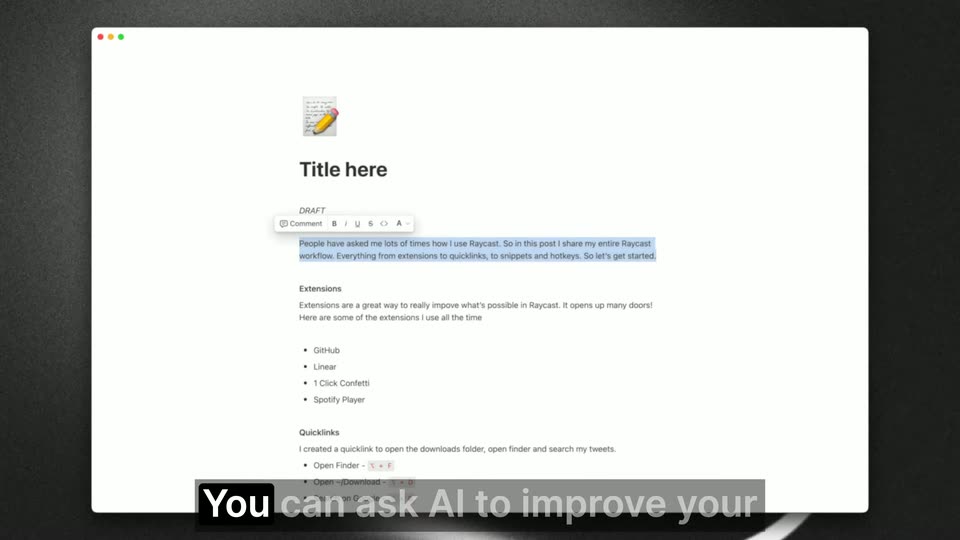
A note document with a pencil icon and a highlighted paragraph sits in a rounded window on a dark backdrop. The camera zooms in toward the selected text as a caption line of words appears at the bottom.
On-screen text: “there ready to be used, our”, “You can ask AI to improve your”
Techniques: UI zoom
Camera: Push in
04 · Feature reveal · 0:10–0:14
A dark Raycast window on a light background: 'improve writing' is typed, the results list narrows to the Improve Writing AI command, then the panel switches to text selected from Notion. A white caption at the bottom highlights key words with a moving black box.
On-screen text: “You can ask AI to improve your writing just based on your text selection or change the tone”
Camera: Push in
05 · Feature reveal · 0:14–0:15
A document editor screen shows a draft article. A gray caption bar at the bottom reads selection or change the tone, the words or change boxed in dark gray. A formatting toolbar briefly pops up over the body text.
On-screen text: “selection or change the tone”
Camera: Static
06 · Feature reveal · 0:15–0:16
A dark command palette floats over a light desktop. The query field types “change to” and the results list filters to tone commands. A bold caption line at the bottom advances word by word, a black box marking the active word.
On-screen text: “selection or change the tone of voice, and if you don't like”
Techniques: Kinetic type
Camera: Static
07 · Feature reveal · 0:16–0:20
A dark AI chat panel sits over a Notion page. Text types out in the message box, an actions menu opens, a tone option is chosen, and a rewritten reply appears below. White caption text with dark highlight boxes runs along the bottom.
On-screen text: “of voice, and if you don't like it, you can change it again.”
Techniques: Kinetic type
Camera: Static
08 · Feature reveal · 0:20–0:22
A dark command palette fills the frame as a prompt is typed into the top field and mirrored in an Ask AI row below. At the bottom, a white caption types out word by word behind black highlight boxes.
On-screen text: “You can create commands on the fly for things that you don't use”
Techniques: Kinetic type
Camera: Static
09 · Feature reveal · 0:22–0:25
A dark Raycast chat panel floats on a white background, its numbered list of blog titles typing out one line at a time. A bold caption scrolls across the bottom, the words on the fly then often, lit up in black highlight boxes as the voiceover speaks.
On-screen text: “on the fly for things that you don't use so often, and for the”
Camera: Static
10 · Feature reveal · 0:25–0:26
A dark command palette updates as the search field types from “crea” to “create ai”, refreshing the results list. The panel sits in a soft spotlight against a grainy dark background, with a white caption on a black bar below.
On-screen text: “don't use so often, and for the”
Camera: Push in
11 · Feature reveal · 0:26–0:30
A dark command palette crossfades into a settings form; the Instruction field types a prompt while a hotkey popup flashes. A cursor clicks Record Hotkey, and the form dims behind the full settings list with the new entry highlighted. A white caption sits at the bottom.
On-screen text: “ones you use frequently, you”, “can create custom command.”
Techniques: Cursor demo
Camera: Static
12 · Feature reveal · 0:30–0:32
A dark Raycast settings window lists commands in a table. A cursor clicks the Record Hotkey button on the highlighted row, a small popup confirms the capture, and the field fills with a shortcut. A white caption line types across the bottom.
On-screen text: “Please allow you to set a hotkey against them so you can launch them from anywhere on your Mac”
Techniques: Cursor demo, Kinetic type
Camera: Static
13 · Feature reveal · 0:32–0:33
A Verge article page, with a green Most Popular sidebar and an earbud photo, scrolls upward inside a browser window on a dark gray backdrop while a white caption bar at the bottom updates with the spoken line.
On-screen text: “hotkey against them so”, “you can launch them from anywhere on your mac”
Camera: Static
14 · Feature reveal · 0:33–0:34
A browser window showing a Verge article sits on a dark textured backdrop. A dark Raycast command panel labeled Summarise Article pops into the center over the page, while a white caption reads you can launch them from along the bottom edge.
On-screen text: “you can launch them from”
Camera: Static
15 · Feature reveal · 0:34–0:36
A dark summarization panel floats over a browser article as bullet points type out line by line. Two app icons sit at the bottom right, and white caption phrases roll across the lower edge.
On-screen text: “you can launch them from anywhere on your Mac, and”
Camera: Static
16 · Feature reveal · 0:36–0:37
A dark Raycast search window sits centered on a grainy black background with a white light arc curving along the right. The query field reads 'ask ai' and the results list updates to an Ask Raycast AI preview with a chat bubble icon.
On-screen text: “you can also open up a blank”
Camera: Static
17 · Feature reveal · 0:37–0:44
On a grainy dark backdrop, a chat window shows a question and a short AI answer, then an actions menu opens, filters to Make Longer, and a longer answer types out. The UI blurs behind a ring of light and cuts to a man in a white T-shirt speaking.
On-screen text: “you can also open up a blank”, “chat window, so you can”, “ask AI wherever you want.”, “From here, you can still access”, “the predefined commands.”
Camera: Pull out
18 · CTA · 0:44–0:47
A man in a white t-shirt sits at a desk in a dim room lit by warm orange light, speaking to the camera and gesturing with clasped hands. Subtitles appear at the bottom of the frame on a locked-off medium shot.
On-screen text: “the predefined commands.”, “Make sure to sign up to the”, “waiting list on raycast.com/ai”
Camera: Static
19 · CTA · 0:47–0:51
A dark Raycast website sits in a framed screen, a glowing ring arcing behind the hero text. A large white RAYCAST.COM/AI overlay builds across the center while bottom captions state the URL, then the background warms to amber.
On-screen text: “waiting list on raycast.com/ai”, “RAYCAST.COM/AI”, “and we are going to be”
Techniques: Kinetic type
Camera: Static
20 · CTA · 0:51–0:55
The Raycast website view, with its nav bar and hero headline, fades out to a dark grainy field holding a glowing orange ring. The white URL stays centered while bottom captions swap in sequence, then the URL clears.
On-screen text: “RAYCAST.COM/AI”, “and we are going to be”, “rolling out the invites”, “over the next few weeks.”
Camera: Static