1:24
Introducing Notion AI
Notion · Productivity · Nov 2022
Raycast’s 0:55 launch film runs 13 scenes, about 4.2 s each. The product is on screen from the first frame and 2 features are revealed. The call to action lands at 0:41 (75% in), over a voiceover. The video alternates a warm, dimly lit talking head with screen recorded dark UI on a grainy charcoal backdrop, moving from a product intro through two feature demos (Quick AI, then Continue in Chat) to a waiting list call to action and a wordmark card. Pacing is moderate at roughly 109 bpm and 11 cuts per minute, and the signature moves are prompts that type themselves, AI answers that stream in line by line, and copy to code transitions that land generated code into the editor.
Is this your launch? to your site or press kit.
Notion · Productivity · Nov 2022
Perplexity · AI · May 2025
Films whose music sounds like this one, voice left out
Resend · Upbeat electronic
Lance · Electronic, EDM
Neomatter · Modern electronic
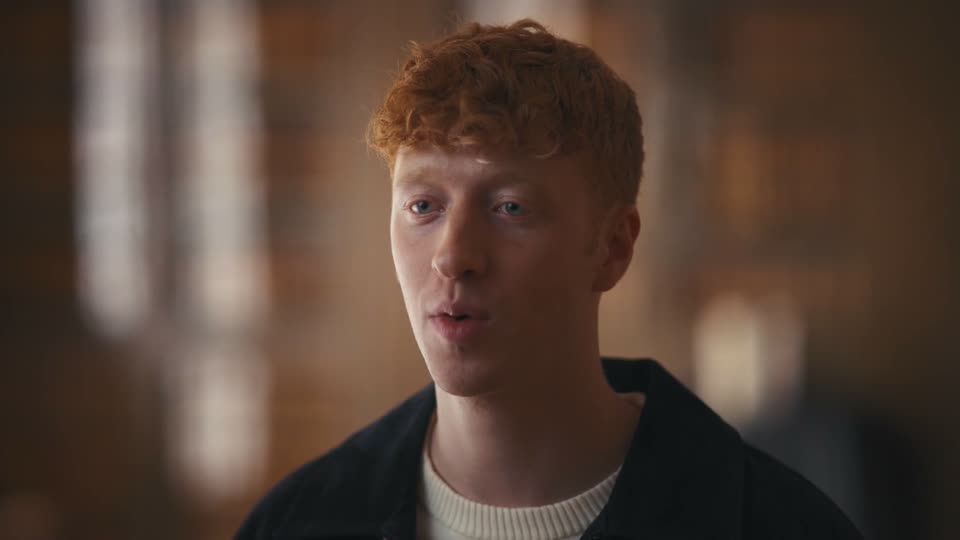
A man in a black turtleneck sits in a dim studio, talking to camera and gesturing with clasped hands. A Shure mic sits at his right; a white panel with black oval cutouts frames the left edge, warm orange light glowing behind him.
Camera: Static
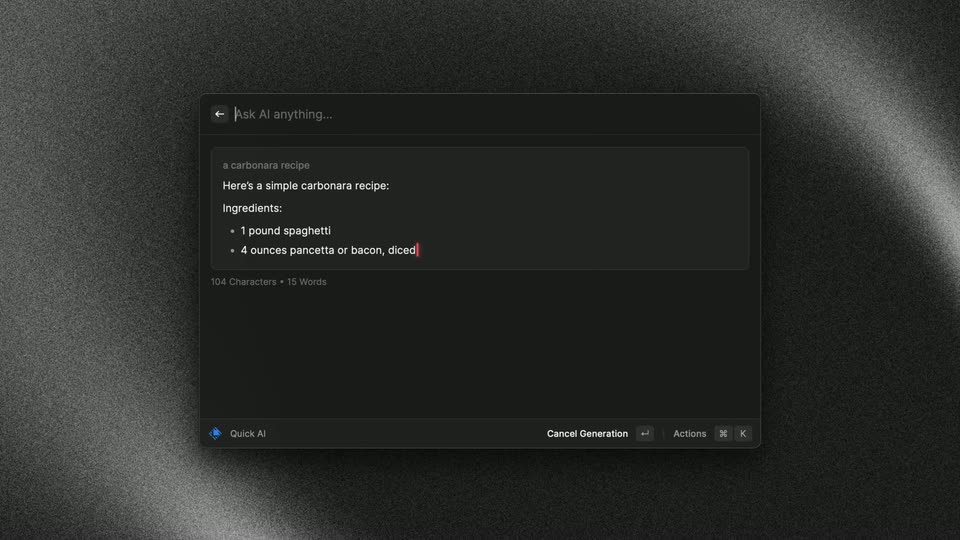
A dark search panel is centered on a grainy black backdrop. The query “a carbonara recipe” is typed into the field as the results list updates, then the panel switches to an Ask AI view and the recipe text streams in line by line.
On-screen text: “SHURE”
Techniques: Cursor demo
Camera: Static
A dark command palette fills the frame, cropped to its right edge where command labels and a Tab hint sit beside Ask AI. The view pulls back to reveal the full window: a search field, a Suggestions list with app icons, and a Commands list on a grainy dark background.
Techniques: UI zoom
Camera: Static
A dark command palette floats on a grainy charcoal backdrop, with a sparkle icon and an 'Ask AI Anything' placeholder. A pasta calorie query is typed into the search field, the suggestion list updates, then the panel switches to an AI answer that streams in word by word.
Techniques: Kinetic type
Camera: Static
A static shot of a dark code editor with a centered command palette. A query types itself into the search field, an AI answer streams in with syntax-highlighted code, then the panel resets to an empty prompt.
Techniques: Cursor demo
Camera: Static
A dark IDE panel shows an AI chat answer with a JavaScript code block. A text cursor glides to the copy icon at the block's top-right corner and clicks it, a green check and 'Copied!' label popping in beside it.
Techniques: Cursor demo
Camera: Static
A dark code editor window with macOS traffic lights sits on a grainy gray background. The debounce.ts file types out line by line, color-coded syntax filling the pane from a single cursor to nine lines.
Camera: Static
A dark code editor shows a TypeScript file with an AI chat panel centered over it, displaying a JavaScript answer. A cursor clicks the Actions button, a dropdown menu of options appears, then closes as the answer is pasted into the code.
Techniques: Cursor demo
Camera: Static
A static close-up of a dark code editor shows an AI chat panel with a JavaScript debounce example. A context menu of actions sits open on the right, the 'Continue in Chat' row highlighted.
Camera: Push in
A dark code editor window on the left displays a debounce function in JavaScript. To its right, a chat panel holds an AI answer with a code block and a paragraph of explanation. Both windows rest on a textured gray background and stay static.
Camera: Static
A dark AI chat panel overlays a blurred documentation page. A prompt is typed into the input bar and sent; the assistant reply appears, then a TypeScript code block types out character by character.
Techniques: Kinetic type
Camera: Push in
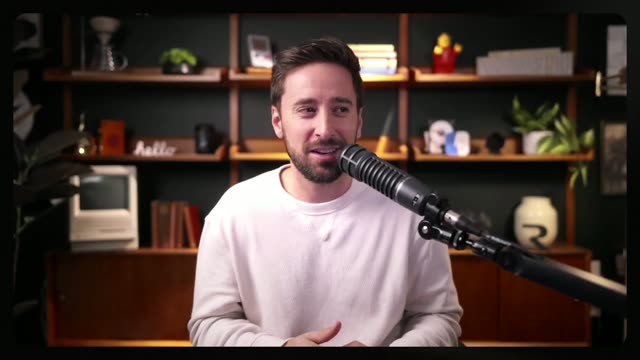
A man in a black shirt talks to the camera in a dim room, gesturing with both hands as he speaks. A Shure microphone hangs at his right shoulder, a white panel with a cutout mark fills the left foreground, and warm amber and red light glow behind him.
Camera: Static
A man in a dark shirt speaks to camera in a dim room, gesturing with his hands while a Shure microphone sits at his right. A warm lamp glows behind him. The white wordmark RAYCAST.AI is held centered over the frame for the full shot.
On-screen text: “RAYCAST.AI”
Camera: Static