
1:24
Explore
00:00:00 / 01:20:22
- Length
- 1:20
- Scenes
- 10 · 8.1 s avg
- Product on screen
- 0:00
- Features shown
- 2
- Voiceover
- Yes
- Views
- 9.6K on YouTube
as of November 28, 2026
Paragon’s 1:20 clip runs 10 scenes, about 8.1 s each. The product is on screen from the first frame and 2 features are revealed. The video is a single continuous screen-recording tutorial: a fixed webcam corner and rolling white subtitles sit over a light interface, with the cursor driving each step at a steady five-cuts-per-minute pace. A bold black title banner and a dark indigo frame around the capture give the whole piece a clean, branded how-to look.
No filming indicatedEstimated needs: 4 capture groups — your screens or recordings
Is this your launch? to your site or press kit.
More like this

Building a native CRM integration in 1 minute, scene by scene
· 10 scenes as text
01 · Product intro · 0:00–0:05
A screen recording of the Paragon integrations catalog scrolls upward through a grid of app logos and category labels. A black banner with the title sits at the top, a small presenter video sits in the bottom-right corner, and white subtitles run along the bottom.
On-screen text: “Building a native CRM integration in 1 minute”, “So this is the Paragon dashboard.”, “From here you can pick from over 100 integrations”, “that we support out of the box,”
Camera: Static
02 · Product intro · 0:05–0:06
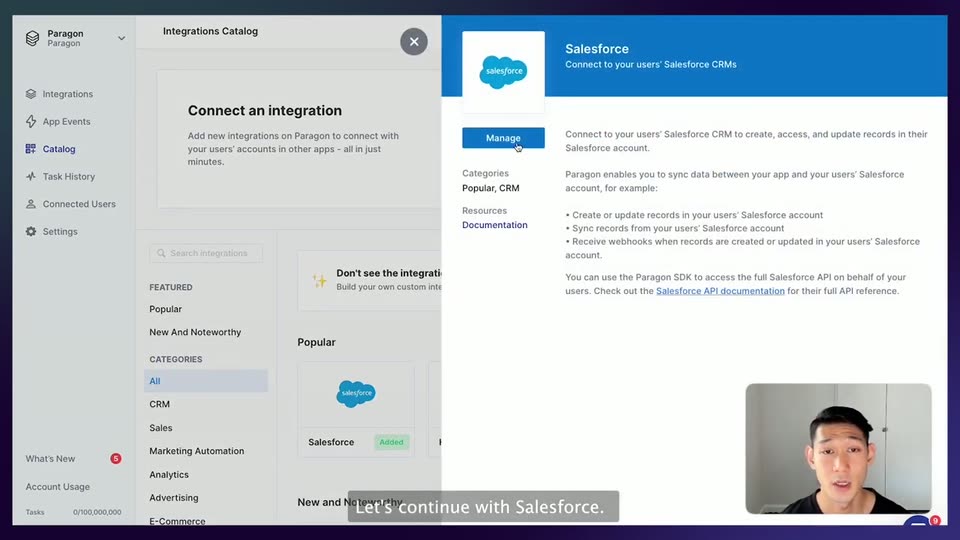
A screen capture of the Paragon app shows the catalog grid switching to the Integrations Catalog page, where a Salesforce detail panel slides in from the right as the cursor hovers the Salesforce card. A presenter's webcam occupies the lower right corner while white captions run along the bottom edge.
On-screen text: “that we support out of the box,”, “Let's continue with Salesforce.”
Techniques: Cursor demo
Camera: Static
03 · Feature reveal · 0:06–0:08
The Paragon app interface fills the screen, a left sidebar and an integrations catalog sit behind a Salesforce detail panel that slides in from the right. A small webcam feed of a presenter sits in the bottom right corner, and a caption bar reads across the bottom.
On-screen text: “Let's continue with Salesforce.”
Techniques: Cursor demo
Camera: Static
04 · Feature reveal · 0:08–0:13
A screen recording of the Paragon Salesforce integration page holds on the Workflows section, with a presenter's webcam in the lower right corner. A cursor drifts down and rests on the Create New Contact row as bottom subtitles roll.
On-screen text: “Here you can see the workflows that were surfaced”, “to the end-users to the Connect Portal.”, “Let's go into a simple “Create”, “New Contacts in Salesforce” workflow.”
Techniques: Cursor demo
Camera: Static
05 · Feature reveal · 0:13–0:51
A workflow builder shows a five-node flowchart on a dotted canvas, with a presenter webcam in the bottom right. The cursor clicks each node, opening a right panel with the step's settings, a variable dropdown, and a JSON test result, while bottom captions narrate the flow.
On-screen text: “New Contacts in Salesforce” workflow.”, “When a user creates a new contact from your application.”, “this workflow will create the new contact”, “in your customer's Salesforce environment as well.”, “Every workflow starts with a trigger”, “and for this workflow we'll use an app event trigger.”, “Next, we'll use an integration”, “action step for Salesforce to see if”, “this contact already exists.”, “You can use variable interpolation', 'to reference data from any previous steps'.join(' ') if False else 'to reference data from any previous steps', 'You can a”
Techniques: Cursor demo
Camera: Static
06 · Feature reveal · 0:51–0:59
A static integrations dashboard fills the frame, a grid of partner cards (Slack, Jira, Zendesk, HubSpot, Dropbox Sign, Salesforce, Microsoft Teams, Stripe, Notion) all marked Not connected, with a presenter's webcam bottom right and a caption bar below; a cursor drifts in and hovers over the Salesforce card.
On-screen text: “This is an integrations page of a sample app”, “that we'll use to represent your application.”, “When your user clicks on an integration,”, “for this example we'll use Salesforce, you'll trigger”, “this simple ”
Techniques: Cursor demo
Camera: Static
07 · Feature reveal · 0:59–1:06
A Salesforce integration modal sits over a dimmed integrations list, with a presenter webcam in the lower corner. A cursor clicks the Connect button, opening an Allow Access window on the left.
On-screen text: “for this example we'll use Salesforce, you'll trigger”, “the Paragon Connect Portal”, “where your customers will authenticate into”, “and configure the integrations you've built.”, “and in a single click, they can turn on the”
Techniques: Cursor demo
Camera: Static
08 · Feature reveal · 1:06–1:12
A Salesforce integration modal sits over a dimmed integrations list. A cursor flips a toggle on, opens a record-type dropdown, picks Lead, then types in a field search and selects First Name, as the panel scrolls. A presenter's webcam and subtitles sit in the corners.
On-screen text: “And in a single click,”, “they can turn on the integration”, “features that you've predefined for them.”, “So that's the end-user experience in a nutshell.”
Techniques: Cursor demo
Camera: Static
09 · Demo · 1:12–1:12
A light integrations dashboard fills the frame, a grid of service tiles with Salesforce marked Connected in green. A small webcam feed of a man in a black shirt sits in the bottom right corner, and a cursor hovers near the Stripe tile.
On-screen text: “Nice that we're going out”
Camera: Static
10 · Demo · 1:12–1:20
A Salesforce consent dialog overlays the Paragon integrations screen; the cursor clicks the Allow button, the dialog disappears, and the Salesforce card switches to the Configuration tab with a Connected status. A small presenter webcam sits in the bottom-right corner while subtitles run across the bottom.
On-screen text: “Paragon securely handles authentication”, “for every one of your users' integrations, and manages”, “the various token refresh policies for each app”, “so you don't have to.”
Techniques: Cursor demo
Camera: Static