1:10

Launch YC: Revyl (F24)
Revyl · B2B · Oct 2024
Paragon’s 3:31 clip runs 24 scenes, about 8.8 s each. The product is on screen from the first frame and 3 features are revealed, with social proof. The call to action lands at 3:19 (94% in), over a voiceover. The video is a presenter-led walkthrough that alternates dark section title cards with full-frame product screenshots, using a persistent corner webcam and lower captions to guide the viewer. The pacing is steady and cursor-driven, with modals, side panels, and workflow diagrams revealing each capability in turn.
Is this your launch? to your site or press kit.
Revyl · B2B · Oct 2024
Alpic · Dec 2025
ParaQuery · B2B · May 2025
A locked-off dark indigo slide shows a large white title at left and the Paragon logo bottom left, with a small webcam feed of a man in the bottom right. Subtitles swap at bottom center, and a three-item top bar with a teal underline fades in at the end.
On-screen text: “A quick walkthrough of Paragon's core capabilities”, “Hey everyone. My name is Albert.”, “I'm one of the engineers here at Paragon.”, “I'm excited to show you just how easy it is”, “to build a native integration”, “into your product using Paragon.”, “Let's start with the integration experience”, “End-user experience”, “Defining the integration logic”, “Monitoring & observability”
Camera: Static
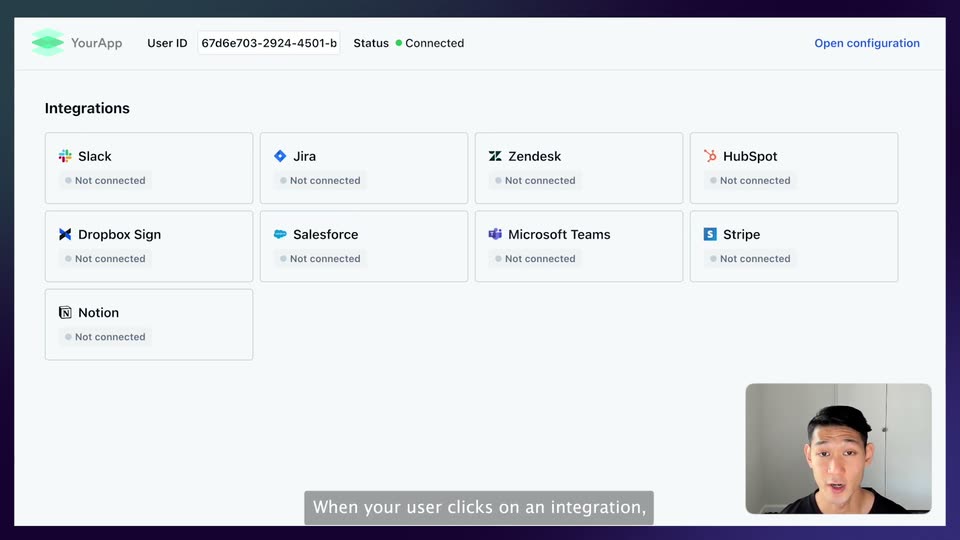
A light integrations dashboard fills the frame with a grid of service cards under a top bar, and a small talking-head video sits in the bottom-right corner. Subtitles roll along the bottom while a cursor drifts down to hover the Salesforce card, which highlights.
On-screen text: “you'll provide to your customers.”, “This is an integrations page of a sample app”, “that we'll use to represent your application.”, “When your user clicks on an integration,”, “for this example we'll use Salesforce, you'll trigger”
Techniques: Cursor demo
Camera: Static
A screen recording of an integrations page shows a Salesforce modal with a blue header and a Connect button. A presenter talks in a small webcam box at bottom right. The cursor clicks Connect, and the modal switches to an account chooser listing two Salesforce accounts.
On-screen text: “for this example we'll use Salesforce, you'll trigger”, “the Paragon Connect Portal”, “where your customers will authenticate into”, “and configure the integrations you've built.”
Techniques: Cursor demo
Camera: Static
A browser window with a Salesforce Allow Access dialog sits over a dimmed integration page. A cursor glides to the blue Allow button and clicks it. A small webcam of the presenter runs in the bottom-right corner, and white captions track the voiceover along the bottom.
On-screen text: “and configure the integrations you've built.”, “Paragon securely handles authentication”, “for every one of your users' integrations, and manages”, “the various token refresh policies for each app”
Techniques: Cursor demo
Camera: Static
A presenter's webcam sits in the lower right corner over a Salesforce integration modal on a dimmed integrations page. The Connect button spins, then reads Connected as the tab switches to Configuration. The cursor flips a toggle on, expanding a field-mapping list, and changes the object from Contact to Lead.
On-screen text: “the various token refresh policies for each app”, “so you don't have to.”, “If you want to use your own custom UI,”, “we also support a headless implementation,”, “but we won't get into that in this video.”, “And in a single click,”, “they can turn on the integration”, “features that you've predefined for them.”, “So that's the end-user experience in a nutshell.”
Techniques: Cursor demo
Camera: Static
A light integrations dashboard fills the frame, a grid of nine cards mostly grayed as not connected with Salesforce in green. A small presenter video plays in the bottom right corner while a faint white caption fades in at the bottom center.
On-screen text: “Now that we've gone over”
Camera: Static
A dark purple title slide reads “Building out the integration logic in Paragon” with a top progress bar and the Paragon logo at bottom left, while a presenter speaks from a small video box at bottom right and caption lines cycle at the bottom. The slide cuts to a full screenshot of the Paragon Integrations Catalog interface.
On-screen text: “Building out the integration logic in Paragon”, “Now that we've gone over”, “the end user experience,”, “how you and your team”, “will define these workflows within Paragon.”
Camera: Static
The Paragon Integrations Catalog screen scrolls quickly down a grid of app cards, passing Popular, CRM, Analytics, Accounting and HR sections, while a presenter's webcam inset stays fixed in the bottom right and subtitle captions run along the bottom edge.
On-screen text: “So this is the Paragon dashboard.”, “From here you can pick from over 100 integrations”, “that we support out of the box,”, “or you can even build your own custom integration.”
Camera: Pan
The view opens zoomed into a grid of integration logos, then pulls back to the full Paragon catalog page with its left sidebar. A cursor rests on the Salesforce tile as a detail panel slides in from the right. A presenter's webcam sits in the corner.
On-screen text: “or you can even build your own custom integration.”, “Let's continue with Salesforce.”
Techniques: UI zoom, Cursor demo
Camera: Static
The Paragon interface shows the Integrations Catalog with the Salesforce card selected; a documentation panel slides in from the right while the cursor moves to the Manage button. A presenter sits in a small webcam window at the bottom right.
On-screen text: “Let's continue with Salesforce.”, “Here you can see the workflows that were surfaced”
Techniques: Cursor demo
Camera: Static
Static view of the Paragon Salesforce integration page with sidebar, warning banner, and Workflows list. A webcam feed of a man speaking sits bottom right. The cursor drifts down and hovers the Create New Contact row, which highlights, while captions roll along the bottom.
On-screen text: “Here you can see the workflows that were surfaced”, “to the end-users to the Connect Portal.”, “Let's go into a simple “Create”, “New Contacts in Salesforce” workflow.”
Techniques: Cursor demo
Camera: Static
A workflow builder canvas shows step cards stacked vertically, branching at a conditional into two Salesforce actions. A presenter's webcam sits bottom right while a gray caption bar updates line by line. At 10s the cursor selects the trigger node and a settings panel slides in from the right.
On-screen text: “New Contacts in Salesforce” workflow.”, “When a user creates a new contact from your application.”, “this workflow will create the new contact”, “in your customer's Salesforce environment as well.”, “Every workflow starts with a trigger”, “and for this workflow we'll use an app event trigger.”, “SDK installed in your app,”, “you can use app events to kick off”, “workflows with any data that you want.”, “You can also specify a schema”
Techniques: Cursor demo
Camera: Static
A dimmed workflow canvas sits behind an open Edit App Event modal showing a JSON block. A cursor glides to the blue Save button and clicks it, the modal fades out to reveal the node graph. A presenter webcam holds the corner, white captions run along the bottom.
On-screen text: “on how that data should look.”, “You can set up workflows”
Techniques: Cursor demo
Camera: Static
A workflow builder fills the frame: a node graph left, an edit panel right, a presenter's webcam in the corner. A cursor clicks nodes to open settings, a variable dropdown inserts a value, and a Test Step reveals a success banner with JSON.
On-screen text: “to also be triggered when data changes”, “such as if a new contact was added”, “to your customer's salesforce account.”, “Next we'll use an integration action step for”, “this contact already exists.”, “You can use variable interpolation”, “to reference data from any previous steps.”, “You can also test each step”, “and see a preview of the result as shown here.”, “If the contact exists, we'll just update the existing contact, but otherwise we'll create a new one with that Salesforce account. Paragon's integration platform”
Techniques: Cursor demo
Camera: Static
A workflow builder screen shows a Salesforce integration flow on the left and a step editor on the right that switches from a step list to a Create Contact form. A cursor clicks through the panels while a presenter sits in a corner and subtitles run along the bottom.
On-screen text: “Also Paragon”, “provides built-in resiliency features”, “such as auto retries,”, “so you don't have to worry about error handling.”, “Now let me show you just how easy”, “it is to test the integration logic.”
Techniques: Cursor demo
Camera: Static
A workflow builder screen shows a flowchart with a highlighted conditional node splitting into two branches, beside a panel of step types. The header switches to a Testing Workflow state with a spinner, a presenter webcam sits in the corner, and a caption reads at the bottom.
On-screen text: “it is to test the integration logic.”
Camera: Static
A workflow editor screen holds a static node diagram on the left. The right panel switches from a loading spinner to a success list of three green-checked steps, while a man talks in a bottom-right webcam box and white captions roll along the bottom.
On-screen text: “Not only can I perform unit tests on each step,”, “I can test the entire workflow as well.”
Camera: Static
A dark teal-to-purple gradient slide holds the white title 'Monitoring & Observability' center-left, a three-item nav bar on top with the last label underlined in green, and the Paragon logo bottom left. A small webcam inset of a man speaks bottom right while subtitles roll along the bottom edge.
On-screen text: “Monitoring & Observability”, “This takes us to the final component of Paragon”, “that I'll cover in this video.”, “Monitoring and Observability.”
Camera: Static
A white task history table fills the screen beside a left navigation sidebar, while a small webcam feed of a presenter sits in the bottom right. A cursor drifts across the rows and a subtitle line updates at the bottom center.
On-screen text: “This is a task history panel”, “where you have full visibility”, “into every execution for the integrations workflows.”
Techniques: Cursor demo
Camera: Static
A workflow node diagram fades in from gray on the left while a task history panel on the right lists completed steps. A cursor clicks each step to expand its JSON data in and out. A presenter video sits in the lower right corner.
On-screen text: “The visual representation of executions”, “makes it easy to debug and diagnose issues.”
Techniques: Cursor demo
Camera: Static
The Paragon Task History table fills the screen, rows listing workflows and integrations. A webcam inset of a presenter in a black shirt sits bottom right. A caption bar slides up at the bottom, and the cursor drifts to the Connected Users item in the left sidebar.
On-screen text: “And now going into the Connected Users Dashboard.”
Techniques: Cursor demo
Camera: Static
The Paragon Connected Users table loads from skeleton placeholders, a cursor hovers and clicks the ACME row, opening the user detail page with an integrations list, while a presenter's webcam sits in the corner.
On-screen text: “And now we're into the Connected Users Dashboard.”, “This is where your support team can fix”, “your customers' integration issues”, “without your engineering team needing to intervene.”, “There's a lot more I'd love to show you,”, “but that's it for today's product overview video.”
Techniques: Cursor demo
Camera: Static
A static dark purple gradient holds the Paragon logo above a white contact line with a green email address. A small webcam inset of a man speaking sits in the bottom right, and white captions swap on a dark bar at the bottom.
On-screen text: “Reach out to us at [email protected]”, “If you ever need help,”, “feel free to reach out to us over Intercom or email.”, “We're always here to support you”, “as you build out your product's native integrations.”
Camera: Static
A white Paragon logo and green contact email sit on a dark purple gradient, with a small speaker video in the corner. They give way to a static 5x3 grid of client wordmarks under a small uppercase heading, held for the rest of the clip.
On-screen text: “Reach out to us at [email protected]”, “TRUSTED BY 100+ B2B SAAS COMPANIES GLOBALLY”
Camera: Static