1:08

Introducing Cowork: Claude Code for the rest of your work
Anthropic · AI · Jan 2026
Nothing · Oct 2025 · 1:14 · Full motion · AI-annotated
Nothing’s 1:14 launch film runs 21 scenes, about 3.5 s each. The product is on screen from the first frame and 3 features are revealed. The call to action lands at 1:10 (95% in), over a voiceover. The video is built as a static black title card intro into one long, slow UI walkthrough: a prompt is typed, the AI thinks, code scrolls, the app deploys and publishes, then the film ends on a URL and logo card. Its signature moves are the cross-dissolving serif text cards, the 3D tilt that folds the chat panel into a code editor, and the yellow pill that carries every action.
Is this your launch? to your site or press kit.
Anthropic · AI · Jan 2026
Notion · Productivity · Apr 2025
Films whose music sounds like this one, voice left out
Frevana · Upbeat electronic
Agentcard · Electronic
Mirakl · Electronic, lo-fi hip-hop, ambient, and house
A black frame holds the white serif word Introducing centered, then cuts to the same frame with the words essential apps set in a white pixel dot-matrix face. Both cards are static and centered.
On-screen text: “Introducing”, “essential apps”
Camera: Static
A centered black serif line reads Create custom apps on white, cross-dissolves into for your life, then Come to fades in above it. The frame cuts to the product playground: a thin bordered panel with corner plus marks, three small circular icons, a small portrait, and a yellow Create your app pill at the bottom.
On-screen text: “Create custom apps”, “for your life”, “Come to”
Techniques: Kinetic type
Camera: Pull out
A browser window shows the Nothing Playground canvas. A centered serif headline completes word by word while floating avatar circles and photo cards cycle through images. A slow push-in closes the shot.
On-screen text: “Come to play.”, “Your digital canvas awaits.”
Techniques: Kinetic type, UI zoom
Camera: Push in
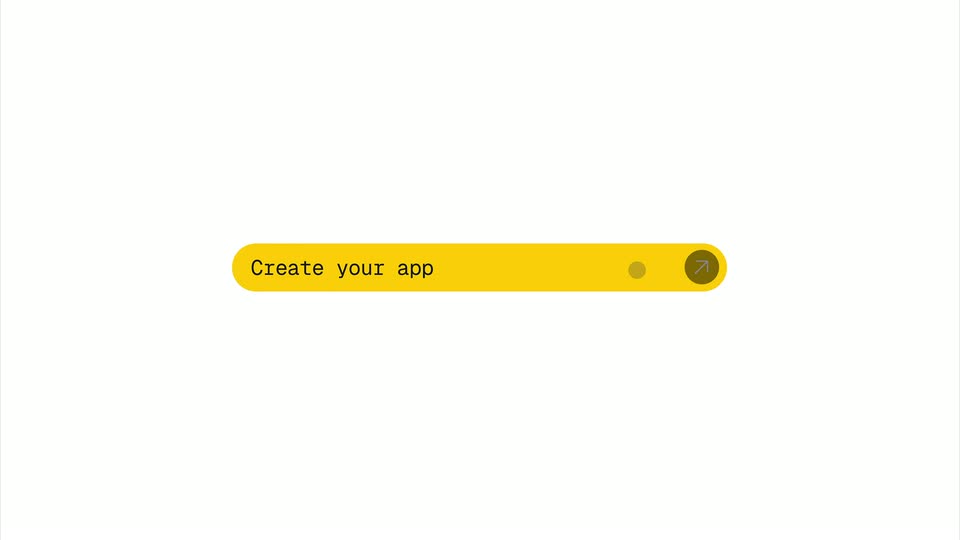
A yellow pill button labeled 'Create your app' sits centered on a plain white background. The arrow icon at its right end gains a dark circular badge and a small dot beside it, while the text stays locked in place.
On-screen text: “Create your app”, “K”
Camera: Push in
A yellow pill button labeled Create your app with a black arrow badge sits over a faint grid, then clears to reveal a left icon rail and a bottom input bar reading Ask anything, while the right grid panel sharpens with GRID and 2 x 2 captions.
Camera: Static
A light app-builder screen reframes to its prompt field. Three line-icon cards, Clock, Weather, Audio, fade in above as a sentence types out behind a blinking yellow caret. The cards then fade out and the Create button fills with yellow.
Techniques: UI zoom, Kinetic type
Camera: Static
A white prompt card fades in a wardrobe app request above a yellow Thinking 3s pill, then the view zooms in as a blue response line starts typing below it.
On-screen text: “NOTHING (R)”
Techniques: Kinetic type, UI zoom
Camera: Static
A flat chat screen shows a yellow Thinking card typing a numbered plan. A dark code editor slides in from the right as the chat panel tilts into 3D perspective, its input bar and button angling away.
Techniques: 3D mockup
Camera: Pull out
A code editor fills the frame, a file tree and a yellow sticky note pinned to the left edge. The TypeScript code in the main pane scrolls slowly downward, line numbers ticking up, while the sidebar holds still.
Camera: Push in
A code editor fades out over a faint grid, leaving a centered card of a man in a dark sweater and light pants. The frame zooms out to a two-by-two grid of such cards, each with a small number, as a Deploy button appears at the top.
Techniques: UI zoom
Camera: Static
A light browser window with star, avatar and menu dots holds a Version 0 pill, a download arrow and a black Deploy button. The frame zooms out to center it, then a white modal scales in with a phone icon of a standing man and a yellow Start deployment bar.
Techniques: UI zoom
Camera: Static
A centered white modal on a light gray grid background shows an app preview and a yellow deploy button. A cursor clicks the button, the panel swaps to a 'Starting build' status with a Stop pill, then to a 'Build complete' form with a yellow push button.
Techniques: Cursor demo
Camera: Static
A white form card labeled Build complete sits center frame. A tags dropdown opens and two pills, Outfit and Fashion, drop in, then a description fills in. The wide yellow deploy bar shrinks to a small pill and the card fades out as a top toolbar appears.
Techniques: Morph
Camera: Static
A white success card fades in over a light app builder: green badge, “Deployed successfully” heading, and a grid where a photo of a man in a black sweater settles beside a placeholder card. The card then fades out, revealing the Code tab and Deploy button.
Camera: Pull out
A white smartphone mockup in slight 3D angle fades in on a plain white background, its screen showing a smart-home dashboard with circular widgets: a microphone, a person video tile, earbuds at 80 percent, and a dot-matrix dial. The device eases in scale then holds.
On-screen text: “Deployed successfully”
Techniques: 3D mockup
Camera: Static
A flat phone mockup with app icons fades out, leaving the serif headline “And share your Essential Apps” centered on white. At 3s the line is replaced by “to the Playground,” then a UI panel with an outfit photo and publish button slides in from the right.
On-screen text: “And share your Essential Apps”, “to the Playground”
Techniques: Kinetic type
Camera: Static
The view zooms into the Publish to the community card, then pulls back to the top bar as the black Publish button turns into a purple Published badge. A yellow toast slides in below the bar, announcing the app is published to Playground.
Techniques: UI zoom
Camera: Pan
A web interface fades in from a white screen, revealing a community page with a left sidebar and a grid of app cards.
Camera: Pull out
A browser window centered on white fades in, showing a Community page with a left icon rail, a blackletter title, a creator photo card, a widget card and a row of four app cards. The window holds, then fades out to white.
Camera: Pull out
A black screen holds a centered line of white pixel text reading essential apps, then cuts to a second line reading playground.nothtng.tech. Both frames are locked off with no motion.
On-screen text: “essential apps”, “playground.nothtng.tech”
Camera: Static
A black frame holds the white dot-matrix logo centered, reading NOTHING (R), with a small URL caption. The elements stay locked and still for the full duration.
On-screen text: “NOTHING (R)”, “playground.nothtng.tech”
Camera: Static