1:00
horizontal. (YC F26): AI agents that run factory operations
horizontal. · Industrials · Oct 2026
North Automations · Jul 2026 · 0:55 · AI-annotated
North Automations’s 0:55 launch film runs 21 scenes, about 2.7 s each. The product is on screen from the first frame and 5 features are revealed. The call to action lands at 0:50 (90% in), over a voiceover. A calm enterprise launch built on a flat pale mint field, opening on the North logo then naming the Automations feature before cutting through five capability demos (build, schedule, versioning, analytics) as floating white UI cards that tilt in 3D and slide across the frame. Pacing is steady at roughly 117 bpm with soft blur and zoom transitions, a single black sans serif typeface, and a quiet, confident tone that ends on a held logo card.
Is this your launch? to your site or press kit.
horizontal. · Industrials · Oct 2026
Sona8 · B2B · Nov 2026
A black north wordmark with a rounded abstract mark and a smaller by Cohere line sits centered on a pale mint background. The logo remains static in a locked-off frame.
On-screen text: “north”, “by Cohere”
Camera: Static
A thin gray wireframe globe rotates in the center of a pale mint field as the black word Automations slides up from the bottom edge to settle in the middle.
On-screen text: “Automations”
Techniques: Kinetic type
Camera: Static
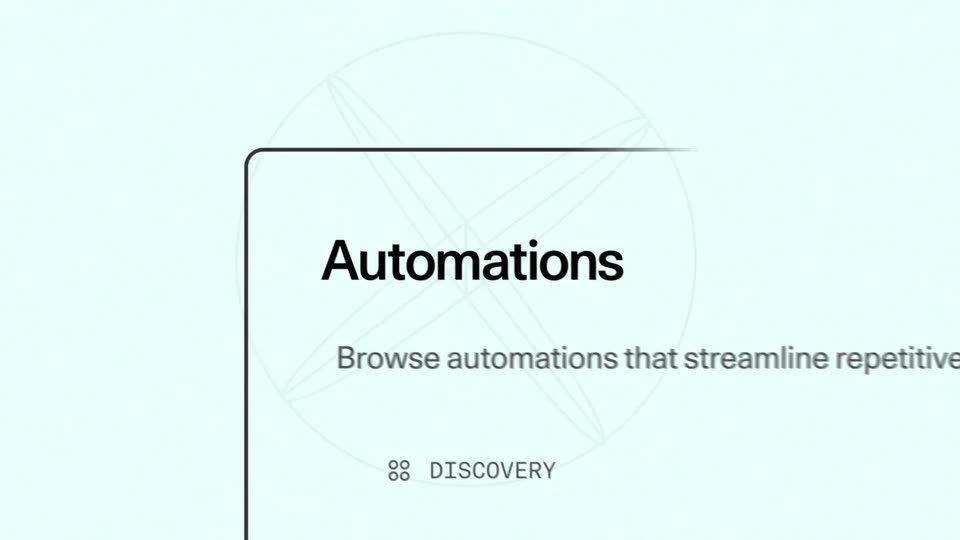
A close-up of the Automations page slowly pulls back, revealing the heading, a one-line description, and two tabs labeled Discovery and Run History on a pale mint background with a faint circular wireframe behind.
Techniques: UI zoom
Camera: Pull out
A white interface card on a mint background opens on a close-up of the Automations heading, which settles from a brief blur, then the view pulls back to reveal the full page with two tabs, a filter dropdown, and two automation cards.
Techniques: UI zoom
Camera: Pull out
On a pale mint background of faint topographic contour lines, a single centered word swaps in sequence: Ease, then Control, then Governance. Each word holds still while the thin lines drift slowly behind it.
On-screen text: “Ease”, “Control”, “Governance”
Techniques: Kinetic type
Camera: Static
The word Governance sits centered on a pale mint background with faint contour lines. A blurred white dashboard panel slides in from the right, covering the right edge.
On-screen text: “Governance”
Camera: Pan
A light-themed dashboard lists automation cards in a grid. The cursor glides to the New automation button top right and clicks, cutting to a dotted builder canvas with a centered prompt field and four helper buttons. The first frame carries horizontal motion blur.
Techniques: Cursor demo
Camera: Static
A dotted-grid canvas zooms in on a white prompt card. The field types a sentence about summarizing customer data, a dropdown opens over the Build button and switches it to Plan, then a cursor presses the dark enter key and the interface blurs out.
Techniques: UI zoom, Cursor demo
Camera: Push in
A flat AI builder interface opens through a white diagonal wipe. The left chat panel types a prompt, lists a plan, and shows an approved badge while a cursor hovers the Build button; the right dotted canvas fills with three workflow nodes.
Techniques: Masking, Cursor demo
Camera: Pull out
A workflow canvas with four nodes sharpens and zooms forward as a left summary panel blurs into a ghost. A cursor clicks the Test button in the top bar, and a status panel slides in from the right edge.
Techniques: UI zoom, Cursor demo
Camera: Push in
A white run-details card fills the frame, then the view zooms into the Status row as the gray Active pill switches to a green Success badge and the completion date and execution time type in.
Techniques: UI zoom
Camera: Push in
A blurred close-up of automation cards sharpens and pulls back to reveal the full Automations dashboard, with a left icon rail, tab bar, search field, and a grid of automation cards.
Techniques: UI zoom
Camera: Pan
A 3D-tilted Automations dashboard mockup floats over a cyan-to-pink gradient. A cursor rests on the News summarizer card, then the scene slides as a share form enters from the right and the card grid blurs leftward.
Techniques: 3D mockup, Cursor demo
Camera: Static
A split dashboard view of an automations product is shown, then the camera zooms in as a cursor clicks the Schedule button. A centered modal opens where the cursor toggles Tuesday, Thursday and Friday before moving to the Next button.
Techniques: UI zoom, Cursor demo
Camera: Push in
A schedule automation dialog showing weekly frequency and selected weekdays sits over an agent list, a cursor on the Next button. The view pans right, the dialog blurring left as a sharp agent details panel for the North Company Knowledge Assistant fills the right.
Techniques: Cursor demo
Camera: Pan
A flat product UI shows an agent version history list beside an agent details form. A cursor clicks the Restore button at the bottom, and a confirmation modal pops up over the form; the cursor then moves to the modal's red Restore button.
Techniques: Cursor demo
Camera: Pan
A node-based workflow editor fills the frame. The view zooms in on an open dropdown listing node types, blurring the canvas behind it, while the cursor glides down the list and hovers over Human review.
Techniques: UI zoom, Cursor demo
Camera: Pan
A settings panel with a search field and a list of components and behaviours floats over a dotted grid. A cursor hovers a row, then the panel slides left to reveal an analytics dashboard with a sidebar and agent table.
Techniques: Cursor demo
Camera: Pan
A floating admin dashboard card transitions from the Agents tab to the Automations tab as a cursor moves across it, then scrolls down past four charts and a data table. The card slides left to reveal the black North logo on a pale blue background.
Techniques: Cursor demo
Camera: Pan
A white dashboard panel with a bar chart slides out to the left off-screen, leaving the black north by Cohere logo centered on a pale mint background.
On-screen text: “north”, “by Cohere”
Camera: Static
A static lockup of the north logo, a black geometric mark beside the lowercase wordmark, with by Cohere set small beneath, centered on a flat pale mint field. The frame holds without motion for the full length.
On-screen text: “north”, “by Cohere”
Camera: Static