
0:19
Explore
Meet the new Microsoft Planner
Microsoft · Nov 2023 · 4:26 · Full motion · AI-annotated
- Length
- 4:26
- Scenes
- 30 · 8.9 s avg
- Product on screen
- 0:00
- Features shown
- 10
- Call to action
- 4:03 · 91%
- Voiceover
- Yes
- Views
- 508K on YouTube
as of November 21, 2026
00:00:00 / 04:26:27
- Length
- 4:26
- Scenes
- 30 · 8.9 s avg
- Product on screen
- 0:00
- Features shown
- 10
- Call to action
- 4:03 · 91%
- Voiceover
- Yes
- Views
- 508K on YouTube
as of November 21, 2026
Microsoft’s 4:26 launch film runs 30 scenes, about 8.9 s each. The product is on screen from the first frame and 10 features are revealed. The call to action lands at 4:03 (91% in), over a voiceover. The video is a slow, cursor-led screen-capture walkthrough of the new Planner app in Teams, opened and closed by gradient title cards. Each feature is announced by the voiceover and demonstrated in place, with dialogs and template grids as the only close-ups, keeping a steady pace of about four cuts per minute.
No filming indicatedEstimated needs: 10 capture groups — your screens or recordings · 1 official logo — reused across the film
Is this your launch? to your site or press kit.
More like this



Meet the new Microsoft Planner, scene by scene
· 30 scenes as text
01 · Product intro · 0:00–0:02
A light gray card with blurred orange and blue color edges. The purple Planner logo and the purple headline fade in above a two-line tagline that slides into place, then the whole lockup holds still.
On-screen text: “Meet the new Microsoft Planner”, “Manage all your tasks and plans in”, “one simple, familiar experience.”
Techniques: Kinetic type
Camera: Static
02 · Product intro · 0:02–0:24
A locked-off title card on a purple-blue gradient with an orange and pink circle on the right; the Microsoft logo sits top left, the cream headline and white presenter name hold on the left, then a white tagline slides in at the end.
On-screen text: “Meet the new Microsoft Planner”, “Robyn Guarriello, Product Manager”, “Manage all your tasks and plans in”, “one simple, familiar experience.”
Camera: Static
03 · Feature reveal · 0:24–0:26
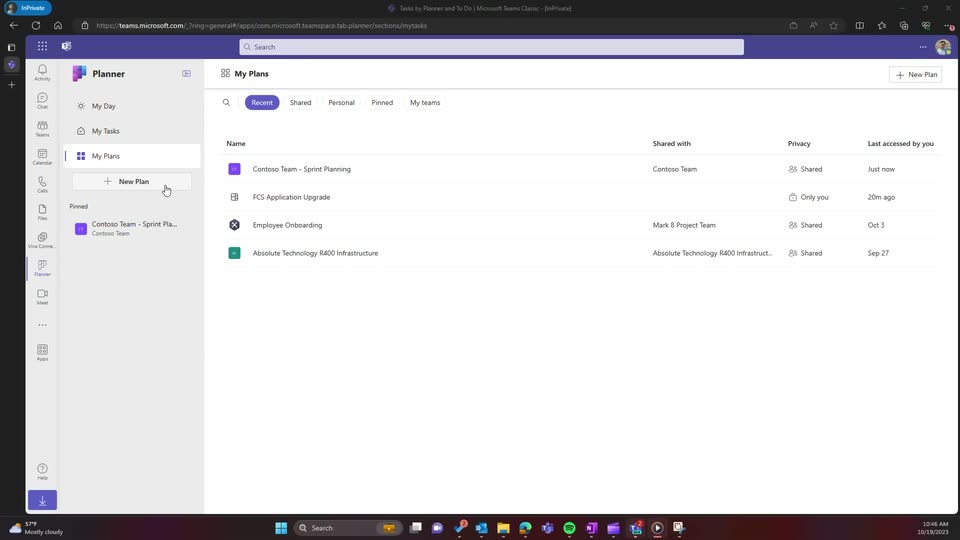
A locked-off screen capture of Planner's My Plans page in Teams. The cursor glides from the search bar to the New Plan button in the left sidebar and clicks it, triggering an Almost ready toast in the top right. Title and presenter credit stay static.
On-screen text: “Meet the new Microsoft Planner”, “Microsoft”, “Robyn Guarriello, Product Manager”
Techniques: Cursor demo
Camera: Static
04 · Feature reveal · 0:26–0:47
A Planner dialog titled Create new sits over a dimmed Teams window. The cursor glides from the sidebar to hover the Basic card, then the Premium card, which lightens on hover. A grid of eight template thumbnails fills the lower half.
Techniques: Cursor demo
Camera: Static
05 · Feature reveal · 0:47–0:54
The Create new dialog expands into a two-pane template list. A cursor clicks down the left column, and the right panel updates to show Simple Plan, Project Budget, Sprint Retrospective, and Goals and Objectives with previews and benefits.
Techniques: Cursor demo
Camera: Static
06 · Feature reveal · 0:54–0:59
A Planner 'Create new' dialog fills the screen; the cursor selects the Basic option, types 'Marketing Campaign' into the Name field, then clicks Create. The dialog collapses into a loading spinner reading 'Creating your plan...' over the dimmed plan list.
Techniques: Cursor demo
Camera: Static
07 · Feature reveal · 0:59–1:19
Screen recording of the Teams Planner board for a Marketing Campaign plan. The cursor hovers over the Add task field, then the board fills with task cards across five buckets. The cursor clicks the Grid tab, switching to a table view, then moves back to the Board tab.
Techniques: Cursor demo
Camera: Static
08 · Feature reveal · 1:19–1:27
A cursor clicks the view tabs of the Planner app, switching a task list to a board of five task columns, then opens a dropdown and the view becomes a monthly schedule with colored task bars.
Techniques: Cursor demo
Camera: Static
09 · Feature reveal · 1:27–1:32
A full-screen view of the Planner dashboard with status, bucket and priority charts and a task list on the right. The mouse cursor glides from the top center toward the upper right and hovers over the Share button.
Techniques: Cursor demo
Camera: Static
10 · Feature reveal · 1:32–1:46
A screen recording of the Teams Planner dashboard with an Invite members dialog centered. A cursor clicks the Add to existing group tab, opens the Select Group dropdown, chooses Sales and Marketing, and presses Add, revealing a scrollable list of 21 member avatars.
Techniques: Cursor demo
Camera: Static
11 · Feature reveal · 1:46–1:48
A Teams Planner window shows a Create new dialog with a grid of template cards. A cursor moves to the Sprint Planning card and hovers, tinting it gray.
Techniques: Cursor demo
Camera: Static
12 · Feature reveal · 1:48–1:52
A Planner template dialog shows the Sprint Planning detail with a Premium badge and a preview grid of task columns. A cursor glides down from the top right and presses the Start free trial button in the lower right corner.
Techniques: Cursor demo
Camera: Static
13 · Feature reveal · 1:52–1:57
A Planner templates screen shows a centered modal offering a premium trial. A cursor moves to the Start free trial button and clicks it. The modal swaps to a brief loading state, then to a welcome screen with a colorful illustration and a Get Started button.
Techniques: Cursor demo
Camera: Static
14 · Feature reveal · 1:57–1:59
A cursor clicks the Use template button in the Sprint Planning dialog. The dialog closes and a New Sprint Planning Premium plan form appears centered, with the cursor resting on the Create button.
Techniques: Cursor demo
Camera: Static
15 · Feature reveal · 1:59–2:04
A centered dialog for a new plan sits over a dimmed Planner screen. The cursor types the name into the field, then clicks Create, and the dialog swaps to a spinner while a new plan row appears behind it.
Techniques: Cursor demo
Camera: Static
16 · Feature reveal · 2:04–2:21
A flat screen recording of the Planner grid. The cursor clicks the Copilot button, a side panel slides in from the right, the cursor types a prompt and sends it, a brief loading indicator runs, then new task rows fill the grid below.
Techniques: Cursor demo
Camera: Static
17 · Feature reveal · 2:21–2:43
A screen recording of the Planner app. The cursor clicks the Goals tab, types two goal names, picks a color and end date, then opens a task panel to add a dependency. It switches to the Timeline tab, showing a Gantt chart of bars, then to the empty Board view.
Techniques: Cursor demo
Camera: Static
18 · Feature reveal · 2:43–2:53
A Planner board in a browser is operated by a cursor. It regroups the Kanban columns by sprint, drags a task card between people in the People view, then opens the Grid view and clicks Add column to reveal a field menu.
Techniques: Cursor demo
Camera: Static
19 · Feature reveal · 2:53–2:57
A Planner grid view sits behind a centered New field dialog. The cursor switches the type dropdown from Text to Number, types Sprint points into the field name box, and clicks the Create button.
Techniques: Cursor demo
Camera: Static
20 · Feature reveal · 2:57–2:58
A Planner grid view fills the screen as a cursor moves from the Assigned to column to the top right, where a Sprint points column with numeric values appears in the task list.
Techniques: Cursor demo
Camera: Static
21 · Feature reveal · 2:58–3:01
A Planner grid view is dimmed behind a Conditional coloring dialog. A cursor opens the Field and Operator dropdowns, enters 0, picks red, and saves; several sprint point cells in the grid turn orange.
Techniques: Cursor demo
Camera: Static
22 · Feature reveal · 3:01–3:05
A screen recording of a task management interface shows a list of tasks. A details panel appears on the right, and a cursor moves to an apply button. The view then switches to a page listing multiple project plans.
Techniques: Cursor demo
Camera: Static
23 · Feature reveal · 3:05–3:16
Screen recording of the Planner app in Teams. A cursor clicks the Recent, Shared, Personal and Pinned tabs, swapping the plan list each time. It pins the Marketing Campaign plan, which moves to the sidebar, then opens the plan's board view.
Techniques: Cursor demo
Camera: Static
24 · Feature reveal · 3:16–3:26
A cursor clicks My Tasks in the Planner sidebar, the Sprint Planning grid crossfades into a personal task list, then the cursor taps the Assigned to me tab and the rows re-sort before it hovers down the list.
Techniques: Cursor demo
Camera: Static
25 · Feature reveal · 3:26–3:31
A white task dialog is centered over a dimmed Planner board, showing fields for dates, progress and priority. The cursor drifts from the Progress dropdown up to the task title, then slides right to the close button.
Techniques: Cursor demo
Camera: Static
26 · Feature reveal · 3:31–3:35
A cursor glides to the My Day item in the Planner sidebar and clicks it, swapping the long task list in the main panel for a short two-row My Day list.
Techniques: Cursor demo
Camera: Static
27 · Feature reveal · 3:35–4:03
Flat screen recording of the Planner task list. A cursor opens a row menu, chooses Add to My Day, then switches to the My Day view. The cursor opens the My tasks & plans dropdown and hovers Publishing as a red-boxed URL fades in at the bottom.
On-screen text: “aka.ms/TaskPublishingInPlanner”
Techniques: Cursor demo
Camera: Static
28 · CTA · 4:03–4:08
The purple URL aka.ms/thenewplanner sits centered on a light gray field. A blurred Planner interface fades out from behind it, leaving two soft color blobs, pink top-left and blue bottom-right, in the corners. The text stays locked and still.
On-screen text: “aka.ms/thenewplanner”
Camera: Static
29 · CTA · 4:08–4:24
A locked-off end card on a dark navy background. A white 'Get started' heading sits top left above three columns, each with a white outline icon, a purple-to-blue gradient subhead, and white body text listing gradient URLs. The frame holds still for the full duration.
On-screen text: “Get started”, “Learn more”, “aka.ms/thenewplanner”, “aka.ms/plannerdatasheet”, “aka.ms/plannerdemovideos”, “Explore”, “aka.ms/plannerroadmap”, “aka.ms/plannerupdates”, “aka.ms/plannerpremiumtrial”, “Stay connected”
Camera: Static
30 · Outro · 4:24–4:26
The Microsoft 365 logo, four-color square and gray wordmark, sits centered on a white field. The 365 slides right and fades out, leaving the Microsoft mark alone.
On-screen text: “Microsoft 365”, “Microsoft”
Camera: Static