0:31
Explore
Meet the new Kimi Browser Extension (formerly Kimi WebBridge)
Kimi · Sep 2026 · 0:39 · AI-annotated
- Length
- 0:39
- Scenes
- 18 · 2.2 s avg
- Product on screen
- 0:00
- Features shown
- 3
- Call to action
- 0:36 · 91%
- Voiceover
- No
00:00:00 / 00:39:29
Kimi’s 0:39 launch film runs 18 scenes, about 2.2 s each. The product is on screen from the first frame and 3 features are revealed. The call to action lands at 0:36 (91% in). The video is built as one continuous browser demo: a typed title card hands off to an install and navigate walkthrough, then three bold side headlines (Generate Reusable Skills, Extract Key Information, End-to-end Auto-fill) each announce and demo one feature before a closing line and logo. Signature moves are the typewriter text reveals, browser mockups that slide, tilt and crossfade on the flat pale-blue grid, and hard black headlines that cut in beside the UI.
No filming indicatedEstimated needs: 4 capture groups — your screens or recordings · 1 official logo — reused across the film · 1 3D passage — build or supply
Is this your launch? to your site or press kit.
More like this
1:01
0:50
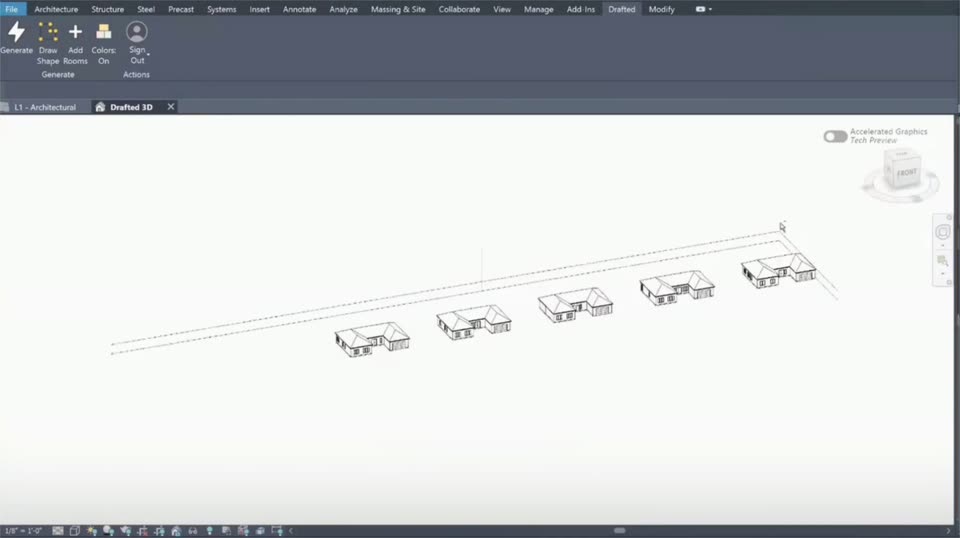

Drafted - Introducing Drafted in Revit. Draw a footprint, add your room list,
Drafted · Consumer · Sep 2026
Meet the new Kimi Browser Extension (formerly Kimi WebBridge), scene by scene
· 18 scenes as text
01 · Product intro · 0:00–0:00
On a pale blue grid backdrop, the black phrase “Kimi Browser Extension” types in from left to right at the center, letters appearing one after another until the full line settles.
On-screen text: “Kimi Browser Extension”
Techniques: Kinetic type
Camera: Static
02 · Product intro · 0:00–0:02
On a pale blue grid background, the black headline Kimi Browser Extension stays fixed at center as Upgraded fades in beneath it, followed by the gray line Any Web Task... fading in below. The frame is locked off.
On-screen text: “Kimi Browser Extension”, “Upgraded”, “Any Web Task...”
Techniques: Kinetic type
Camera: Static
03 · Product intro · 0:02–0:08
On a pale blue grid, a centered black line types in and holds while gray icon labels cycle above it, fading through web-task examples in turn.
On-screen text: “Any Web Task...”, “Let Kimi Take Over”, “Bulk Invoice Upload”, “Product Listing”, “Fetch Enterprise Data”, “Personal Workspace Sync”, “Application Auto-fill”
Techniques: Kinetic type
Camera: Static
04 · Demo · 0:08–0:09
A Chrome Web Store page for the Kimi extension sits in a browser window on a light blue grid background. The page settles into frame as the blue Add to Chrome button scales in, with the preview image showing a tablet and a recorded-actions list.
On-screen text: “Let Kimi Take Over”, “Application Auto-fill”
Camera: Static
05 · Demo · 0:09–0:11
A light browser window sits on a dotted blue grid. A cursor moves up and clicks the blue Add to Chrome button, which flips to Remove from Chrome. Below, a smaller recording window scales up, revealing a step list titled Recording Daily paper research.
Techniques: Cursor demo
Camera: Push in
06 · Demo · 0:11–0:12
A flat browser window holding a dark, dithered Moonshot AI careers page slides in from the left, leaving a brief ghost trail, then settles to center. A mouse cursor drifts up toward the top navigation bar.
Techniques: Cursor demo
Camera: Pan
07 · Demo · 0:12–0:15
A browser window shows a careers site with a three-column job list. A cursor clicks the top listing, and the page crossfades into a job details view with an Apply Now button and description text.
Techniques: Cursor demo
Camera: Static
08 · Demo · 0:15–0:16
A browser window mockup of a careers page floats on a light blue field, easing from a tilted angle to face front. A white cursor glides from the center to the small K icon in the toolbar. The page shows a navy nav bar and a job posting with an Upload panel.
Techniques: 3D mockup, Cursor demo
Camera: Push in
09 · Demo · 0:16–0:17
A browser mockup of the Moonshot AI careers page, with a Kimi chat panel docked on the right, dissolves in through stacked duplicate frames, then settles into a gentle 3D tilt over a light blue grid backdrop.
Techniques: 3D mockup
Camera: Pull out
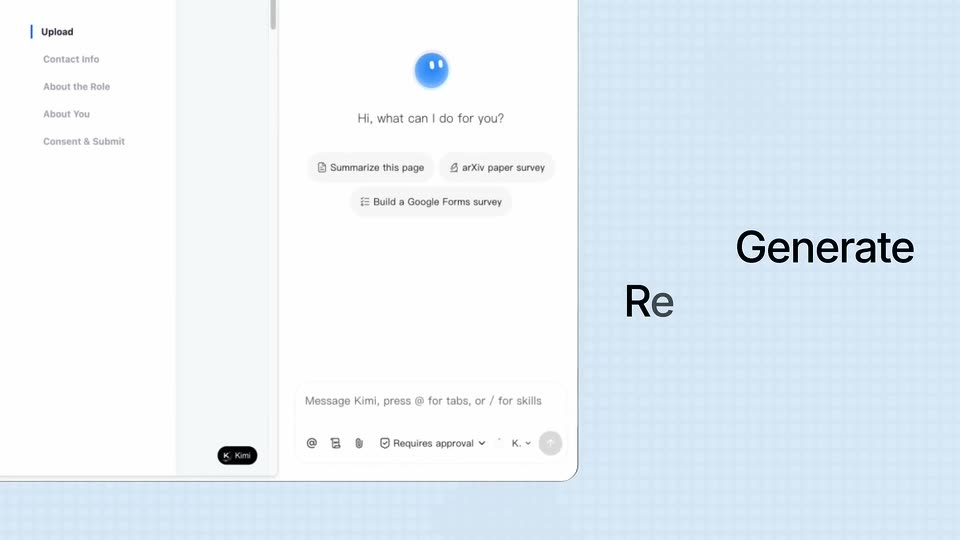
10 · Feature reveal · 0:17–0:18
A chat panel with a blue avatar and three suggestion chips sits on the left as the frame reframes onto it, while the word Generate and a partial second line type in on the right over a light blue grid.
On-screen text: “Generate”, “Reu”
Techniques: UI zoom, Kinetic type
Camera: Push in
11 · Feature reveal · 0:18–0:28
A chat interface sits on the left over a light blue grid, with the headline Generate Reusable Skills on the right. A cursor types a slash command, sends it, and the panel scrolls through the assistant response and a skill menu, then the card shrinks toward the left edge.
On-screen text: “Generate Reusable Skills”
Techniques: Kinetic type, Cursor demo
Camera: Static
12 · Feature reveal · 0:28–0:28
A flat resume document rises to the front and turns fully opaque over a blurred browser window and a chat panel. On the right, the gray word “Extract” darkens to black and “Key Information” fades in below it.
On-screen text: “Extract”, “Key Information”
Camera: Pull out
13 · Feature reveal · 0:28–0:29
A white resume card for Alex Morgan sits centered, its Profile, Experience and Education blocks tinted light blue, over a blurred browser window and PDF. A two-line black headline, Extract Key Information, holds on the right. The shot is a static hold.
On-screen text: “Extract Key Information”
Camera: Static
14 · Feature reveal · 0:29–0:30
A task log panel sits left of a browser window that scales up to fill the right side, opening a careers page with a contact form. A cursor moves to the dark Allow and remember button and hovers it, highlighting the option.
Techniques: UI zoom, Cursor demo
Camera: Pan
15 · Feature reveal · 0:30–0:35
A browser window shows a job application form beside a Kimi chat panel. Fields fill in one by one as a cursor moves through them. The view zooms into the form, then the cursor clicks Submit Application and a confirmation toast appears. Large black text reads End-to-end Auto-fill.
On-screen text: “End-to-end”, “Auto-fill”
Techniques: UI zoom, Cursor demo
Camera: Push in
16 · Feature reveal · 0:35–0:36
A light blue dotted grid holds a white pill button with a dark checkmark icon and the word Submitted. A second overlapping pill fades out, the pill slides up to center, then dissolves as small gray caption text fades in at the bottom.
On-screen text: “Supported on: Chrome | Edge | Kimi Work | Kimi Code”
Camera: Static
17 · CTA · 0:36–0:38
On a pale blue grid, a two-line black headline types in character by character, the trailing letters fading from gray to black, while a small supported-browsers line sits static at the bottom. The headline then fades out as the Kimi logo mark fades in at center.
On-screen text: “Let the Kimi Browser Extension”, “Handle Your Web Tasks”, “Supported on:”, “Chrome | Edge | Kimi Work | Kimi Code”
Techniques: Kinetic type
Camera: Static
18 · Outro · 0:38–0:39
On a pale blue grid background, the KIMI lockup assembles in the center: a black rounded-square icon with a white K and a small blue dot forms beside the black KIMI wordmark, which resolves from a clipped state.
Camera: Static