0:43
Explore
Kimi Code, our open-source coding agent, just got a major upgrade!
Kimi · Jun 2026 · 0:35 · AI-annotated
- Length
- 0:35
- Scenes
- 13 · 2.8 s avg
- Product on screen
- 0:00
- Features shown
- 2
- Call to action
- 0:32 · 91%
- Voiceover
- Yes
00:00:00 / 00:35:28
Kimi’s 0:35 launch film runs 13 scenes, about 2.8 s each. The product is on screen from the first frame and 2 features are revealed. The call to action lands at 0:32 (91% in), over a voiceover. A step-by-step install tutorial that alternates locked-off dot-grid title cards with zooming browser and terminal screens, cut at a steady 15 cuts per minute. Its signature moves are the black dot-matrix backdrop, white keycap icons, and smooth push-ins on the UI, with the blue logo tile bookending the piece.
No filming indicatedEstimated needs: 2 capture groups — your screens or recordings · 3 graphic passages — draw or supply · 1 3D passage — build or supply
Is this your launch? to your site or press kit.
More like this

Kimi Code, our open-source coding agent, just got a major upgrade!, scene by scene
· 13 scenes as text
01 · Product intro · 0:00–0:01
A black frame holds a large sphere of blue dots and K letters on the right. White monospace text reads How to Install Kimi Code at left center, beside a small blue rounded square with two white dots inside a thin bordered sidebar.
On-screen text: “How to Install”, “Kimi Code”
Camera: Static
02 · Feature reveal · 0:01–0:03
A white monospace headline “Simple to Install” sits centered on a black dotted field, then gives way to two gray rounded tiles, one with a black node glyph and one with the letter C, set apart by a small plus sign above the gray caption “Copy”.
On-screen text: “Simple to Install”, “C”, “Copy”
Camera: Static
03 · Feature reveal · 0:03–0:04
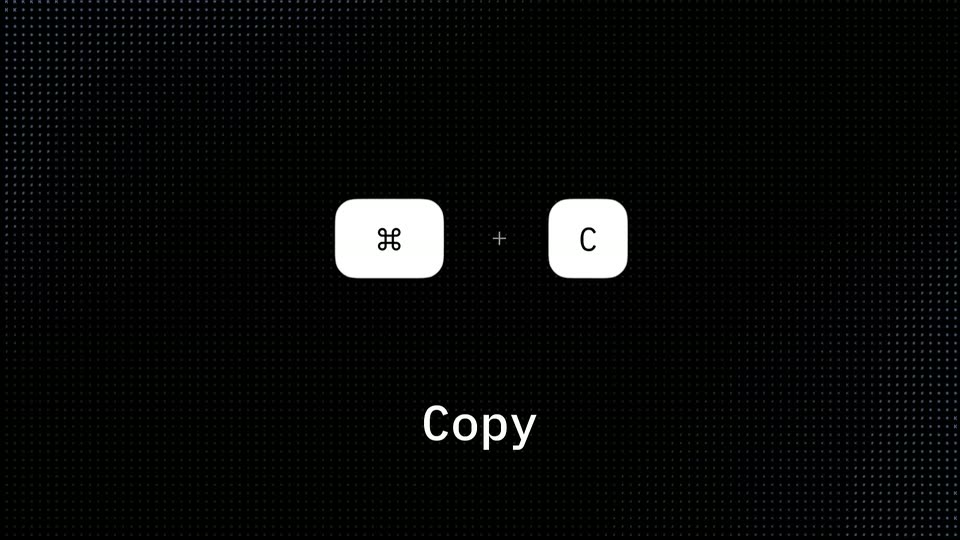
On a black dotted grid, two white keycaps, the Command symbol and a letter, sit around a small plus sign in a locked-off frame. The letter swaps from C to V while the caption below changes from Copy to Paste.
On-screen text: “Copy”, “Paste”
Camera: Static
04 · Feature reveal · 0:04–0:04
On a dark dotted grid, two white keycaps show the Command and V symbols above the label Paste. The pair swaps to a single Enter keycap above the label Enter. The frame stays locked-off; only the icons and caption change between the two states.
On-screen text: “Paste”, “Enter”
Camera: Static
05 · Feature reveal · 0:04–0:06
A flat browser window on a black dotted grid zooms in on the address bar, where the URL kimi.com/code is entered and an autocomplete dropdown lists kimi.com. The guest page text sits behind the bar.
On-screen text: “Enter”
Techniques: UI zoom
Camera: Push in
06 · Feature reveal · 0:06–0:08
A browser window showing the Kimi Code page sits on a dotted white background; the view zooms into the page as a hand cursor clicks the Get Kimi Code button, opening a platform dropdown, then moves to the copy icon beside the curl command.
Techniques: UI zoom, Cursor demo
Camera: Push in
07 · Feature reveal · 0:08–0:09
A product webpage shows the Kimi Code heading and an open Get Kimi Code dropdown listing Mac / Linux, Windows, VS Code and Cursor options. An animated hand cursor slides down and clicks Mac / Linux beside a copy command field.
Techniques: Cursor demo
Camera: Static
08 · Feature reveal · 0:09–0:12
On a white Kimi Code landing page, a hand cursor opens the platform dropdown, hovers Windows, and the install command swaps to the PowerShell line. The hand icon then drifts right toward the copy button.
Techniques: Cursor demo
Camera: Static
09 · Feature reveal · 0:12–0:14
A browser window of the Kimi Code site rotates from a flat view into 3D perspective on a black dotted grid. A hand cursor moves to the copy icon beside the install command and clicks it, triggering a 'Copied successfully' toast in the corner.
Techniques: 3D mockup, Cursor demo
Camera: Pull out
10 · Feature reveal · 0:14–0:19
A macOS terminal window sits on a dark dotted grid. A caret types a curl install command, then status lines cascade in as a hash progress bar fills to 100 percent.
Techniques: Kinetic type
Camera: Pan
11 · Feature reveal · 0:19–0:20
A white monospace headline 'Launch Kimi Code' holds centered on a black dotted grid, then the frame cuts to a dark rounded terminal window with macOS traffic lights and a login prompt line.
On-screen text: “Launch Kimi Code”
Camera: Static
12 · Feature reveal · 0:20–0:32
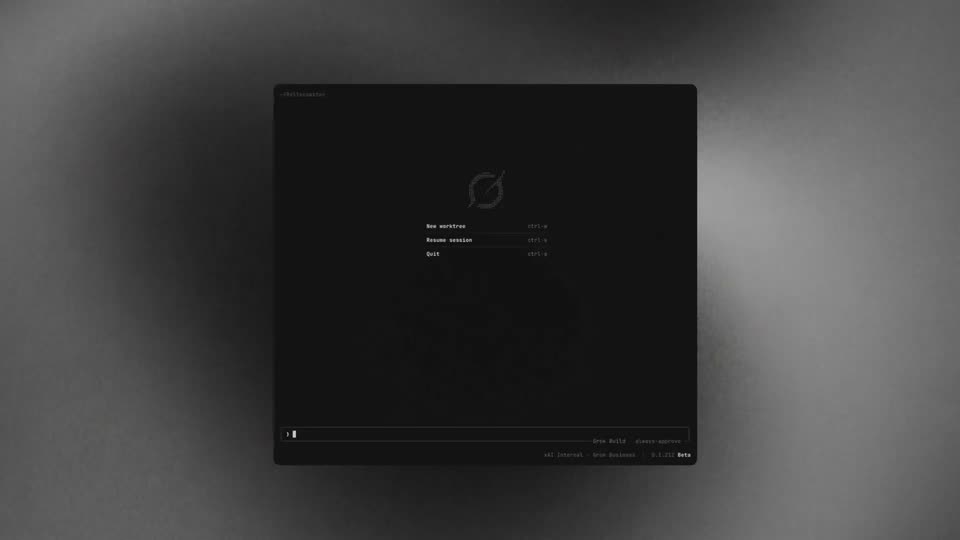
A dark macOS terminal window sits on a dotted black field. The frame zooms in as the prompt types cd ~/desktop/kimi, then kimi, opening a welcome panel with session details. A /login menu lists three platforms; the selection arrow moves down and a logged-in line appears.
Techniques: UI zoom, Cursor demo
Camera: Pull out
13 · CTA · 0:32–0:35
On a black dot-grid background, a blue rounded-square logo with two white bars sits left of a monospace headline that fades in word by word. A gray tagline stays static at the bottom throughout the locked-off frame.
On-screen text: “Try Kimi Code with K2.6”, “Agentic Intelligence. Affordable for All.”
Techniques: Kinetic type
Camera: Static