3:53
Explore SCGI in Atrio | 3D stylized Unity sample
Unity · Nov 2026
Juicebox · Aug 2026 · 1:21 · Full motion · AI-annotated
Juicebox’s 1:21 launch film runs 23 scenes, about 3.5 s each. The product is on screen from the first frame and 3 features are revealed. The call to action lands at 1:18 (96% in), over a voiceover. The video runs as a branded title card, a three line benefit list, then a chain of split screen Slack demos where white captions fade in one by one over a purple panel, and closes on a logo and URL card. Transitions are carried by circular wipes, crossfades, and the drifting halftone dot wave, keeping the pace steady at roughly eight cuts per minute.
Is this your launch? to your site or press kit.
A dark purple title card holds the white Juicebox logo and the headline Juicebox for Slack as a wave of small purple dots drifts across the lower half, clearing to reveal the text. A light purple circle then wipes in from the left to cover the frame.
On-screen text: “Juicebox for Slack”
Techniques: Particles, Masking
Camera: Static
A light lavender field holds a dark purple disc marked with a faint isometric grid. The disc grows in a circular wipe, its edge sweeping right until the purple grid fills the whole frame.
Techniques: Masking
Camera: Static
A purple field with a faint isometric line grid holds still as three white lines of text fade in one after another at center, then fade out at the end.
On-screen text: “Stay aligned on hiring progress”, “Review and shortlist candidates”, “Move searches forward, directly in Slack”
Techniques: Kinetic type
Camera: Static
A purple isometric grid holds a faint centered headline, then the frame splits: the left half shows a Slack channel with Juicebox agent messages and a Review profiles button, while the right half keeps the grid with a white headline. The layout is static and the pace is quick.
On-screen text: “Stay aligned on hiring progress”, “Add Juicebox to a channel where you collaborate with your hiring team”, “Review and shortlist candidates”, “Move searches forward, directly in Slack”
Techniques: Split screen
Camera: Static
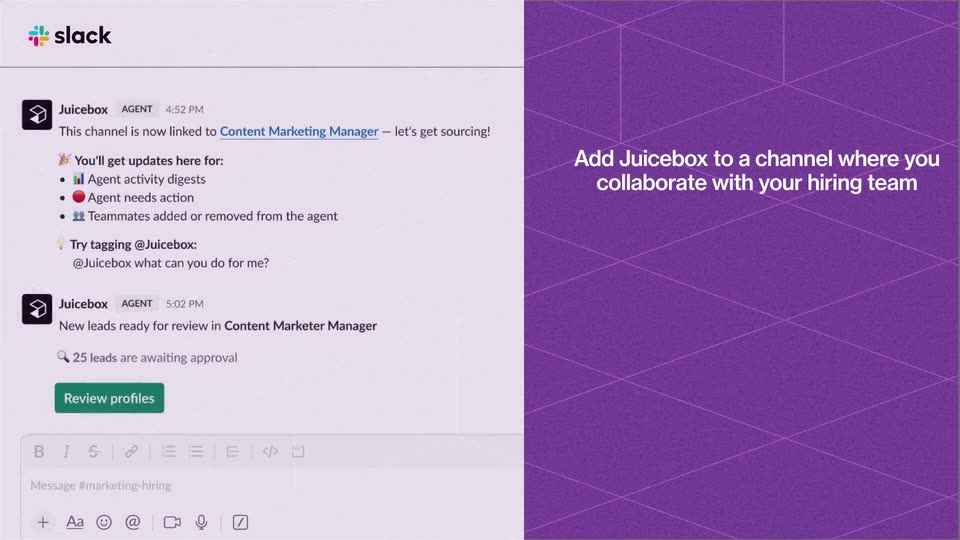
Split layout: a Slack channel with Juicebox agent messages on the left, a purple panel with a fine line pattern on the right. White captions fade in one by one on the panel, covering channel setup, updates, and tagging. The interface stays static throughout.
On-screen text: “Add Juicebox to a channel where you collaborate with your hiring team”, “Automatic updates on leads, replies, activity, and more”, “Tag @Juicebox to ask questions”
Techniques: Split screen, Kinetic type
Camera: Static
Split screen: a flat Slack channel on the left crossfades from a Juicebox agent update to a conversation where a user tags @Juicebox to source candidates. On the right, a purple geometric panel holds caption lines that fade in one by one.
On-screen text: “Add Juicebox to a channel where you collaborate with your hiring team”, “Automatic updates on leads, replies, activity, and more”, “Tag @Juicebox to ask questions”, “Perform actions in Juicebox, directly from Slack”, “Create an AI sourcing agent from a Slack conversation”
Techniques: Split screen, Kinetic type
Camera: Static
Split screen: a Slack conversation on the left shows the Juicebox agent replying to a sourcing request with a match count and a Review profiles button; a purple geometric panel on the right holds two white captions. The purple line pattern then fades across the frame as the scene exits.
On-screen text: “Perform actions in Juicebox, directly from Slack”, “Create an AI sourcing agent from a Slack conversation”
Techniques: Split screen
Camera: Static
A Slack channel view fades in over a purple wireframe background. The left panel brightens to reveal a candidate review card with an Approve and Reject button, while the geometric line pattern stays on the right.
Camera: Static
A Slack candidate review window sits over a dimmed chat on the left, while a purple panel with thin geometric lines on the right holds a white two-line headline. The split layout stays static throughout the clip.
On-screen text: “Review and shortlist candidates directly from Slack”
Techniques: Split screen
Camera: Static
A Slack candidate-review modal sits left over a dimmed channel, beside a purple panel carrying the headline. The UI fades out as the purple field expands, then a circular mask wipes from the top right to clear the frame.
On-screen text: “Review and shortlist candidates directly from Slack”
Techniques: Masking
Camera: Static
A purple curved shape wipes across the frame, briefly covering a dimmed candidate-review modal, then parts to reveal a Slack-style thread list on the right side.
Techniques: Masking
Camera: Static
A Slack channel window floats in 3D perspective against a purple gradient background. In the message box at the bottom, a command to Juicebox about best-fit leads types itself out letter by letter, a blinking caret trailing the text.
Techniques: 3D mockup
Camera: Static
A Slack channel view shows a feed of user prompts addressed to the bot scrolling upward, each line sliding up as the next appears, ending with a short bot status message above the empty message box.
Camera: Push in
A chat interface lists several messages from one user, each tagging an agent. A cursor hovers the code-block button, popping a shortcut tooltip, then the layout opens a right panel of candidate cards as the cursor moves to a reply thread.
Techniques: Cursor demo
Camera: Static
A chat thread shows a user asking @Juicebox for best-fit leads and the agent's reply listing candidates. The view reframes tighter on the thread, the interface dims, and a blank white card pops in over the right side.
Techniques: UI zoom
Camera: Pan
A close-up of a Slack thread zooms in on a vertical list of candidate cards. A cursor types the command @Juicebox shortlist these top 5 candidates into the message box and sends it, which appears as a new message from Adam Avramescu.
Techniques: UI zoom, Cursor demo
Camera: Push in
A close-up of a chat reply field and a column of candidate cards zooms out to reveal the full Slack window. The left thread shows a user's commands; the right thread shows the agent's confirmation and five shortlisted candidates.
Techniques: UI zoom
Camera: Static
A dimmed Slack workspace shows a channel list on the left and a thread on the right. A white agent reply card, listing five candidate names, floats with a drop shadow over the darkened thread. The dimming then fades out, restoring full brightness to the interface.
Camera: Static
Close-up of a Slack channel. In the compose box, @juicebox is typed, an autocomplete row for the Juicebox agent appears, then the message “tell me about the actions you can perform” is typed and sent, and the agent replies with a tip line.
Techniques: Cursor demo
Camera: Static
A Slack workspace fills the frame, a channel list on the left and a thread panel on the right. A large white headline reads across the top, then clears to reveal the full interface. The thread lists the agent's capabilities in sections. A text cursor sits in the message box.
On-screen text: “Juicebox show me the best-fit leads sourced by the instructional designer”
Camera: Pull out
A Slack thread shows the Juicebox agent's reply, a black square icon and a bulleted list of capabilities under Candidates, Projects and agents, Reminders, and Questions. The view is static, with a second message panel cut off at the left edge.
Camera: Static
A Slack window on a purple background splits into a channel list left and a thread panel right. The thread shows the Juicebox agent listing capabilities under headings like Candidates, Projects and agents, Reminders, Questions. The view holds still; a cursor appears at the top.
Camera: Static
A white cube mark and Juicebox wordmark hold center on a deep purple field, with the URL beneath. A halftone dot wave ripples across the lower half, its peaks shifting gently.
On-screen text: “Juicebox”, “juicebox.ai”
Techniques: Particles
Camera: Static