1:21
OpenAI - Now available: ChatGPT for Financial Services. This is a tailored Ch
ChatGPT for Financial Services · Sep 2026
Harvey · Oct 2025 · 2:31 · AI-annotated
Harvey’s 2:31 launch film runs 26 scenes, about 5.8 s each. The product is on screen from the first frame and 3 features are revealed. There is no explicit call to action; a voiceover carries the film. The video alternates locked-off serif title cards on off-white with zoomed product demos, moving from the brand lockup through three integration demos (SharePoint, Outlook, Word) to a recap of one connected workflow and a final logo. Its signature moves are gentle crossfades between centered phrases and smooth push-ins on the interface, held at a deliberately unhurried cut rate.
Is this your launch? to your site or press kit.
ChatGPT for Financial Services · Sep 2026
Whop · Jun 2026
On a plain off-white field, the black serif wordmark 'Harvey' fades in at center, then a slash and the four-square Microsoft logo with 'Microsoft' fade in to its right. The lockup holds, then cuts to the teal SharePoint icon and 'Sharepoint' wordmark.
On-screen text: “Harvey”, “Microsoft”, “Sharepoint”
Camera: Static
A plain off-white frame holds a vertical list of three app logos, each paired with its name. The rows fade in top to bottom, SharePoint first, then Outlook, then Word, and the full list fades out at the end.
On-screen text: “Sharepoint”, “Outlook”, “Word”
Camera: Static
Centered black serif phrases on a plain off-white background. “Quality at Speed” scales in, holds, then dissolves into “Work Without Interruption”, which crossfades into “Access Institutional Knowledge” before fading out.
On-screen text: “Quality at Speed”, “Work Without Interruption”, “Access Institutional Knowledge”
Techniques: Kinetic type
Camera: Static
A dimmed Vault dashboard sits behind a white Create project modal; a static caption reads Access Institutional Knowledge. A pointing-hand cursor hovers over the SharePoint row in the source list, highlighting it, while the drag-and-drop area and the Cancel and Create buttons stay fixed.
On-screen text: “Access Institutional Knowledge”
Techniques: Cursor demo
Camera: Static
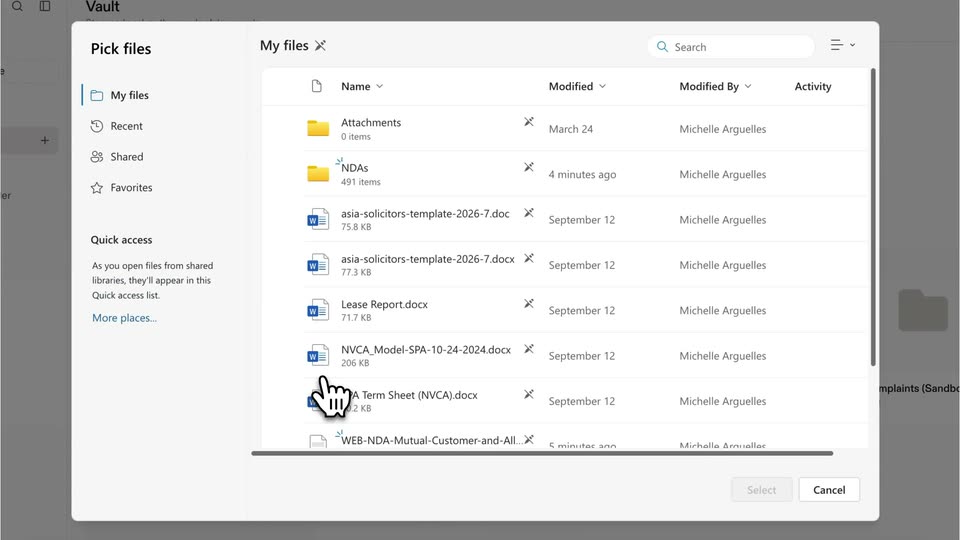
A file picker dialog fills the frame. The cursor clicks the NDAs folder, the list swaps to its PDF files, then the cursor ticks the select-all checkbox at the top of the list.
Techniques: Cursor demo
Camera: Static
A file-picker dialog fills the frame, its list of documents all flagged with blue check marks. A cursor rests near the top row, then moves down to press the blue Select button at the bottom right.
Techniques: Cursor demo
Camera: Static
A dimmed Vault interface centers a Create project modal. A large white cursor types NDAs into the project name field, then moves down and presses the Create button.
Techniques: Cursor demo
Camera: Static
A light document-vault screen scrolls down with motion blur, moving from the query panel to the project files table. A cursor hovers over the PDF list while an uploading toast sits in the corner.
Camera: Push in
A close-up of a file table shows an 'Uploading and processing' toast, then the frame zooms out to reveal the full app window with a left sidebar. The document list scrolls rapidly upward through rows of NDAs.
Techniques: UI zoom
Camera: Pull out
A full Outlook window with the Harvey sidebar sits on a gray backdrop, then the view zooms onto the right panel. A cursor clicks Summarize email, the summary types out, then clicks Send to Vault project, picks the NDAs folder and saves, ending on a Files saved toast.
Techniques: UI zoom, Cursor demo
Camera: Push in
A cursor works through the Harvey add-in inside a Word NDA: it attaches files from the Vault, picks the Check NDA prompt, and sends the query, while the sidebar lists the AI's working steps as the view zooms into the panel.
Techniques: UI zoom, Cursor demo
Camera: Push in
A two-pane Harvey interface shows a legal NDA on the left and an AI panel on the right. A cursor picks a prompt and sends it, the panel lists working steps, then applies redline edits that strike through clauses in the document.
Techniques: Cursor demo
Camera: Pull out
A document editor fills the frame: a legal contract with red strikethrough text on the left, Harvey comment boxes in the center, and a right panel listing applied AI suggestions with a checkmark. The interface holds still.
Camera: Static
A Mac window shows a Word term sheet beside the Harvey sidebar, which zooms in on an apply button as a cursor clicks it. A counter then climbs from 1 to 30 while the document scrolls and redlines fill in.
Techniques: UI zoom, Cursor demo
Camera: Pull out
A Word document sits beside a Harvey side panel; a cursor picks the Redact tool and toggles category checkboxes, then a progress checklist runs and black bars redact names and company data in the text. The view pulls back to the full Word window.
Techniques: Cursor demo, UI zoom
Camera: Pull out
A Microsoft Word window with the Harvey for Word sidebar open. A cursor clicks Run on the NDA Playbook, the panel shifts to a processing progress bar, then to a review-complete list of flagged clauses, and the view zooms into the results.
Techniques: Cursor demo, UI zoom
Camera: Push in
A 3D view of a Word window zooms into the document, where red strikethrough and red insertions mark the NDA text. A cursor clicks through the Harvey for Word sidebar, opening rule summaries and a text-to-review box.
Techniques: 3D mockup, UI zoom, Cursor demo
Camera: Push in
A Word document with tracked changes sits beside the Harvey for Word panel. The panel switches from a Needs review state to Review complete with a progress bar, and a cursor opens the Apply all suggestions dropdown.
Techniques: Cursor demo
Camera: Static
A Word document with tracked-change redlines sits beside a Harvey sidebar whose progress bar fills and flips from Generating suggestions to Review complete; a cursor clicks rule rows as the frame pulls back to reveal the whole window.
Techniques: Cursor demo, UI zoom
Camera: Pull out
A Word window shows a non-disclosure agreement with the Harvey for Word sidebar at right. The page scrolls through the contract, a dashed line ties a comment to a clause, and a Markup Area tooltip appears as the view flashes to dense two-column red markup before returning to the title.
Techniques: UI zoom
Camera: Pan
Centered serif phrases fade in and out in sequence on a plain off-white background: No Switching Apps, No Copying Files, No Lost Context, then One Connected Workflow. Each line holds briefly before dissolving to the next at an even pace.
On-screen text: “No Switching Apps”, “No Copying Files”, “No Lost Context”, “One Connected Workflow”
Techniques: Kinetic type
Camera: Static
A single word sits centered on a pale off-white field. “Documents” holds, then the frame cuts to “Drafts” in the same position and style.
On-screen text: “Documents”, “Drafts”
Camera: Static
The word Communication sits centered on a plain off-white field, holding as a section title. The frame stays locked off while the type softens into a brief blur at mid-clip, then settles back to a crisp hold.
On-screen text: “Communication”
Camera: Static
The words In Sync sit centered in a black serif face on a pale off-white field. The type holds perfectly still, a single locked-off title card with no other elements in frame.
On-screen text: “In Sync”
Camera: Static
On a plain off-white field, the gray serif tagline “In Sync” holds at center, then crossfades to the Harvey and Microsoft lockup, the two names joined by a slash and the four-color Microsoft square.
On-screen text: “In Sync”, “Harvey”, “Microsoft”
Camera: Static
On a white field, the Harvey / Microsoft lockup holds centered, the four-color square between the serif Harvey wordmark and the gray Microsoft wordmark. At 5.5 s the lockup scales down and the Microsoft half fades, leaving the black serif Harvey alone in the center.
On-screen text: “Harvey / Microsoft”, “Harvey”
Techniques: Kinetic type
Camera: Static