
0:54
Explore
00:00:00 / 01:25:10
- Length
- 1:25
- Scenes
- 23 · 3.7 s avg
- Product on screen
- 0:00
- Features shown
- 2
- Call to action
- 1:21 · 96%
- Voiceover
- Yes
Grep AI’s 1:25 launch film runs 23 scenes, about 3.7 s each. The product is on screen from the first frame and 2 features are revealed. The call to action lands at 1:21 (96% in), over a voiceover. Built as a chain of flat white cards and typed monospace lines on a faint grid, each feature is announced by a single line and then demoed with sliding UI panels, pop-in checkmarks and ticking counters. The signature moves are the typewriter reveal, the indigo checkmark and tile pops, and the closing dot-connecting animation, all cut to a steady ~127 bpm pulse.
No filming indicatedEstimated needs: 3 capture groups — your screens or recordings · 1 official logo — reused across the film · 5 graphic passages — draw or supply
Is this your launch? to your site or press kit.
More like this
0:45

Introducing SFX v3
ElevenLabs · AI · Oct 2026
1:29
wei-wei - Introducing Mo, the world's first AI QA engineer Point it at your ap
Momentic AI · Sep 2026
Connected Accounts Across Grep 2026-10-14 10.55, scene by scene
· 23 scenes as text
01 · Product intro · 0:00–0:02
On a light grid, the black title GREP AI sits center with a gray subtitle and a ring of white app-icon tiles. Purple checkmarks pop onto the tiles one by one, turning their borders purple. The scene cuts to the gray word Grep agents on the empty grid.
On-screen text: “GREP AI”, “Connected Accounts + Secure Browser Access”, “POWERED BY Composio”, “Grep agents”
Camera: Static
02 · Product intro · 0:02–0:06
On a white grid, the black monospace line “Grep agents now reach” fades in word by word. A large violet “1,000+” wipes in from the left with a checkered mask edge, then “tools” and a small gray caption “APPS · MCP SERVERS · APIS · WEBSITES” appear below.
On-screen text: “Grep agents now reach”, “1,000+”, “tools”, “APPS · MCP SERVERS · APIS · WEBSITES”
Techniques: Kinetic type, Masking
Camera: Static
03 · Feature reveal · 0:06–0:08
A white prompt card on a light grid types out a sentence, then the card scales down and centers as a two-word headline drops in above it.
On-screen text: “Plug in”
Techniques: UI zoom
Camera: Static
04 · Feature reveal · 0:08–0:11
On a pale grid, white app-logo tiles slide into a ring around a central command input, each popping a violet checkmark while the connected-apps counter ticks up. The headline resolves at the top.
On-screen text: “Plug in apps, MCPs and APIs”
Camera: Pan
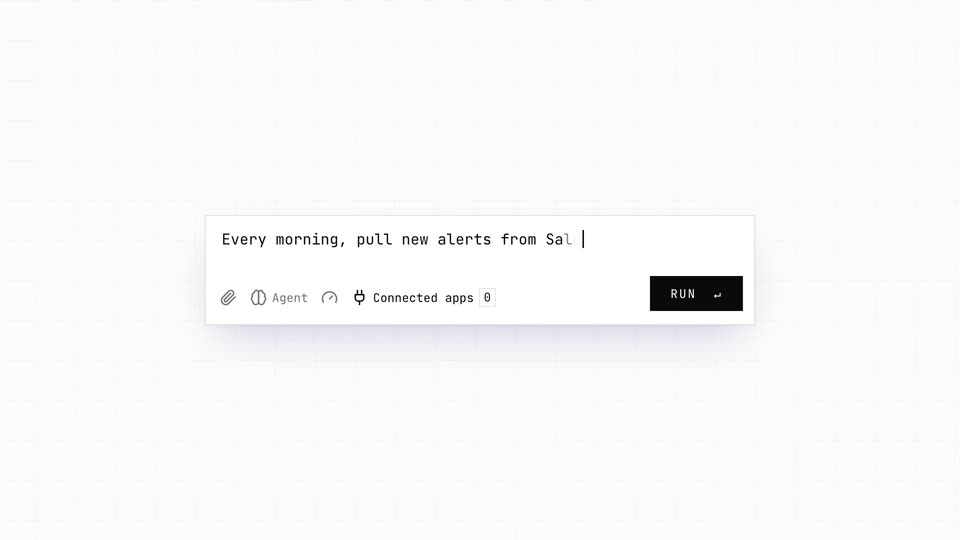
05 · Feature reveal · 0:11–0:12
On a light grid, app icons in white cards with purple checkmarks slide into place around a central prompt bar reading “Every morning, pull new alerts from Salesforce” with a black RUN button. The headline “Plug in apps, MCPs and APIs” holds above.
On-screen text: “Plug in apps, MCPs and APIs”
Techniques: Parallax
Camera: Static
06 · Feature reveal · 0:12–0:18
The Connections panel populates row by row: Salesforce, Gmail, Slack, Company Wiki, Billing API and NICE Actimize fade in, each toggle flipping on. The panel cuts to a blank grid where the words What about appear.
On-screen text: “What about”
Techniques: Kinetic type
Camera: Static
07 · Problem · 0:18–0:31
The headline “What about apps with no API?” types in word by word, the last phrase in purple, then slides up. Six white cards pop in one by one into a 3x2 grid, each with an icon, title and red tag; the last swaps to the NICE Actimize logo.
On-screen text: “What about apps with no API?”, “Internal tools”, “no API at all”, “Legacy cloud software”, “no public API”, “Vendor portals”, “login only”, “Government sites”, “no API to call”, “Research databases, API by separate contract”
Techniques: Kinetic type
Camera: Static
08 · Problem · 0:31–0:39
A white integration card sits centered on a faint grid, the previous card's text dissolving out at the start. Three checklist rows with lock icons fade in one after another, each gaining a colored status pill. A green confirmation pill appears at the bottom right.
Camera: Static
09 · Feature reveal · 0:39–0:42
On a light grid background, a black monospace line types in at center, the word Grep landing in indigo with a drawn underline. Then a small breadcrumb and a bold heading slide in from the right with a motion-blur offset above the line.
On-screen text: “Secure browser access, now in Grep”, “Grep / Connections”, “Add a connection”
Techniques: Kinetic type
Camera: Static
10 · Feature reveal · 0:42–0:43
A white product page with a faint grid shows the breadcrumb 'Grep / Connections' and a bold black heading 'Add a connection' at the top. The centered line 'Secure browser access, now in Grep' blurs and fades out, leaving the page empty.
On-screen text: “Secure browser access, now in Grep”
Camera: Static
11 · Feature reveal · 0:43–0:47
A white form card fades in on a faint grid background beneath a bold black heading. The fields type a URL, username and password, the MFA checkbox ticks, and a cursor moves to the save button.
Techniques: Cursor demo
Camera: Static
12 · Feature reveal · 0:47–0:50
A product page titled Add a connection on a light grid. The NICE Actimize connection card fades out as a gray padlock turns indigo inside a shrinking purple-bordered card. The caption Stored in your encrypted vault fades in below with a small green connected tag.
On-screen text: “Stored in your encrypted vault”
Techniques: Morph
Camera: Static
13 · Feature reveal · 0:50–0:54
A product page shows the headline “Work in any tool you sign into” above a command box. Monospace text types out a Salesforce workflow sentence, then a cursor glides to the black RUN button.
Techniques: Cursor demo
Camera: Static
14 · Feature reveal · 0:54–0:56
A light, flat UI card on a faint grid background shows a Salesforce cases table titled “Compliance alerts · AML review queue” beneath a four-step workflow bar. Status badges switch from “New” to “Pulled by Grep” row by row as a cursor hovers over the list.
Techniques: Cursor demo
Camera: Static
15 · Feature reveal · 0:56–0:57
A workflow diagram highlights the second step, Investigate, as the lower interface transitions from a simple alerts table to a detailed browser view. The new view lists cases with their disposition status.
Camera: Pan
16 · Feature reveal · 0:57–1:05
A two-panel interface mockup sits under a step bar and a fading-in headline. A cursor moves down the alerts table clicking Open on each row; disposition badges flip to Closed or RFI needed while the right panel fills with company entries and evidence badges.
On-screen text: “1 Pull alerts · Salesforce”, “2 Investigate · deep research, built-in data”, “3 Disposition · Actimize”, “4 Request info · Gmail”, “Deep research on every alert”
Techniques: Cursor demo
Camera: Static
17 · Feature reveal · 1:05–1:12
Two Gmail compose windows sit side by side under a four-step workflow bar; their email bodies type in line by line while green RFI-sent chips appear. The frame then pulls back to reveal the full pipeline, and the panels blur out.
On-screen text: “Pull alerts - Salesforce”, “Investigate - deep research, built-in data”, “Disposition - Actimize”, “Request info - Gmail”, “Salesforce - API”, “Actimize - secure browser”, “Gmail - RFIs sent”
Techniques: Split screen, UI zoom
Camera: Pull out
18 · Feature reveal · 1:12–1:15
A black monospace headline slides in on the left over a faint grid. On the right, a mosaic of colored squares assembles tile by tile, each labeled with a security feature such as MFA verified, SSO sign-in, and encrypted vault.
On-screen text: “Your logins stay locked down”
Techniques: Kinetic type
Camera: Static
19 · Demo · 1:15–1:19
A blue tile sits right of center on a white grid. One fades in beside it, then the sentence One agent connects every dot builds word by word, connects in blue. A blue square lands at the line's end as Slack, LinkedIn and brain icons pop in around it.
On-screen text: “One agent connects every dot”
Techniques: Kinetic type
Camera: Static
20 · Demo · 1:19–1:20
On a pale grid, five white tiles bearing service icons (cloud, globe, M, LinkedIn, brain) hold fixed positions while small colored squares pop in between them, the central purple square drifting left to suggest links forming.
Camera: Static
21 · Demo · 1:20–1:21
On a white grid, a purple square anchors a five-point star of app icons, each joined by a line of small colored squares. The dots pulse and swell as they draw toward the center. The frame stays locked off.
Camera: Static
22 · Outro · 1:21–1:21
A black rectangular mask sits center frame on a pale grid, then opens to reveal the word GREPAI sliding in with slight motion blur, locking into place.
On-screen text: “GREPAI”
Techniques: Masking, Kinetic type
Camera: Static
23 · CTA · 1:21–1:25
A black GREPAI wordmark with a segmented G holds center on a white grid background. Below it, the tagline Start connecting at grep.ai slides in, the address in purple with an underline.
On-screen text: “Start connecting at grep.ai”
Techniques: Kinetic type
Camera: Static