1:05

Introducing Lyria 3 music generation
Google · AI · Feb 2026
Gamma · Mar 2026 · 0:56 · AI-annotated
Gamma’s 0:56 launch film runs 37 scenes, about 1.5 s each. The product is on screen from the first frame and 2 features are revealed. The call to action lands at 0:51 (92% in). A launch film for Gamma Imagine that alternates painted sky landscapes carrying white taglines with clean UI walkthroughs of the Generate flow. The structure is intro, a full logo creation tour, two title-carded feature reveals, then a tagline and brand card close, all cut at a steady mid-tempo with smooth zooms, crossfades and cursor-led demos as the signature moves.
Is this your launch? to your site or press kit.
Google · AI · Feb 2026
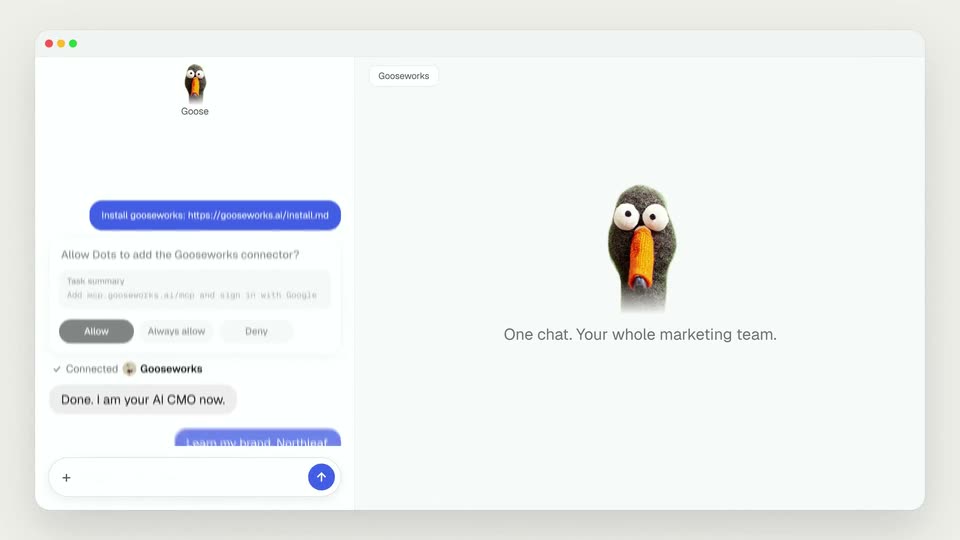
Gooseworks · Oct 2026
Proto · B2B · Nov 2026
An illustrated blue sky fills the frame with puffy white clouds, green hills in the lower corners, a striped balloon at left and an orange balloon at right. A centered white headline sharpens from a soft blur into focus.
On-screen text: “Introducing”, “Gamma Imagine”
Camera: Push in
A blue sky with white cumulus clouds fills the frame while the camera glides forward over the cloud layer. Centered white text reads Introducing Gamma Imagine, then gives way to A new way to design graphics, which scales in.
On-screen text: “Introducing”, “Gamma Imagine”, “A new way to design graphics”
Techniques: Kinetic type
Camera: Push in
The Generate screen zooms in toward the Graphic tab and language dropdowns as a hand cursor appears, then the view crossfades to a plain blue gradient where the heading “A new way to design graphics” scales in above a blue button.
On-screen text: “A new way to design graphics”
Techniques: UI zoom, Cursor demo, Kinetic type
Camera: Static
The screen zooms in on a row of option cards under the Generate heading. A cursor slides right and clicks the Graphic card, which highlights with a blue border and a NEW badge.
Techniques: Cursor demo, UI zoom
Camera: Static
A pale blue interface screen shows the heading Generate above a row of category buttons, the Graphic tab outlined in blue. A white panel below lists eight design template cards, Infographic, Poster, Team Structure, Invite, Calendar, Diagram, Logo, and Social Media Post, each with a thumbnail and caption.
Camera: Static
A light gray template gallery sits under the heading 'What do you want to design?'. Four cards line up, each pairing a thumbnail (charts, balloon poster, org chart, geometric invite) with a title and subtitle that settle from a stacked overlap; the right card is ringed in blue.
On-screen text: “What do you want to design?”
Techniques: Kinetic type
Camera: Static
A horizontal row of template cards drifts slowly to the right. Each card pairs a thumbnail with a title above and below: a monthly calendar, a blue flow diagram, a purple-and-orange hot-air-balloon logo, and a phone showing a social media post.
Camera: Pan
A grid of white category cards on a pale background scrolls slowly upward. Each card pairs an illustration or diagram with a title and subtitle, showing a calendar, a flowchart, a lightbulb mark, and a cat by a moonlit window.
Camera: Static
A light gray interface displays three template categories in a row: a blue flowchart, a balloon logo on a white card, and a phone mockup of a social post. A hand cursor moves across the middle logo card.
Techniques: Cursor demo
Camera: Static
A logo layout picker grid shows six hot-air-balloon logo examples in cards. A hand cursor glides from the icon card to the lettermark card while the icon card keeps a blue selection outline.
Techniques: Cursor demo
Camera: Static
A light-blue form interface shows three numbered steps. The prompt field types out a logo brief for Balloon Up, while dropdowns for theme, aspect ratio, count and quality sit above a blue Generate variations button.
Camera: Static
A flat product interface shows a settings row (Theme, Aspect ratio, Count, Quality) above a dark blue Generate variations button. A hand cursor clicks the button, and the view scrolls up to reveal a Pick a starting concept section with three loading cards.
Techniques: Cursor demo
Camera: Static
A white panel on a light blue background holds a bold dark heading and a line of gray text. Three gray cards sit side by side, each with a small purple spinner rotating in the middle and a label below. The view stays static.
Camera: Static
A white panel on a light blue background lists three balloon concept cards under a heading. A cursor glides to the left card and hovers over it, the card filling with white as the others stay outlined.
Techniques: Cursor demo
Camera: Static
A product interface shows two concept cards, each with a colorful hot air balloon illustration, under the title Pick a starting concept. A white hand cursor glides up from the lower right and rests on the first card, whose background lightens on hover.
Techniques: Cursor demo
Camera: Static
A white prompt composer with a blue outline sits on a light blue backdrop. A hot air balloon emoji flanks the field as “Add some more blue” types out, then a cursor moves to the send button and a dark “Send to AI, Enter” tooltip pops up.
Techniques: Cursor demo
Camera: Static
A two-panel interface: the left chat thread shows the prompt “Add some more blue” and a before-and-after thumbnail pair, while the right canvas shows a hot air balloon illustration whose stripes shift toward more blue. A cursor rests in the prompt field.
Techniques: Cursor demo
Camera: Static
A presentation editor interface fills the frame, locked off. The center slide shows a striped hot air balloon over green mountains and white clouds, with the title Balloon Up and a tagline beneath. A left sidebar lists numbered slide thumbnails and a top bar holds menu buttons.
Camera: Static
A presentation editor displays a slide titled Balloon Up, showing a striped hot air balloon above illustrated green mountains and white clouds. A left panel lists slide thumbnails and a top toolbar holds Theme, Share, Agent and Present buttons. The frame holds still.
Camera: Static
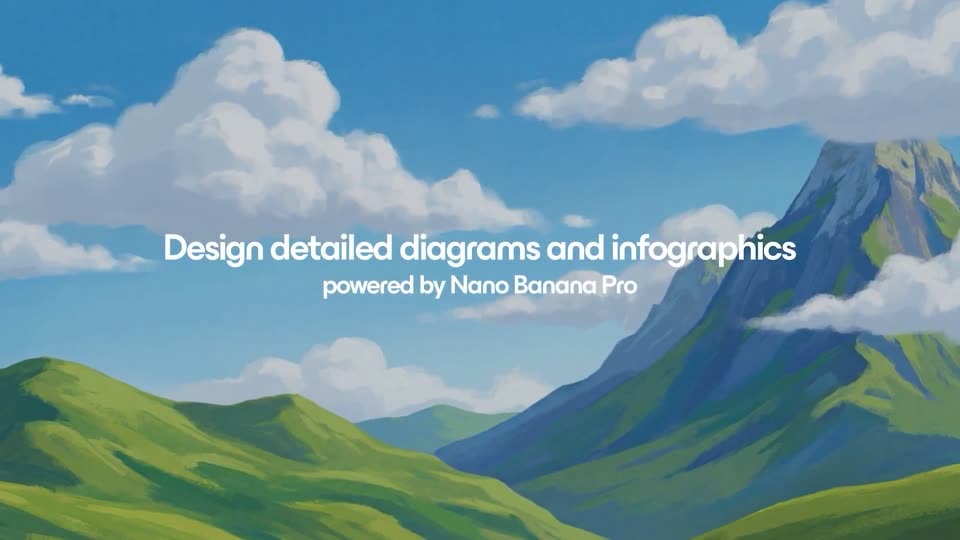
A painted landscape of rolling green hills, a blue mountain and a bright cloudy sky holds still. Two lines of white text fade in at the center, the headline above a smaller subline.
On-screen text: “Design detailed diagrams and infographics”, “powered by Nano Banana Pro”
Camera: Static
A painterly landscape illustration fills the frame: green rolling hills in the foreground, a tall blue-green mountain on the right, and soft white clouds drifting slowly across a blue sky. Two lines of white text sit centered over the middle of the scene.
On-screen text: “Design detailed diagrams and infographics”, “powered by Nano Banana Pro”
Camera: Static
A painted landscape of green rolling hills and a blue-green peak under a cloudy sky drifts slowly. Two lines of white text hold still in the center over the scene.
On-screen text: “Design detailed diagrams and infographics”, “powered by Nano Banana Pro”
Camera: Static
A light-blue screen shows the Generate view: a row of category tabs with Graphic highlighted, above a grid of labeled design templates. A cursor drifts from the Team Structure tile toward the Poster tile. The frame holds steady with no camera move.
On-screen text: “Design detailed diagrams and infographics”, “powered by Nano Banana Pro”
Techniques: Cursor demo
Camera: Static
A white grid of template categories, each card pairing a thumbnail with a title and subtitle. A hand cursor drifts down to hover the center of the Diagram card.
Techniques: Cursor demo
Camera: Static
A white Generate panel sits on a light blue gradient, listing creation buttons and a grid of six diagram layout thumbnails. A cursor glides in from the right and hovers over the Mind Map card.
Techniques: Cursor demo
Camera: Static
A white panel lists template cards, each with a balloon diagram and a caption. A hand cursor hovers over the right card, which holds a blue border, then nudges downward. The middle card reads System Architecture.
Techniques: Cursor demo
Camera: Static
A prompt form fills in as a sentence types into the theme box, then the view scrolls down to show the settings row and a blue Generate variations button, with the Theme field switching from None to Sage.
Techniques: UI zoom
Camera: Static
A close-up of a design tool panel shows a prompt about a turbofan engine diagram above Theme, Aspect ratio, Count and Quality dropdowns. A hand cursor moves down and clicks the blue Generate variations button, which darkens and switches to a spinner with Generating variations...
Techniques: Cursor demo
Camera: Static
A light blue screen holds a white panel titled Pick a starting concept with three dark engine-diagram cards: Blueprint Core, Thermal Flow, Engine Systems Flow. The cards fade from dim to full color while a blue Generate more button with a 102 counter fades in below.
Camera: Static
Two dark navy engine-diagram cards sit side by side on a white page, the left one cropped at the frame edge. A white hand cursor hovers over the lower right of the right card, which is captioned with a title and a two-line description.
On-screen text: “CFM LEAP-1B ENGINE SYSTEM DIAGRAM”, “Engine Systems Flow”, “Linear cross-section layout shows airflow, combustion stages”
Techniques: Cursor demo
Camera: Static
A presentation app window shows a slide titled Inside a Modern Turbofan Engine with body text, an engine photo and a dark system diagram card, a thumbnail rail on the left and a tool rail on the right. The whole window slowly pushes in.
Camera: Static
Stylized illustration of a green mountain valley with pine trees and a blue sky, three hot air balloons drifting slowly. White text “Matched to your theme” fades in at the center of the frame.
On-screen text: “Matched to your theme”
Camera: Push in
A presentation canvas holds a slide titled “Built on Proven, Powerful Technology,” its diagram pairing dark and purple pill labels around five central ovals. A thumbnail rail lines the left edge and a vertical tool strip the right, all in a soft lavender workspace.
Camera: Static
A light-blue workspace displays a document page about a May 7 Central Park itinerary. An isometric bar chart splits the day into five pastel segments, each tied to an icon and label. A page list fills the left margin, a tool rail the right edge. The frame holds steady.
Camera: Static
A presentation slide titled Everything You Need to Know sits in a slide editor, listing Legacy, Focus and Vision on the left and a four-part SWOT grid with flat illustrations on the right. The view eases out to reveal the thumbnail rail.
Techniques: UI zoom
Camera: Static
A painted landscape of green and blue mountains under a bright sky full of white clouds holds a locked-off frame as the white headline fades in at the center.
On-screen text: “Design anything you can imagine”
Camera: Static
An illustrated landscape of green hills under a blue sky with drifting clouds. The white tagline fades out as the GAMMA wordmark and the URL gamma.app fade in at center. The frame holds on the logo over the slowly panning illustration.
On-screen text: “Design anything you can imagine”, “gamma.app”
Techniques: Parallax
Camera: Push in