
1:34
Explore
00:00:00 / 00:49:01
- Length
- 0:49
- Scenes
- 17 · 2.9 s avg
- Product on screen
- 0:03
- Features shown
- 3
- Voiceover
- No
- Views
- 19K on YouTube
as of November 27, 2026
Figma’s 0:49 launch film runs 17 scenes, about 2.9 s each. The product shows up at 0:03 and 3 features are revealed, with social proof. There is no explicit call to action. The video is a cursor-led screen tour: a typed prompt opens, then one oversized white-outlined cursor performs each AI image tool in turn (lasso, remove, expand, isolate) on a maroon incense still-life, with quick zoom punches into the canvas. Its signature moves are the dashed selection ring that rides the cursor, the 3D tilt of the mockups, and the black title card that erases half a sentence to land the punchline.
No filming indicatedEstimated needs: 6 capture groups — your screens or recordings · 1 official logo — reused across the film · 3 graphic passages — draw or supply · 1 3D passage — build or supply
Is this your launch? to your site or press kit.
More like this




Similar soundtrack
Films whose music sounds like this one, voice left out
2:08

Superhuman AI 2.0
Superhuman · Lo-fi hip-hop / chillhop
0:58


Simplex Launch Video
Simplex · Funk, hip-hop, and electronic dance music
1:10

Introducing workspace agents in ChatGPT
OpenAI · Funk, electronic funk
New AI image editing tools | Figma, scene by scene
· 17 scenes as text
01 · Hook · 0:00–0:00
On a flat light gray field, a black mouse cursor with a white outline and soft shadow drifts diagonally across the frame. At the left, the phrase types out letter by letter behind a thin vertical caret, ending mid-word.
On-screen text: “Change the color of th”
Techniques: Kinetic type
Camera: Static
02 · Hook · 0:00–0:03
A prompt is typed into an AI edit field, first on a plain blue background, then over a top-down table scene with a blue checkered cloth and white plate, as a large cursor arrow slides to the Edit image button.
Techniques: Cursor demo
Camera: Static
03 · Demo · 0:03–0:05
The editor is zoomed in on a still-life image: incense smoke drifts over a blue checkered cloth. The view pulls back to the full interface, sidebars and properties panel included, while the cursor glides toward the image's corner.
Techniques: UI zoom, Cursor demo
Camera: Pull out
04 · Feature reveal · 0:05–0:13
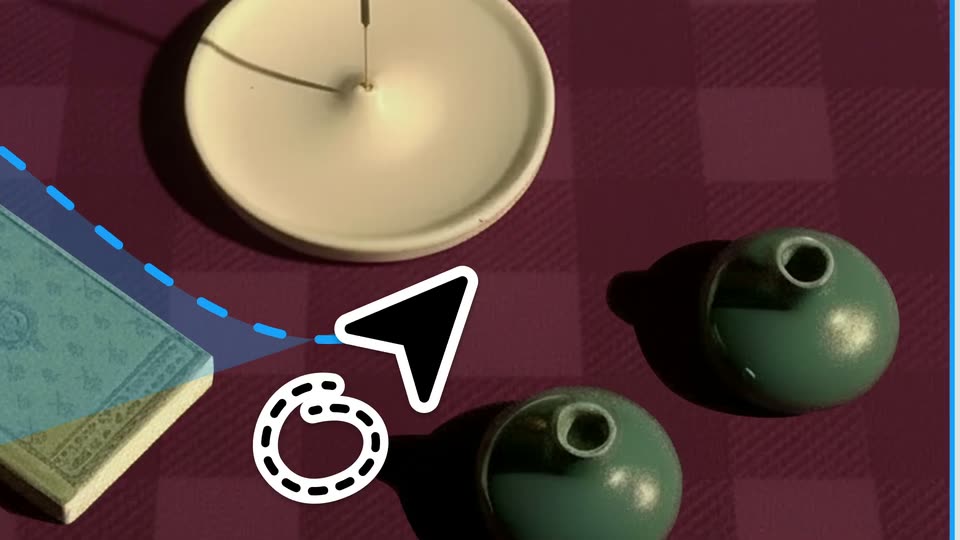
A flat-lay photo of a book, plate and two vases sits in an editor canvas. A cursor selects the image, opens a context menu, picks Select area, then draws a lasso around the objects as the view zooms in and a blue selection fill appears.
Techniques: Cursor demo, UI zoom
Camera: Push in
05 · Feature reveal · 0:13–0:17
The view pulls back from a close-up of a dashed blue lasso around a book and two vases to the full editor canvas. A black cursor clicks Remove object... in the toolbar, and the label switches to Removing object... with a spinner.
Techniques: UI zoom, Cursor demo
Camera: Pull out
06 · Feature reveal · 0:17–0:19
A cursor glides over a selected image of a plate on a maroon checkered cloth; the image tilts and shrinks as a blue 800 × 600 badge pops in beneath it, above a white icon toolbar.
Techniques: Cursor demo
Camera: Static
07 · Feature reveal · 0:19–0:19
An angled 3D view of a webpage mockup shows a maroon checkered tablecloth with a beige incense holder, framed by a blue selection box with corner handles and a size label. A large white cursor arrow hovers over the image.
On-screen text: “800 × 600”
Techniques: 3D mockup
Camera: Pull out
08 · Feature reveal · 0:19–0:22
A flat mobile mockup of a burgundy website sits centered on a light gray field inside a blue selection box. A large white cursor glides over the incense hero image as the frame zooms out to reveal the whole phone, then zooms in on the top menu.
Techniques: Cursor demo, UI zoom
Camera: Static
09 · Feature reveal · 0:22–0:27
A product card with a dashed blue selection outline sits on a gray canvas. A large black cursor becomes a vertical resize handle and drags the bottom edge, expanding the maroon image to fill the card; an Expand image tooltip pops over a blue button, then the cursor exits.
Techniques: Cursor demo
Camera: Push in
10 · Feature reveal · 0:27–0:30
A dark maroon product page shows a gold cylinder and a glass vessel under the Nilo logo and a serif nav bar. A black cursor with an undo glyph moves, then a blue dashed ellipse outlines the cylinder as a blue wedge wipes in from the left.
Techniques: Cursor demo
Camera: Static
11 · Feature reveal · 0:30–0:31
A close-up of a website header over a dark maroon photo of smoldering incense. A blue dashed oval marks the left edge while a black cursor with a white outline and a dashed click ring drifts around inside it. The menu lists Ceramics, Incense, Candles and Stationery.
Techniques: Cursor demo
Camera: Pull out
12 · Feature reveal · 0:31–0:36
A design canvas shows a Nilo mobile mockup on a maroon incense photo. A cursor hovers the incense tube, a dashed ellipse selection and an Isolate tooltip appear, then the selection switches to a bounding box and the frame zooms out to reveal the full layout.
Techniques: Cursor demo, UI zoom
Camera: Pull out
13 · Social proof · 0:36–0:39
A mobile mockup of the Nilo incense product page slides up to the center of a plain gray canvas. Two arrow cursors hover at its edges while a blue chat bubble pops in on the right, reading 'Chad' before typing 'Perfect!'.
On-screen text: “Nilo / Home / Mobile”, “Chad”, “Perfect!”
Techniques: Cursor demo
Camera: Pull out
14 · Other · 0:39–0:42
White two-line headline on black. A blue dashed marquee draws itself around “doesn't exist.” while a cursor with a dashed ring moves in. A white Erase button pops in, the cursor clicks it, and the line vanishes, leaving “The perfect image.”
On-screen text: “The perfect image”, “doesn't exist.”
Techniques: Cursor demo, Kinetic type
Camera: Static
15 · Other · 0:42–0:44
A black card holds the white headline “The perfect image.” in the upper left, static throughout. A white outlined cursor arrow drifts from center to the left edge, rotates, and exits the frame.
On-screen text: “The perfect image”, “doesn't exist.”, “Erase”
Camera: Static
16 · Outro · 0:44–0:45
On a black background, three clusters of flat geometric shapes drift and rotate in place: a red circle ringed by purple squares, an orange circle ringed by blue squares, and a green circle set in an orange square frame. The frame stays locked off.
Camera: Static
17 · Outro · 0:45–0:49
On a black field, scattered colored circles and squares drift toward the center and merge into a compact multicolor logo. The corner squares fade out as the pill, circles and dot settle into the mark, which then holds still.
Techniques: Morph
Camera: Static